The module lifecycle stage: General Availability
Environment requirements
The following prerequisites must be met for Deckhouse Platform to work correctly with VMware vSphere:
- Access to vCenter;
- A user account with the required set of privileges;
- Tags and tag categories created in vSphere;
- Networks with DHCP and Internet access;
- Shared Datastore resources available on all ESXi hosts in use;
- vSphere version
7.xor8.xwith support forOnline volume expansion; - vCenter accessible from inside the cluster from the master nodes;
- A configured Datacenter that includes the following objects:
- VirtualMachine template:
- The virtual machine image must use
Virtual machines with hardware version 15 or later— this is required for online resize support. - The image must include the
open-vm-tools,cloud-init, andcloud-init-vmware-guestinfopackages if thecloud-initversion is lower than21.3.
- The virtual machine image must use
- Network:
- The network must be available on all ESXi hosts where virtual machines are planned to be created.
- Datastore (one or more):
- The Datastore must be connected to all ESXi hosts where virtual machines are planned to be created.
- A tag from the category specified in the
zoneTagCategoryparameter must be assigned to the Datastore (default:k8s-zone). This tag defines the zone. - All Cluster objects within the same zone must have access to all Datastore objects in that zone.
- Cluster:
- All ESXi hosts in use must be added to the Cluster.
- A tag from the category specified in the
zoneTagCategoryparameter must be assigned to the Cluster (default:k8s-zone). This tag defines the zone.
- Folder for the virtual machines being created:
- This parameter is optional.
- By default, the root virtual machine folder is used.
- Role:
- The role must include the required set of privileges.
- User:
- The user must be assigned the role specified in the previous item.
- VirtualMachine template:
- A tag from the category specified in the
regionTagCategoryparameter must be assigned to the created Datacenter (default:k8s-region). This tag defines the region.
List of required vSphere resources
- User with required set of privileges.
- Network with DHCP server and access to the Internet.
- Datacenter with a tag in
k8s-regioncategory. - Cluster with a tag in
k8s-zonecategory. - Datastore with required tags.
- Template — prepared VM image.
List of required privileges
Read the Configuration via vSphere Client and Configuration via govc sections for details on how to create and assign a role to a user.
A detailed list of privileges required for Deckhouse Platform to work in vSphere:
| Privilege category in UI | Privileges in UI | Privileges in API | Purpose in Deckhouse |
|---|---|---|---|
| — | — (assigned by default when creating a role) |
System.AnonymousSystem.ReadSystem.View
|
Basic access to vSphere Inventory objects required for all Deckhouse vSphere integration components. |
| Cns | Searchable | Cns.Searchable |
Search and mapping of Container Native Storage objects when the CSI driver works with Kubernetes volumes. |
| Datastore |
Allocate space, Browse datastore, Low level file operations |
Datastore.AllocateSpaceDatastore.BrowseDatastore.FileManagement
|
Disk provisioning when creating virtual machines and ordering PersistentVolumes in the cluster. |
| Folder |
Create folder, Delete folder, Move folder, Rename folder |
Folder.CreateFolder.DeleteFolder.MoveFolder.Rename
|
Grouping a Deckhouse Platform cluster in a single Folder in vSphere Inventory. |
| Global |
Global tag, System tag |
Global.GlobalTagGlobal.SystemTag
|
Access to global and system tags used by Deckhouse Platform when working with vSphere objects. |
| vSphere Tagging |
Assign or Unassign vSphere Tag, Assign or Unassign vSphere Tag on Object, Create vSphere Tag, Create vSphere Tag Category, Delete vSphere Tag, Delete vSphere Tag Category, Edit vSphere Tag, Edit vSphere Tag Category, Modify UsedBy Field for Category, Modify UsedBy Field for Tag |
InventoryService.Tagging.AttachTagInventoryService.Tagging.ObjectAttachableInventoryService.Tagging.CreateTagInventoryService.Tagging.CreateCategoryInventoryService.Tagging.DeleteTagInventoryService.Tagging.DeleteCategoryInventoryService.Tagging.EditTagInventoryService.Tagging.EditCategoryInventoryService.Tagging.ModifyUsedByForCategoryInventoryService.Tagging.ModifyUsedByForTag
|
Deckhouse Platform uses tags to identify the Datacenter, Cluster, and Datastore objects available to it, as well as to identify the virtual machines under its control. |
| Network | Assign network | Network.Assign |
Connecting networks and port groups to Deckhouse Platform cluster virtual machines. |
| Resource |
Assign virtual machine to resource pool, Create resource pool, Modify resource pool, Remove resource pool, Rename resource pool |
Resource.AssignVMToPoolResource.CreatePoolResource.DeletePoolResource.EditPoolResource.RenamePool
|
Placement of Deckhouse Platform cluster virtual machines into the target resource pool and management of this pool. |
| VM Storage Policies (Profile-driven Storage Privileges in vSphere 7) | View VM storage policies (Profile-driven storage view in vSphere 7) | StorageProfile.View |
Viewing storage policies used when creating virtual machines and dynamically provisioning volumes in the cluster. |
| vApp |
Add virtual machine, Assign resource pool, Create, Delete, Import, Power Off, Power On, View OVF Environment, vApp application configuration, vApp instance configuration, vApp resource configuration |
VApp.ApplicationConfigVApp.AssignResourcePoolVApp.AssignVMVApp.CreateVApp.DeleteVApp.ExtractOvfEnvironmentVApp.ImportVApp.InstanceConfigVApp.PowerOffVApp.PowerOnVApp.ResourceConfig
|
Managing operations related to deployment and configuration of vApp and OVF templates used when creating virtual machines. |
| Virtual Machine > Change Configuration |
Add existing disk, Add new disk, Add or remove device, Advanced configuration, Set annotation, Change CPU count, Toggle disk change tracking, Extend virtual disk, Acquire disk lease, Modify device settings, Configure managedBy, Change Memory, Query unowned files, Configure Raw device, Reload from path, Remove disk, Rename, Reset guest information, Change resource, Change Settings, Change Swapfile placement, Upgrade virtual machine compatibility |
VirtualMachine.Config.AddExistingDiskVirtualMachine.Config.AddNewDiskVirtualMachine.Config.AddRemoveDeviceVirtualMachine.Config.AdvancedConfigVirtualMachine.Config.AnnotationVirtualMachine.Config.CPUCountVirtualMachine.Config.ChangeTrackingVirtualMachine.Config.DiskExtendVirtualMachine.Config.DiskLeaseVirtualMachine.Config.EditDeviceVirtualMachine.Config.ManagedByVirtualMachine.Config.MemoryVirtualMachine.Config.QueryUnownedFilesVirtualMachine.Config.RawDeviceVirtualMachine.Config.ReloadFromPathVirtualMachine.Config.RemoveDiskVirtualMachine.Config.RenameVirtualMachine.Config.ResetGuestInfoVirtualMachine.Config.ResourceVirtualMachine.Config.SettingsVirtualMachine.Config.SwapPlacementVirtualMachine.Config.UpgradeVirtualHardware
|
Managing the lifecycle of Deckhouse Platform cluster virtual machines. |
| Virtual Machine > Edit Inventory |
Create new, Create from existing, Remove, Move |
VirtualMachine.Inventory.CreateVirtualMachine.Inventory.CreateFromExistingVirtualMachine.Inventory.DeleteVirtualMachine.Inventory.Move
|
Creating, deleting, and moving Deckhouse Platform cluster virtual machines in vSphere Inventory. |
| Virtual Machine > Guest Operations | Guest Operation Queries | VirtualMachine.GuestOperations.Query |
Retrieving information from the guest operating system of virtual machines. |
| Virtual Machine > Interaction |
Answer question, Device connection, Guest operating system management by VIX API, Power Off, Power On, Reset, Configure CD media, Install VMware Tools |
VirtualMachine.Interact.AnswerQuestionVirtualMachine.Interact.DeviceConnectionVirtualMachine.Interact.GuestControlVirtualMachine.Interact.PowerOffVirtualMachine.Interact.PowerOnVirtualMachine.Interact.ResetVirtualMachine.Interact.SetCDMediaVirtualMachine.Interact.ToolsInstall
|
Managing virtual machine power state, device connections, and interaction with the guest operating system. |
| Virtual Machine > Provisioning |
Clone virtual machine, Customize guest, Deploy template, Allow virtual machine download, Allow virtual machine files upload, Read customization specifications |
VirtualMachine.Provisioning.CloneVirtualMachine.Provisioning.CustomizeVirtualMachine.Provisioning.DeployTemplateVirtualMachine.Provisioning.GetVmFilesVirtualMachine.Provisioning.PutVmFilesVirtualMachine.Provisioning.ReadCustSpecs
|
Cloning virtual machine templates, customizing them, and deploying them when creating Deckhouse Platform cluster nodes. |
| Virtual Machine > Snapshot Management |
Create snapshot, Remove Snapshot, Rename Snapshot |
VirtualMachine.State.CreateSnapshotVirtualMachine.State.RemoveSnapshotVirtualMachine.State.RenameSnapshot
|
Managing snapshots of virtual machines and volumes in scenarios where this functionality is used by platform components. |
vSphere configuration
Configuration in vSphere Client
Creating tags and tag categories in vSphere Client
VMware vSphere does not have built-in concepts of a “region” or a “zone”. In vSphere, a Datacenter acts as a region, and a Cluster acts as a zone. Tags are used to establish this mapping.
-
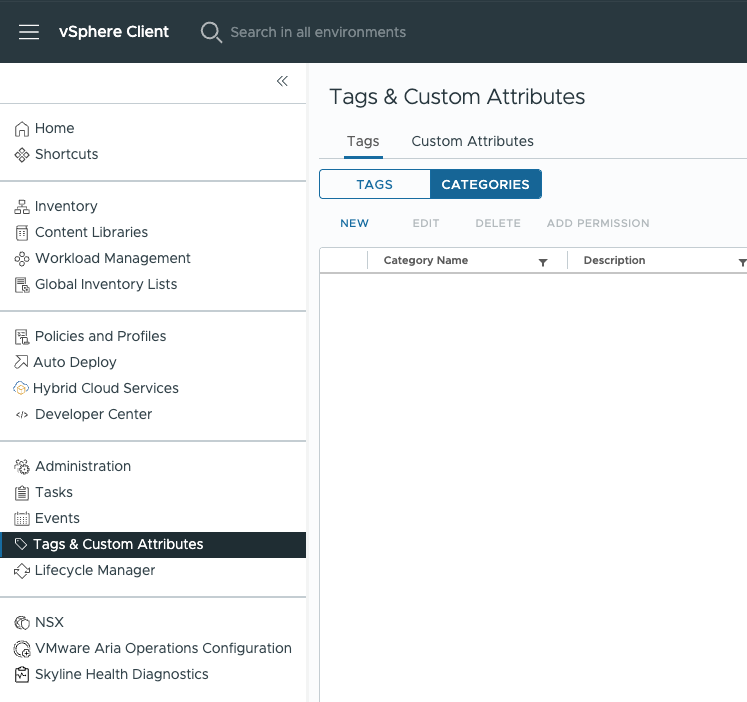
Open vSphere Client and go to “Menu” → “Tags & Custom Attributes” → “Tags”.
-
Open the “Categories” tab and click “NEW”. Create a category for regions (for example,
k8s-region): set “Tags Per Object” to “One tag” and specify the applicable object types, including Datacenter.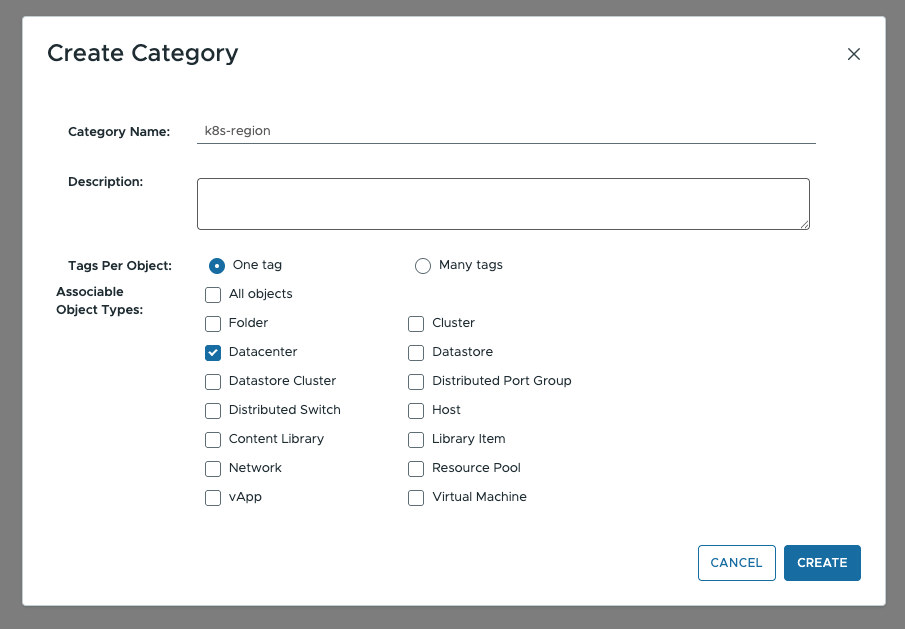
-
Create a second category for zones (for example,
k8s-zone) with the object types Host, Cluster, and Datastore.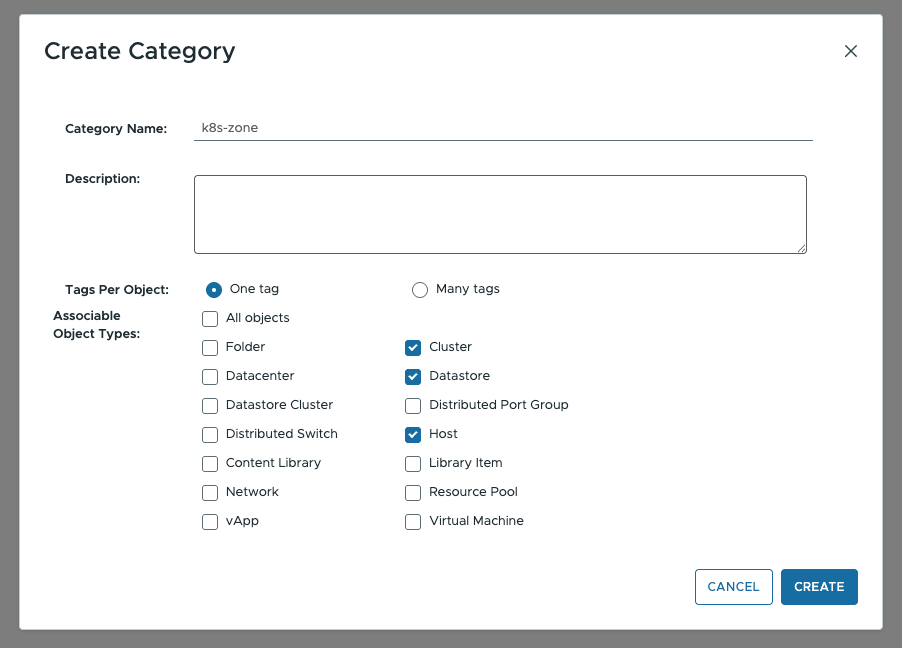
-
Go to the “Tags” tab and create at least one tag in the region category and one tag in the zone category (for example,
test-region,test-zone-1).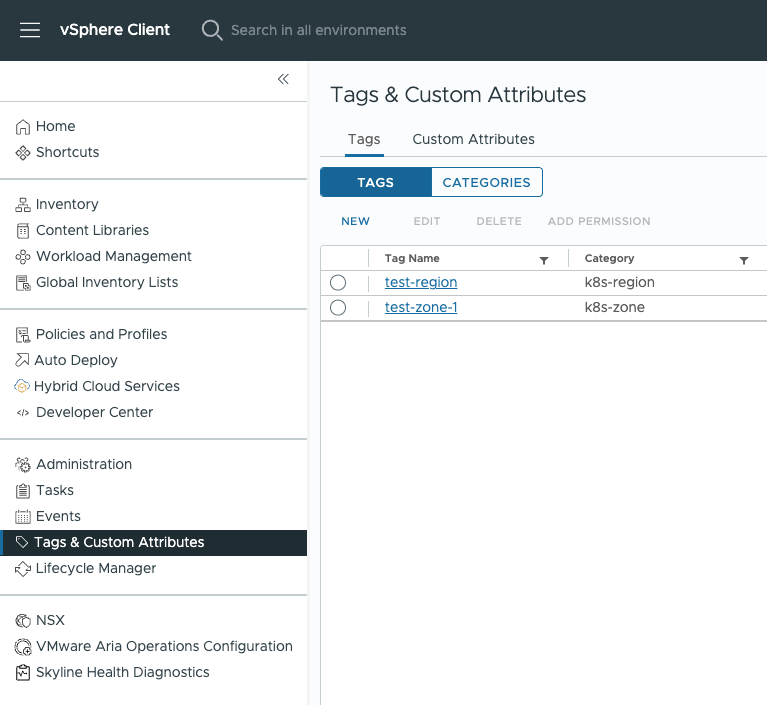
-
In the “Inventory” tab, select the target Datacenter, open the “Summary” panel, then choose “Actions” → “Tags & Custom Attributes” → “Assign Tag” and assign the region tag. Repeat this step for each Cluster that will host nodes, assigning the appropriate zone tags.

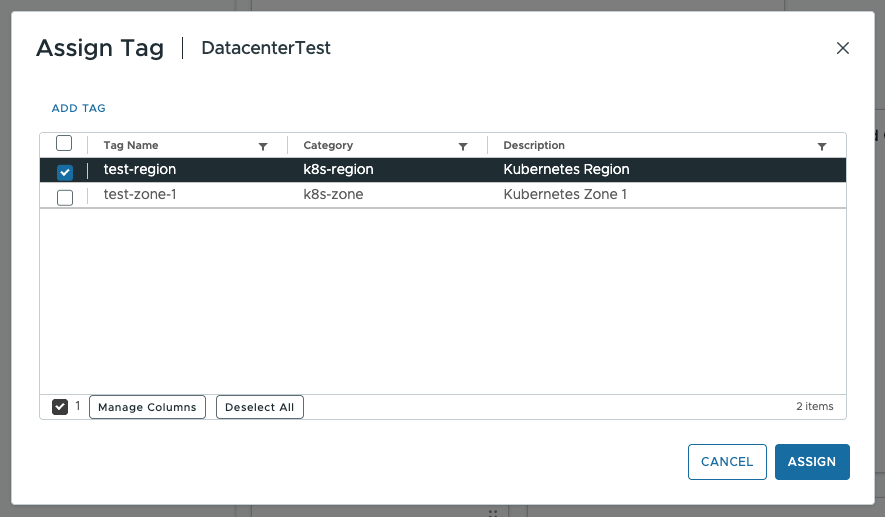
Configuring Datastore in vSphere Client
For dynamic provisioning of PersistentVolume, the Datastore must be available on every ESXi host in the zone (shared datastore).
In the “Inventory” tab, select the Datastore, open the “Summary” panel, then choose “Actions” → “Tags & Custom Attributes” → “Assign Tag”. Assign the Datastore the same region tag as the corresponding Datacenter, and the same zone tag as the corresponding Cluster.
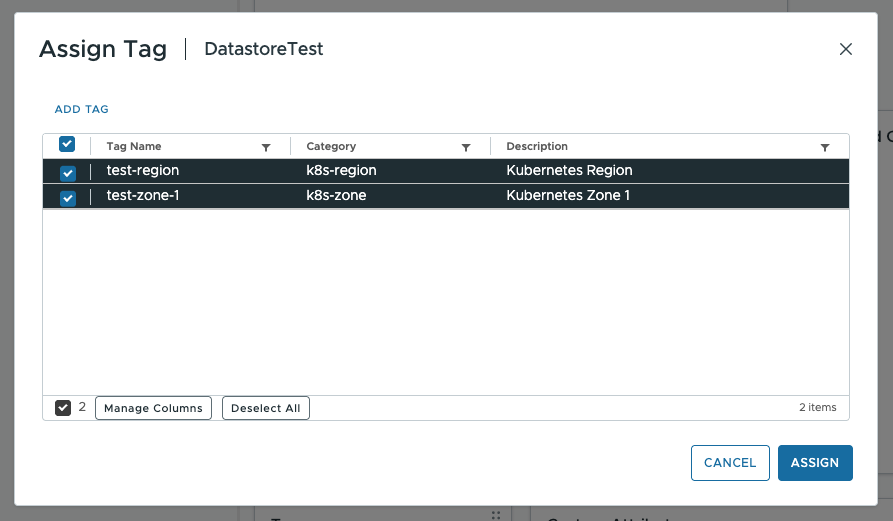
Creating and assigning a role in vSphere Client
-
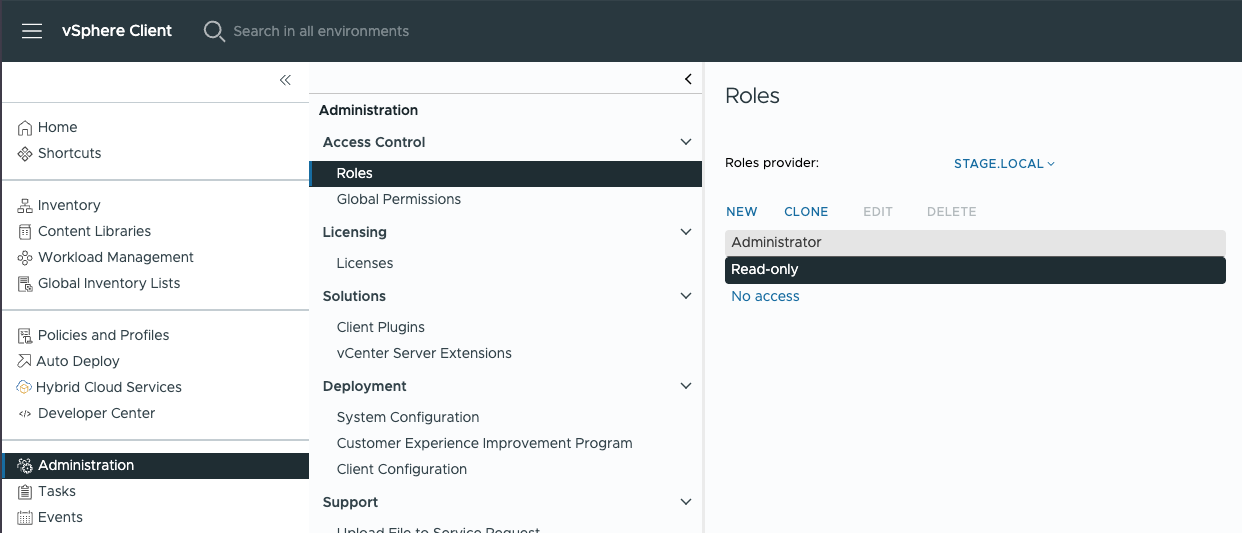
Go to “Menu” → “Administration” → “Access Control” → “Roles”.
-
Click “NEW”, enter a role name (for example,
deckhouse), and add the privileges from the list.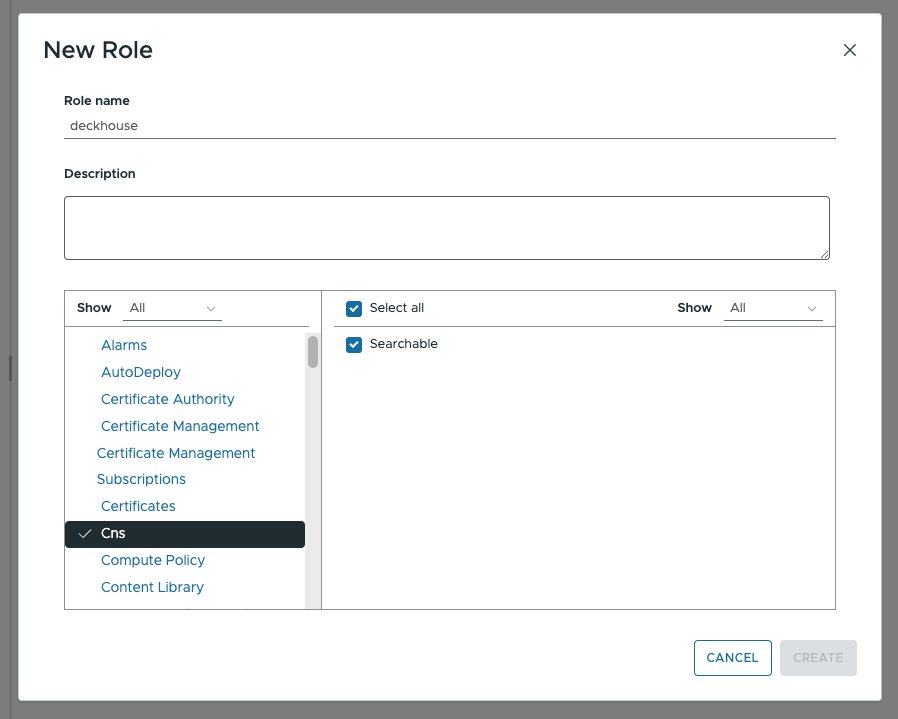
-
Assign the role to the Deckhouse service account: go to “Menu” → “Administration” → “Access Control” → “Global Permissions”, click “ADD”, and select the user and the
deckhouserole.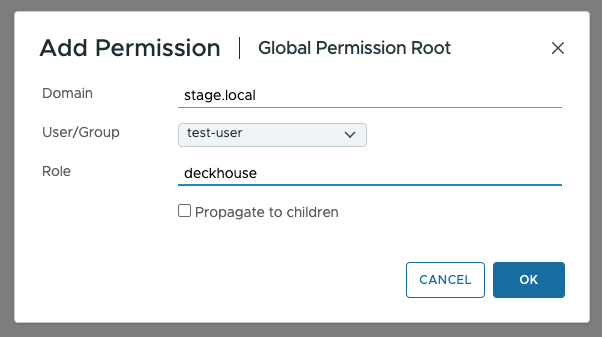
Configuration via govc
Installing govc
To continue configuring vSphere, install the govc CLI utility.
After installation, set the environment variables required to connect to vCenter.
Make sure to specify the username together with the domain, for example: username@domain.local.
export GOVC_URL=example.com
export GOVC_USERNAME=<username>@vsphere.local
export GOVC_PASSWORD=<password>
export GOVC_INSECURE=1
Creating tags and tag categories with govc
VMware vSphere does not have built-in concepts of a “region” or a “zone”. In vSphere, a Datacenter acts as a region, and a Cluster acts as a zone. Tags are used to establish this mapping.
Create tag categories with the following commands:
govc tags.category.create -d "Kubernetes Region" k8s-region
govc tags.category.create -d "Kubernetes Zone" k8s-zone
Create tags in each category. If you intend to use multiple “zones” (Cluster), create a tag for each one of them:
govc tags.create -d "Kubernetes Region" -c k8s-region test-region
govc tags.create -d "Kubernetes Zone Test 1" -c k8s-zone test-zone-1
govc tags.create -d "Kubernetes Zone Test 2" -c k8s-zone test-zone-2
Attach the “region” tag to Datacenter:
govc tags.attach -c k8s-region test-region /<DatacenterName>
Attach “zone” tags to the Cluster objects:
govc tags.attach -c k8s-zone test-zone-1 /<DatacenterName>/host/<ClusterName1>
govc tags.attach -c k8s-zone test-zone-2 /<DatacenterName>/host/<ClusterName2>
Datastore configuration with govc
For dynamic PersistentVolume provisioning, a Datastore must be available on each ESXi host (shared datastore).
Assign the “region” and “zone” tags to the Datastore objects to automatically create a StorageClass in the Kubernetes cluster:
govc tags.attach -c k8s-region test-region /<DatacenterName>/datastore/<DatastoreName1>
govc tags.attach -c k8s-zone test-zone-1 /<DatacenterName>/datastore/<DatastoreName1>

govc tags.attach -c k8s-region test-region /<DatacenterName>/datastore/<DatastoreName2>
govc tags.attach -c k8s-zone test-zone-2 /<DatacenterName>/datastore/<DatastoreName2>
Creating and assigning a role with govc
We’ve intentionally skipped User creation since there are many ways to authenticate a user in the vSphere.
The role described below includes the privileges from the list of required privileges section. If you need a more granular Role, please contact your Deckhouse support.
Create a role with the required privileges:
govc role.create deckhouse \
    Cns.Searchable \
    Datastore.AllocateSpace Datastore.Browse Datastore.FileManagement \
    Folder.Create Folder.Delete Folder.Move Folder.Rename \
    Global.GlobalTag Global.SystemTag \
    InventoryService.Tagging.AttachTag InventoryService.Tagging.CreateCategory \
    InventoryService.Tagging.CreateTag InventoryService.Tagging.DeleteCategory \
    InventoryService.Tagging.DeleteTag InventoryService.Tagging.EditCategory \
    InventoryService.Tagging.EditTag InventoryService.Tagging.ModifyUsedByForCategory \
    InventoryService.Tagging.ModifyUsedByForTag InventoryService.Tagging.ObjectAttachable \
    Network.Assign \
    Resource.AssignVMToPool Resource.CreatePool Resource.DeletePool Resource.EditPool Resource.RenamePool \
    StorageProfile.View \
    System.Anonymous System.Read System.View \
    VApp.ApplicationConfig VApp.AssignResourcePool VApp.AssignVM VApp.Create VApp.Delete \
    VApp.ExtractOvfEnvironment VApp.Import VApp.InstanceConfig VApp.PowerOff VApp.PowerOn VApp.ResourceConfig \
    VirtualMachine.Config.AddExistingDisk VirtualMachine.Config.AddNewDisk VirtualMachine.Config.AddRemoveDevice \
    VirtualMachine.Config.AdvancedConfig VirtualMachine.Config.Annotation VirtualMachine.Config.CPUCount \
    VirtualMachine.Config.ChangeTracking VirtualMachine.Config.DiskExtend VirtualMachine.Config.DiskLease \
    VirtualMachine.Config.EditDevice VirtualMachine.Config.ManagedBy VirtualMachine.Config.Memory \
    VirtualMachine.Config.QueryUnownedFiles VirtualMachine.Config.RawDevice VirtualMachine.Config.ReloadFromPath \
    VirtualMachine.Config.RemoveDisk VirtualMachine.Config.Rename VirtualMachine.Config.ResetGuestInfo \
    VirtualMachine.Config.Resource VirtualMachine.Config.Settings VirtualMachine.Config.SwapPlacement \
    VirtualMachine.Config.UpgradeVirtualHardware \
    VirtualMachine.GuestOperations.Query \
    VirtualMachine.Interact.AnswerQuestion VirtualMachine.Interact.DeviceConnection \
    VirtualMachine.Interact.GuestControl VirtualMachine.Interact.PowerOff VirtualMachine.Interact.PowerOn \
    VirtualMachine.Interact.Reset VirtualMachine.Interact.SetCDMedia VirtualMachine.Interact.ToolsInstall \
    VirtualMachine.Inventory.Create VirtualMachine.Inventory.CreateFromExisting VirtualMachine.Inventory.Delete \
    VirtualMachine.Inventory.Move \
    VirtualMachine.Provisioning.Clone VirtualMachine.Provisioning.Customize VirtualMachine.Provisioning.DeployTemplate \
    VirtualMachine.Provisioning.GetVmFiles VirtualMachine.Provisioning.PutVmFiles VirtualMachine.Provisioning.ReadCustSpecs \
    VirtualMachine.State.CreateSnapshot VirtualMachine.State.RemoveSnapshot VirtualMachine.State.RenameSnapshot
Assign the role to a user on the vCenter object.
Make sure to specify the username together with the domain, for example: username@domain.local.
govc permissions.set -principal <username>@vsphere.local -role deckhouse /
For more detailed permission configuration, refer to the official documentation.
VM image requirements
To create a VM template (Template), it is recommended to use a ready-made cloud image/OVA file provided by the OS vendor:
- Ubuntu
- Debian
- CentOS
- Rocky Linux (section Generic Cloud / OpenStack)
The provider supports working with only one disk in the virtual machine template. Make sure the template contains only one disk.
Preparing the virtual machine image
Disable VMware Guest OS Customization (and any vApp/OS customization mechanisms, if applicable in your setup) for the template and the cluster virtual machines. DP performs the initial node configuration via cloud-init (VMware GuestInfo datasource). Enabled customization can conflict with cloud-init and lead to incorrect node initialization.
-
Install the required packages:
If you use
cloud-initversion lower than 21.3 (VMware GuestInfo support is required):sudo apt-get update sudo apt-get install -y open-vm-tools cloud-init cloud-init-vmware-guestinfoIf you use
cloud-initversion 21.3 or higher:sudo apt-get update sudo apt-get install -y open-vm-tools cloud-init -
Verify that the
disable_vmware_customization: falseparameter is set in/etc/cloud/cloud.cfg. -
Make sure the
default_userparameter is specified in/etc/cloud/cloud.cfg. It is required to add an SSH key when the VM starts. -
Add the VMware GuestInfo datasource — create
/etc/cloud/cloud.cfg.d/99-DataSourceVMwareGuestInfo.cfg:datasource: VMware: vmware_cust_file_max_wait: 10 -
Before creating the VM template, reset the
cloud-initidentifiers and state using the following commands:truncate -s 0 /etc/machine-id && rm /var/lib/dbus/machine-id && ln -s /etc/machine-id /var/lib/dbus/machine-id -
Clear
cloud-initevent logs:cloud-init clean --logs --seed
After the virtual machine starts, the following services related to the packages installed during cloud-init preparation must be running:
cloud-config.service,cloud-final.service,cloud-init.service.
To ensure that the services are enabled, use the command:
systemctl is-enabled cloud-config.service cloud-init.service cloud-final.service
Example output for enabled services:
enabled
enabled
enabled
DP creates VM disks of type eagerZeroedThick, but the type of disks of created VMs may be changed without notification according to the VM Storage Policy settings in vSphere.
For more details, see the documentation.
DP uses the ens192 interface as the default interface for VMs in vSphere. Therefore, when using static IP addresses in mainNetwork, you must create an interface named ens192 in the OS image as the default interface.
Infrastructure
Networking
A VLAN with DHCP and Internet access is required for the running cluster:
- If the VLAN is public (public addresses), then you have to create a second network to deploy cluster nodes (DHCP is not needed in this network).
- If the VLAN is private (private addresses), then this network can be used for cluster nodes.
Inbound traffic
- You can use an internal load balancer (if present) and direct traffic directly to the front nodes of the cluster.
- If there is no load balancer, you can use MetalLB in BGP mode to organize fault-tolerant load balancers (recommended). In this case, front nodes of the cluster will have two interfaces. For this, you will need:
- A dedicated VLAN for traffic exchange between BGP routers and MetalLB. This VLAN must have DHCP and Internet access.
- IP addresses of BGP routers.
- ASN — the AS number on the BGP router.
- ASN — the AS number in the cluster.
- A range to announce addresses from.
Using the datastore
Various types of storage can be used in the cluster; for the minimum configuration, you will need:
- Datastore for provisioning PersistentVolumes to the Kubernetes cluster.
- Datastore for provisioning root disks for the VMs (it can be the same Datastore as for PersistentVolume).