Deckhouse Platform for bare metal
1
Selecting infrastructure
2
Installation information
3
Starting installer
4
Basic installation parameters
5
Cluster parameters and connection setup
6
Installation
7
What can I do next?
Cluster parameters and connection setup
-
By default, the installation option "Static cluster on existing servers" is selected. Leave this option unchanged.
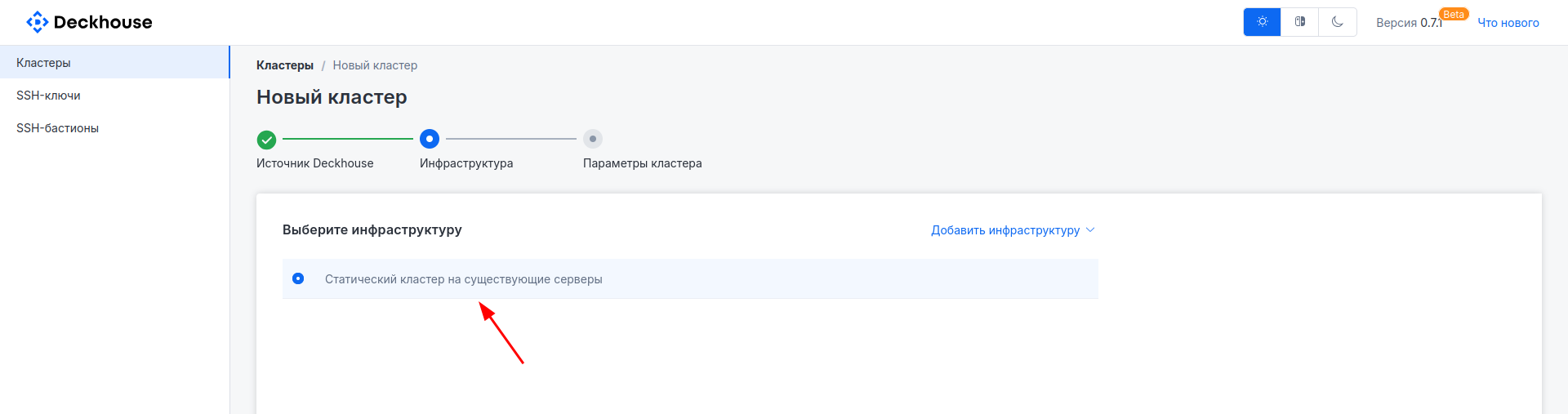
Go to the next screen by clicking the "Cluster parameters" button.
-
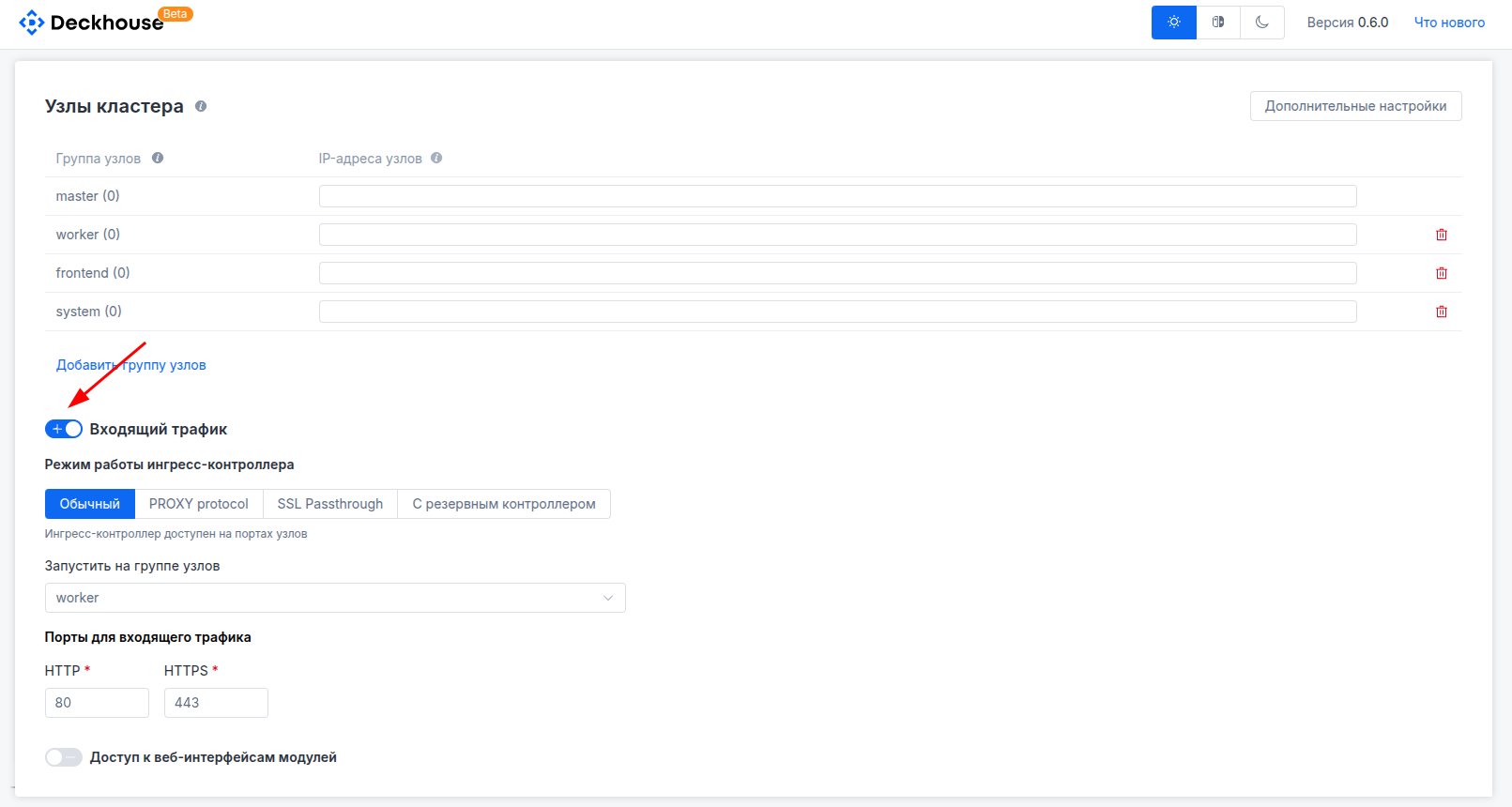
Set the cluster name and specify the IP addresses of the machines for future cluster nodes.
You can remove extra nodes by clicking the red trash icon next to the IP address input field.
Advanced future cluster settings, such as proxy server configuration or subnet settings, are available after clicking the "Additional settings" button.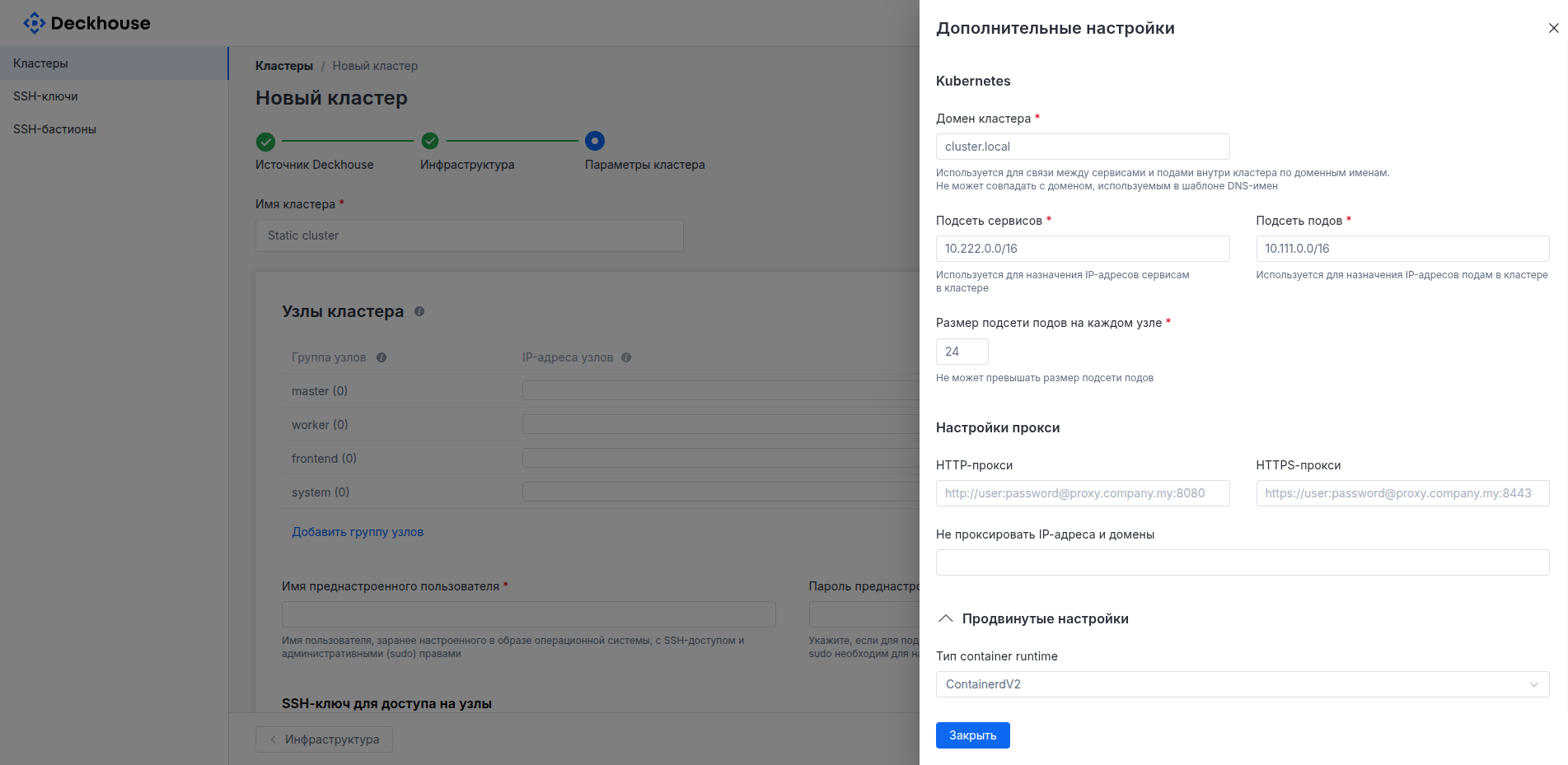
Below, you can configure SSH connection settings for cluster nodes by selecting an existing key added earlier or creating a new one on the same screen.
- "Preconfigured username" — the username used for SSH login to machines for future cluster nodes.
- "Preconfigured user password" (for sudo) — the user's password, if set. It is used to escalate privileges via sudo. Leave empty if sudo does not require a password.
- "SSH key for node access" — the key used to connect to machines. Here you can select a previously added key, generate a new one, or provide an existing key.
The private key is stored in the
~/.ssh/<SSH_PRIVATE_KEY_FILE>file. You can get it with thecat ~/.ssh/<SSH_PRIVATE_KEY_FILE>command. Example output (for an ED25519-encrypted key):Copy the full output text into the form field, including the$ cat ~/.ssh/id_ed25519 -----BEGIN OPENSSH PRIVATE KEY----- ... -----END OPENSSH PRIVATE KEY----------BEGIN OPENSSH PRIVATE KEY-----and-----END OPENSSH PRIVATE KEY-----lines. - "SSH port" — the port used for SSH connection. Leave the default value if the machine uses the standard port.
- "Use SSH bastion" — SSH bastion settings. If you do not use an intermediate server to access resources in a private network, keep this toggle disabled. If you do, enable it and provide settings in the opened section.
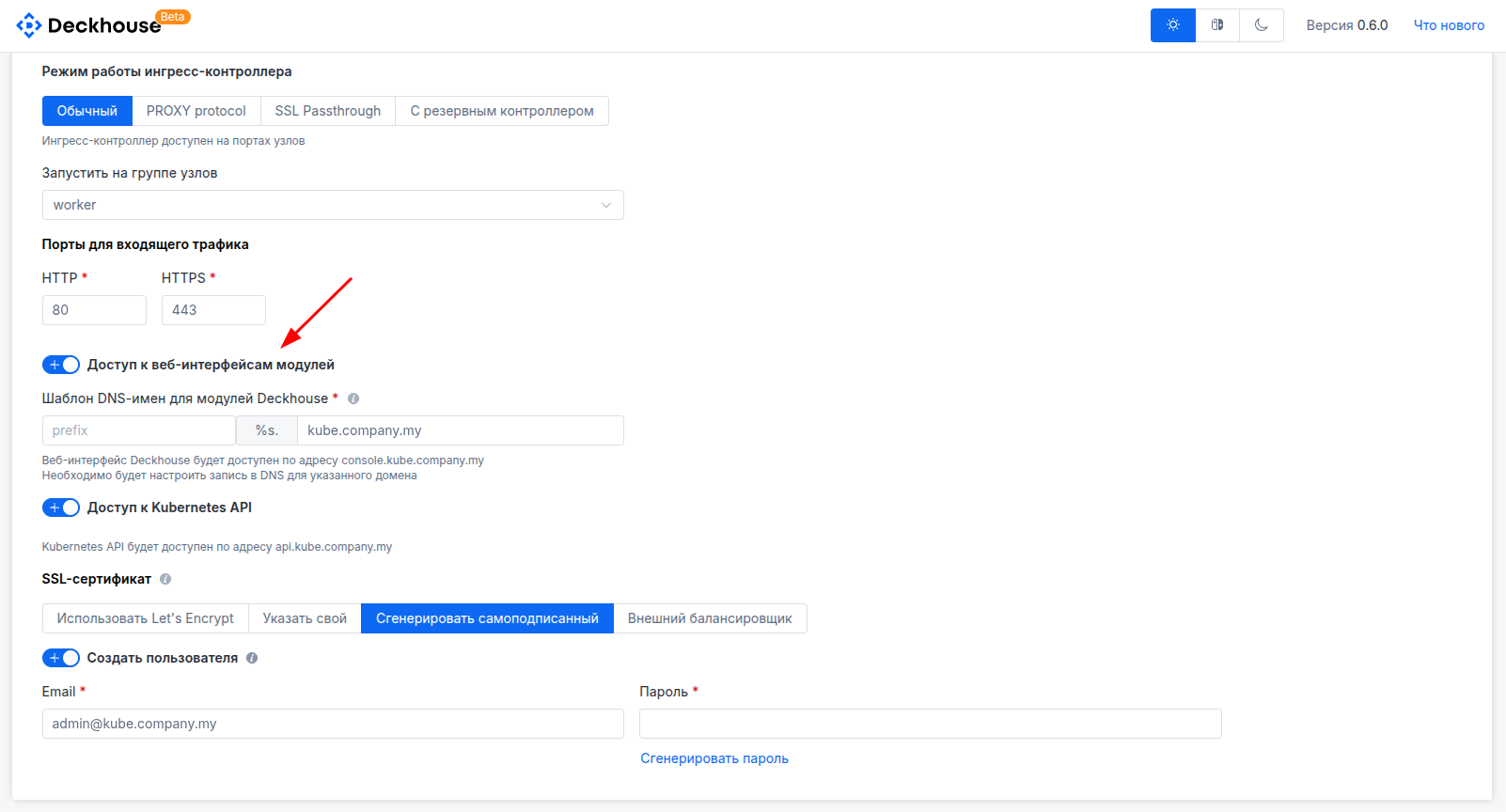
When installing on bare metal, you can configure Ingress controller settings and incoming traffic handling during installation. Enable the "Incoming traffic" checkbox. In the opened section, configure the Ingress controller to be created by selecting its operating mode and the node group where it will run.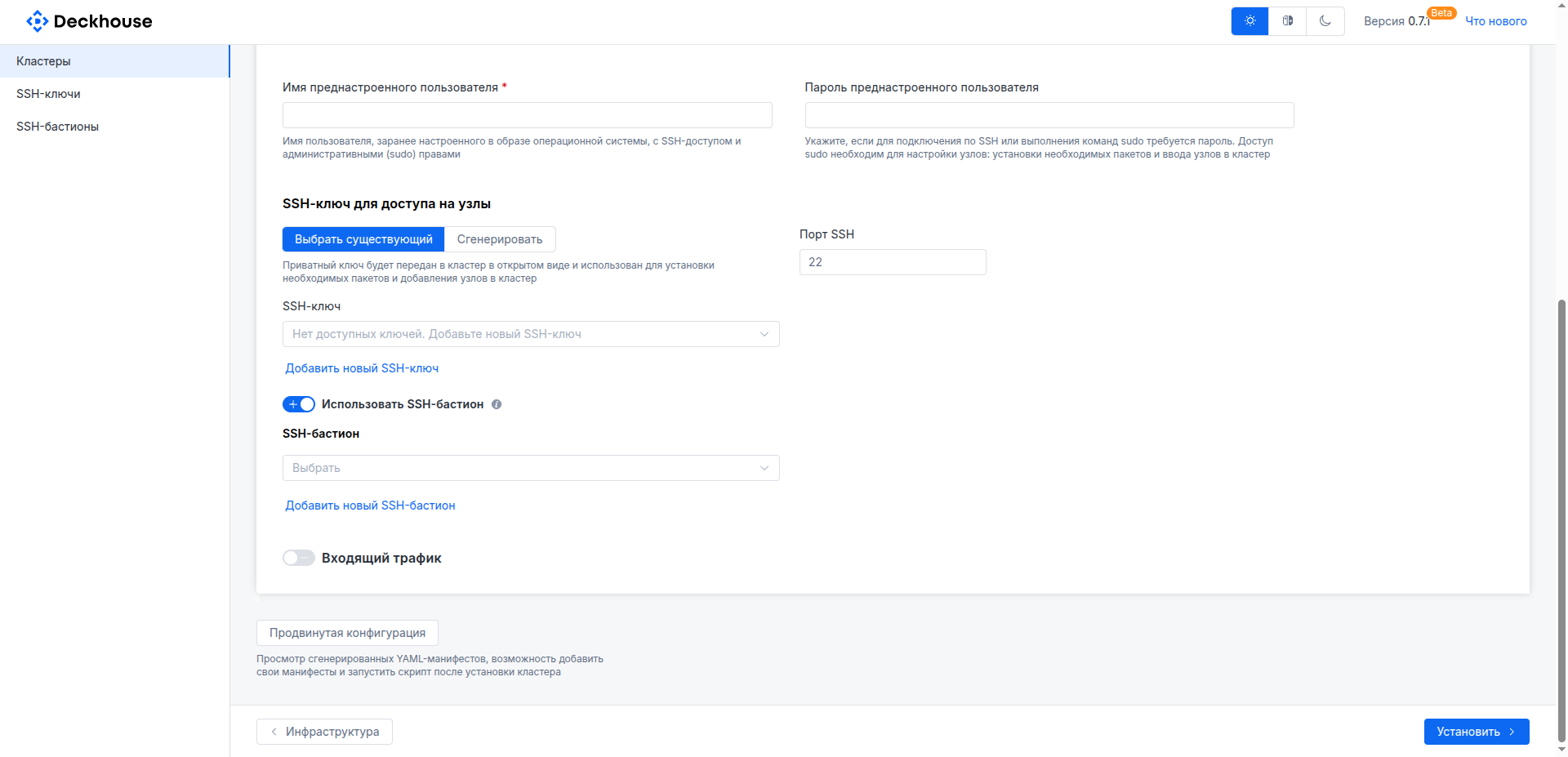 You can also configure the domain name template for web interfaces of the future cluster. To do this, enable the "Access to module web interfaces" checkbox and specify the corresponding settings.
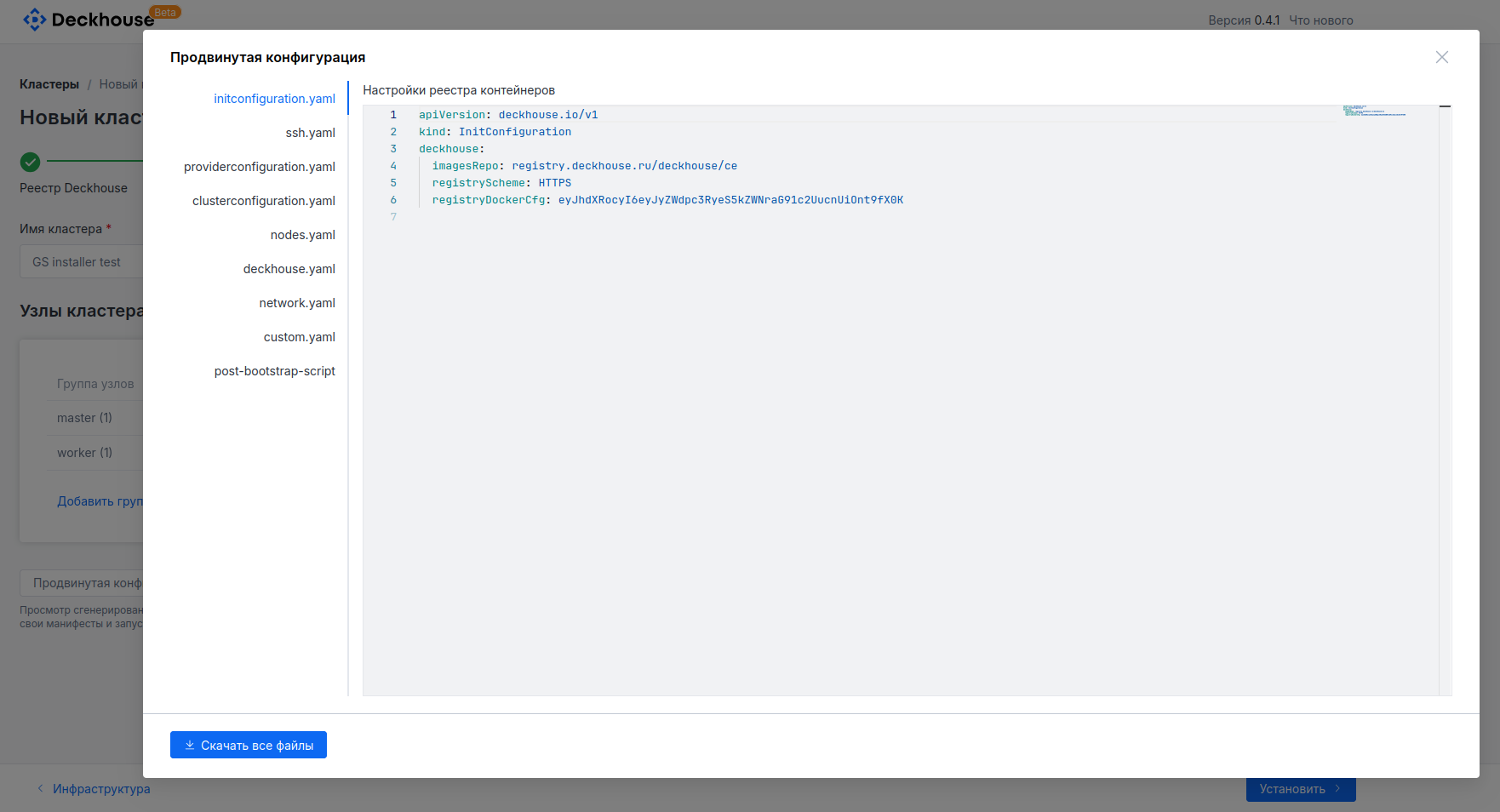
 If you need to create a user for web interface login, enable the "Create user" checkbox and specify username and password (the password can be generated automatically). The "Advanced configuration" button on the left side of the screen lets you view and download generated YAML configuration files. This may be required to run dhctl manually using these files.