Deckhouse Platform on Selectel (OpenStack)
- Start Docker on your computer
-
Run the installer
- Container
- Using trdl
- File
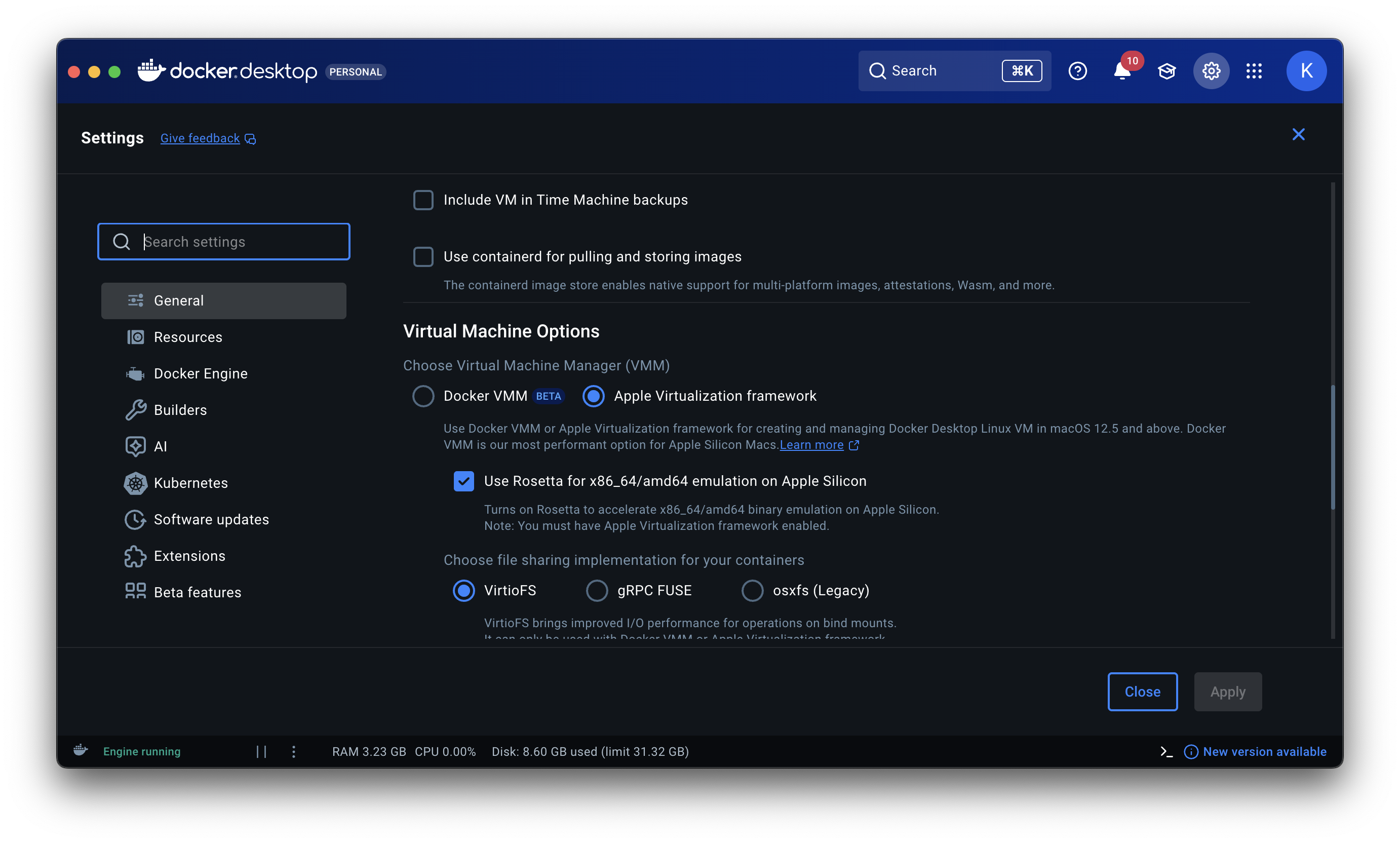
Если у вас компьютер на базе Apple Silicon, то перед запуском контейнера убедитесь, что в настройках Docker Desktop включена Rosetta.
- Перейдите в настройки Docker Desktop, нажав на значок шестерёнки в правом верхнем углу главного окна программы.
- На вкладке «General» найдите раздел «Virtual Machine Options».
- Включите пункт «Use Rosetta for x86_64/amd64 emulation on Apple Silicon».
Run the command:
If the installer container cannot access the network while VPN is enabled, follow this instruction.
docker run --rm --pull always -v $HOME/.d8installer:$HOME/.d8installer -v /var/run/docker.sock:/var/run/docker.sock -p 127.0.0.1:8080:8080 registry.deckhouse.ru/deckhouse/installer:latest -r $HOME/.d8installerOpen http://localhost:8080.
Если у вас компьютер на базе Apple Silicon, то перед запуском контейнера убедитесь, что в настройках Docker Desktop включена Rosetta.
- Перейдите в настройки Docker Desktop, нажав на значок шестерёнки в правом верхнем углу главного окна программы.
- На вкладке «General» найдите раздел «Virtual Machine Options».
- Включите пункт «Use Rosetta for x86_64/amd64 emulation on Apple Silicon».
Starting from version 0.5.0, the installer can be installed on your machine using trdl.
- Install the trdl client.
Add the trdl repository:
URL=https://deckhouse.ru/downloads/deckhouse-installer-trdl ROOT_VERSION=1 ROOT_SHA512=62e4b351bd06ee962dca92c0650ecbd2bceca9a78c125836fa62186b046f07257015929c853eb8a6241d90d59b2995bb028389cdb30bfa9c0991b10ddc2c57bc REPO=d8-installer trdl add $REPO $URL $ROOT_VERSION $ROOT_SHA512-
Install the latest installer release from the early-access channel and verify that it works:
. $(trdl use -d d8-installer 1 ea) && d8install versionIf you do not want to run
. $(trdl use -d d8-installer 1 ea)before each installer usage, add the linesource $(trdl use -d d8-installer 1 ea)to your shell RC file. -
Run the installer with the
d8install -bcommand.If the browser does not open automatically, go to http://localhost:8080.
Если у вас компьютер на базе Apple Silicon, то перед запуском контейнера убедитесь, что в настройках Docker Desktop включена Rosetta.
- Перейдите в настройки Docker Desktop, нажав на значок шестерёнки в правом верхнем углу главного окна программы.
- На вкладке «General» найдите раздел «Virtual Machine Options».
- Включите пункт «Use Rosetta for x86_64/amd64 emulation on Apple Silicon».
Download the installer:
Run it with the commands below:
chmod +x d8install
xattr -c d8install
./d8install -b
If the browser does not open automatically, go to http://localhost:8080.
- Container
- Using trdl
- File
Run the command:
If the installer container cannot access the network while VPN is enabled, follow this instruction.
docker run --rm --pull always -v $HOME/.d8installer:$HOME/.d8installer -v /var/run/docker.sock:/var/run/docker.sock -p 127.0.0.1:8080:8080 registry.deckhouse.ru/deckhouse/installer:latest -r $HOME/.d8installerOpen http://localhost:8080.
Starting from version 0.5.0, the installer can be installed on your machine using trdl.
- Install the trdl client.
Add the trdl repository:
URL=https://deckhouse.ru/downloads/deckhouse-installer-trdl ROOT_VERSION=1 ROOT_SHA512=62e4b351bd06ee962dca92c0650ecbd2bceca9a78c125836fa62186b046f07257015929c853eb8a6241d90d59b2995bb028389cdb30bfa9c0991b10ddc2c57bc REPO=d8-installer trdl add $REPO $URL $ROOT_VERSION $ROOT_SHA512-
Install the latest installer release from the early-access channel and verify that it works:
. $(trdl use -d d8-installer 1 ea) && d8install versionIf you do not want to run
. $(trdl use -d d8-installer 1 ea)before each installer usage, add the linesource $(trdl use -d d8-installer 1 ea)to your shell RC file. -
Run the installer with the
d8install -bcommand.If the browser does not open automatically, go to http://localhost:8080.
Download the installer: amd64
Run it with the following commands:
chmod +x d8install
./d8install -b
If the browser does not open automatically, go to http://localhost:8080.
Before starting the container, make sure Docker Desktop is installed and WSL2 is enabled.
Run the command if you are using Command Prompt:
docker run --rm --pull always -v /mnt/host/c/Users/%USERNAME%/.d8installer:/mnt/host/c/Users/%USERNAME%/.d8installer -v /var/run/docker.sock:/var/run/docker.sock -p 127.0.0.1:8080:8080 registry.deckhouse.ru/deckhouse/installer:latest -r /mnt/host/c/Users/%USERNAME%/.d8installerIf you are using PowerShell:
docker run --rm --pull always -v /mnt/host/c/Users/$env:USERNAME/.d8installer:/mnt/host/c/Users/$env:USERNAME/.d8installer -v /var/run/docker.sock:/var/run/docker.sock -p 127.0.0.1:8080:8080 registry.deckhouse.ru/deckhouse/installer:latest -r /mnt/host/c/Users/$env:USERNAME/.d8installerOpen http://localhost:8080.