
The module lifecycle stage: General Availability
Environment requirements
The provider requires the following:
- A working zVirt installation with an accessible API
- zVirt version
4.0–4.4 - A user with the permissions listed in the “User permissions” section
- A storage domain with an uploaded cloud image of the operating system
- A virtual machine template prepared from the cloud image
If the zVirt API uses a self-signed certificate, pass the CA certificate in the caBundle parameter or set the insecure parameter to true.
User permissions
Deckhouse Platform does not require the SuperUser role for the zVirt user. It is enough to assign the following predefined zVirt roles to the user on the objects the cluster works with:
| Role | Object | Purpose |
|---|---|---|
UserVmManager |
zVirt cluster from the clusterID parameter |
Creating, starting, stopping, and deleting node virtual machines, creating their network interfaces, attaching and detaching disks |
UserTemplateBasedVm |
Virtual machine template | Creating virtual machines from the template |
DiskOperator |
Storage domains that contain the template disk and where disks for etcd and cluster volumes are created | Creating, resizing, attaching, detaching, and deleting disks |
VnicProfileUser |
vNIC profile | Creating a virtual machine network interface from the vNIC profile |
TagManager |
Entire system (system permission) | Creating the cluster tag and assigning it to virtual machines of CloudEphemeral nodes |
The TagManager role is assigned only on the entire system, because zVirt checks the tag management permission at this level.
The TagManager role is administrative. With it, the user can view all objects via the zVirt API but can modify only the objects on which the roles from the table are assigned to the user.
zVirt assigns some roles to the Everyone group by default, so you do not need to assign them to the user separately:
UserTemplateBasedVmon a template created with the “Allow all users to access this Template” checkbox selectedVnicProfileUseron a public vNIC profileCpuProfileOperatoron the cluster CPU profileDiskProfileUseron the disk profiles of storage domains
If these permissions were removed in your zVirt installation, assign the roles to the user.
To assign a role on an object:
- Open the object in the zVirt Administration Portal, for example, a cluster in the “Compute → Clusters” section.
- Go to the “Permissions” tab and click “Add”.
- Select the user and the role and save the permission.
Assign the TagManager role in the “Administration → Configure” section on the “System Permissions” tab.
Prepare an operating system image
Operating system (OS) vendors usually provide special cloud builds of their OSes for virtualization environments. These builds contain virtual hardware drivers, cloud-init, and virtualization guest agents and are distributed as IMG or QCOW2 disk images. Use these cloud images as the OS of the cluster nodes.
The OS cloud image must be placed in the zVirt disk storage. To upload the image to the storage:
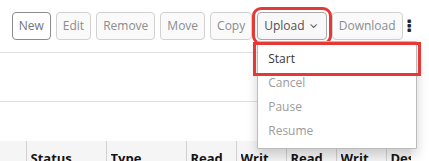
- Open the zVirt Administration Portal and go to the “Storage → Disks” section.
-
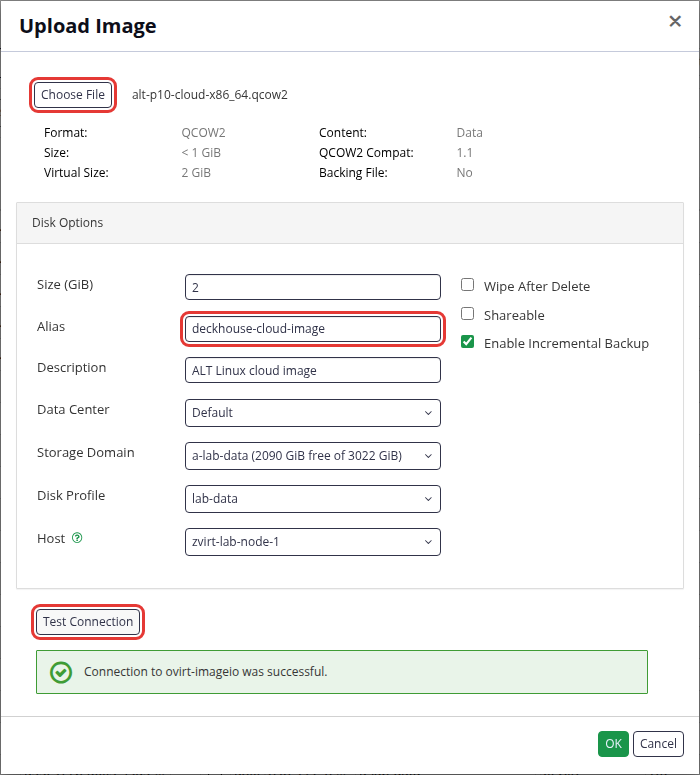
Upload the OS cloud image to the storage.
-
Wait until the image upload is complete. The
OKstatus must appear in the “Status” column.
Prepare a virtual machine template
The provider supports working with only one disk in the virtual machine template. Make sure the template contains only one disk.
The template is created from a virtual machine (VM) with the OS cloud image attached. To prepare the template:
-
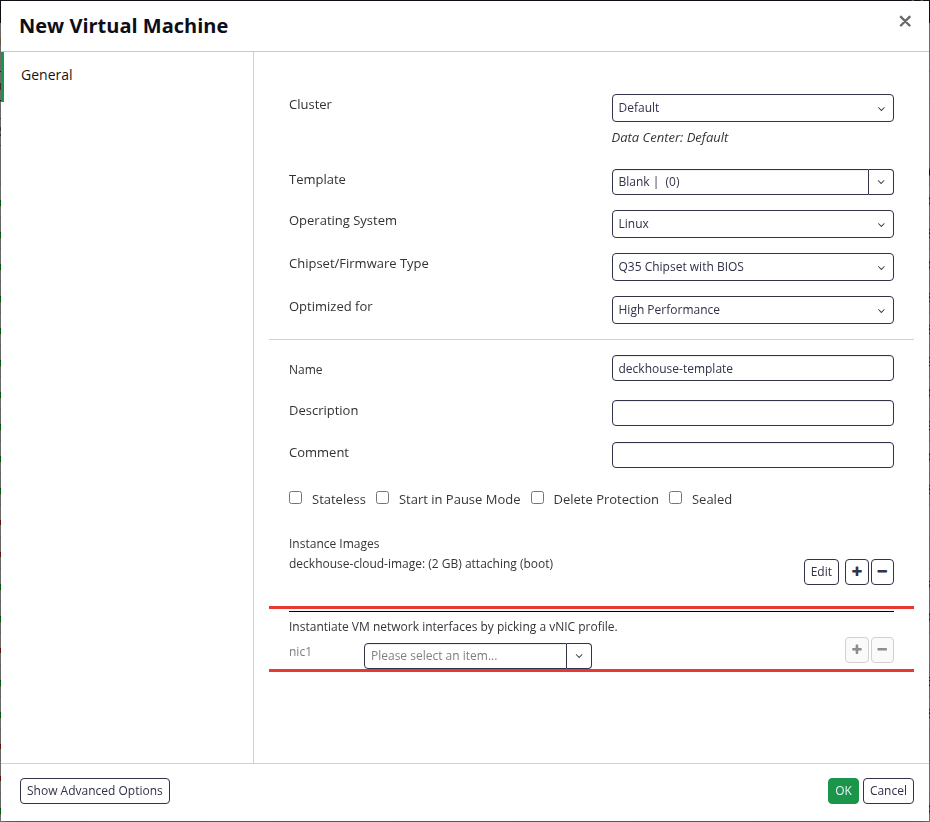
In the zVirt Administration Portal, go to the “Compute → Virtual Machines” section and create a VM. In the “General” section, set the following parameters:
- “Template”:
Blank. - “Operating System”: The OS of the cloud image.
- “Optimized for”: “High Performance”.
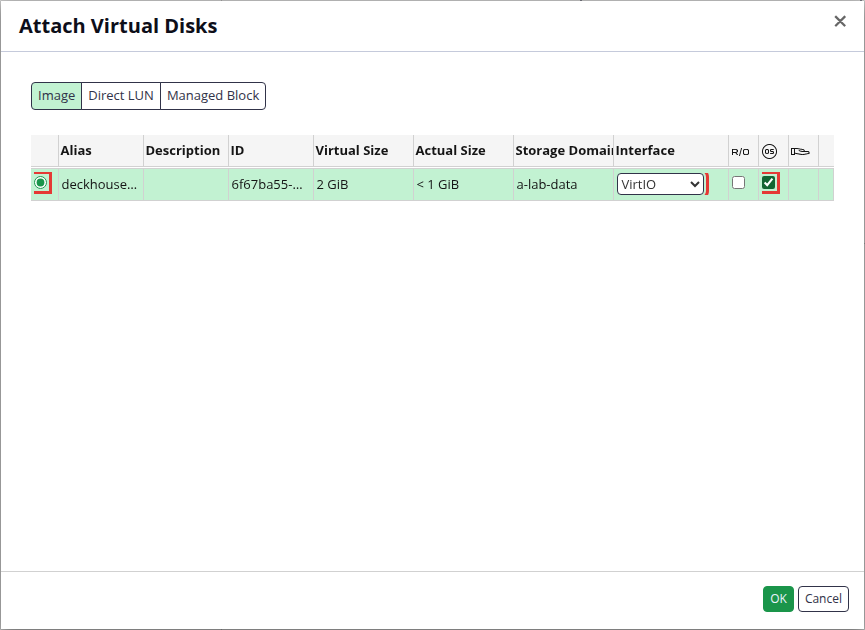
- “Instance Images”: Click “Attach”, select the uploaded OS cloud image, select the checkbox in the “OS” column to make the disk bootable, and select the “VirtIO” interface. Do not create or attach other disks.
- “Template”:
-
Do not attach network interfaces. Deckhouse Platform creates a network interface when it creates a VM for a node.
- Leave the other parameters at their defaults and create the VM.
-
When the VM is created, select it in the list, open the additional actions menu (⋮), and select “Make Template”.
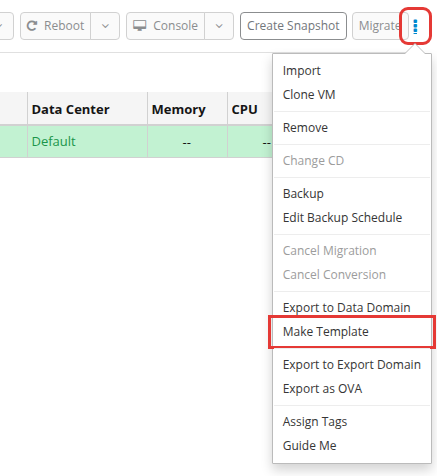
-
Specify the template name and enable the “Seal Template (Linux only)” parameter. The other template parameters are optional.
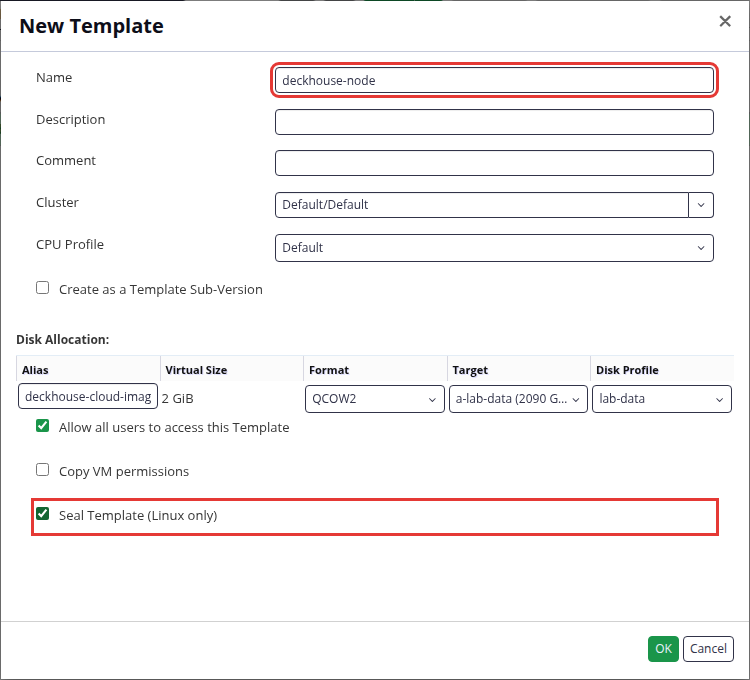
-
Wait until the template is created. While the template is being created, the VM and the cloud image disk are in the “Image Locked” state. The created template is displayed in the “Compute → Templates” section.

Replacing the OS image
The template parameter of ZvirtInstanceClass defines the image for CloudEphemeral nodes. With a ModuleConfig-based provider configuration, this parameter also defines the image for CloudPermanent nodes and master nodes.
With a ZvirtClusterConfiguration-based configuration, the image for CloudPermanent nodes and master nodes is set by template in nodeGroups[].instanceClass and masterNodeGroup.instanceClass, respectively.
The replacement procedure is described in “How do I replace the OS image in a cloud cluster?”.
Credentials Secret
The zVirt user login and password are stored in a separate Secret rather than in the ModuleConfig. The module reads it and passes the credentials to its components that access the zVirt API.
The Secret is created during cluster installation together with the other resources of the initial configuration. The Secret must meet the following requirements:
- The name is
d8-credentialsand the namespace isd8-cloud-provider-zvirt. - The type is
cloud-provider.deckhouse.io/credentials. - The
authSchemefield is set touserPassword. - The
identityfield contains the zVirt user login. - The
secretfield contains the zVirt user password.
apiVersion: v1
kind: Secret
metadata:
  name: d8-credentials
  namespace: d8-cloud-provider-zvirt
type: cloud-provider.deckhouse.io/credentials
stringData:
  authScheme: userPassword
  identity: <USERNAME>
  secret: <PASSWORD>
Replace <USERNAME> and <PASSWORD> with the zVirt user login and password.
A Secret that does not meet these requirements fails the check both during cluster installation and when applied in a running cluster.
To change the credentials, update the identity and secret fields:
d8 k -n d8-cloud-provider-zvirt edit secret d8-credentials
In clusters migrated to ModuleConfig, the login and password are moved to this Secret from the provider.username and provider.password parameters of the ZvirtClusterConfiguration resource.