OmniAuth configuration
Deckhouse Code supports OmniAuth configuration in accordance with the GitLab official documentation. Additionally, it provides extended functionality described below.
OpenID Connect (OIDC)
The following parameters are available for integrating with OIDC providers:
-
allowed_groups— a list of groups whose users are allowed to log in. Users not in these groups will be denied access.
Default —null(all groups are allowed). -
admin_groups— a list of groups whose users are granted administrative privileges.
Default —null(no groups are granted admin rights). -
groups_attribute— the name of the attribute used to extract user group information.
Default —'groups'.
OIDC configuration example
This configuration is set in the spec.appConfig.omniauth. section:
providers:
  - name: 'openid_connect'
    allowed_groups:
      - 'gitlab'
    admin_groups:
      - 'admin'
    groups_attribute: 'gitlab_group'
SAML
The same parameters are available for SAML providers:
-
allowed_groups— a list of groups whose members are allowed to log in.
Default —null(all groups are allowed). -
admin_groups— groups whose members are granted administrative privileges.
Default —null(no groups are granted admin rights). -
groups_attribute— the name of the attribute that contains group information.
Default —'Groups'.
SAML configuration example
This configuration is set in the spec.appConfig.omniauth. section:
providers:
  - name: 'saml'
    allowed_groups:
      - 'gitlab'
    admin_groups:
      - 'admin'
    groups_attribute: 'gitlab_group'
If a user belongs to
admin_groupsbut is not listed inallowed_groups, access will be denied. In this case, administrative privileges will not be granted either.
LDAP synchronization
Deckhouse Code supports synchronization of users, groups, and access rights with an LDAP server. Synchronization runs automatically every hour, or at a custom interval.
You can configure the synchronization interval using the cronJobs parameter in the spec.appConfig. section:
cron_jobs:
  ldap_sync_worker:
    cron: "0 * * * *"
LDAP server-side limitations
During synchronization, LDAP queries are executed for all users and groups defined in the configuration. Pagination is used automatically if necessary.
If the LDAP server enforces limits on the number of returned entries, this may cause synchronization errors or lead to user access rights being removed.
Example LDAP provider configuration
The configuration is defined in spec.appConfig.ldap.:
main:
  label: ldap
  host: 127.0.0.1
  port: 3389
  bind_dn: 'uid=viewer,ou=People,dc=example,dc=com'
  base: 'ou=People,dc=example,dc=com'
  uid: 'cn'
  password: 'viewer123'
  sync_name: true
  group_sync: {
    create_groups: true,
    base: 'ou=Groups,dc=example,dc=org',
    filter: '(objectClass=groupOfNames)',
    prefix: {
      attribute: 'businessCategory',
      default: 'default-program',
    },
    top_level_group: "LdapGroups",
    name_mask: "(?<=-)[A-z0-9]*$",
    owner: "root",
    role_mapping: [
      { by_name: '.*-project_manager-.*', gitlab_role: 'maintainer' },
      { by_name: '.*-developer-.*', gitlab_role: 'developer' },
      { by_name: '.*-participant-.*', gitlab_role: 'reporter' }
    ]
  }
Groups and access rights
LDAP groups are mapped to GitLab groups. You can assign roles to users based on group names.
Required parameters:
group_sync.base— the DN from which LDAP group search starts.
Optional parameters:
group_sync.create_groups— iftrue, groups will be created in Deckhouse Code.group_sync.filter— LDAP filter used to find groups.group_sync.scope— scope of group search (0 — Base, 1 — SingleLevel, 2 — WholeSubtree).group_sync.prefix— defines which attribute to use for determining the parent group name. If missing, the default value is used.group_sync.top_level_group— the top-level group to which all synchronized groups will be added.group_sync.name_mask— regular expression used to extract the group name from the CN attribute.group_sync.owner— name of the user to be assigned as group owner (default isroot).
role_mapping section
Assigns roles to users based on group names (cn):
role_mapping.by_name— a regular expression; if the group name matches, the corresponding role is assigned to the user.role_mapping.gitlab_role— the role name in Deckhouse Code (e.g.,guest,reporter,developer,maintainer,owner).
Group membership resolution
LDAP Sync does not support transitivity for nested groups. See Nested groups and transitivity section for details and workarounds.
Deckhouse Code supports the following attributes to determine group membership (all values must be arrays of user DNs):
memberuniquemembermemberofmemberuidsubmember
User synchronization
During synchronization, usernames, email addresses, and account lock status are updated.
Optional parameters:
sync_name— iftrue, the username will be updated based on LDAP data.
Troubleshooting synchronization issues
Incorrect synchronization process
If a previous sync job was not completed successfully, Redis may retain a lock preventing the next job from starting (the default concurrency is set to 1).
To remove the lock:
- Connect to Redis using the databases specified in
config/redis.shared_state.ymlandconfig/redis.queues.yml. -
Delete the key
sidekiq:concurrency_limit:throttled_jobs:{ldap/sync_worker}using the following commands:keys *ldap* del "sidekiq:concurrency_limit:throttled_jobs:{ldap/sync_worker}"
Manual synchronization run
To synchronize groups immediately after they are changed on the LDAP side, follow these steps:
- Go to the LDAP synchronization worker page
/admin/sidekiq/cron/namespaces/default/jobs/ldap_sync_worker. - In the upper-right corner, click the “Enqueue Now” button and confirm in the dialog.

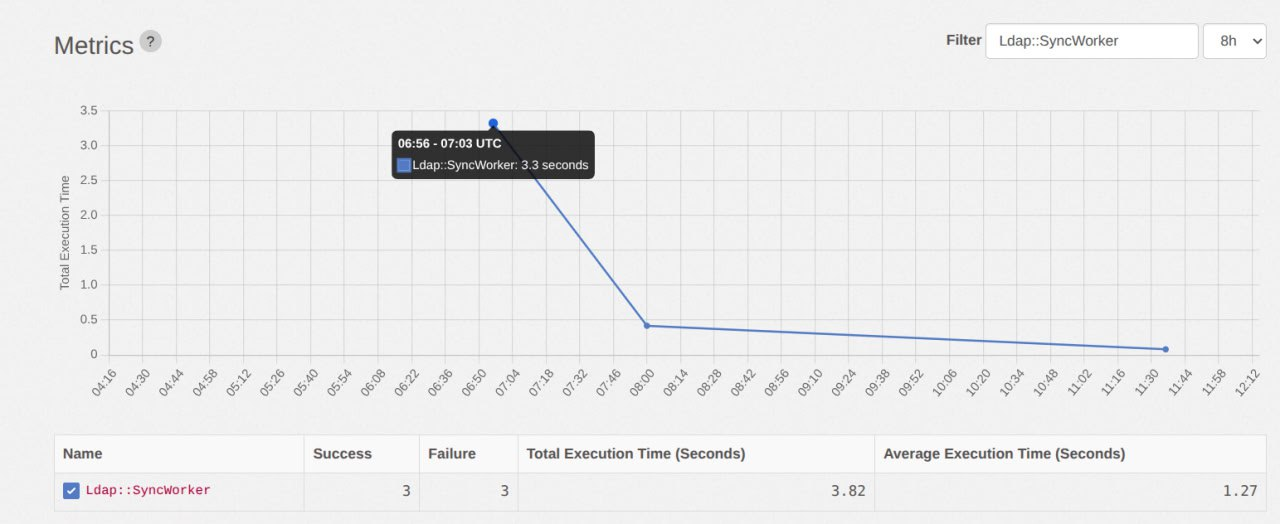
To see how the triggered synchronization finished, open the metrics page for the LDAP synchronization task:
/admin/sidekiq/metrics?substr=SyncWorker&period=8h. The chart displays call statistics; the table below shows the number of successful and failed LDAP synchronization runs.
To view the full synchronization logs:
-
On the worker page
/admin/sidekiq/cron/namespaces/default/jobs/ldap_sync_worker, find the run events table named “History”. The first row corresponds to the most recent run. Copy the value in the JID (Job ID) column — you will need it to search the logs.
-
Connect to the cluster and determine the Sidekiq pod name:
d8 k -n d8-code -l app.kubernetes.io/component=sidekiq get pod -o NAME -
Run the log collection command, substituting the copied JID and pod name (POD_NAME):
d8 k -n d8-code logs POD_NAME | jq 'select(.jid=="JID")'
Old logs are removed by rotation over time, so they may become unavailable. If needed, rerun the synchronization and collect the latest logs.
LDAP Sync behavior
Synchronization algorithm
LDAP Sync uses a flat, non-recursive synchronization algorithm:
- Group retrieval. An LDAP query retrieves all groups based on the configured
base,filter, andscopeparameters. - Member extraction. For each discovered group, LDAP Sync reads the membership attributes:
member,uniquemember,memberof,memberuid,submember. - User matching. Each DN from the membership attributes is matched against
Identity.extern_uidin the database. - Ignoring unknown DNs. If a DN does not match a known user, it is skipped. For example, this may be the DN of a nested group.
Cyclic group dependencies
Cyclic dependencies in the LDAP group hierarchy do not cause synchronization errors. LDAP Sync processes groups in a flat way, according to the configured filter, and does not attempt to reconstruct the LDAP tree structure.
Because recursive traversal of nested groups is not performed, cycles do not affect the synchronization result.
Nested groups and transitivity
LDAP Sync does not support transitivity for nested groups.
During synchronization, LDAP Sync processes only the direct values of a group’s membership attributes and does not recursively traverse nested groups.
If one LDAP group contains another group as a member, users from the nested group are not automatically added to the parent group.
For synchronization to work correctly, all required user DNs must be present directly in the group’s membership attributes.
If nested groups must be taken into account, this must be implemented on the LDAP server side. For example, the submember attribute can be populated with the full list of transitive members.
This approach simplifies synchronization and avoids issues related to recursive group processing.
Creating a local account when LDAP synchronization is enabled
Local accounts can still be created and used even when LDAP synchronization is enabled.
To allow such users to sign in through the web interface, the “Enable password and passkey authentication for the web interface” setting must be enabled.