Available in editions: Open/CE, BE, SE, SE+, Ultimate/EE, Core
Included in extensions: On-prem IaaS
The module lifecycle stage: General Availability
The module is automatically enabled for all cloud clusters deployed in DVP.
How to explicitly enable the module...
You may explicitly enable or disable the module in one of the following ways:
-
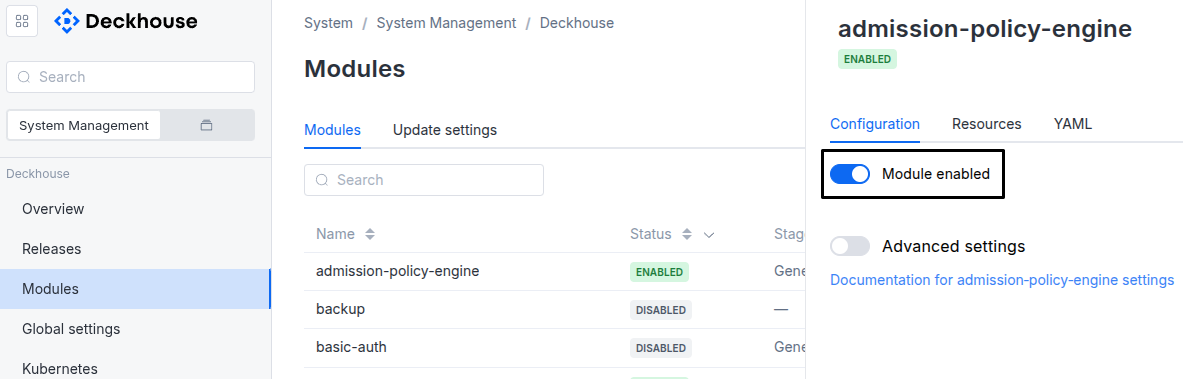
Via Deckhouse web UI. In the “System” → “System Management” → “Deckhouse” → “Modules” section, open the
cloud-provider-dvpmodule and enable (or disable) the “Module enabled” toggle. Save changes.Example:
-
Via Deckhouse CLI (d8).
Use the d8 system module enable command for enabling, or d8 system module disable command for disabling the module (you need Deckhouse CLI (d8), configured to work with the cluster).
Example of enabling the module:
d8 system module enable cloud-provider-dvp -
Using ModuleConfig
cloud-provider-dvp.Set
spec.enabledtotrueorfalsein ModuleConfigcloud-provider-dvp(create it if necessary);Example of a manifest to enable module
cloud-provider-dvp:apiVersion: deckhouse.io/v1alpha1 kind: ModuleConfig metadata: name: cloud-provider-dvp spec: enabled: true
How to configure the module...
You can configure the module in one of the following ways:
-
Via Deckhouse web UI.
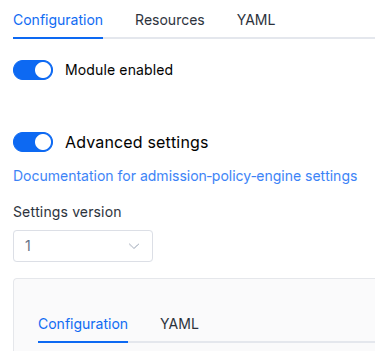
In the “System” → “System Management” → “Deckhouse” → “Modules” section, open the
cloud-provider-dvpmodule and enable the “Advanced Settings” switch. Fill in the required fields in the “Configuration” tab or specify the module settings in YAML format on the “YAML” tab, excluding the settings section. Save the changes.Example:
You can also edit the ModuleConfig object
cloud-provider-dvpon the “YAML” tab in the module settings window (“System” → “System Management” → “Deckhouse” → “Modules”, open the modulecloud-provider-dvp) by specifying the schema version in thespec.versionparameter and the necessary module parameters in thespec.settingssection. -
Via Deckhouse CLI (d8) (requires Deckhouse CLI (d8) configured to work with the cluster).
Edit the existing ModuleConfig
cloud-provider-dvp(for more details on configuring Deckhouse, see the documentation) by executing the following command:d8 k edit mc cloud-provider-dvpMake the necessary changes in the
spec.settingssection. If necessary, specify the schema version in thespec.versionparameter. Save the changes.You can also create a file with manifest for ModuleConfig
cloud-provider-dvpusing the example below. Fill in thespec.settingssection with the required module parameters. If necessary, specify the schema version in thespec.versionparameter.Apply the manifest using the following command (indicate the manifest file name):
d8 k apply -f <FILENAME>Example of a manifest for ModuleConfig
cloud-provider-dvp:apiVersion: deckhouse.io/v1alpha1 kind: ModuleConfig metadata: name: cloud-provider-dvp spec: version: 1 enabled: true settings: # Module parameters from the "Parameters" section below.
Parameters
Schema version: 1
- objectsettings
- objectsettings.provider
Contains settings to connect to the Deckhouse Kubernetes Platform API.
- stringsettings.provider.kubeconfigDataBase64
Required value
Kubeconfig to connect to Deckhouse Kubernetes Platform API base64 encoded.
Example:
kubeconfigDataBase64: ZXhhbXBsZQo= - stringsettings.provider.namespace
Required value
Namespace in which DKP cluster resources will be created.
Caution! If not explicitly specified, the default namespace for kubeconfig will be used.
Example:
namespace: default
- array of stringssettings.zones
A set of zones in which nodes can be created. To use this setting, the
topology.kubernetes.io/zonelabel must be set on DVP nodes. Read more about topological labels.Caution! To set the required label for a DVP node, follow the NodeGroup documentation.
Example:
zones:
- zone-a
- zone-b