Available in editions: SE+, Ultimate/EE
Included in extensions: Storage Integration
The module lifecycle stage: Deprecated
The module is not enabled by default in any bundles.
How to explicitly enable the module...
You may explicitly enable or disable the module in one of the following ways:
-
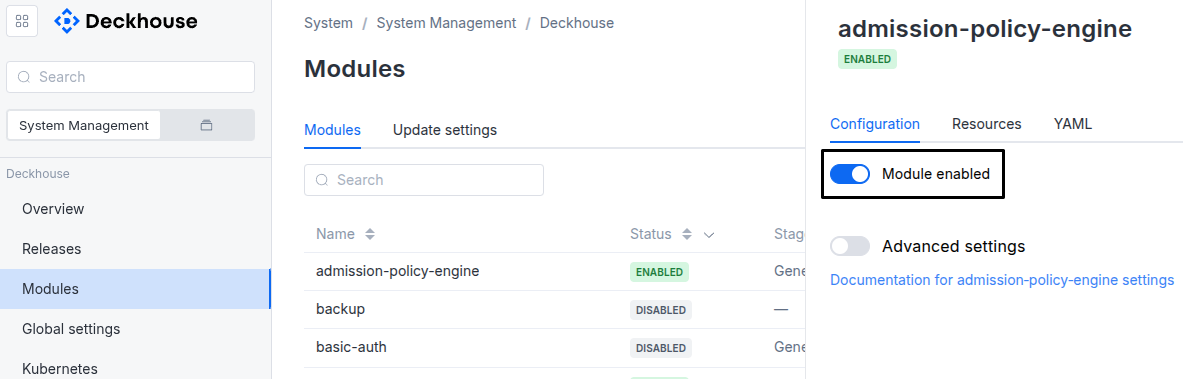
Via Deckhouse web UI. In the “System” → “System Management” → “Deckhouse” → “Modules” section, open the
csi-vspheremodule and enable (or disable) the “Module enabled” toggle. Save changes.Example:
-
Via Deckhouse CLI (d8).
Use the d8 system module enable command for enabling, or d8 system module disable command for disabling the module (you need Deckhouse CLI (d8), configured to work with the cluster).
Example of enabling the module:
d8 system module enable csi-vsphere -
Using ModuleConfig
csi-vsphere.Set
spec.enabledtotrueorfalsein ModuleConfigcsi-vsphere(create it if necessary);Example of a manifest to enable module
csi-vsphere:apiVersion: deckhouse.io/v1alpha1 kind: ModuleConfig metadata: name: csi-vsphere spec: enabled: true
How to configure the module...
You can configure the module in one of the following ways:
-
Via Deckhouse web UI.
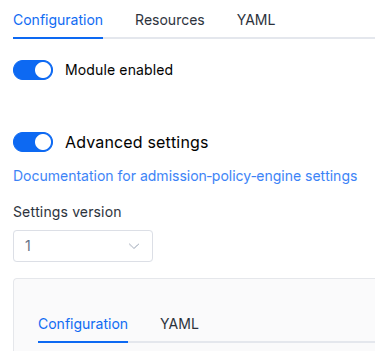
In the “System” → “System Management” → “Deckhouse” → “Modules” section, open the
csi-vspheremodule and enable the “Advanced Settings” switch. Fill in the required fields in the “Configuration” tab or specify the module settings in YAML format on the “YAML” tab, excluding the settings section. Save the changes.Example:
You can also edit the ModuleConfig object
csi-vsphereon the “YAML” tab in the module settings window (“System” → “System Management” → “Deckhouse” → “Modules”, open the modulecsi-vsphere) by specifying the schema version in thespec.versionparameter and the necessary module parameters in thespec.settingssection. -
Via Deckhouse CLI (d8) (requires Deckhouse CLI (d8) configured to work with the cluster).
Edit the existing ModuleConfig
csi-vsphere(for more details on configuring Deckhouse, see the documentation) by executing the following command:d8 k edit mc csi-vsphereMake the necessary changes in the
spec.settingssection. If necessary, specify the schema version in thespec.versionparameter. Save the changes.You can also create a file with manifest for ModuleConfig
csi-vsphereusing the example below. Fill in thespec.settingssection with the required module parameters. If necessary, specify the schema version in thespec.versionparameter.Apply the manifest using the following command (indicate the manifest file name):
d8 k apply -f <FILENAME>Example of a manifest for ModuleConfig
csi-vsphere:apiVersion: deckhouse.io/v1alpha1 kind: ModuleConfig metadata: name: csi-vsphere spec: version: 1 enabled: true settings: # Module parameters from the "Parameters" section below.
Parameters
Schema version: 1
- objectsettings
- booleansettings.disableTimesync
Disable time synchronization on the vSphere side.
Warning. This parameter does not disable NTP daemons in the guest OS; it only disables time correction on the ESXi side.
- stringsettings.host
Required value
The domain of the vCenter server.
Example:
host: myhost - booleansettings.insecure
Set to
trueif vCenter has a self-signed certificate. - stringsettings.password
Required value
The user’s password.
Example:
password: myPaSsWd - stringsettings.region
Required value
Is a tag added to the vSphere Datacenter where all actions will occur: provisioning VirtualMachines, storing virtual disks on datastores, connecting to the network.
Example:
region: myreg - stringsettings.regionTagCategory
Required value
The name of the tag category used to identify the region (vSphere Datacenter).
Example:
regionTagCategory: myregtagcat - objectsettings.storageClass
- stringsettings.storageClass.compatibilityFlag
A flag allowing the use of the old CSI version:
Legacy— use the old version of the driver. FCD discs only, no online-resizing;Migration— in this case, both drivers will be available in the cluster at the same time. This mode is used to migrate from an old driver.
Allowed values:
Legacy,Migration - array of stringssettings.storageClass.exclude
A list of StorageClass names (or regex expressions for names) to exclude from the creation in the cluster.
Example:
exclude:
- ".*-lun101-.*"
- slow-lun103-1c280603
- stringsettings.username
Required value
The login.
Example:
username: myuname - stringsettings.vmFolderPath
Required value
The path to the VirtualMachine Folder where the cloned VMs will be created.
Example:
vmFolderPath: dev/test - stringsettings.zoneTagCategory
Required value
The name of the tag category used to identify the zone (vSphere Cluster).
Example:
zoneTagCategory: myzonetagcat - array of stringssettings.zones
Required value
The globally restricted set of zones that this Cloud Provider works with.
Example:
zones:
- zonea
- zoneb