Available with limitations in: Certified Core/CSE Lite (1.73), Certified Pro/CSE Pro (1.73)
Available without limitations in: Ultimate/EE
The module lifecycle stage: Experimental
The module has requirements for installation
Enabling NeuVector
To enable the module, use the web interface or the following command:
d8 platform module enable neuvectorAuthentication
NeuVector module is integrated with the Deckhouse Kubernetes Platform user-authn module via Dex. The user-authn module must be enabled — without it, the controller does not start.
The default built-in NeuVector admin user is disabled at the controller level (the controller is started with -no_def_admin), so the upstream-default admin/admin credentials cannot be used. All sign-in flows go through Dex:
- Cluster groups configured in the
user-authnDexProviderare forwarded to NeuVector via the OIDCgroupsclaim. - Use
auth.allowedUserEmails/auth.allowedUserGroupsto gate who can complete Dex login. - Use
auth.defaultRoleandauth.groupRoleMappingto assign NeuVector roles to authenticated users.
If a local NeuVector user is needed for break-glass scenarios, create it through the NeuVector UI or REST API after the first OIDC sign-in.
Sign-in from Deckhouse console
Deckhouse console manages NeuVector WAF and DLP policies from its own interface. To do that, its backend signs
the user in to NeuVector with the token the user already holds, over the controller endpoint
POST /v1/token-exchange, instead of sending the browser through another redirect.
Roles on this path are assigned from the groups claim of that token, and Dex filters the claim by
allowedGroups of the client that ran the login — for this path, that is the console. As a result a group that
the console does not allow never reaches auth.groupRoleMapping, and the
same user may receive a different role depending on the sign-in path. Keep every group used in
auth.groupRoleMapping present in console.auth.allowedUserGroups of the console module as well.
Controller REST API access
To expose the NeuVector controller REST API on port 10443 outside the cluster, enable controller.apiIngress.enable. The Ingress is published on https://neuvector-api.<publicDomainTemplate>/ and proxies to the controller. Authentication is handled by NeuVector itself: obtain a token via POST /v1/auth and pass it as X-Auth-Token on subsequent requests. Optionally restrict access by client IP through controller.apiIngress.whitelistSourceRanges.
Forwarding Deckhouse security events
NeuVector can display platform security events — Falco detections, Dex login attempts, KubeVirt audit records, and containerd integrity failures — in its own UI next to enforcer events. Events flow through the standard NeuVector pipeline (UI, syslog, webhook).
A sidecar, se-bridge, always runs in each controller pod to accept events from LogShipper and write them to NeuVector’s internal KV store. Forwarding itself is controlled by the seBridgeEnabled setting in the loki module. While the setting is off, the sidecar idles and consumes no traffic.
Supported sources: falco, dex, virtualization-audit, containerd-integrity. Each lands in the semantically correct tab of NeuVector UI (Events / Security Events / Admission).
The integration is safe for response rules: a controller patch disables the Quarantine action for events with AgentID=se-bridge, so wildcard rules do not fire on external events.
Syslog and webhook forwarding
Events from se-bridge flow through NeuVector’s standard forwarders.
- Syslog. The default configuration includes categories
Event,Runtime(which expands toViolation,Threat,Incident), andAudit, so all three channels used by the bridge are forwarded out of the box. If categories have been trimmed manually in the NeuVector UI, make sure the ones carrying external events are still enabled. - Webhook. The default webhook category list is empty, so external events are not pushed to webhooks until categories are explicitly enabled in the NeuVector configuration (System Configuration → Webhooks). This is stock NeuVector behaviour, unrelated to the bridge.
Delivery reliability
Delivery to NeuVector does not carry a formal at-least-once guarantee. If the NeuVector controller or the se-bridge sidecar is unreachable, LogShipper holds unprocessed events in its per-node disk buffer. The default buffer is on the order of 256 MB; during a sustained hundreds-of-events-per-second stream a multi-tens-of-minutes controller outage can fill the buffer and some events may be lost for NeuVector.
Loki ingestion is not affected — each destination has its own independent buffer.
To reduce the risk of loss, watch the vector_buffer_byte_size metric from the log-shipper module and alert on sustained approach to the buffer limit. If you need to increase the buffer, configure the buffer field on the corresponding ClusterLogDestination — see the LogShipper documentation.
How to explicitly enable or disable the module…
You may explicitly enable or disable the module in one of the following ways:
-
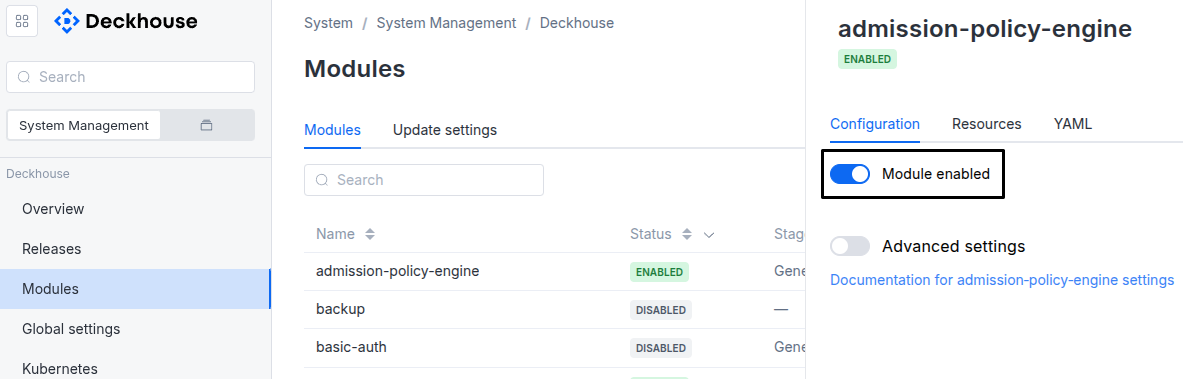
Via Deckhouse web UI. In the “System” → “System Management” → “Deckhouse” → “Modules” section, open the
neuvectormodule and enable (or disable) the “Module enabled” toggle. Save changes.Example:
-
Via Deckhouse CLI (d8).
Use the d8 system module enable command for enabling, or d8 system module disable command for disabling the module (you need Deckhouse CLI (d8), configured to work with the cluster).
Example of enabling the module:
d8 system module enable neuvector -
Using ModuleConfig
neuvector.Set
spec.enabledtotrueorfalsein ModuleConfigneuvector(create it if necessary).Example of a manifest to enable module
neuvector:apiVersion: deckhouse.io/v1alpha1 kind: ModuleConfig metadata: name: neuvector spec: enabled: true
You can configure the module in one of the following ways:
-
Via Deckhouse web UI.
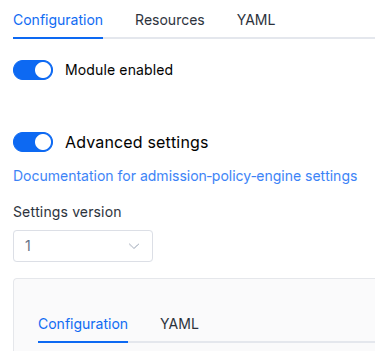
In the “System” → “System Management” → “Deckhouse” → “Modules” section, open the
neuvectormodule and enable the “Advanced Settings” toggle. Fill in the required fields in the “Configuration” tab or specify the module settings in YAML format on the “YAML” tab, without the top-levelsettingskey. Save the changes.Example:
You can also edit the ModuleConfig object
neuvectoron the “YAML” tab in the module settings window (“System” → “System Management” → “Deckhouse” → “Modules”, open the moduleneuvector) by specifying the schema version in thespec.versionparameter and the necessary module parameters in thespec.settingssection. -
Via Deckhouse CLI (d8) (requires Deckhouse CLI (d8) configured to work with the cluster).
Edit the existing ModuleConfig
neuvector(for more details on configuring Deckhouse Platform, see the documentation) by executing the following command:d8 k edit mc neuvectorMake the necessary changes in the
spec.settingssection. If necessary, specify the schema version in thespec.versionparameter. Save the changes.You can also create a manifest file for ModuleConfig
neuvectorusing the example below. Fill in thespec.settingssection with the required module parameters. If necessary, specify the schema version in thespec.versionparameter.Apply the manifest using the following command (indicate the manifest file name):
d8 k apply -f <FILENAME>Example of a manifest for ModuleConfig
neuvector:apiVersion: deckhouse.io/v1alpha1 kind: ModuleConfig metadata: name: neuvector spec: version: 1 enabled: true settings: # Module parameters from the "Parameters" section below.
Requirements
To the Deckhouse Platform version: 1.74 and above.
Parameters
Schema version: 1
-
-
objectsettings.authOptions related to authentication or authorization in the application.
Default:
{}-
array of stringssettings.auth.allowedUserEmails
An array of emails of users that are allowed to authenticate via Dex.
Used only if the user-authn module is enabled. Forwarded to the
spec.allowedEmailsfield of theDexClientresource. -
array of stringssettings.auth.allowedUserGroups
An array of user groups that are allowed to authenticate via Dex.
Used only if the user-authn module is enabled. Forwarded to the
spec.allowedGroupsfield of theDexClientresource.Caution! Note that you must add those groups to the appropriate field in the
DexProviderconfig. -
stringsettings.auth.defaultRole
NeuVector role assigned to OIDC-authenticated users when no
groupRoleMappingentry matches.Built-in roles:
admin,reader,ciops,none,fedAdmin,fedReader. A custom role name is also accepted if the role is defined in NeuVector via aroleinitcfg.yamlConfigMap.Notes:
nonemeans no role is granted; unmapped users will not be able to log in.fedAdmin/fedReaderare only meaningful on a federation master cluster.ciopsis intended for CI/CD bots that push scan results, not for human admins.
Default:
adminExamples:
defaultRole: admindefaultRole: readerdefaultRole: ciopsdefaultRole: nonedefaultRole: fedAdmindefaultRole: fedReader -
array of objectssettings.auth.groupRoleMappingMaps IdP groups (taken from the OIDC
groupsclaim) to NeuVector roles. Order matters: the first matching entry wins (NeuVector semantics). Independent fromauth.allowedUserGroups— that one gates Dex login, this one assigns the in-product role afterwards.Default:
[]Example:
groupRoleMapping: - globalRole: admin group: neuvector-admins - globalRole: none group: developers roleDomains: admin: - dev-team-a - dev-team-b reader: - staging-
stringsettings.auth.groupRoleMapping.globalRole
Cluster-wide NeuVector role granted to members of the
group.Built-in roles:
admin,reader,ciops,none,fedAdmin,fedReader. Any custom role name defined viaroleinitcfg.yamlis also accepted.Leave empty (or set to
none) when only namespace-scoped roles are intended viaroleDomains.fedAdmin/fedReaderare valid only on a federation master cluster.Examples:
globalRole: adminglobalRole: readerglobalRole: ciopsglobalRole: noneglobalRole: fedAdminglobalRole: fedReader -
stringsettings.auth.groupRoleMapping.groupIdP group name to match against the
groupsclaim. -
objectsettings.auth.groupRoleMapping.roleDomainsNamespace-scoped role overrides as a map: NeuVector role name -> list of namespaces. Example:
{admin: [staging], reader: [prod, default]}.
-
-
array of stringssettings.auth.whitelistSourceRangesAn array of CIDRs that are allowed to access the NeuVector web console.
Example:
whitelistSourceRanges:
- 1.1.1.1/32
-
-
objectsettings.controller
Configuration for the NeuVector controller component.
The controller manages policies, orchestrates enforcement, and provides the REST API.
Default:
{}-
objectsettings.controller.apiIngress
Optional Ingress that exposes the NeuVector controller REST API (port 10443) outside the cluster.
The Ingress is created on a separate hostname
neuvector-api.<publicDomainTemplate>and forwards requests to the controller’s REST API. Authentication is handled by NeuVector itself (token via/v1/auth).Default:
{}-
booleansettings.controller.apiIngress.enableEnable the controller REST API Ingress.
Default:
false -
array of stringssettings.controller.apiIngress.whitelistSourceRangesAn array of CIDRs that are allowed to access the controller REST API.
Example:
whitelistSourceRanges:
- 1.1.1.1/32
-
-
objectsettings.controller.nodeSelector
The same as in the pods’
spec.nodeSelectorparameter in Kubernetes.If the parameter is omitted, it will be determined automatically.
Example:
disktype: ssd -
objectsettings.controller.resourcesManagement
CPU and memory requests and limits of the controller container.
The values below apply as ordinary requests and limits when the vertical-pod-autoscaler module is disabled.
Default:
{}Examples:
mode: VPA vpa: cpu: max: 1000m min: 200m memory: limitRatio: 4 max: 3Gi min: 1Gi mode: InPlaceOrRecreatemode: Static static: limits: memory: 3Gi requests: cpu: 200m memory: 1Gi-
stringsettings.controller.resourcesManagement.mode
Resource management mode:
Default:
VPAAllowed values:
VPA,Static -
objectsettings.controller.resourcesManagement.staticResource management options for the
Staticmode.-
objectsettings.controller.resourcesManagement.static.limitsResource limits of the container.
-
settings.controller.resourcesManagement.static.limits.cpuCPU limit.
-
settings.controller.resourcesManagement.static.limits.memoryMemory limit.
-
-
objectsettings.controller.resourcesManagement.static.requestsResource requests of the container.
-
settings.controller.resourcesManagement.static.requests.cpuCPU requests.
-
settings.controller.resourcesManagement.static.requests.memoryMemory requests.
-
-
-
objectsettings.controller.resourcesManagement.vpaResource management options for the
VPAmode.Default:
{}-
objectsettings.controller.resourcesManagement.vpa.cpuCPU settings.
Default:
{}-
numbersettings.controller.resourcesManagement.vpa.cpu.limitRatio
Ratio between the CPU limit and the CPU requests.
When set, the limit is computed from
min. When omitted, the container gets no CPU limit, which is how the module behaved before this parameter existed. -
settings.controller.resourcesManagement.vpa.cpu.maxMaximum CPU requests VPA may set.
Default:
1000m -
settings.controller.resourcesManagement.vpa.cpu.minMinimum CPU requests VPA may set. Also used as the requests of the container.
Default:
200m
-
-
objectsettings.controller.resourcesManagement.vpa.memoryMemory settings.
Default:
{}-
numbersettings.controller.resourcesManagement.vpa.memory.limitRatio
Ratio between the memory limit and the memory requests.
The default reproduces the limit the module set before this parameter existed.
Default:
4 -
settings.controller.resourcesManagement.vpa.memory.maxMaximum memory requests VPA may set.
Default:
3Gi -
settings.controller.resourcesManagement.vpa.memory.minMinimum memory requests VPA may set. Also used as the requests of the container.
Default:
1Gi
-
-
stringsettings.controller.resourcesManagement.vpa.mode
VPA operating mode.
Initial— VPA sets the values at pod creation time and does not change them afterwards.InPlaceOrRecreate— VPA updates a running pod when the cluster supports it and recreates the pod otherwise.Auto— VPA recreates pods to apply updated values. Considered legacy since Deckhouse 1.75.
Every mode except
Initialmay restart a component of the security tool.Default:
InPlaceOrRecreateAllowed values:
Initial,InPlaceOrRecreate,Auto
-
-
-
settings.controller.storageClass
The name of StorageClass that will be used to store the module’s data.
If the value is not specified, the StorageClass will be used according to the global storageClass parameter setting.
The global
storageClassparameter is only considered when the module is enabled. Changing the globalstorageClassparameter while the module is enabled will not trigger disk re-provisioning.Warning. Specifying a value different from the one currently used (in the existing PVC) will result in disk re-provisioning and all data will be deleted.
If
falseis specified,emptyDirwill be forced to be used.Examples:
storageClass: falsestorageClass: nfs-storage-class -
array of objectssettings.controller.tolerations
The same as in the Pods’
spec.tolerationsparameter in Kubernetes.If the parameter is omitted or
false, it will be determined automatically.-
stringsettings.controller.tolerations.effect
-
stringsettings.controller.tolerations.key
-
stringsettings.controller.tolerations.operator
-
integersettings.controller.tolerations.tolerationSeconds
-
stringsettings.controller.tolerations.value
-
-
-
objectsettings.enforcer
Configuration for the NeuVector enforcer component.
The enforcer runs on every node and inspects workload traffic inline.
Default:
{}-
objectsettings.enforcer.resourcesManagement
CPU and memory requests and limits of the enforcer container.
The values below apply as ordinary requests and limits when the vertical-pod-autoscaler module is disabled.
Default:
{}Examples:
mode: VPA vpa: cpu: max: 1000m min: 300m memory: limitRatio: 4 max: 3Gi min: 1Gi mode: InPlaceOrRecreatemode: Static static: limits: memory: 3Gi requests: cpu: 300m memory: 1Gi-
stringsettings.enforcer.resourcesManagement.mode
Resource management mode:
Default:
VPAAllowed values:
VPA,Static -
objectsettings.enforcer.resourcesManagement.staticResource management options for the
Staticmode.-
objectsettings.enforcer.resourcesManagement.static.limitsResource limits of the container.
-
settings.enforcer.resourcesManagement.static.limits.cpuCPU limit.
-
settings.enforcer.resourcesManagement.static.limits.memoryMemory limit.
-
-
objectsettings.enforcer.resourcesManagement.static.requestsResource requests of the container.
-
settings.enforcer.resourcesManagement.static.requests.cpuCPU requests.
-
settings.enforcer.resourcesManagement.static.requests.memoryMemory requests.
-
-
-
objectsettings.enforcer.resourcesManagement.vpaResource management options for the
VPAmode.Default:
{}-
objectsettings.enforcer.resourcesManagement.vpa.cpuCPU settings.
Default:
{}-
numbersettings.enforcer.resourcesManagement.vpa.cpu.limitRatio
Ratio between the CPU limit and the CPU requests.
When set, the limit is computed from
min. When omitted, the container gets no CPU limit, which is how the module behaved before this parameter existed. -
settings.enforcer.resourcesManagement.vpa.cpu.maxMaximum CPU requests VPA may set.
Default:
1000m -
settings.enforcer.resourcesManagement.vpa.cpu.minMinimum CPU requests VPA may set. Also used as the requests of the container.
Default:
300m
-
-
objectsettings.enforcer.resourcesManagement.vpa.memoryMemory settings.
Default:
{}-
numbersettings.enforcer.resourcesManagement.vpa.memory.limitRatio
Ratio between the memory limit and the memory requests.
The default reproduces the limit the module set before this parameter existed.
Default:
4 -
settings.enforcer.resourcesManagement.vpa.memory.maxMaximum memory requests VPA may set.
Default:
3Gi -
settings.enforcer.resourcesManagement.vpa.memory.minMinimum memory requests VPA may set. Also used as the requests of the container.
Default:
1Gi
-
-
stringsettings.enforcer.resourcesManagement.vpa.mode
VPA operating mode.
Initial— VPA sets the values at pod creation time and does not change them afterwards.InPlaceOrRecreate— VPA updates a running pod when the cluster supports it and recreates the pod otherwise.Auto— VPA recreates pods to apply updated values. Considered legacy since Deckhouse 1.75.
Every mode except
Initialmay restart a component of the security tool.Default:
InPlaceOrRecreateAllowed values:
Initial,InPlaceOrRecreate,Auto
-
-
-
-
objectsettings.gatewayAPIPublication of the module’s web interfaces through Gateway API.
Default:
{}-
booleansettings.gatewayAPI.enabled
Publish the web console through Gateway API.
When the parameter is not set, the module follows the global Gateway API setting. Objects are created only when the Gateway API resources are registered in the cluster and a gateway can be resolved.
Example:
enabled: false
-
-
booleansettings.highAvailability
Manually enable the high availability mode.
By default, Deckhouse automatically decides whether to enable the HA mode. Click here to learn more about the HA mode for modules.
Example:
highAvailability: true -
objectsettings.https
What certificate type to use with the neuvector.
This parameter completely overrides the
global.modules.httpssettings.Examples:
customCertificate: secretName: foobar mode: CustomCertificatecertManager: clusterIssuerName: letsencrypt mode: CertManager-
objectsettings.https.certManager
-
stringsettings.https.certManager.clusterIssuerNameWhat ClusterIssuer to use for the neuvector. Currently,
letsencrypt,letsencrypt-staging,selfsignedare available; also, you can define your own.Default:
letsencrypt
-
-
objectsettings.https.customCertificate
-
stringsettings.https.customCertificate.secretNameThe name of the Secret in the
d8-systemnamespace to use with the neuvector (this Secret must have the kubernetes.io/tls format).Default:
false
-
-
stringsettings.https.mode
The HTTPS usage mode:
CertManager— the neuvector will use HTTPS and get a certificate from the ClusterIssuer defined in thecertManager.clusterIssuerNameparameter;CustomCertificate— the neuvector will use the certificate from thed8-systemnamespace for HTTPS;Disabled— neuvector will not work in this mode;OnlyInURI— the neuvector will work over HTTP (thinking that there is an external HTTPS load balancer in front of it that terminates HTTPS traffic). All the links in the user-authn will be generated using the HTTPS scheme. Load balancer should provide a redirect from HTTP to HTTPS.
Allowed values:
Disabled,CertManager,CustomCertificate,OnlyInURI
-
-
objectsettings.ingressPublication of the module’s web interfaces through Ingress.
Default:
{}-
booleansettings.ingress.enabled
Publish the web console and the controller API through Ingress.
When the parameter is not set, the module follows the global ingress setting.
Example:
enabled: false
-
-
objectsettings.manager
Configuration for the NeuVector manager component.
The web console proxies every console operation to the controller REST API.
Default:
{}-
objectsettings.manager.resourcesManagement
CPU and memory requests and limits of the web console container.
The values below apply as ordinary requests and limits when the vertical-pod-autoscaler module is disabled.
Default:
{}Examples:
mode: VPA vpa: cpu: max: 1000m min: 100m memory: limitRatio: 4 max: 2Gi min: 1024Mi mode: InPlaceOrRecreatemode: Static static: limits: memory: 2Gi requests: cpu: 100m memory: 1024Mi-
stringsettings.manager.resourcesManagement.mode
Resource management mode:
Default:
VPAAllowed values:
VPA,Static -
objectsettings.manager.resourcesManagement.staticResource management options for the
Staticmode.-
objectsettings.manager.resourcesManagement.static.limitsResource limits of the container.
-
settings.manager.resourcesManagement.static.limits.cpuCPU limit.
-
settings.manager.resourcesManagement.static.limits.memoryMemory limit.
-
-
objectsettings.manager.resourcesManagement.static.requestsResource requests of the container.
-
settings.manager.resourcesManagement.static.requests.cpuCPU requests.
-
settings.manager.resourcesManagement.static.requests.memoryMemory requests.
-
-
-
objectsettings.manager.resourcesManagement.vpaResource management options for the
VPAmode.Default:
{}-
objectsettings.manager.resourcesManagement.vpa.cpuCPU settings.
Default:
{}-
numbersettings.manager.resourcesManagement.vpa.cpu.limitRatio
Ratio between the CPU limit and the CPU requests.
When set, the limit is computed from
min. When omitted, the container gets no CPU limit, which is how the module behaved before this parameter existed. -
settings.manager.resourcesManagement.vpa.cpu.maxMaximum CPU requests VPA may set.
Default:
1000m -
settings.manager.resourcesManagement.vpa.cpu.minMinimum CPU requests VPA may set. Also used as the requests of the container.
Default:
100m
-
-
objectsettings.manager.resourcesManagement.vpa.memoryMemory settings.
Default:
{}-
numbersettings.manager.resourcesManagement.vpa.memory.limitRatio
Ratio between the memory limit and the memory requests.
The default reproduces the limit the module set before this parameter existed.
Default:
4 -
settings.manager.resourcesManagement.vpa.memory.maxMaximum memory requests VPA may set.
Default:
2Gi -
settings.manager.resourcesManagement.vpa.memory.minMinimum memory requests VPA may set. Also used as the requests of the container.
Default:
1024Mi
-
-
stringsettings.manager.resourcesManagement.vpa.mode
VPA operating mode.
Initial— VPA sets the values at pod creation time and does not change them afterwards.InPlaceOrRecreate— VPA updates a running pod when the cluster supports it and recreates the pod otherwise.Auto— VPA recreates pods to apply updated values. Considered legacy since Deckhouse 1.75.
Every mode except
Initialmay restart a component of the security tool.Default:
InPlaceOrRecreateAllowed values:
Initial,InPlaceOrRecreate,Auto
-
-
-
-
objectsettings.scanner
Configuration for the NeuVector scanner component.
The scanner analyses images and running containers against the local CVE database.
Default:
{}-
objectsettings.scanner.resourcesManagement
CPU and memory requests and limits of the scanner container.
The values below apply as ordinary requests and limits when the vertical-pod-autoscaler module is disabled.
Default:
{}Examples:
mode: VPA vpa: cpu: max: 1000m min: 200m memory: limitRatio: 4 max: 3Gi min: 1Gi mode: InPlaceOrRecreatemode: Static static: limits: memory: 3Gi requests: cpu: 200m memory: 1Gi-
stringsettings.scanner.resourcesManagement.mode
Resource management mode:
Default:
VPAAllowed values:
VPA,Static -
objectsettings.scanner.resourcesManagement.staticResource management options for the
Staticmode.-
objectsettings.scanner.resourcesManagement.static.limitsResource limits of the container.
-
settings.scanner.resourcesManagement.static.limits.cpuCPU limit.
-
settings.scanner.resourcesManagement.static.limits.memoryMemory limit.
-
-
objectsettings.scanner.resourcesManagement.static.requestsResource requests of the container.
-
settings.scanner.resourcesManagement.static.requests.cpuCPU requests.
-
settings.scanner.resourcesManagement.static.requests.memoryMemory requests.
-
-
-
objectsettings.scanner.resourcesManagement.vpaResource management options for the
VPAmode.Default:
{}-
objectsettings.scanner.resourcesManagement.vpa.cpuCPU settings.
Default:
{}-
numbersettings.scanner.resourcesManagement.vpa.cpu.limitRatio
Ratio between the CPU limit and the CPU requests.
When set, the limit is computed from
min. When omitted, the container gets no CPU limit, which is how the module behaved before this parameter existed. -
settings.scanner.resourcesManagement.vpa.cpu.maxMaximum CPU requests VPA may set.
Default:
1000m -
settings.scanner.resourcesManagement.vpa.cpu.minMinimum CPU requests VPA may set. Also used as the requests of the container.
Default:
200m
-
-
objectsettings.scanner.resourcesManagement.vpa.memoryMemory settings.
Default:
{}-
numbersettings.scanner.resourcesManagement.vpa.memory.limitRatio
Ratio between the memory limit and the memory requests.
The default reproduces the limit the module set before this parameter existed.
Default:
4 -
settings.scanner.resourcesManagement.vpa.memory.maxMaximum memory requests VPA may set.
Default:
3Gi -
settings.scanner.resourcesManagement.vpa.memory.minMinimum memory requests VPA may set. Also used as the requests of the container.
Default:
1Gi
-
-
stringsettings.scanner.resourcesManagement.vpa.mode
VPA operating mode.
Initial— VPA sets the values at pod creation time and does not change them afterwards.InPlaceOrRecreate— VPA updates a running pod when the cluster supports it and recreates the pod otherwise.Auto— VPA recreates pods to apply updated values. Considered legacy since Deckhouse 1.75.
Every mode except
Initialmay restart a component of the security tool.Default:
InPlaceOrRecreateAllowed values:
Initial,InPlaceOrRecreate,Auto
-
-
-
-