Available in: Open/CE, Core, BE, SE, SE+, Ultimate/EE
The module lifecycle stage: Generally available version
The module has requirements for installation
The module does not require any configuration (it works right out-of-the-box).
How to explicitly enable or disable the module…
You may explicitly enable or disable the module in one of the following ways:
-
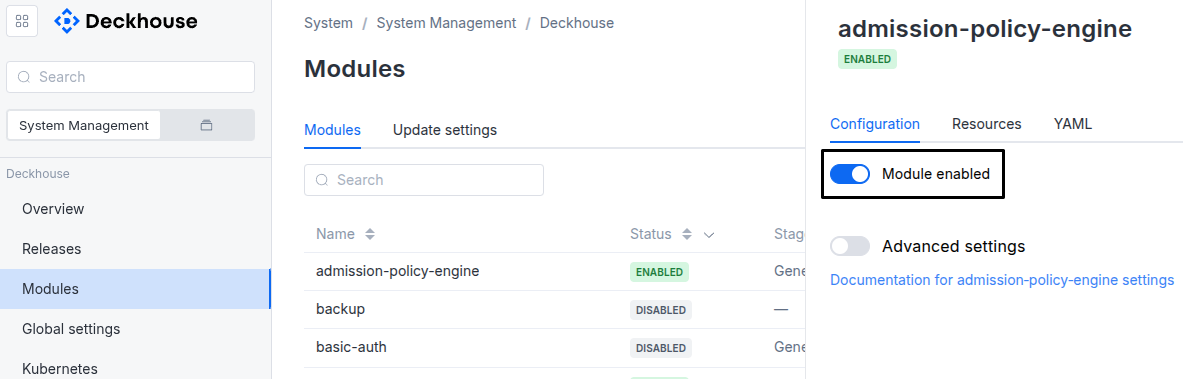
Via Deckhouse web UI. In the “System” → “System Management” → “Deckhouse” → “Modules” section, open the
pod-reloadermodule and enable (or disable) the “Module enabled” toggle. Save changes.Example:
-
Via Deckhouse CLI (d8).
Use the d8 system module enable command for enabling, or d8 system module disable command for disabling the module (you need Deckhouse CLI (d8), configured to work with the cluster).
Example of enabling the module:
d8 system module enable pod-reloader -
Using ModuleConfig
pod-reloader.Set
spec.enabledtotrueorfalsein ModuleConfigpod-reloader(create it if necessary).Example of a manifest to enable module
pod-reloader:apiVersion: deckhouse.io/v1alpha1 kind: ModuleConfig metadata: name: pod-reloader spec: enabled: true
You can configure the module in one of the following ways:
-
Via Deckhouse web UI.
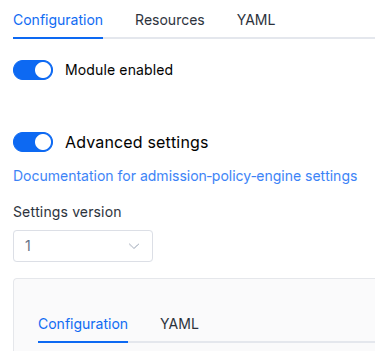
In the “System” → “System Management” → “Deckhouse” → “Modules” section, open the
pod-reloadermodule and enable the “Advanced Settings” toggle. Fill in the required fields in the “Configuration” tab or specify the module settings in YAML format on the “YAML” tab, without the top-levelsettingskey. Save the changes.Example:
You can also edit the ModuleConfig object
pod-reloaderon the “YAML” tab in the module settings window (“System” → “System Management” → “Deckhouse” → “Modules”, open the modulepod-reloader) by specifying the schema version in thespec.versionparameter and the necessary module parameters in thespec.settingssection. -
Via Deckhouse CLI (d8) (requires Deckhouse CLI (d8) configured to work with the cluster).
Edit the existing ModuleConfig
pod-reloader(for more details on configuring Deckhouse Platform, see the documentation) by executing the following command:d8 k edit mc pod-reloaderMake the necessary changes in the
spec.settingssection. If necessary, specify the schema version in thespec.versionparameter. Save the changes.You can also create a manifest file for ModuleConfig
pod-reloaderusing the example below. Fill in thespec.settingssection with the required module parameters. If necessary, specify the schema version in thespec.versionparameter.Apply the manifest using the following command (indicate the manifest file name):
d8 k apply -f <FILENAME>Example of a manifest for ModuleConfig
pod-reloader:apiVersion: deckhouse.io/v1alpha1 kind: ModuleConfig metadata: name: pod-reloader spec: version: 1 enabled: true settings: # Module parameters from the "Parameters" section below.
Requirements
To the Deckhouse Platform version: 1.68 and above.
Parameters
Schema version: 1
-
-
booleansettings.enableArgoRollouts
Enable support for the Argo Rollouts
Rolloutresource.When enabled, pod-reloader watches
Rolloutresources (argoproj.io/v1alpha1) and rolls them out on ConfigMap or Secret changes in the same way as Deployments, DaemonSets and StatefulSets.Requires Argo Rollouts to be installed in the cluster (the
rollouts.argoproj.ioCRD must exist).Default:
falseExamples:
enableArgoRollouts: trueenableArgoRollouts: false -
objectsettings.nodeSelector
The same as in the pods’
spec.nodeSelectorparameter in Kubernetes.If the parameter is omitted or
false, it will be determined automatically.Example:
disktype: ssd -
booleansettings.reloadOnCreate
Rollout the workload in case of creating a ConfigMap or Secret.
Enabling the parameter will cause the workload to restart not only when changing the corresponding ConfigMap or Secret, but also when creating it.
Default:
trueExamples:
reloadOnCreate: truereloadOnCreate: false -
booleansettings.reloadOnDelete
Rollout the workload in case of deleting a ConfigMap or Secret.
Enabling the parameter will cause the workload to restart when deleting the corresponding ConfigMap or Secret.
Default:
falseExamples:
reloadOnDelete: truereloadOnDelete: false -
stringsettings.reloadStrategy
Strategy to use for triggering reload.
EnvVars- Adds a dummy environment variable to any container referencing the changed resource (e.g., Deployment, StatefulSet, etc.). This forces Kubernetes to perform a rolling update.Annotations- Adds areloader.stakater.com/last-reloaded-fromannotation to the pod template metadata. Ideal for GitOps tools like ArgoCD, as it avoids triggering unwanted sync diffs.Default:
EnvVarsAllowed values:
EnvVars,AnnotationsExamples:
reloadStrategy: EnvVarsreloadStrategy: Annotations -
array of objectssettings.tolerations
The same as in the pods’
spec.tolerationsparameter in Kubernetes;If the parameter is omitted or
false, it will be determined automatically.Example:
tolerations: - effect: NoSchedule key: key1 operator: Equal value: value1 - effect: NoSchedule key: key1 operator: Exists-
stringsettings.tolerations.effect
-
stringsettings.tolerations.key
-
stringsettings.tolerations.operator
-
integersettings.tolerations.tolerationSeconds
-
stringsettings.tolerations.value
-
-