Available with limitations in: Open/CE, Core, BE, SE, SE+, Ultimate/EE, Certified Core/CSE Lite (1.73), Certified Pro/CSE Pro (1.73)
Included with limitations in extensions: Secrets Management
The module lifecycle stage: Generally available version
The module has requirements for installation
How to explicitly enable or disable the module…
Warning. Enabling and disabling the module has some specific features. Read more in the module setup documentation.
You may explicitly enable or disable the module in one of the following ways:
-
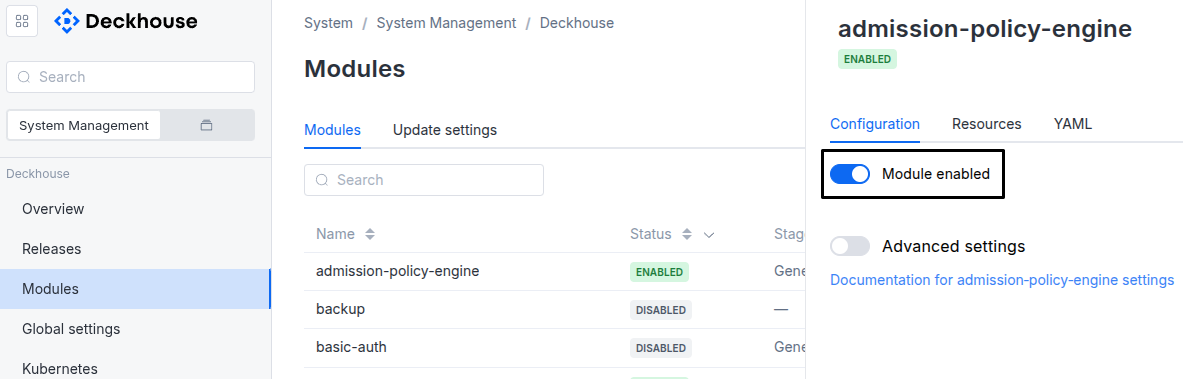
Via Deckhouse web UI. In the “System” → “System Management” → “Deckhouse” → “Modules” section, open the
strongholdmodule and enable (or disable) the “Module enabled” toggle. Save changes.Example:
-
Via Deckhouse CLI (d8).
Use the d8 system module enable command for enabling, or d8 system module disable command for disabling the module (you need Deckhouse CLI (d8), configured to work with the cluster).
Example of enabling the module:
d8 system module enable stronghold -
Using ModuleConfig
stronghold.Set
spec.enabledtotrueorfalsein ModuleConfigstronghold(create it if necessary).Example of a manifest to enable module
stronghold:apiVersion: deckhouse.io/v1alpha1 kind: ModuleConfig metadata: name: stronghold spec: enabled: true
You can configure the module in one of the following ways:
-
Via Deckhouse web UI.
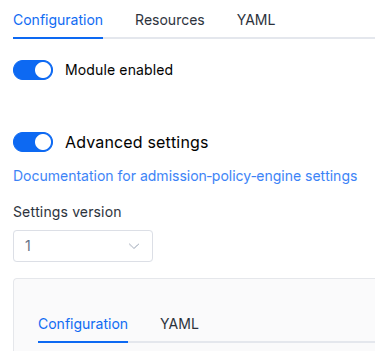
In the “System” → “System Management” → “Deckhouse” → “Modules” section, open the
strongholdmodule and enable the “Advanced Settings” toggle. Fill in the required fields in the “Configuration” tab or specify the module settings in YAML format on the “YAML” tab, without the top-levelsettingskey. Save the changes.Example:
You can also edit the ModuleConfig object
strongholdon the “YAML” tab in the module settings window (“System” → “System Management” → “Deckhouse” → “Modules”, open the modulestronghold) by specifying the schema version in thespec.versionparameter and the necessary module parameters in thespec.settingssection. -
Via Deckhouse CLI (d8) (requires Deckhouse CLI (d8) configured to work with the cluster).
Edit the existing ModuleConfig
stronghold(for more details on configuring Deckhouse Platform, see the documentation) by executing the following command:d8 k edit mc strongholdMake the necessary changes in the
spec.settingssection. If necessary, specify the schema version in thespec.versionparameter. Save the changes.You can also create a manifest file for ModuleConfig
strongholdusing the example below. Fill in thespec.settingssection with the required module parameters. If necessary, specify the schema version in thespec.versionparameter.Apply the manifest using the following command (indicate the manifest file name):
d8 k apply -f <FILENAME>Example of a manifest for ModuleConfig
stronghold:apiVersion: deckhouse.io/v1alpha1 kind: ModuleConfig metadata: name: stronghold spec: version: 1 enabled: true settings: # Module parameters from the "Parameters" section below.
Requirements
To the Deckhouse Platform version: 1.72 and above.
Parameters
Schema version: 1
-
-
integersettings.diskSizeGigabytesThe size of the disk for storage or PVC when specifying the storageClass parameters. For HA configurations, automatic increase and decrease of the disk size is supported. For one-node Stronghold configurations, only increase of the PVC size is supported. Make sure the specified value is sufficient for storing Stronghold data. The extended-monitoring module automatically monitors the percentage of used disk space.
Default:
1 -
booleansettings.enableAuditLogEnables audit log (EE only feature).
Example:
enableAuditLog: true -
booleansettings.enableUserInterfaceEnables User Interface.
Default:
trueExample:
enableUserInterface: false -
objectsettings.https
What certificate type to use with Stronghold.
This parameter completely overrides the
global.modules.httpssettings.Examples:
customCertificate: secretName: stronghold-tls mode: CustomCertificatecertManager: clusterIssuerName: letsencrypt mode: CertManager-
objectsettings.https.certManager
-
stringsettings.https.certManager.clusterIssuerName
What ClusterIssuer to use for Stronghold.
Currently,
letsencrypt,letsencrypt-staging,selfsignedare available. Also, you can define your own.Default:
letsencrypt
-
-
objectsettings.https.customCertificate
Default:
{}-
stringsettings.https.customCertificate.secretName
The name of the secret in the
d8-systemnamespace to use with Stronghold.This secret must have the kubernetes.io/tls format.
Default:
false
-
-
stringsettings.https.mode
The HTTPS usage mode:
CertManager— Stronghold will use HTTPS and get a certificate from the clusterissuer defined in thecertManager.clusterIssuerNameparameter.CustomCertificate— Stronghold will use HTTPS using the certificate from thed8-systemnamespace.
Default:
CertManagerAllowed values:
CertManager,CustomCertificate
-
-
objectsettings.ingress
Default:
{}-
stringsettings.ingress.class
The class of the Ingress controller used for Stronghold.
An optional parameter. By default, the
modules.ingressClassglobal value is used.Pattern:
^[a-z0-9]([-a-z0-9]*[a-z0-9])?(\.[a-z0-9]([-a-z0-9]*[a-z0-9])?)*$Example:
class: public
-
-
stringsettings.inlet
The way the connection to Stronghold is implemented.
The following inlet types are supported:
Ingress— access via ingress-nginx controller.
Default:
IngressAllowed values:
Ingress -
stringsettings.license
Stronghold EE License key.
Leave empty to use Stronghold CE.
Default:
‘’ -
objectsettings.management
Default:
{}-
array of objectssettings.management.administratorsA list of users and groups that can access Stronghold as administrators. Other authenticated users will access Stronghold with default policy.
Example:
administrators: - name: admins type: Group - name: security type: Group - name: manager@mycompany.tld type: User-
stringsettings.management.administrators.name
-
stringsettings.management.administrators.type
Allowed values:
Group,User
-
-
stringsettings.management.modeEnables Stronghold auto-init and auto-unseal. The root token is stored in the
stronghold-keysSecret.Default:
AutomaticAllowed values:
AutomaticExample:
mode: Automatic
-
-
objectsettings.nodeSelectorThe same as the Pods’
spec.nodeSelectorparameter in Kubernetes. If the parameter is omitted orfalse, Stronghold will be placed on control-plane nodes.Example:
node-role.kubernetes.io/stronghold: '' -
array of objectssettings.pluginsList of plugins to load into Stronghold. Each plugin is verified by SHA256 checksum.
Example:
plugins: - ignoreFailure: false name: vault-plugin-secrets-github sha256: 72cb1f2775ee2abf12ffb725e469d0377fe7bbb93cd7aaa6921c141eddecab87 url: https://github.com/martinbaillie/vault-plugin-secrets-github/releases/download/v2.3.2/vault-plugin-secrets-github-linux-amd64-
stringsettings.plugins.caPEM-encoded CA certificate(s) used to verify the HTTPS server for this plugin’s URL. If set, only this CA is trusted (not system CAs).
-
booleansettings.plugins.ignoreFailureIf true, failure to download or verify this plugin does not block Stronghold startup, but the plugin functionality will not be available.
Default:
false -
booleansettings.plugins.insecureSkipVerifyIf true, TLS server certificate is not verified for this plugin’s URL.
Default:
false -
stringsettings.plugins.nameFilename of the plugin binary after download.
-
stringsettings.plugins.sha256SHA256 checksum of the file. Download is rejected if the checksum does not match. This will block Stronghold startup unless ignoreFailure is set.
Pattern:
^[a-fA-F0-9]{64}$ -
stringsettings.plugins.urlURL to download the plugin binary (http or https, domain, path and filename). If the file is unavailable, this will block Stronghold startup unless ignoreFailure is set.
Pattern:
^https?://[a-zA-Z0-9][-a-zA-Z0-9.]*[a-zA-Z0-9](/[^/]+)*/[^/.]+$
-
-
stringsettings.storageClass
The name of StorageClass that will be used.
By default Stronghold keeps data in local storage on master nodes.
If you change this parameter, a gradual data transfer will be performed to the new StorageClass if using a HA Stronghold configuration.
For one-node Stronghold configurations, this parameter is only considered when the module is first started.
If you need to change the StorageClass in a one-node Stronghold configuration, you can do this through backup/restore and disabling/enabling the module. In this case, don’t forget to save the unseal keys as described in the documentation.
When changing this parameter, make sure the value specified in
diskSizeGigabytesis sufficient for storing Stronghold data.Default:
‘’Examples:
storageClass: ssdstorageClass: ceph-rbd -
array of objectssettings.tolerationsThe same as the Pods’
spec.tolerationsparameter in Kubernetes. If the parameter is omitted orfalse,tolerationswill be determined automatically.-
stringsettings.tolerations.effect
-
stringsettings.tolerations.key
-
stringsettings.tolerations.operator
-
integersettings.tolerations.tolerationSeconds
-
stringsettings.tolerations.value
-
-