Approval rules help control code quality and ensure mandatory review before merging. They can be used to determine how many approvals are required, who should participate in the review, and in which cases the rule should be triggered.
These rules operate at the group, project, and merge request levels, are inherited down the hierarchy, and enable centralized management of the review process. Together with CODEOWNERS, they form a flexible and reliable change control system, protecting important parts of the repository from unwanted or unreviewed edits.
Defining rules
Rules can be defined at the following levels:
- Groups (available for the Maintainer role). To define rules for a group, go to “Group” → “Settings” → “Merge requests” → “Approval rules”.
- Project (available for the Maintainer role). To define rules for a project, go to “Settings” → “Merge Requests” → “Approve Rules”.
- Merge requests (available for the Developer role). To define rules for a merge request, expand the “Approval rules” section on the MR creation or editing page.
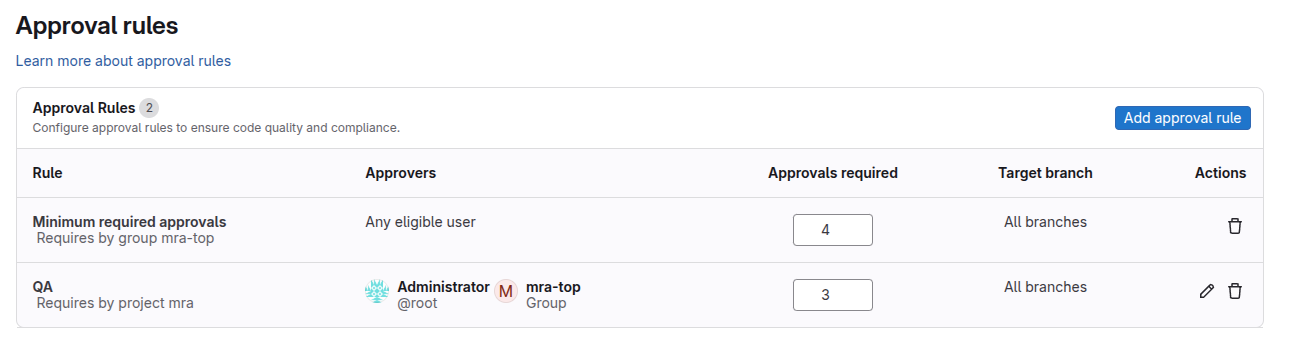
Description of columns in the approval rules table
- Rule: Contains the name of the rule and inheritance attribute. The entry “Required by Gitlab Org group” means that the rule was created in the Gitlab Org group.
- Approvers: Contains a list of users and groups whose approvals are taken into account when checking compliance with the rule.
- Required number of approvals: The number of approvals that must be obtained from users or group members specified in the “Approvers” column. The value
Any eligible usermeans that an approval from any user who has the right to do so will be counted. - Target branch: The rule applies only if the merge request is sent to the specified branch. A wildcard (
*) can be used as the branch name.
Rule inheritance
Approval rules are inherited in a cascade: group → subgroup → project → merge request. The inheritance mechanism has the following features:
-
When a subgroup, project, or merge request is created, the rules of the parent entity automatically appear in the new entity as inherited. The table of rules displays the level at which the rule was originally created next to its name.
-
When new rules are created at the group or project level, they are automatically added to all existing lower-level subgroups and projects. New rules are not added to merge requests that have already been created.
-
If you change a rule at the parent level, the changes are automatically applied to all inherited rules at lower levels. For example, if a project has inherited a rule from a group and you change the number of required approvals in the group, this change will also be reflected in the project.
-
If you change an inherited rule in a child entity, it becomes an independent rule. That is, the rule is no longer associated with the parent: a separate copy with new parameters remains at the child level, and further changes to the rule in the group will no longer affect this rule in the project.
Rules for the group
How to find it: “Group” → “Settings” → “Merge requests” → “Approval rules”.
Rules created at the group level are automatically added to new projects and subgroups as inherited.
Group rules can be managed by group members with the Maintainer role.
The “Approval rules” section displays a list of rules configured at the group level.
Creating a rule in a group
You can create a new rule by clicking the “Add approval rule” button and specifying:
- The name of the rule.
- The target branch (presets available: “All branches”, “All protected branches”, “Enter branch name”, or wildcard
*). - The required number of approvals.
- Approvers: Direct members of the group or group on the instance. When adding a group, only approvals from direct members of the added group are taken into account.
Project rules
How to find it: “Project” → “Settings” → “Merge requests” → “Approval rules”.
Rules created at the project level are automatically added to new merge requests as inherited.
Project rules can be managed by project members with the Maintainer role.
Creating a rule in a project
When creating a new rule, you can specify:
- The name of the rule.
- The target branch (you can select a preset, specify the branch name or a regular expression; you can also select a protected project branch).
- The required number of approvals.
- Approvers: Direct or inherited project members, as well as groups invited to the project with the Reporter role. For added groups, only approvals from direct group members are counted.
Rules for merge requests
How to find it: On the page for creating or editing an MR, expand the “Approval rules” section.
Merge request rules can be managed by users with the Developer role.
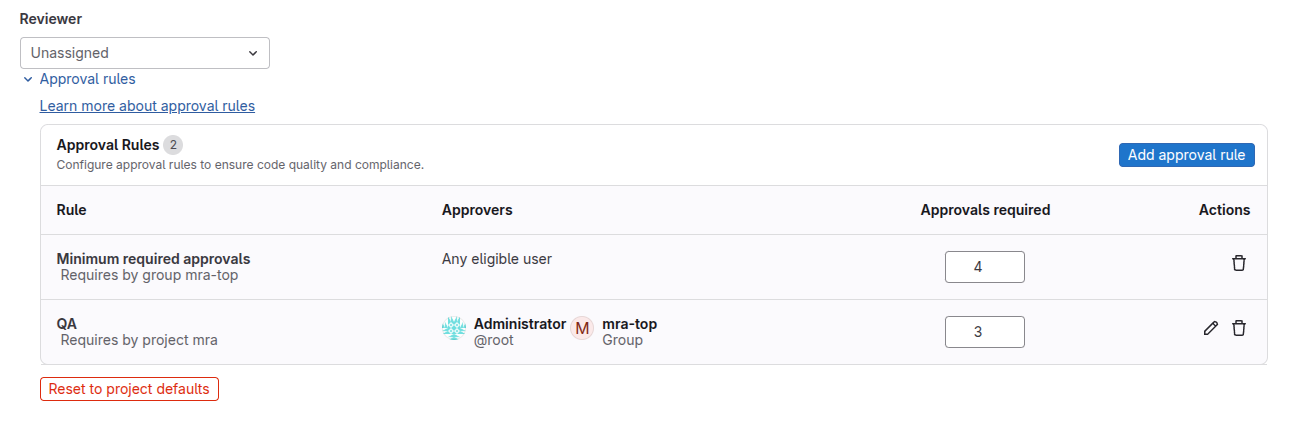
The MR page has a “Reset to project defaults” button that deletes the current rules and adds all project rules that apply to the target MR branch.
Creating a rule in MR
When creating a rule, you can specify:
- The name of the rule.
- The required number of approvals.
- Approvers: Direct or inherited project members, as well as groups with the Reporter role or higher. Only approvals from direct group members are taken into account on the group side.
Additional approval settings
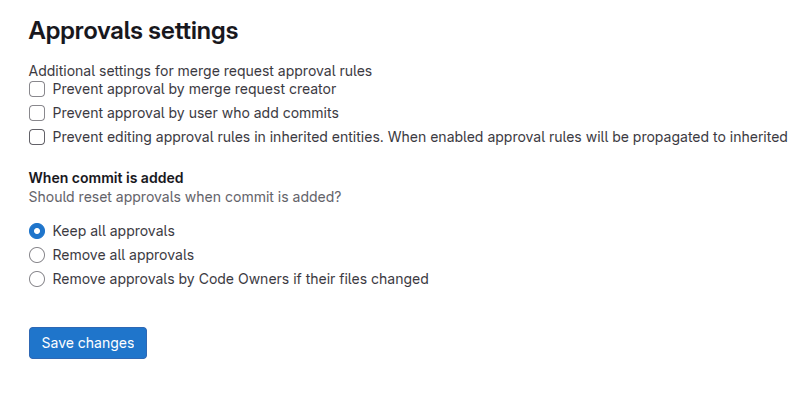
At the project or group level, you can configure additional settings:
- Prevent approval by merge request creator: The MR author cannot approve.
- Prevent approval by user who add commits: Committers cannot approve.
- Prevent editing approval rules in inherited entities: When enabled:
- Rules are copied to child entities and become unavailable for editing or deletion.
- Lower-level groups and projects can only create their own rules.
- Rules are not automatically added to existing MRs.
- Current approval settings also apply to all child entities.
- When commit is added: This section determines whether existing approvals should be reset when a new commit appears.
Who can perform approvals
If the approval settings do not prohibit it, approvals can be performed by:
- All project members with the Developer role or higher.
- Members with the Planner role or higher, if they are assigned as responsible in the merge request.