Available in: Open/CE, Core, BE, SE, SE+, Ultimate/EE
Included in extensions: Billing, Cluster Union
The module lifecycle stage: Generally available version
The module has requirements for installation
Pay attention to the global parameter publicDomainTemplate, if you are turning the module on. If the parameter is not specified, the Ingress resources for DKP service components (dashboard, user-auth, grafana, upmeter, etc.) will not be created.
Ingress controllers are configured using the IngressNginxController Custom Resource.
How to explicitly enable or disable the module…
You may explicitly enable or disable the module in one of the following ways:
-
Via Deckhouse web UI. In the “System” → “System Management” → “Deckhouse” → “Modules” section, open the
ingress-nginxmodule and enable (or disable) the “Module enabled” toggle. Save changes.Example:
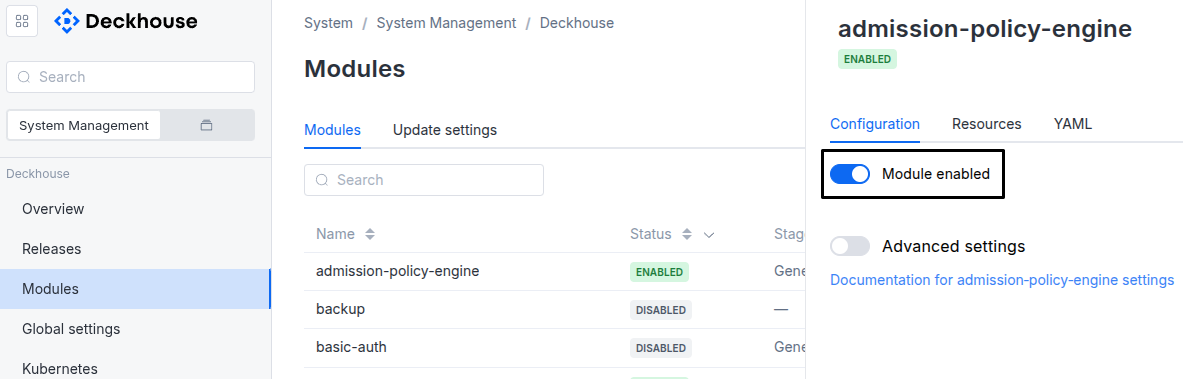
-
Via Deckhouse CLI (d8).
Use the d8 system module enable command for enabling, or d8 system module disable command for disabling the module (you need Deckhouse CLI (d8), configured to work with the cluster).
Example of enabling the module:
d8 system module enable ingress-nginx -
Using ModuleConfig
ingress-nginx.Set
spec.enabledtotrueorfalsein ModuleConfigingress-nginx(create it if necessary).Example of a manifest to enable module
ingress-nginx:apiVersion: deckhouse.io/v1alpha1 kind: ModuleConfig metadata: name: ingress-nginx spec: enabled: true
You can configure the module in one of the following ways:
-
Via Deckhouse web UI.
In the “System” → “System Management” → “Deckhouse” → “Modules” section, open the
ingress-nginxmodule and enable the “Advanced Settings” toggle. Fill in the required fields in the “Configuration” tab or specify the module settings in YAML format on the “YAML” tab, without the top-levelsettingskey. Save the changes.Example:
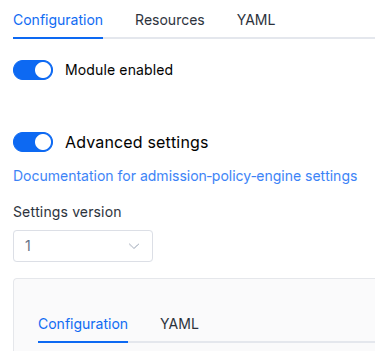
You can also edit the ModuleConfig object
ingress-nginxon the “YAML” tab in the module settings window (“System” → “System Management” → “Deckhouse” → “Modules”, open the moduleingress-nginx) by specifying the schema version in thespec.versionparameter and the necessary module parameters in thespec.settingssection. -
Via Deckhouse CLI (d8) (requires Deckhouse CLI (d8) configured to work with the cluster).
Edit the existing ModuleConfig
ingress-nginx(for more details on configuring Deckhouse Platform, see the documentation) by executing the following command:d8 k edit mc ingress-nginxMake the necessary changes in the
spec.settingssection. If necessary, specify the schema version in thespec.versionparameter. Save the changes.You can also create a manifest file for ModuleConfig
ingress-nginxusing the example below. Fill in thespec.settingssection with the required module parameters. If necessary, specify the schema version in thespec.versionparameter.Apply the manifest using the following command (indicate the manifest file name):
d8 k apply -f <FILENAME>Example of a manifest for ModuleConfig
ingress-nginx:apiVersion: deckhouse.io/v1alpha1 kind: ModuleConfig metadata: name: ingress-nginx spec: version: 1 enabled: true settings: # Module parameters from the "Parameters" section below.
Requirements
To the Deckhouse Platform version: 1.76.0 and above.
Parameters
Schema version: 1
-
-
settings.defaultControllerVersionThe version of the ingress-nginx controller that is used for all controllers by default if the
controllerVersionparameter is omitted in the IngressNginxController CR.Default:
1.10 -
booleansettings.highAvailability
Manually enable the high availability mode.
By default, Deckhouse automatically decides whether to enable the HA mode. Click here to learn more about the HA mode for modules.
Example:
highAvailability: true -
stringsettings.storageClass
The name of the StorageClass to use for storing GeoIP databases (the
geoproxyStatefulSet).If omitted, the StorageClass of the existing PVC is used. If there is no PVC yet, the StorageClass will be chosen according to the global storageClass parameter.
The global
storageClassparameter is only considered when the module is enabled. Changing it while the module is enabled will not trigger automatic disk re-provisioning.If
falseis specified,emptyDirwill be used.Examples:
storageClass: ceph-ssdstorageClass: 'false'
-