The module lifecycle stage: Generally available version
The module has requirements for installation
The credentials for accessing the parent cluster API are not stored in the module settings. The platform reads them from the d8-credentials Secret, whose format is covered in the Credentials Secret section.
How to explicitly enable or disable the module…
The module is automatically enabled for all cloud clusters deployed in DVP.
You may explicitly enable or disable the module in one of the following ways:
-
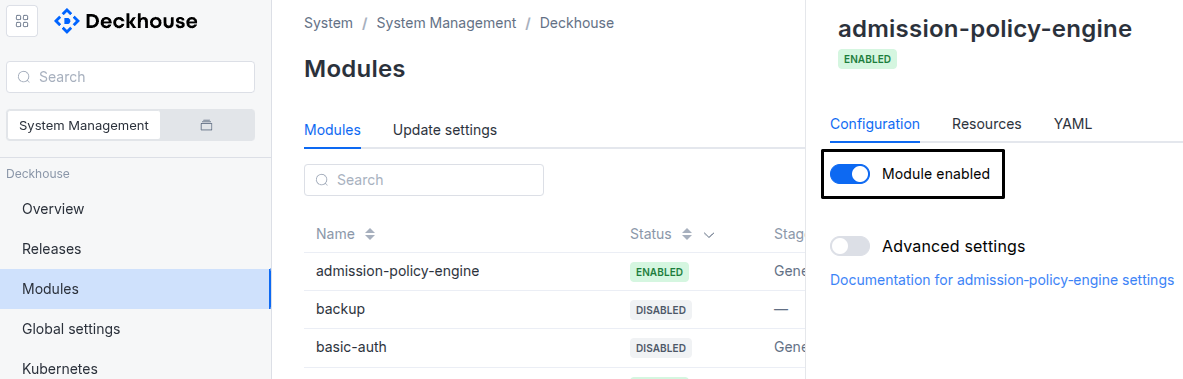
Via Deckhouse web UI. In the “System” → “System Management” → “Deckhouse” → “Modules” section, open the
cloud-provider-dvpmodule and enable (or disable) the “Module enabled” toggle. Save changes.Example:
-
Via Deckhouse CLI (d8).
Use the d8 system module enable command for enabling, or d8 system module disable command for disabling the module (you need Deckhouse CLI (d8), configured to work with the cluster).
Example of enabling the module:
d8 system module enable cloud-provider-dvp -
Using ModuleConfig
cloud-provider-dvp.Set
spec.enabledtotrueorfalsein ModuleConfigcloud-provider-dvp(create it if necessary).Example of a manifest to enable module
cloud-provider-dvp:apiVersion: deckhouse.io/v1alpha1 kind: ModuleConfig metadata: name: cloud-provider-dvp spec: enabled: true
You can configure the module in one of the following ways:
-
Via Deckhouse web UI.
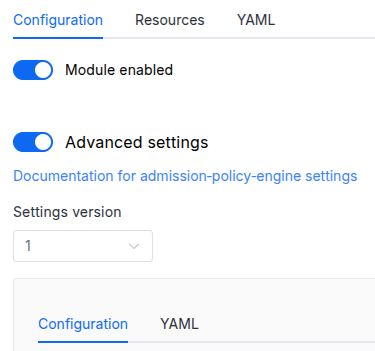
In the “System” → “System Management” → “Deckhouse” → “Modules” section, open the
cloud-provider-dvpmodule and enable the “Advanced Settings” toggle. Fill in the required fields in the “Configuration” tab or specify the module settings in YAML format on the “YAML” tab, without the top-levelsettingskey. Save the changes.Example:
You can also edit the ModuleConfig object
cloud-provider-dvpon the “YAML” tab in the module settings window (“System” → “System Management” → “Deckhouse” → “Modules”, open the modulecloud-provider-dvp) by specifying the schema version in thespec.versionparameter and the necessary module parameters in thespec.settingssection. -
Via Deckhouse CLI (d8) (requires Deckhouse CLI (d8) configured to work with the cluster).
Edit the existing ModuleConfig
cloud-provider-dvp(for more details on configuring Deckhouse Platform, see the documentation) by executing the following command:d8 k edit mc cloud-provider-dvpMake the necessary changes in the
spec.settingssection. If necessary, specify the schema version in thespec.versionparameter. Save the changes.You can also create a manifest file for ModuleConfig
cloud-provider-dvpusing the example below. Fill in thespec.settingssection with the required module parameters. If necessary, specify the schema version in thespec.versionparameter.Apply the manifest using the following command (indicate the manifest file name):
d8 k apply -f <FILENAME>Example of a manifest for ModuleConfig
cloud-provider-dvp:apiVersion: deckhouse.io/v1alpha1 kind: ModuleConfig metadata: name: cloud-provider-dvp spec: version: 2 enabled: true settings: # Module parameters from the "Parameters" section below.
Requirements
To the Deckhouse Platform version: 1.77 and above.
Conversions
The module is configured using the ModuleConfig resource, the schema of which contains a version number. When you apply an old version of the ModuleConfig schema in a cluster, automatic transformations are performed. To manually update the ModuleConfig schema version, the following steps must be completed sequentially for each version:
-
Updates from version 1 to 2:
- Move
provider.namespacetoprovider.parameters.namespace. - Move
zonestonodes.parameters.zones. - Delete
provider.kubeconfigDataBase64. The kubeconfig is stored in a Secret of typecloud-provider.deckhouse.io/credentials. - Set
nodes.parameters.layout(defaults toStandard). - Replace the placeholder in
nodes.parameters.sshPublicKeywith a real SSH public key.
- Move
Parameters
Schema version: 2
-
-
objectsettings.ccm
Cloud Controller Manager (CCM) subsystem settings.
CCM integrates the cluster with the cloud provider — for example, it manages load balancers. You can enable or disable CCM independently of other subsystems. For instance, leave CCM enabled if you only need load balancer management in the cluster.
-
booleansettings.ccm.disabled
Disables the Cloud Controller Manager.
Set to
trueif CCM is not required. Leave enabled (false) when you need cloud load balancer management.Default:
false
-
-
objectsettings.nodes
Nodes subsystem settings.
Controls node management in the cluster.
-
booleansettings.nodes.disabledDisables the node management subsystem.
Default:
false -
objectsettings.nodes.parameters
Required value
Parameters of the nodes subsystem.-
objectsettings.nodes.parameters.additionalVMLabels
Additional labels that will be added to all virtual machine pods in the created cluster: both master and worker nodes.
This parameter can be used to allow existing or custom NetworkPolicy resources in the parent cluster to select VM pods by these labels. For example, you can add a label to VM pods and allow access to them only from a bastion pod or another trusted source.
-
array of integerssettings.nodes.parameters.ingressPorts
List of virtual machine TCP ports for which ingress traffic will be allowed from any source: external IP addresses and any pods in the parent cluster.
Can be used to expose services that need to accept inbound TCP traffic from any source.
To disable this unrestricted ingress access, specify an empty array. In this case, access to VMs can be configured separately using custom NetworkPolicy resources that select VM pods by labels from the
additionalVMLabelsparameter.Default:
[ 22 ]-
integersettings.nodes.parameters.ingressPorts.Element of the array
Allowed values:
1 <= X <= 65535
-
-
objectsettings.nodes.parameters.ipAddresses
A map of static IP addresses for CloudPermanent NodeGroups.
The map key is the NodeGroup name, the value is a list of IP addresses assigned to nodes of that group. The number of addresses must match the number of replicas — each IP address is assigned to a specific replica.
Example:
ipAddresses:
  master:
    - 10.66.30.100
    - 10.66.30.101
    - 10.66.30.102
  worker:
    - 10.66.30.200
    - 10.66.30.201
These addresses must belong to the address range specified in the virtualization module configuration in the
virtualMachineCIDRsparameter. -
stringsettings.nodes.parameters.layout
Required value
Layout name.
Allowed values:
Standard -
stringsettings.nodes.parameters.region
Region name.
To use this setting, the
topology.kubernetes.io/regionlabel must be set on DVP nodes. Read more about topological labels.To set the required label for a DVP node, follow the NodeGroup documentation.
-
stringsettings.nodes.parameters.sshPublicKey
Required value
A public key for accessing nodes.Minimum length:
1 -
array of stringssettings.nodes.parameters.zones
A set of zones in which nodes can be created.
To use this setting, the
topology.kubernetes.io/zonelabel must be set on DVP nodes. Read more about topological labels.To set the required label for a DVP node, follow the NodeGroup documentation.
-
-
-
objectsettings.providerSettings for connecting to the parent Deckhouse Virtualization Platform (DVP).
-
objectsettings.provider.parameters
Required value
Contains settings to connect to the Deckhouse Platform API.-
stringsettings.provider.parameters.namespace
Required value
Namespace in which DP cluster resources will be created.
If not explicitly specified, the default namespace for kubeconfig will be used.
Minimum length:
1 -
stringsettings.provider.parameters.networkPolicy
Control rules for network traffic to and from workloads running in the Project resource.
Isolated: Applies a restrictive NetworkPolicy that allows only network traffic required for platform system components to function. All other traffic is denied.None: The cluster does not request any network policies. Existing project-level restrictions still apply.
If
Isolatedis selected,cloud-controller-managercreates a network policy for every load balancer so that the balancer traffic reaches the cluster nodes.Allowed values:
Isolated,None
-
-
-
objectsettings.storage
Storage subsystem settings.
Controls disk provisioning in the cluster.
-
booleansettings.storage.disabled
Disables the storage subsystem.
When set to
true, disk provisioning in the cluster is unavailable.Default:
false -
objectsettings.storage.parameters
Required value
Parameters of the storage subsystem.-
array of stringssettings.storage.parameters.excludedStorageClassesA list of StorageClass names (or regex expressions for names) to exclude from creation in the cluster.
-
-
-