
List of required OpenStack services
The following VK Cloud services must be available for Deckhouse Platform (DP) to operate:
| Service | API Version |
|---|---|
| Identity (Keystone) | v3 |
| Compute (Nova) | v2.1 |
| Network (Neutron) | v2.0 |
| Block Storage (Cinder) | v3 |
| Load Balancing (Octavia) * | v2 |
* If you need to order a Load Balancer.
API endpoints and ports are listed in the official documentation.
Layouts
This section describes the possible node placement layouts in VK Cloud infrastructure and the related configuration options. The selected layout affects networking behavior, availability of public IP addresses, outgoing traffic routing, and how nodes are accessed.
Standard
In this scheme, an internal cluster network is created with a gateway to the public network; the nodes do not have public IP addresses. The floating IP is assigned to the master node.
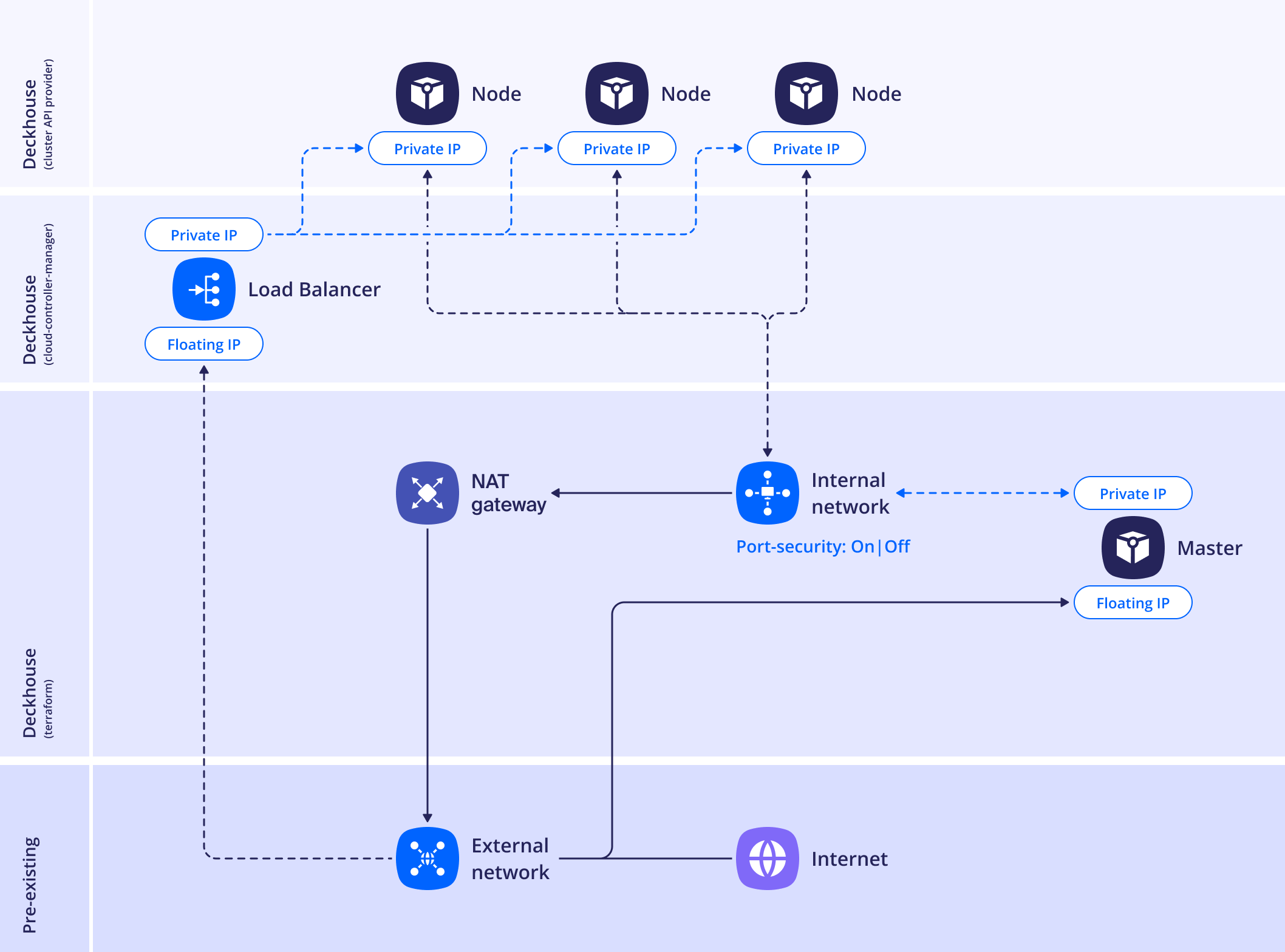
If the provider does not support SecurityGroups, all applications running on nodes with Floating IPs assigned will be available at a public IP. For example, kube-apiserver on master nodes will be available on port 6443. To avoid this, we recommend using the SimpleWithInternalNetwork or Standard layout with a bastion host.
The internalNetworkSecurity parameter (default true) enables the creation of a security group (SecurityGroup) when a cluster is created. DP creates the group named after the cluster prefix (prefix) and assigns it to the nodes.
The following inbound rules will be created:
- Allow incoming traffic over the TCP protocol on port
22from the CIDRs listed insshAllowList(default0.0.0.0/0). - Allow incoming traffic over the ICMP protocol from
0.0.0.0/0. - Allow incoming traffic over the TCP protocol on ports
30000–32767for services of theNodePorttype. Inbound UDP traffic toNodePortports is not allowed by default. - Allow any incoming traffic from nodes in the same security group.
In addition to the group created by DP, you can attach your own security groups. Prepare them in the cloud beforehand by following the OpenStack documentation and specify them in additionalSecurityGroups:
- For master nodes, in the
masterNodeGroup.instanceClass.additionalSecurityGroupsparameter of the OpenStackClusterConfiguration resource. - For static nodes, in the
nodeGroups[].instanceClass.additionalSecurityGroupsparameter of the OpenStackClusterConfiguration resource. - For ephemeral nodes, in the
spec.additionalSecurityGroupsparameter of the OpenStackInstanceClass resource.
Example layout configuration:
apiVersion: deckhouse.io/v1
kind: OpenStackClusterConfiguration
layout: Standard
standard:
  internalNetworkCIDR: 192.168.199.0/24         # Required.
  internalNetworkDNSServers:                    # Required.
  - 8.8.8.8
  - 4.2.2.2
  internalNetworkSecurity: true|false           # Optional, true by default.
  externalNetworkName: shared                   # Required.
  bastion:
    zone: ru2-b                                 # Optional.
    volumeType: fast-ru-2b                      # Optional.
    instanceClass:
      flavorName: m1.large                      # Required.
      imageName: ubuntu-20-04-cloud-amd64       # Required.
      rootDiskSize: 50                          # Optional, 50 GB by default.
      additionalTags:
        severity: critical                      # Optional.
        environment: production                 # Optional.
masterNodeGroup:
  replicas: 3
  instanceClass:
    flavorName: m1.large                        # Required.
    imageName: ubuntu-18-04-cloud-amd64         # Required.
    # Optional, local disk is used if not specified.
    rootDiskSize: 50
    # Optional, additional security groups.
    additionalSecurityGroups:
    - sec_group_1
    - sec_group_2
    additionalTags:
      severity: critical
      environment: production
  # Required, volume type map for etcd and Kubernetes certificates
  # (always use the fastest disk supplied by the provider).
  volumeTypeMap:
    # If rootDiskSize is specified, this volume type will
    # be also used for master root volume.
    ru-1a: fast-ru-1a
    ru-1b: fast-ru-1b
    ru-1c: fast-ru-1c
nodeGroups:
- name: front
  replicas: 2
  instanceClass:
    flavorName: m1.small                        # Required.
    imageName: ubuntu-18-04-cloud-amd64         # Required
    # Optional, local disk is used if not specified.
    rootDiskSize: 20
    # Optional, false by default. Determines if configuration drive is
    # required during vm bootstrap process. It's needed if there
    # is no DHCP in the network that is used as a default gateway.
    configDrive: false
    # Required, the gateway of this network will be used as the default gateway.
    # Matches the prefix parameter in the global ModuleConfig.
    mainNetwork: kube
    additionalNetworks:                         # Optional.
    - office
    - shared
    # Optional, if there are networks with disabled port
    # security their names must be specified.
    networksWithSecurityDisabled:
    - office
    # Optional, a list of network pools where to order floating IPs.
    floatingIPPools:
    - public
    - shared
    # Optional, additional security groups.
    additionalSecurityGroups:
    - sec_group_1
    - sec_group_2
  zones:
  - ru-1a
  - ru-1b
sshPublicKey: "<SSH_PUBLIC_KEY>"
tags:
  project: cms
  owner: default
provider:
  ...
StandardWithNoRouter
An internal cluster network is created that does not have access to the public network. All nodes (including master ones) have two interfaces: the first one to the public network, the second one to the internal network. This layout should be used if you want all nodes in the cluster to be directly accessible.
- This strategy does not support a LoadBalancer since a Floating IP is not available for the router-less network. Thus, you cannot provision a LoadBalancer with the Floating IP. An internal LoadBalancer with the virtual IP in the public network is only accessible from cluster nodes.
- Using this strategy, make sure to explicitly specify the name of the internal network in
additionalNetworkswhen creating an OpenStackInstanceClass in the cluster.
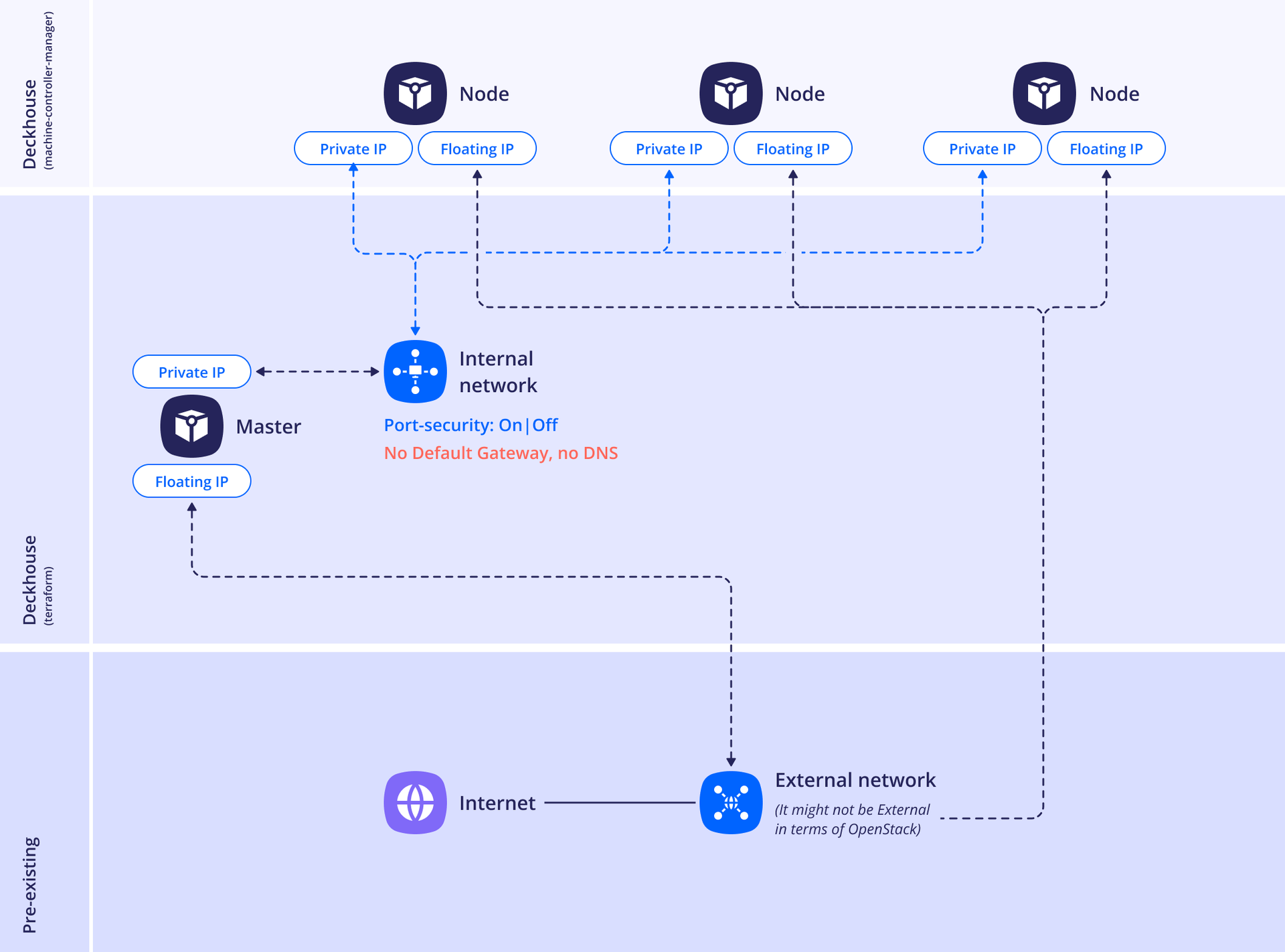
The internalNetworkSecurity parameter (default true) enables the creation of a security group (SecurityGroup) when a cluster is created. DP creates the group named after the cluster prefix (prefix) and assigns it to the nodes.
The following inbound rules will be created:
- Allow incoming traffic over the TCP protocol on port
22from the CIDRs listed insshAllowList(default0.0.0.0/0). - Allow incoming traffic over the ICMP protocol from
0.0.0.0/0. - Allow incoming traffic over the TCP protocol on ports
30000–32767for services of theNodePorttype. Inbound UDP traffic toNodePortports is not allowed by default. - Allow any incoming traffic from nodes in the same security group.
In addition to the group created by DP, you can attach your own security groups. Prepare them in the cloud beforehand by following the OpenStack documentation and specify them in additionalSecurityGroups:
- For master nodes, in the
masterNodeGroup.instanceClass.additionalSecurityGroupsparameter of the OpenStackClusterConfiguration resource. - For static nodes, in the
nodeGroups[].instanceClass.additionalSecurityGroupsparameter of the OpenStackClusterConfiguration resource. - For ephemeral nodes, in the
spec.additionalSecurityGroupsparameter of the OpenStackInstanceClass resource.
Example layout configuration:
apiVersion: deckhouse.io/v1
kind: OpenStackClusterConfiguration
layout: StandardWithNoRouter
standardWithNoRouter:
  internalNetworkCIDR: 192.168.199.0/24          # Required.
  externalNetworkName: ext-net                   # Required.
  # Optional, defines whether DHCP is enabled in specified external
  # network (true by default).
  externalNetworkDHCP: false
  internalNetworkSecurity: true|false            # Optional, true by default.
masterNodeGroup:
  replicas: 3
  instanceClass:
    flavorName: m1.large                         # Required.
    imageName: ubuntu-18-04-cloud-amd64          # Required.
    # Optional, local disk is used if not specified.
    rootDiskSize: 50
    # Optional, additional security groups.
    additionalSecurityGroups:
    - sec_group_1
    - sec_group_2
  # Required, volume type map for etcd and Kubernetes certificates
  # (always use the fastest disk supplied by the provider).
  volumeTypeMap:
    # If rootDiskSize is specified, this volume type will
    # be also used for master root volume.
    nova: ceph-ssd
nodeGroups:
- name: front
  replicas: 2
  instanceClass:
    flavorName: m1.small                         # Required.
    imageName: ubuntu-18-04-cloud-amd64          # Required.
    # Optional, local disk is used if not specified.
    rootDiskSize: 20
    # Optional, false by default, determines if configuration drive
    # is required during vm bootstrap process. It's needed
    # if there is no DHCP in the network that is used as a default
    # gateway.
    configDrive: false
    # Required, the gateway of the network will be used as the default gateway.
    # Matches the prefix parameter in the global ModuleConfig.
    mainNetwork: kube
    additionalNetworks:                          # Optional.
    - office
    - shared
    # Optional, if there are networks with disabled port
    # security, their names must be specified.
    networksWithSecurityDisabled:
    - office
    # Optional, a list of network pools where to order floating IPs.
    floatingIPPools:
    - public
    - shared
    # Optional, additional security groups.
    additionalSecurityGroups:
    - sec_group_1
    - sec_group_2
  # Required if rootDiskSize is specified. Volume type map for node's root volume.
  volumeTypeMap:
    nova: ceph-ssd
sshPublicKey: "<SSH_PUBLIC_KEY>"
provider:
  ...
Simple
The master node and cluster nodes are connected to the existing network. This placement strategy can be useful if you need to merge a Kubernetes cluster with existing VMs.
This strategy does not support a LoadBalancer since a Floating IP is not available for the router-less network. Thus, you cannot provision a LoadBalancer with the Floating IP. An internal LoadBalancer with the virtual IP in the public network is only accessible from cluster nodes.
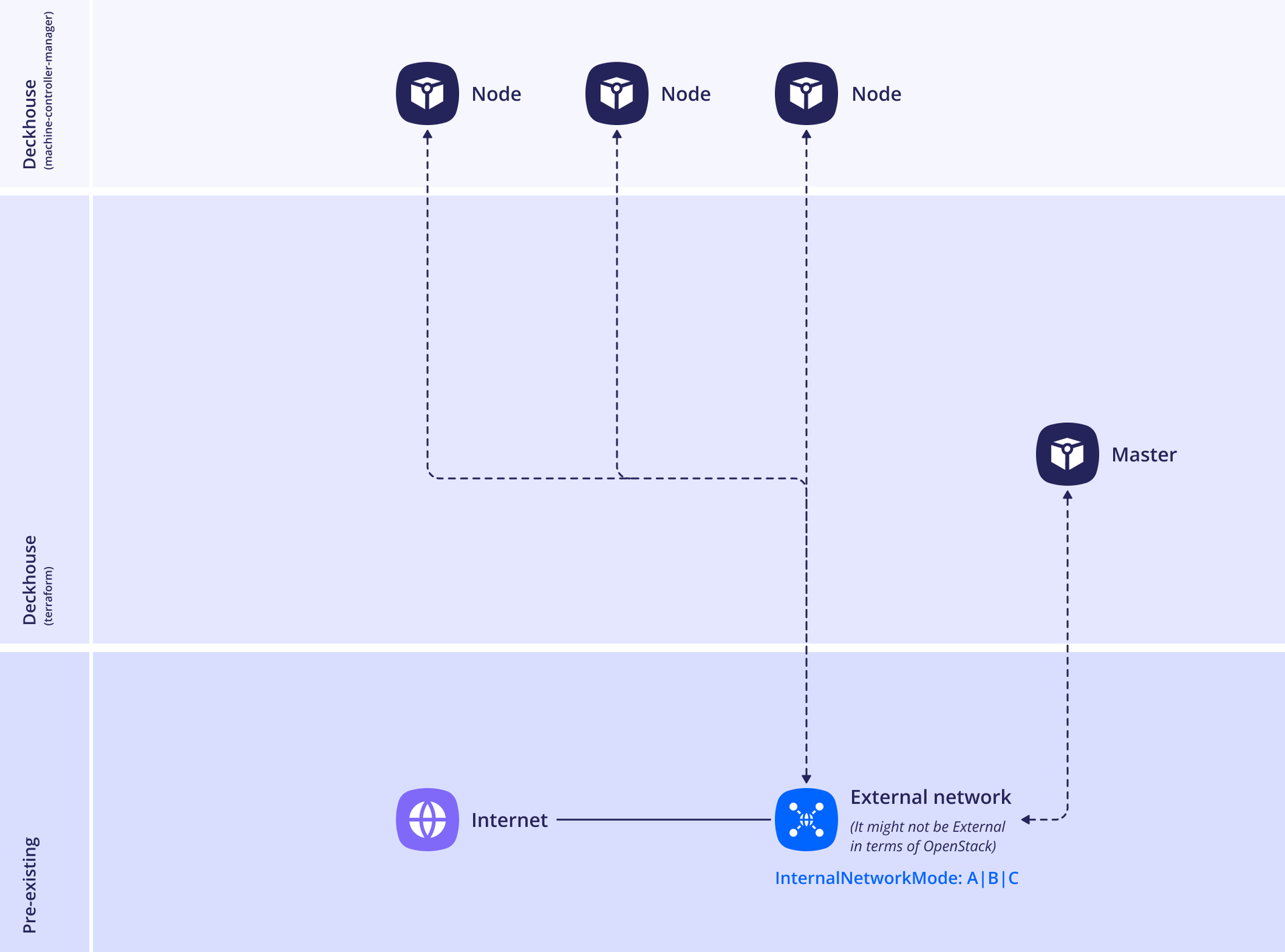
In this layout, DP does not create security groups. Prepare them in the cloud beforehand by following the OpenStack documentation and attach them to the nodes via additionalSecurityGroups:
- For master nodes, in the
masterNodeGroup.instanceClass.additionalSecurityGroupsparameter of the OpenStackClusterConfiguration resource. - For static nodes, in the
nodeGroups[].instanceClass.additionalSecurityGroupsparameter of the OpenStackClusterConfiguration resource. - For ephemeral nodes, in the
spec.additionalSecurityGroupsparameter of the OpenStackInstanceClass resource.
Example layout configuration:
apiVersion: deckhouse.io/v1
kind: OpenStackClusterConfiguration
layout: Simple
simple:
  externalNetworkName: ext-net                  # Required.
  externalNetworkDHCP: false                    # Optional, true by default.
  # Optional, VXLAN by default, may also be DirectRouting
  # or DirectRoutingWithPortSecurityEnabled.
  podNetworkMode: VXLAN
masterNodeGroup:
  replicas: 3
  instanceClass:
    flavorName: m1.large                        # Required.
    imageName: ubuntu-18-04-cloud-amd64         # Required.
    # Optional, local disk is used if not specified.
    rootDiskSize: 50
    # Optional, additional security groups.
    additionalSecurityGroups:
    - sec_group_1
    - sec_group_2
  # Required, volume type map for etcd and Kubernetes certificates
  # (always use the fastest disk supplied by the provider).
  volumeTypeMap:
    # If rootDiskSize is specified, this volume type will
    # be also used for master root volume.
    nova: ceph-ssd
nodeGroups:
- name: front
  replicas: 2
  instanceClass:
    flavorName: m1.small                        # Required.
    imageName: ubuntu-18-04-cloud-amd64         # Required.
    # Optional, local disk is used if not specified.
    rootDiskSize: 20
    # Optional, false by default, determines if configuration drive
    # is required during vm bootstrap process. It's needed
    # if there is no DHCP in network that is used as a default
    # gateway.
    configDrive: false
    # Required, the network will be used as a default gateway.
    # Matches the name of the pre-created network.
    mainNetwork: kube
    additionalNetworks:                         # Optional.
    - office
    - shared
    # Optional, if there are networks with disabled port
    # security, their names must be specified.
    networksWithSecurityDisabled:
    - office
    # Optional, list of network pools where to order floating IPs.
    floatingIPPools:
    - public
    - shared
    # Optional, additional security groups.
    additionalSecurityGroups:
    - sec_group_1
    - sec_group_2
sshPublicKey: "<SSH_PUBLIC_KEY>"
provider:
  ...
SimpleWithInternalNetwork
The master node and cluster nodes are connected to the existing network. This layout can be useful if you need to merge a Kubernetes cluster with existing VMs.
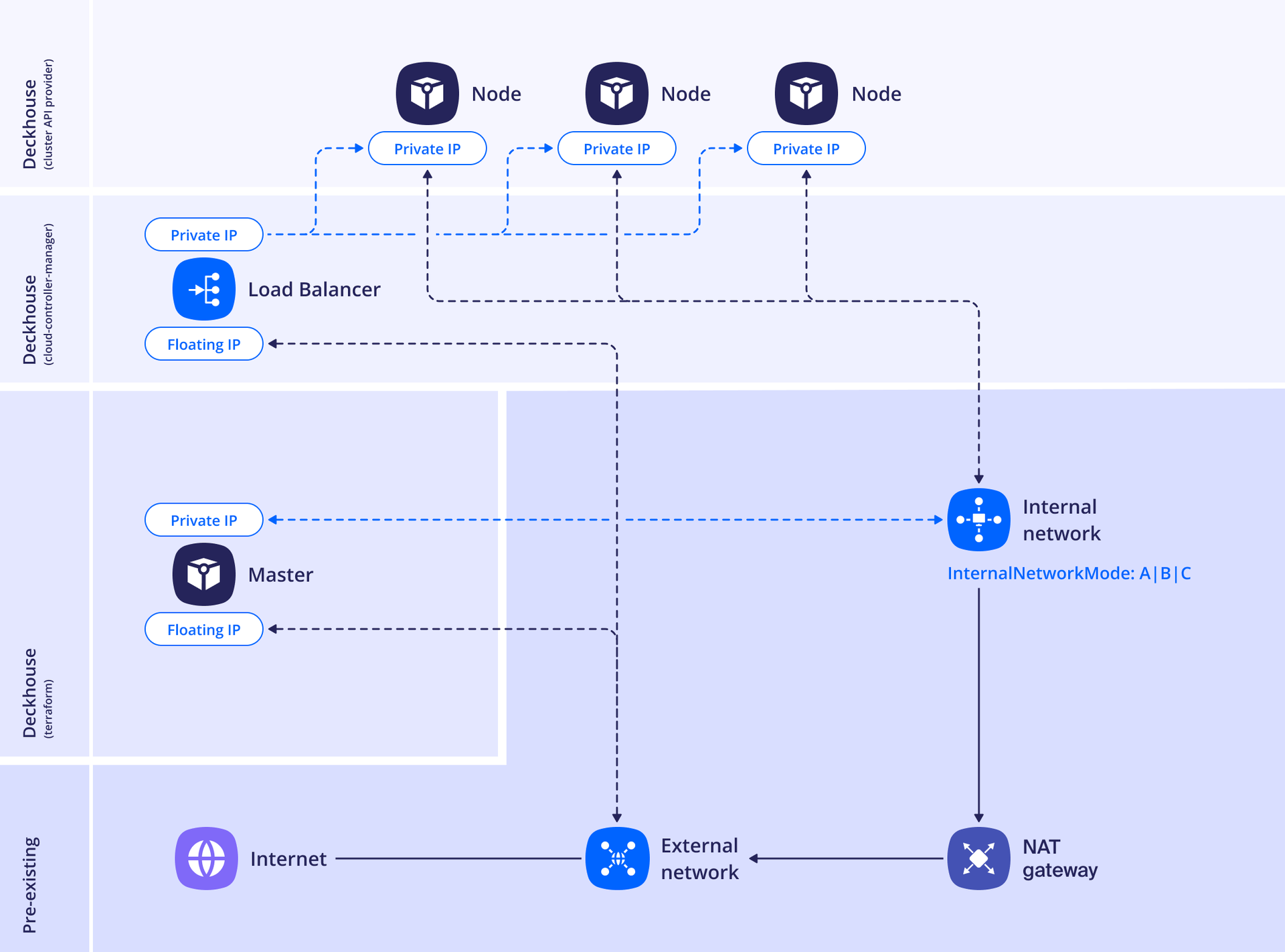
In this layout, DP does not create security groups. Prepare them in the cloud beforehand by following the OpenStack documentation and attach them to the nodes via additionalSecurityGroups:
- For master nodes, in the
masterNodeGroup.instanceClass.additionalSecurityGroupsparameter of the OpenStackClusterConfiguration resource. - For static nodes, in the
nodeGroups[].instanceClass.additionalSecurityGroupsparameter of the OpenStackClusterConfiguration resource. - For ephemeral nodes, in the
spec.additionalSecurityGroupsparameter of the OpenStackInstanceClass resource.
Example of the layout configuration:
apiVersion: deckhouse.io/v1
kind: OpenStackClusterConfiguration
layout: SimpleWithInternalNetwork
simpleWithInternalNetwork:
  # All cluster nodes have to be in the same subnet. Set either the subnet name
  # in internalSubnetName or its UUID in internalSubnetID.
  internalSubnetName: pivot-standard
  # Optional, DirectRoutingWithPortSecurityEnabled by default,
  # may also be DirectRouting or VXLAN.
  podNetworkMode: DirectRoutingWithPortSecurityEnabled
  # Optional. If set, it will be used for the load balancer default
  # configuration and ordering the master floating IP.
  externalNetworkName: ext-net
  # Optional, true by default.
  masterWithExternalFloatingIP: false
masterNodeGroup:
  replicas: 3
  instanceClass:
    flavorName: m1.large                        # Required.
    imageName: ubuntu-18-04-cloud-amd64         # Required.
    # Optional, local disk is used if not specified.
    rootDiskSize: 50
    # Optional, additional security groups.
    additionalSecurityGroups:
    - sec_group_1
    - sec_group_2
  # Required, volume type map for etcd and Kubernetes certificates
  # (always use the fastest disk supplied by the provider).
  volumeTypeMap:
    # If rootDiskSize is specified, this volume type will
    # be also used for master root volume.
    nova: ceph-ssd
nodeGroups:
- name: front
  replicas: 2
  instanceClass:
    flavorName: m1.small                        # Required.
    imageName: ubuntu-18-04-cloud-amd64         # Required.
    # Optional, local disk is used if not specified.
    rootDiskSize: 20
    # Optional, false by default, determines if configuration drive
    # is required during vm bootstrap process. It's needed
    # if there is no DHCP in the network that is used as a default
    # gateway.
    configDrive: false
    # Required, the network will be used as a default gateway.
    # Matches the name of the pre-created network.
    mainNetwork: kube
    additionalNetworks:                         # Optional.
    - office
    - shared
    # Optional, if there are networks with disabled port
    # security, their names must be specified.
    networksWithSecurityDisabled:
    - office
    # Optional, a list of network pools where to order floating IPs.
    floatingIPPools:
    - public
    - shared
    # Optional, additional security groups.
    additionalSecurityGroups:
    - sec_group_1
    - sec_group_2
sshPublicKey: "<SSH_PUBLIC_KEY>"
provider:
  ...
Configuration
Integration with VK Cloud is performed using the OpenStackClusterConfiguration resource. It defines the configuration of the cloud cluster in VK Cloud and is used by the cloud provider when the cluster control plane is hosted in the cloud. The DP module responsible for the integration is automatically configured based on the selected layout.
To modify the configuration in a running cluster, run the following command:
d8 system edit provider-cluster-configuration
After changing node-related parameters, run the dhctl converge command to apply the changes.
The number of nodes to be provisioned and their parameters are defined in the NodeGroup custom resource,
where you also specify the name of the instance class used for that group (the cloudInstances.classReference parameter).
For the VK Cloud cloud provider,
the instance class is a custom resource called OpenStackInstanceClass,
which contains the specific configuration of the VMs.
An OpenStack cluster is deployed in a single region (provider.region). Zones from other regions cannot be used. For details on configuring zones for CloudPermanent and CloudEphemeral nodes, see How do I create NodeGroups in availability zones? section.
If the instance class of the group sets the rootDiskSize parameter, the root disk is created in Cinder. In clouds where volume types are bound to availability zones, set the volume type for each zone in the volumeTypeMap parameter of the OpenStackInstanceClass resource. Otherwise, provisioning a node in a zone where the default volume type is unavailable fails with the HTTP 400 Availability zone '…' is invalid error.
When the module settings are changed, existing Machine objects in the cluster are NOT recreated (new Machine objects will use the updated parameters). The recreation only occurs if you modify the NodeGroup or the OpenStackInstanceClass parameters.
Configuration examples
The following are two simple configuration examples for the OpenStack cloud provider.
Example 1
apiVersion: deckhouse.io/v1
kind: OpenStackInstanceClass
metadata:
  name: test
spec:
  flavorName: m1.large
Example 2
apiVersion: deckhouse.io/v1alpha1
kind: ModuleConfig
metadata:
  name: cloud-provider-openstack
spec:
  version: 1
  enabled: true
  settings:
    connection:
      authURL: https://test.tests.com:5000/v3/
      domainName: default
      tenantName: default
      username: jamie
      password: nein
      region: SomeRegion
    externalNetworkNames:
    - public
    internalNetworkNames:
    - kube
    instances:
      sshKeyPairName: my-ssh-keypair
      securityGroups:
      - default
      - allow-ssh-and-icmp
    zones:
    - zone-a
    - zone-b
    tags:
      project: cms
      owner: default
LoadBalancer configuration
To correctly determine the client IP address, use a LoadBalancer with Proxy Protocol support.
It is recommended to limit the list of nodes added to the load balancer pool using the loadbalancer.openstack.org/node-selector annotation.
Without a node-selector restriction, cloud-controller-manager may use all suitable cluster nodes as load balancer targets. As a result, adding or removing nodes that are not related to the workload served by the load balancer may trigger an update of the load balancer pool membership. In large or frequently changing clusters, such updates may occur regularly and, in some configurations, may cause brief disruptions to existing connections.
The annotations field of the corresponding inlet configuration in the IngressNginxController resource supports the following annotations:
loadbalancer.openstack.org/node-selector: Selects the nodes that will be used as LoadBalancer targets.loadbalancer.openstack.deckhouse.io/load-balancer-id: Instructs OpenStack CCM to use a pre-created Octavia load balancer.loadbalancer.openstack.deckhouse.io/load-balancer-address: Instructs OpenStack CCM to associate a pre-allocated floating IP with the load balancer it creates.
DP automatically adds the specified annotations to the generated Service object of type LoadBalancer.
When using the loadbalancer.openstack.deckhouse.io/load-balancer-id annotation, the load balancer must meet the following requirements:
- reside in the cluster subnet
- be in the
ACTIVEstate
If loadbalancer.openstack.deckhouse.io/load-balancer-id is used to reference a pre-created load balancer with a custom name, associate the floating IP with its VIP port before creating the cluster. In this case, do not specify the loadbalancer.openstack.deckhouse.io/load-balancer-address annotation.
When using only loadbalancer.openstack.deckhouse.io/load-balancer-address, the floating IP must meet the following requirements:
- not be associated with any port
- reside in the floating network configured for OpenStack CCM
If the specified floating IP is unavailable, OpenStack CCM will not be able to assign an external IP address to the Service object.
Do not add the loadbalancer.openstack.deckhouse.io/load-balancer-id or loadbalancer.openstack.deckhouse.io/load-balancer-address annotations to application Ingress resources. Specify them only in the IngressNginxController configuration. DP will add them to the generated Service object, which is processed by openstack-cloud-controller-manager.
IngressNginxController with a pre-created load balancer
In the example below:
- Ingress controller pods are scheduled on frontend nodes.
loadbalancer.openstack.org/node-selectorlimits the load balancer target pool to those frontend nodes.loadbalancer.openstack.deckhouse.io/load-balancer-idreferences a pre-created Octavia load balancer whose VIP port already has a floating IP associated with it.
apiVersion: deckhouse.io/v1
kind: IngressNginxController
metadata:
  name: main
spec:
  ingressClass: nginx
  inlet: LoadBalancerWithProxyProtocol
  loadBalancerWithProxyProtocol:
    annotations:
      loadbalancer.openstack.deckhouse.io/load-balancer-id: "df7c6f73-8c68-4a11-a3e2-6268a655ce9b"
      loadbalancer.openstack.org/node-selector: "node-role.deckhouse.io/frontend="
      loadbalancer.openstack.org/proxy-protocol: "true"
      loadbalancer.openstack.org/timeout-member-connect: "2000"
  nodeSelector:
    node-role.deckhouse.io/frontend: ""
  tolerations:
  - effect: NoExecute
    key: dedicated.deckhouse.io
    operator: Equal
    value: frontend
IngressNginxController with a pre-allocated floating IP
In the example below, OpenStack CCM creates a load balancer and associates the specified unassigned floating IP with it:
apiVersion: deckhouse.io/v1
kind: IngressNginxController
metadata:
  name: main
spec:
  ingressClass: nginx
  inlet: LoadBalancerWithProxyProtocol
  loadBalancerWithProxyProtocol:
    annotations:
      loadbalancer.openstack.deckhouse.io/load-balancer-address: "203.0.113.10"
      loadbalancer.openstack.org/node-selector: "node-role.deckhouse.io/frontend="
      loadbalancer.openstack.org/proxy-protocol: "true"
      loadbalancer.openstack.org/timeout-member-connect: "2000"
  nodeSelector:
    node-role.deckhouse.io/frontend: ""
  tolerations:
  - effect: NoExecute
    key: dedicated.deckhouse.io
    operator: Equal
    value: frontend
Uploading an image to VK Cloud
-
Download the latest stable Ubuntu 18.04 image:
curl -L https://cloud-images.ubuntu.com/bionic/current/bionic-server-cloudimg-amd64.img --output ~/ubuntu-18-04-cloud-amd64 -
Prepare an openrc file that contains credentials for accessing the VK Cloud API.
The method of obtaining the openrc file may vary depending on the VK Cloud provider. If your provider offers the standard interface for VK Cloud, follow this guide to download the file.
-
Alternatively, install the OpenStack CLI tools following the instructions.
You can also run a container, mounting both the openrc file and the downloaded Ubuntu image:
docker run -ti --rm -v ~/ubuntu-18-04-cloud-amd64:/ubuntu-18-04-cloud-amd64 -v ~/.openrc:/openrc jmcvea/openstack-client -
Initialize environment variables from the openrc file:
source /openrc -
List the available volume types:
openstack volume type listExample output:
+--------------------------------------+---------------+-----------+ | ID | Name | Is Public | +--------------------------------------+---------------+-----------+ | 8d39c9db-0293-48c0-8d44-015a2f6788ff | ko1-high-iops | True | | bf800b7c-9ae0-4cda-b9c5-fae283b3e9fd | dp1-high-iops | True | | 74101409-a462-4f03-872a-7de727a178b8 | ko1-ssd | True | | eadd8860-f5a4-45e1-ae27-8c58094257e0 | dp1-ssd | True | | 48372c05-c842-4f6e-89ca-09af3868b2c4 | ssd | True | | a75c3502-4de6-4876-a457-a6c4594c067a | ms1 | True | | ebf5922e-42af-4f97-8f23-716340290de2 | dp1 | True | | a6e853c1-78ad-4c18-93f9-2bba317a1d13 | ceph | True | +--------------------------------------+---------------+-----------+ -
Create an image and assign the volume type as a property (this is necessary if VK Cloud does not support local disks or they are unsuitable for workloads):
openstack image create --private --disk-format qcow2 --container-format bare \ --file /ubuntu-18-04-cloud-amd64 --property cinder_img_volume_type=dp1-high-iops ubuntu-18-04-cloud-amd64 -
Ensure the image has been created:
openstack image show ubuntu-18-04-cloud-amd64Example output:
+------------------+-------------------------------------------------------------------------------------------------------------------------------------------------------------------------------------------------------------------------------------------------------------------------------------------+ | Field | Value | +------------------+-------------------------------------------------------------------------------------------------------------------------------------------------------------------------------------------------------------------------------------------------------------------------------------------+ | checksum | 3443a1fd810f4af9593d56e0e144d07d | | container_format | bare | | created_at | 2020-01-10T07:23:48Z | | disk_format | qcow2 | | file | /v2/images/01998f40-57cc-4ce3-9642-c8654a6d14fc/file | | id | 01998f40-57cc-4ce3-9642-c8654a6d14fc | | min_disk | 0 | | min_ram | 0 | | name | ubuntu-18-04-cloud-amd64 | | owner | bbf506e3ece54e21b2acf1bf9db4f62c | | properties | cinder_img_volume_type='dp1-high-iops', direct_url='rbd://b0e441fc-c317-4acf-a606-cf74683978d2/images/01998f40-57cc-4ce3-9642-c8654a6d14fc/snap', locations='[{u'url': u'rbd://b0e441fc-c317-4acf-a606-cf74683978d2/images/01998f40-57cc-4ce3-9642-c8654a6d14fc/snap', u'metadata': {}}]' | | protected | False | | schema | /v2/schemas/image | | size | 343277568 | | status | active | | tags | | | updated_at | 2020-05-01T17:18:34Z | | virtual_size | None | | visibility | private | +------------------+-------------------------------------------------------------------------------------------------------------------------------------------------------------------------------------------------------------------------------------------------------------------------------------------+
Replacing the OS image
The OS image of the nodes is set by the imageName parameter of the OpenStackInstanceClass resource for CloudEphemeral nodes and in the instanceClass section of the OpenStackClusterConfiguration resource for CloudPermanent nodes and master nodes. To move the cluster nodes to a new image, follow the steps from “How do I replace the OS image in a cloud cluster?”.
Verifying security group support by the cloud provider
Run the openstack security group list command.
If you don’t receive any errors, it means that security groups are supported.
Cinder CSI resilience during re-authentication in OpenStack
The Cinder CSI driver supports OpenStack re-authentication with service catalog refresh. This improves the reliability of volume operations in cinder-csi-plugin pods that have been running for a long time without being restarted.
When a token expires or a 401 Unauthorized response is received, the driver re-authenticates with OpenStack and updates the data used to access OpenStack API services. As a result, PersistentVolume operations, including volume attachment and detachment, continue without requiring CSI driver pods to be restarted.
This behavior is especially important for clusters where cinder-csi-plugin pods run for a long time without being restarted, while the OpenStack service catalog may change between the initial authentication and subsequent API requests.
Configuring online volume resize
When resizing a disk via the OpenStack API, Cinder does not pass updated size information to Nova. As a result, the disk size inside the guest OS remains unchanged.
To fix this, you must configure access to the Nova API in the cinder.conf file.
For example:
[nova]
interface = admin
insecure = {{ keystone_service_internaluri_insecure | bool }}
auth_type = {{ cinder_keystone_auth_plugin }}
auth_url = {{ keystone_service_internaluri }}/v3
password = {{ nova_service_password }}
project_domain_id = default
project_name = service
region_name = {{ nova_service_region }}
user_domain_id = default
username = {{ nova_service_user_name }}
For more details, see the OpenStack-Ansible bug report.
Using rootDiskSize
Disks in VK Cloud
A node’s disk can be either local or network-attached. In VK Cloud terminology:
- A local disk is called an ephemeral disk.
- A network-attached disk is called a persistent disk (Cinder storage).
The ephemeral disk is deleted along with the VM, while the persistent disk remains in the cloud even after the VM is deleted.
- For master nodes, network-attached disks are preferred so the nodes could migrate between hypervisors.
- For ephemeral nodes, local disks are preferred for cost efficiency. However, not all cloud providers support local disks. If not supported, you have to use network-attached disks for ephemeral nodes.
| Local disk (ephemeral) | Network-attached disk (persistent) |
|---|---|
| Deleted with the VM | Remains in cloud and can be reused |
| Less expensive | More expensive |
| Suitable for ephemeral nodes | Suitable for master nodes |
rootDiskSize parameter
The OpenStackInstanceClass resource includes a rootDiskSize parameter.
In VK Cloud, flavors may also define a disk size.
The resulting disk type depends on the combination of the following parameters:
| flavor disk size = 0 | flavor disk size > 0 | |
|---|---|---|
rootDiskSize not set |
❗Disk size must be specified. VM creation will fail without it. | Local disk with size from the flavor. |
rootDiskSize set |
Network-attached disk with size that equals rootDiskSize. |
❗ Both network-attached (rootDiskSize) and local (from flavor). Avoid this setup, as the cloud provider may charge for both. |
In Selectel Cloud, when creating nodes with CloudEphemeral type outside zone A, you must pre-create a flavor with the target disk size. In this case, you do not need to set the
rootDiskSizeparameter.
Recommendations for master nodes and bastion with network-attached disks
- Use a flavor with zero disk size.
- Set
rootDiskSizein the OpenStackInstanceClass resource. - Ensure the disk type is correct:
- If specified in the OS image, it will be used.
- If not specified, the type will be taken from
volumeTypeMap.
Recommendations for ephemeral nodes with local disks
- Use a flavor with a defined disk size.
- Do not use the
rootDiskSizeparameter in OpenStackInstanceClass. - Ensure the disk type is correct:
- If specified in the OS image, it will be used.
- If not specified, the cloud provider’s default disk type will be used.
Checking the disk size in a flavor
Run the following command:
openstack flavor show m1.medium-50g -c disk
Example output:
+-------+-------+
| Field | Value |
+-------+-------+
| disk  | 50    |
+-------+-------+
Overriding the cloud provider’s default disk type
If your cloud provider offers multiple volume types,
you can specify the default type for an image by setting the cinder_img_volume_type property in the image metadata.
Any VM created from that image will use the specified volume type.
You can also create a new VK Cloud image and upload it.
Example:
openstack volume type list
openstack image set ubuntu-18-04-cloud-amd64 --property cinder_img_volume_type=VOLUME_NAME