
Available in editions: Open/CE, BE, SE, SE+, Ultimate/EE, Core
The module lifecycle stage: General Availability
Deckhouse Platform reads the credentials for accessing the Yandex Cloud API from the d8-credentials Secret, whose format is described in “Credentials Secret”.
When the module settings change, the existing Machine objects are not recreated, and only new objects are created with the new parameters. Nodes are recreated when the parameters of NodeGroup and YandexInstanceClass change. For recreating nodes manually, see “How do I redeploy ephemeral machines in the cloud with a new configuration?”.
The module has 4 alerts.
How to explicitly enable the module...
You may explicitly enable or disable the module in one of the following ways:
-
Via Deckhouse web UI. In the “System” → “System Management” → “Deckhouse” → “Modules” section, open the
cloud-provider-yandexmodule and enable (or disable) the “Module enabled” toggle. Save changes.Example:
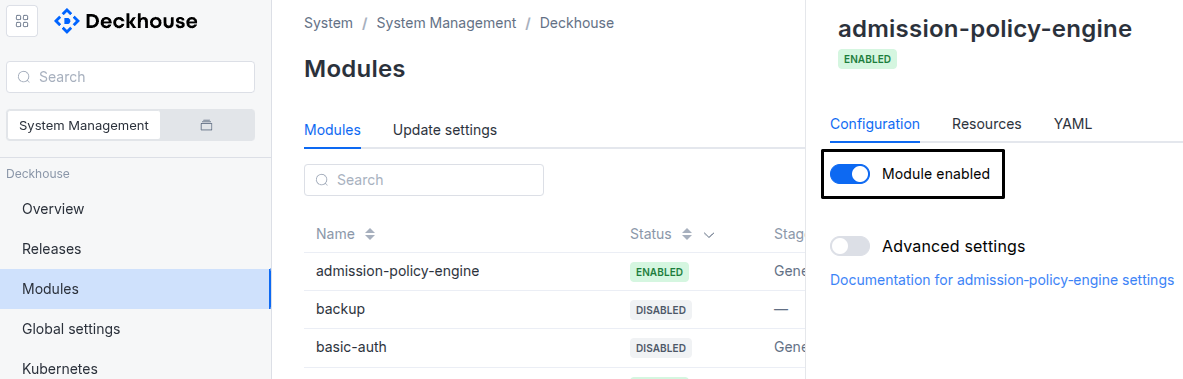
-
Via Deckhouse CLI (d8).
Use the d8 system module enable command for enabling, or d8 system module disable command for disabling the module (you need Deckhouse CLI (d8), configured to work with the cluster).
Example of enabling the module:
d8 system module enable cloud-provider-yandex -
Using ModuleConfig
cloud-provider-yandex.Set
spec.enabledtotrueorfalsein ModuleConfigcloud-provider-yandex(create it if necessary);Example of a manifest to enable module
cloud-provider-yandex:apiVersion: deckhouse.io/v1alpha1 kind: ModuleConfig metadata: name: cloud-provider-yandex spec: enabled: true
How to configure the module...
You can configure the module in one of the following ways:
-
Via Deckhouse web UI.
In the “System” → “System Management” → “Deckhouse” → “Modules” section, open the
cloud-provider-yandexmodule and enable the “Advanced Settings” switch. Fill in the required fields in the “Configuration” tab or specify the module settings in YAML format on the “YAML” tab, excluding the settings section. Save the changes.Example:
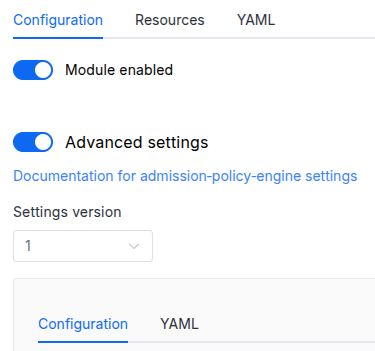
You can also edit the ModuleConfig object
cloud-provider-yandexon the “YAML” tab in the module settings window (“System” → “System Management” → “Deckhouse” → “Modules”, open the modulecloud-provider-yandex) by specifying the schema version in thespec.versionparameter and the necessary module parameters in thespec.settingssection. -
Via Deckhouse CLI (d8) (requires Deckhouse CLI (d8) configured to work with the cluster).
Edit the existing ModuleConfig
cloud-provider-yandex(for more details on configuring Deckhouse, see the documentation) by executing the following command:d8 k edit mc cloud-provider-yandexMake the necessary changes in the
spec.settingssection. If necessary, specify the schema version in thespec.versionparameter. Save the changes.You can also create a file with manifest for ModuleConfig
cloud-provider-yandexusing the example below. Fill in thespec.settingssection with the required module parameters. If necessary, specify the schema version in thespec.versionparameter.Apply the manifest using the following command (indicate the manifest file name):
d8 k apply -f <FILENAME>Example of a manifest for ModuleConfig
cloud-provider-yandex:apiVersion: deckhouse.io/v1alpha1 kind: ModuleConfig metadata: name: cloud-provider-yandex spec: version: 2 enabled: true settings: # Module parameters from the "Parameters" section below.
Conversions
The module is configured using the ModuleConfig resource, the schema of which contains a version number. When you apply an old version of the ModuleConfig schema in a cluster, automatic transformations are performed. To manually update the ModuleConfig schema version, the following steps must be completed sequentially for each version :
- Updates from version 1 to 2:
The settings are grouped under the
provider,nodes,storage, andccmparameters. The conversion does the following:- The
cloudID,folderID,layout,nodeNetworkCIDR, andsshPublicKeyparameters have to be filled in manually. - The
storageClass.excludeparameter is renamed toexcludedStorageClasses, andstorageClass.provisiontoprovisionedStorageClasses. - The
storageClass.defaultparameter is removed. Set the default StorageClass with the globaldefaultClusterStorageClassparameter. - The
additionalExternalNetworkIDsparameter is moved toccm.parameters.additionalExternalNetworkIDs.
- The
Module configuration
Every provider setting except the credentials is defined in the module’s ModuleConfig resource. Deckhouse Platform applies the settings both when creating a cluster and in a running cluster.
The settings are grouped under four top-level parameters:
providersets the Yandex Cloud cloud and folder IDs, the parameter is required;nodessets the layout, the network parameters, and the parameters of the nodes being created, the parameter is required;storagesets the StorageClass the module creates;ccmsets how the cloud controller manager works.
The nodes, storage, and cloud controller manager subsystems are turned off with the nested disabled parameter.
Example module configuration with provider, node, storage, and cloud controller manager settings:
apiVersion: deckhouse.io/v1alpha1
kind: ModuleConfig
metadata:
  name: cloud-provider-yandex
spec:
  version: 2
  enabled: true
  settings:
    provider:
      parameters:
        cloudID: <CLOUD_ID>
        folderID: <FOLDER_ID>
    nodes:
      parameters:
        layout: Standard
        nodeNetworkCIDR: 10.241.32.0/20
        sshPublicKey: <SSH_PUBLIC_KEY>
    storage:
      parameters:
        excludedStorageClasses:
          - network-hdd
    ccm:
      parameters:
        additionalExternalNetworkIDs:
          - enp6t4snovl2ko4p15em
Where:
CLOUD_IDandFOLDER_IDare the Yandex Cloud cloud and folder IDs;SSH_PUBLIC_KEYis the public SSH key for accessing the nodes.
The virtual machine parameters are set in the YandexInstanceClass resource that a NodeGroup refers to.
Storage
The module automatically creates a StorageClass for every Yandex Cloud disk type:
| Type | StorageClass name | Note |
|---|---|---|
| network-hdd | network-hdd | |
| network-ssd | network-ssd | |
| network-ssd-nonreplicated | network-ssd-nonreplicated | Disk size must be a multiple of 93 GB. |
| network-ssd-io-m3 | network-ssd-io-m3 | Disk size must be a multiple of 93 GB. |
You can filter out the unnecessary StorageClasses via the excludedStorageClasses parameter.
The provisionedStorageClasses parameter lets you create additional StorageClasses or override the parameters of StorageClasses created by the module by default.
Use the blockSize parameter to set the block size for provisioned disks. The block size determines the maximum disk size. It is 8Ti for 4Ki and doubles with each next block size, up to 256Ti for 128Ki.
Example configuration of the cloud-provider-yandex module with an additional StorageClass configured with a block size of 64Ki:
apiVersion: deckhouse.io/v1alpha1
kind: ModuleConfig
metadata:
  name: cloud-provider-yandex
spec:
  version: 2
  enabled: true
  settings:
    provider:
      parameters:
        cloudID: <CLOUD_ID>
        folderID: <FOLDER_ID>
    nodes:
      parameters:
        layout: Standard
        nodeNetworkCIDR: 192.168.12.0/24
        sshPublicKey: <SSH_PUBLIC_KEY>
    storage:
      parameters:
        provisionedStorageClasses:
          - name: network-ssd-64k
            type: network-ssd
            blockSize: 64Ki
After a disk is created, its block size cannot be changed. Changing the blockSize parameter recreates the StorageClass, but does not change the block size of previously provisioned volumes.
LoadBalancer
The module watches Service objects of the LoadBalancer type and creates a network load balancer and a target group for them in Yandex Cloud. The annotations that configure the balancer are listed in “Service annotations”.
For more information, see the Kubernetes Cloud Controller Manager for Yandex Cloud documentation.
Parameters
Schema version: 2
- objectsettings
- objectsettings.ccm
Cloud Controller Manager (CCM) subsystem settings.
CCM creates Network Load Balancers and target groups for Service objects of the
LoadBalancertype, maintains routes to pod subnets in the route table, and keeps node metadata up to date.- booleansettings.ccm.disabled
Disables the Cloud Controller Manager.
When set to
true, the cluster does not manage load balancers and routes in Yandex Cloud.Default:
false - objectsettings.ccm.parameters
Required value
Parameters of the Cloud Controller Manager subsystem.
- array of stringssettings.ccm.parameters.additionalExternalNetworkIDs
Additional external network IDs to be recognized as external networks by the CCM.
- array of stringssettings.ccm.parameters.additionalInternalNetworkIDs
Additional internal network IDs to be recognized as internal networks by the CCM.
- objectsettings.nodes
Required value
Nodes subsystem settings.
The subsystem describes the infrastructure the cluster nodes are created in, including the layout, the networks, the zones, and the SSH key.
- booleansettings.nodes.disabled
Disables the nodes subsystem.
When set to
true, the cluster creates no nodes in Yandex Cloud, and the cloud controller manager does not start either.Default:
false - objectsettings.nodes.parameters
Required value
Parameters of the nodes subsystem.
- objectsettings.nodes.parameters.dhcpOptions
A list of DHCP parameters to use for all subnets.
Setting the parameter can disrupt name resolution on the nodes. The symptoms and the ways to address them are described in DHCPOptions-related problems and ways to address them.
- stringsettings.nodes.parameters.dhcpOptions.domainName
Domain appended to an incomplete host name when the node resolves it.
- array of stringssettings.nodes.parameters.dhcpOptions.domainNameServers
A list of recursive DNS addresses.
- stringsettings.nodes.parameters.existingNetworkID
The ID of the existing VPC Network.
- stringsettings.nodes.parameters.existingRouteTableID
The ID of the existing route table associated with the subnets.
Normally the value is produced when DP creates the infrastructure. Set the parameter explicitly in a cluster where DP does not create the infrastructure, for example in a cluster with static master nodes that adds ephemeral nodes in Yandex Cloud.
- objectsettings.nodes.parameters.existingZoneToSubnetIDMap
One or more pre-existing subnets mapped to respective zone.
Warning. With the
cni-simple-bridgemodule, DP creates a route table that has to be associated with the listed subnets manually. A subnet accepts only one route table, so two clusters usingcni-simple-bridgecannot share subnets. Starting with DP 1.76, new clusters in Yandex Cloud use thecni-ciliummodule in VXLAN mode, where pod traffic routing does not depend on Yandex Cloud route tables. - objectsettings.nodes.parameters.externalIPAddresses
External IP addresses per node group name.
The key is the node group name (e.g.,
system,master,worker), and the value is the list of external IP addresses for nodes in that group, listed in the order of the zones where nodes will be created.The following values can be specified in the list:
- IP address from an additional external network for the corresponding zone, listed in the
externalSubnetIDsparameter; - reserved public IP address, if the
externalSubnetIDsparameter is not set; Auto, to order a public IP address in the corresponding zone.
- IP address from an additional external network for the corresponding zone, listed in the
- objectsettings.nodes.parameters.externalSubnetIDs
IDs of additional external networks per node group name.
The key is the node group name (e.g.,
system,master,worker), and the value is the list of external subnet IDs for nodes in that group, listed in the order of the zones where nodes will be created. - objectsettings.nodes.parameters.labels
Labels to attach to resources created in the Yandex Cloud.
Note that you have to re-create all the machines to add new labels if labels were modified in the running cluster.
- stringsettings.nodes.parameters.layout
Required value
The way resources are located in the cloud.
The available layouts are described in “Layouts”.
Allowed values:
Standard,WithoutNAT,WithNATInstance - stringsettings.nodes.parameters.nodeNetworkCIDR
Required value
IP address range for node subnets.
Deckhouse Platform divides the range into four equal parts:
ru-central1-auses the first part.ru-central1-buses the second part.ru-central1-euses the third part.ru-central1-duses the fourth part.
Instructions for using the
ru-central1-fzone are provided in “Using the ru-central1-f zone”. - stringsettings.nodes.parameters.sshPublicKey
Required value
A public key for accessing nodes.
- stringsettings.nodes.parameters.withNATInstance.externalSubnetID
If specified, an additional network interface will be added to the node (the latter will use it as a default route).
- stringsettings.nodes.parameters.withNATInstance.internalSubnetCIDR
CIDR of an automatically created subnet for the internal interface. Takes precedence over the
internalSubnetIDparameter. - stringsettings.nodes.parameters.withNATInstance.internalSubnetID
ID of a subnet for the internal interface.
- stringsettings.nodes.parameters.withNATInstance.natInstanceExternalAddress
A reserved external IP address. When the
externalSubnetIDparameter is set, specify an address from that subnet.Pattern:
^[0-9]{1,3}\.[0-9]{1,3}\.[0-9]{1,3}\.[0-9]{1,3}$ - stringsettings.nodes.parameters.withNATInstance.natInstanceInternalAddress
Internal IP address of the NAT instance. To let Yandex Cloud assign the address, leave this parameter unset.
Pattern:
^[0-9]{1,3}\.[0-9]{1,3}\.[0-9]{1,3}\.[0-9]{1,3}$ - objectsettings.nodes.parameters.withNATInstance.natInstanceResources
Computing resources that are allocated to the NAT instance. If not specified, the default values will be used.
Warning. When these parameters change, the
terraform-managermodule restarts the NAT instance automatically if theautoConvergerEnabledparameter is set totrue. The restart interrupts cluster network traffic for a short time.- integersettings.nodes.parameters.withNATInstance.natInstanceResources.cores
Amount of CPU cores to provision on the NAT instance.
Default:
2 - integersettings.nodes.parameters.withNATInstance.natInstanceResources.memory
Amount of primary memory in MB provision on the NAT instance.
Default:
2048 - stringsettings.nodes.parameters.withNATInstance.natInstanceResources.platform
Processor platform type on the NAT instance.
Default:
standard-v2
- array of stringssettings.nodes.parameters.zones
Limits the zones where the cloud provider places cluster nodes.
You can list up to four zones. If the parameter is not set, Deckhouse Platform uses
ru-central1-a,ru-central1-b,ru-central1-d, andru-central1-e.Instructions for using the
ru-central1-fzone are provided in “Using the ru-central1-f zone”.- stringElement of the array
Allowed values:
ru-central1-a,ru-central1-b,ru-central1-d,ru-central1-e,ru-central1-f
- objectsettings.provider
Required value
Yandex Cloud connection settings.
The provider reads the service account key from the
d8-credentialsSecret.- objectsettings.provider.parameters
Required value
Contains settings to connect to the Yandex Cloud API.
- stringsettings.provider.parameters.cloudID
Required value
The cloud ID.
- stringsettings.provider.parameters.folderID
Required value
ID of the directory.
- objectsettings.storage
Storage subsystem settings.
The subsystem provides the CSI driver and the StorageClasses for Yandex Cloud disk types.
- booleansettings.storage.disabled
Disables the storage subsystem.
When set to
true, disk provisioning in the cluster is unavailable.Default:
false - objectsettings.storage.parameters
Required value
Parameters of the storage subsystem.
- array of stringssettings.storage.parameters.excludedStorageClasses
List of StorageClasses to exclude from use in the cluster.
Each item is a regular expression matched against the whole StorageClass name. For example,
network-ssdexcludes only thenetwork-ssdStorageClass, andnetwork-ssd.*excludes every StorageClass whose name starts withnetwork-ssd.The list is applied after
provisionedStorageClasses, so it also filters out the StorageClass defined there. - array of objectssettings.storage.parameters.provisionedStorageClasses
Defines additional StorageClasses or overrides the parameters of the ones created by default.
A StorageClass created by default is overridden when its name matches the
namefield exactly.- stringsettings.storage.parameters.provisionedStorageClasses.blockSize
The block size of disks created by this StorageClass.
If the parameter is omitted, the default Yandex Cloud block size is used —
4Ki.The block size determines the maximum size of a network disk: for a
4Kiblock it is8Ti, and it doubles with each next increase of the block size — up to256Tifor a128Kiblock.After a disk is created, its block size cannot be changed. Changing the
blockSizeparameter recreates the StorageClass, but does not change the block size of previously provisioned volumes.For details, see the official Yandex Cloud documentation.
Allowed values:
4Ki,8Ki,16Ki,32Ki,64Ki,128Ki - stringsettings.storage.parameters.provisionedStorageClasses.name
Required value
The name of the StorageClass to create.
- stringsettings.storage.parameters.provisionedStorageClasses.type
Required value
The disk type.
Allowed values:
network-hdd,network-ssd,network-ssd-nonreplicated,network-ssd-io-m3