Available with limitations in: Open/CE
Available without limitations in: SE, SE+, Ultimate/EE
Included in extensions: Core Storage
The module lifecycle stage: Preview
The module has requirements for installation
The module is only guaranteed to work if the system requirements are met. As for any other configurations, the module may work, but its smooth operation is not guaranteed.
How to explicitly enable or disable the module…
You may explicitly enable or disable the module in one of the following ways:
-
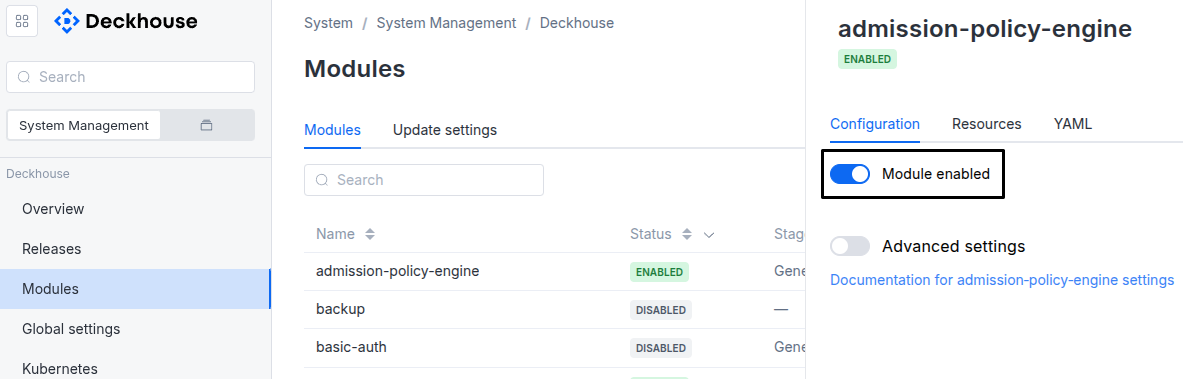
Via Deckhouse web UI. In the “System” → “System Management” → “Deckhouse” → “Modules” section, open the
sds-replicated-volumemodule and enable (or disable) the “Module enabled” toggle. Save changes.Example:
-
Via Deckhouse CLI (d8).
Use the d8 system module enable command for enabling, or d8 system module disable command for disabling the module (you need Deckhouse CLI (d8), configured to work with the cluster).
Example of enabling the module:
d8 system module enable sds-replicated-volume -
Using ModuleConfig
sds-replicated-volume.Set
spec.enabledtotrueorfalsein ModuleConfigsds-replicated-volume(create it if necessary).Example of a manifest to enable module
sds-replicated-volume:apiVersion: deckhouse.io/v1alpha1 kind: ModuleConfig metadata: name: sds-replicated-volume spec: enabled: true
You can configure the module in one of the following ways:
-
Via Deckhouse web UI.
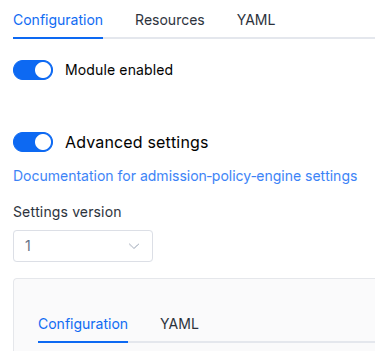
In the “System” → “System Management” → “Deckhouse” → “Modules” section, open the
sds-replicated-volumemodule and enable the “Advanced Settings” toggle. Fill in the required fields in the “Configuration” tab or specify the module settings in YAML format on the “YAML” tab, without the top-levelsettingskey. Save the changes.Example:
You can also edit the ModuleConfig object
sds-replicated-volumeon the “YAML” tab in the module settings window (“System” → “System Management” → “Deckhouse” → “Modules”, open the modulesds-replicated-volume) by specifying the schema version in thespec.versionparameter and the necessary module parameters in thespec.settingssection. -
Via Deckhouse CLI (d8) (requires Deckhouse CLI (d8) configured to work with the cluster).
Edit the existing ModuleConfig
sds-replicated-volume(for more details on configuring Deckhouse Platform, see the documentation) by executing the following command:d8 k edit mc sds-replicated-volumeMake the necessary changes in the
spec.settingssection. If necessary, specify the schema version in thespec.versionparameter. Save the changes.You can also create a manifest file for ModuleConfig
sds-replicated-volumeusing the example below. Fill in thespec.settingssection with the required module parameters. If necessary, specify the schema version in thespec.versionparameter.Apply the manifest using the following command (indicate the manifest file name):
d8 k apply -f <FILENAME>Example of a manifest for ModuleConfig
sds-replicated-volume:apiVersion: deckhouse.io/v1alpha1 kind: ModuleConfig metadata: name: sds-replicated-volume spec: version: 2 enabled: true settings: # Module parameters from the "Parameters" section below.
Requirements
To the Kubernetes version: 1.31 and above.
To the Deckhouse Platform version: 1.72 and above.
To the versions of other modules:
-
sds-node-configurator: 0.6.1 and above.
Conversions
The module is configured using the ModuleConfig resource, the schema of which contains a version number. When you apply an old version of the ModuleConfig schema in a cluster, automatic transformations are performed. To manually update the ModuleConfig schema version, the following steps must be completed sequentially for each version:
-
Updates from version 1 to 2:
Need to remove the
.enableThinProvisioningparameter.
Parameters
Schema version: 2
-
-
objectsettings.backupModule backup settings
-
booleansettings.backup.enabledModule backup state
Default:
true -
integersettings.backup.retentionCountNumber of backups to keep
Default:
7 -
stringsettings.backup.scheduleBackup schedule
Default:
0 3 * * *
-
-
objectsettings.dataNodesSettings for Linstor on nodes with data
Default:
{}-
objectsettings.dataNodes.nodeSelector
The same as in the Pods
spec.nodeSelectorparameter in Kubernetes.If parameter is omitted, Linstor nodes will be placed on all nodes.
Caution! Changing this parameter does not result in data redistribution. If node with data no longer matches the
nodeSelector, data on that node will become inaccessible.Default:
{
 "kubernetes.io/os": "linux"
}
-
-
objectsettings.drbdPortRangeSettings for DRBD TCP ports
Default:
{}-
integersettings.drbdPortRange.maxPortDRBD ports range end
Default:
7999 -
integersettings.drbdPortRange.minPortDRBD ports range start
Default:
7000
-
-
stringsettings.logLevelModule log level
Default:
INFOAllowed values:
ERROR,WARN,INFO,DEBUG,TRACE -
booleansettings.newControlPlane
When true, use the new control-plane as a backend for the module. Once switched to true, reverting back to false is prohibited.
Enabling it is only allowed on Deckhouse development builds; on any release channel the setting is rejected and ignored.
Default:
false -
stringsettings.registrySchemeDeprecated parameter. Remove it from ModuleConfig for Deckhouse with version greater than 1.57.
Default:
https -
array of stringssettings.storageClassLabelIgnoredPrefixes
List of label-key prefixes that MUST NOT be propagated from a ReplicatedStorageClass to the managed Kubernetes StorageClass.
The controller treats this list as a complement to a built-in (system) list and drops any ReplicatedStorageClass label whose key starts with any prefix from either list.
Matching is literal
strings.HasPrefix(Go semantics): an entry without a trailing/matches by substring, NOT by full label key. For example,teamwould drop every key starting withteam(team,team-id,team.example.com/...). To restrict matching to a specific subdomain, end the entry with/(e.g.argocd.argoproj.io/). To target an exact label key, write the full key and be aware it also matches keys whose name extends it (e.g.app.kubernetes.io/managed-byalso dropsapp.kubernetes.io/managed-by-foo).Note that
kubernetes.io/in the system list matches only labels whose key literally starts withkubernetes.io/; reserved subdomains such astopology.kubernetes.io/zoneornode.kubernetes.io/*are NOT covered by default — add them here explicitly if your environment requires it.The defaults cover labels typically added by GitOps tooling (Argo CD, Flux, Rancher Fleet) so that their reconcilers do not fight the storage controller over labels on the managed StorageClass.
Default:
[
 "argocd.argoproj.io/",
 "kustomize.toolkit.fluxcd.io/",
 "helm.toolkit.fluxcd.io/",
 "fleet.cattle.io/"
]
-