A Stronghold administrator account grants access to policies, auth methods, and secrets, so a password or an IdP session alone is not enough to protect it. This guide enables a mandatory TOTP one-time code check at login for all administrators.
MFA mechanisms in Stronghold
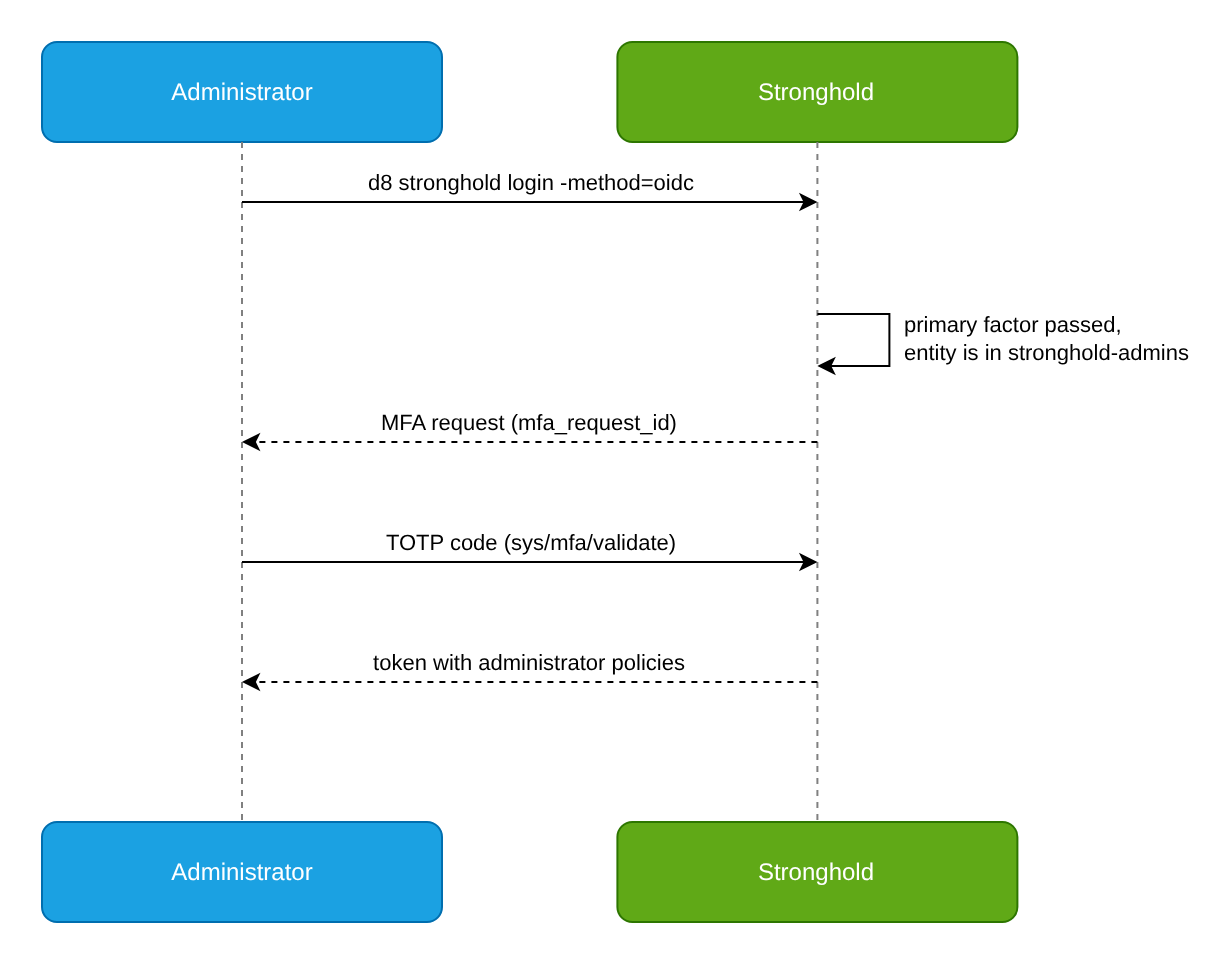
Stronghold checks the second factor at login (login MFA): after the primary auth method succeeds, a token is issued only after the second factor is confirmed. MFA methods and the rules for applying them are configured in the Identity subsystem at the identity/mfa/method/* and identity/mfa/login-enforcement/* paths.
The documentation describes two MFA methods:
| Method | How the login is confirmed | When to choose |
|---|---|---|
| TOTP | One-time code from an authenticator app | No external service is needed; suitable for air-gapped environments |
| Multifactor | Push notification, Telegram, or a phone call through the Multifactor service | Your organization already uses Multifactor |
A login enforcement rule can apply to entities (identity_entity_ids), Identity groups (identity_group_ids), specific auth method mounts (auth_method_accessors), or all mounts of a given auth method type (auth_method_types).
In base Stronghold, only login MFA is available. MFA on access to individual paths (sys/mfa/method/* and mfa_methods in policies) is available only in Stronghold EE.
Goal
After the setup:
- All Stronghold administrators enter a TOTP code at login.
- The check applies to the
ad-stronghold-adminsIdentity group, so new administrators get it automatically. - A recovery procedure is documented for an administrator who has lost the device with the authenticator.
- Operations on MFA settings are visible in the audit log.
Prerequisites
Before you start, prepare the following:
- A Stronghold token with permissions to configure Identity and policies.
- The
ad-stronghold-adminsIdentity group that contains the administrator entities. For directories and IdPs, use an external group with a directory group alias, as in the Active Directory integration guide. - An authenticator app with TOTP support for each administrator.
- Prepared break-glass access that the MFA rule does not apply to.
- The
jqutility on the administrator workstation. - For audit log monitoring, an enabled audit device.
Step 1. Create a TOTP method
Create a TOTP MFA method and save its ID:
TOTP_METHOD_ID=$(d8 stronghold write -format=json identity/mfa/method/totp method_name=admin-totp issuer=Stronghold period=30 algorithm=SHA256 digits=6 max_validation_attempts=5 | jq -r '.data.method_id')
echo $TOTP_METHOD_ID
Main method parameters:
| Parameter | Description |
|---|---|
method_name | Unique MFA method name |
issuer | Name that the authenticator app shows next to the code |
period | Code rotation period in seconds. Default: 30 |
algorithm | Hash algorithm: SHA1 (default), SHA256, or SHA512 |
digits | Number of digits in the code: 6 or 8 |
skew | Allowed deviation in periods when validating a code: 0 or 1. Default: 1 |
max_validation_attempts | Maximum number of code validation attempts |
The full list of parameters is available in the Identity API reference.
Not all authenticator apps support SHA256 and 8-digit codes. If administrators use different apps, set algorithm=SHA1 and digits=6.
Step 2. Enroll administrator authenticators
Enroll TOTP for all administrators before enabling the mandatory check. If an entity has no secret, the second-factor check fails with the error MFA secret … not present in entity, and the login does not succeed.
An administrator entity is created at the first login to Stronghold. To find the ID of their entity, an administrator runs the following command:
d8 stronghold token lookup -format=json | jq -r '.data.entity_id'Choose one of the enrollment methods.
QR code issued by a security administrator
A security administrator generates a QR code for the administrator entity.
Get the entity ID by name:
ENTITY_ID=$(d8 stronghold read -field=id identity/entity/name/<ENTITY_NAME>)<ENTITY_NAME>is the name of the administrator entity.Generate a TOTP secret and a QR code:
d8 stronghold write -field=barcode identity/mfa/method/totp/admin-generate method_id=$TOTP_METHOD_ID entity_id=$ENTITY_ID | base64 -d > /tmp/qr-code.pngPass the QR code to the administrator over a secure channel, wait until they scan it in the authenticator app, and delete the file:
shred -u /tmp/qr-code.png
Calling admin-generate again for an entity that already has a secret for this method does not create a new one: Stronghold returns the warning Entity already has a secret for MFA method. To re-enroll TOTP, first delete the secret with admin-destroy (see Recovery after a lost device).
Self-enrollment
The administrator generates a QR code for their own entity.
Add a permission to generate one’s own secret to the administrator policy:
path "identity/mfa/method/totp/generate" {
  capabilities = ["update"]
}
The administrator gets a QR code for their entity in the Stronghold web UI or through the CLI:
d8 stronghold write -field=barcode identity/mfa/method/totp/generate method_id=$TOTP_METHOD_ID | base64 -d > /tmp/qr-code.png
If the entity already has a secret for the method, generate does not overwrite it and returns a warning, so a stolen session cannot be used to re-enroll TOTP; resetting requires admin-destroy.
Step 3. Enable the mandatory check
Create a login enforcement rule for the administrators group.
Get the administrators group ID:
ADMINS_GROUP_ID=$(d8 stronghold read -field=id identity/group/name/ad-stronghold-admins)Create a login enforcement rule:
d8 stronghold write identity/mfa/login-enforcement/admin-totp mfa_method_ids="$TOTP_METHOD_ID" identity_group_ids="$ADMINS_GROUP_ID"
If administrators log in through a separate auth method mount, for example userpass at the admin/ path, create one more rule bound to that mount. Give it a different name, admin-totp-mount, so that it does not overwrite the admin-totp rule. Stronghold checks every rule that matches a login, so the conditions of both rules add up:
ADMIN_ACCESSOR=$(d8 stronghold auth list -format=json -detailed | jq -r '."admin/".accessor')

d8 stronghold write identity/mfa/login-enforcement/admin-totp-mount mfa_method_ids="$TOTP_METHOD_ID" auth_method_accessors="$ADMIN_ACCESSOR"
Do not include the break-glass account and its auth method mount (for example, breakglass/) in the rule. Otherwise, if the authenticators are lost, nobody will be able to log in to Stronghold.
Logging in with MFA
CLI
After the primary factor is checked, the CLI asks for a TOTP code:
d8 stronghold login -method=oidcExample output:
Initiating Interactive MFA Validation...
Enter the passphrase for methodID "22c35aa4-bf37-cf31-4187-c5a676c19aca" of type "totp":
Enter the current code from the authenticator app. After a successful check, the CLI saves the token.
When logging in through the API, the auth method response contains mfa_request_id. Pass it together with the code to sys/mfa/validate:
d8 stronghold write -format=json sys/mfa/validate - <<EOF
{
  "mfa_request_id": "<MFA_REQUEST_ID>",
  "mfa_payload": {
    "$TOTP_METHOD_ID": ["<TOTP_CODE>"]
  }
}
EOF
Placeholders:
<MFA_REQUEST_ID>: the value of theauth.mfa_requirement.mfa_request_idfield from the auth method response;<TOTP_CODE>: the current code from the authenticator app.
To make the CLI skip the interactive prompt and only print mfa_request_id, add the -non-interactive flag to d8 stronghold login.
Web UI
To log in through the web UI, follow these steps:
- Open the Stronghold web UI and log in with the chosen method.
- After the primary factor is checked, enter the TOTP code from the authenticator app.
Recovery after a lost device
If an administrator has lost the device with the authenticator or it may have been compromised:
Confirm the administrator’s identity through an independent channel, for example in person or through their manager. Record the request in the incident log.
Log in with a security administrator account that has permissions for
admin-destroyandadmin-generate. Example policy:path "identity/entity/name/*" { capabilities = ["read"] } path "identity/mfa/method/totp/admin-destroy" { capabilities = ["update"] } path "identity/mfa/method/totp/admin-generate" { capabilities = ["update"] }Delete the TOTP secret of the administrator entity:
ENTITY_ID=$(d8 stronghold read -field=id identity/entity/name/<ENTITY_NAME>) d8 stronghold write identity/mfa/method/totp/admin-destroy method_id=$TOTP_METHOD_ID entity_id=$ENTITY_ID<ENTITY_NAME>is the name of the administrator entity.Issue a new QR code as in step 2 and pass it to the administrator over a secure channel.
If the device may have fallen into the wrong hands together with the password, change the password or the credentials of the primary login method.
If you need to restore access for the only administrator and there are no other accounts with admin-destroy permissions, use break-glass access.
Audit log monitoring
Changes to MFA settings and second-factor checks are recorded in the audit log.
Make sure that an audit device is enabled:
d8 stronghold audit listConfigure SIEM alerts for changes to MFA settings. Indicators in the audit log:
request.pathequalsidentity/mfa/method/totp/admin-destroyoridentity/mfa/method/totp/admin-generate;request.pathstarts withidentity/mfa/login-enforcement/oridentity/mfa/method/, andrequest.operationequalsupdateordelete.
Example search in a file log:
jq -c 'select(.type == "request" and (.request.path | startswith("identity/mfa/")))
  | {time, path: .request.path, op: .request.operation, entity: .auth.entity_id}' /var/log/stronghold_audit.log
Monitor second factor checks — requests to
sys/mfa/validate. A large number of failed checks for one entity may indicate an attempt to brute-force the code. Both single-phase login (MFA header in the login request) and two-phase login (a separate request tosys/mfa/validate) pass through the regular request handling and are recorded by audit devices, including failed checks; the CLI and web UI use the same API.
Verification
Check the result:
Make sure that the rule exists:
d8 stronghold read identity/mfa/login-enforcement/admin-totpLog in with an administrator account and make sure that Stronghold asks for a TOTP code.
Enter a wrong code and make sure that no token is issued.
Log in with the break-glass account and make sure that no TOTP code is requested.
Cleanup
Delete the objects created in this guide.
Delete the login enforcement rule. If you created the
admin-totp-mountrule, delete it in the same way:d8 stronghold delete identity/mfa/login-enforcement/admin-totpDelete the TOTP method:
d8 stronghold delete identity/mfa/method/totp/$TOTP_METHOD_ID