A web server on a virtual machine does not need a certificate issued manually for a year. Stronghold Agent requests a certificate from the PKI secrets engine, writes it to disk, reissues it before it expires, and reloads Nginx. The private key is generated in Stronghold and is passed only to Agent on the VM.
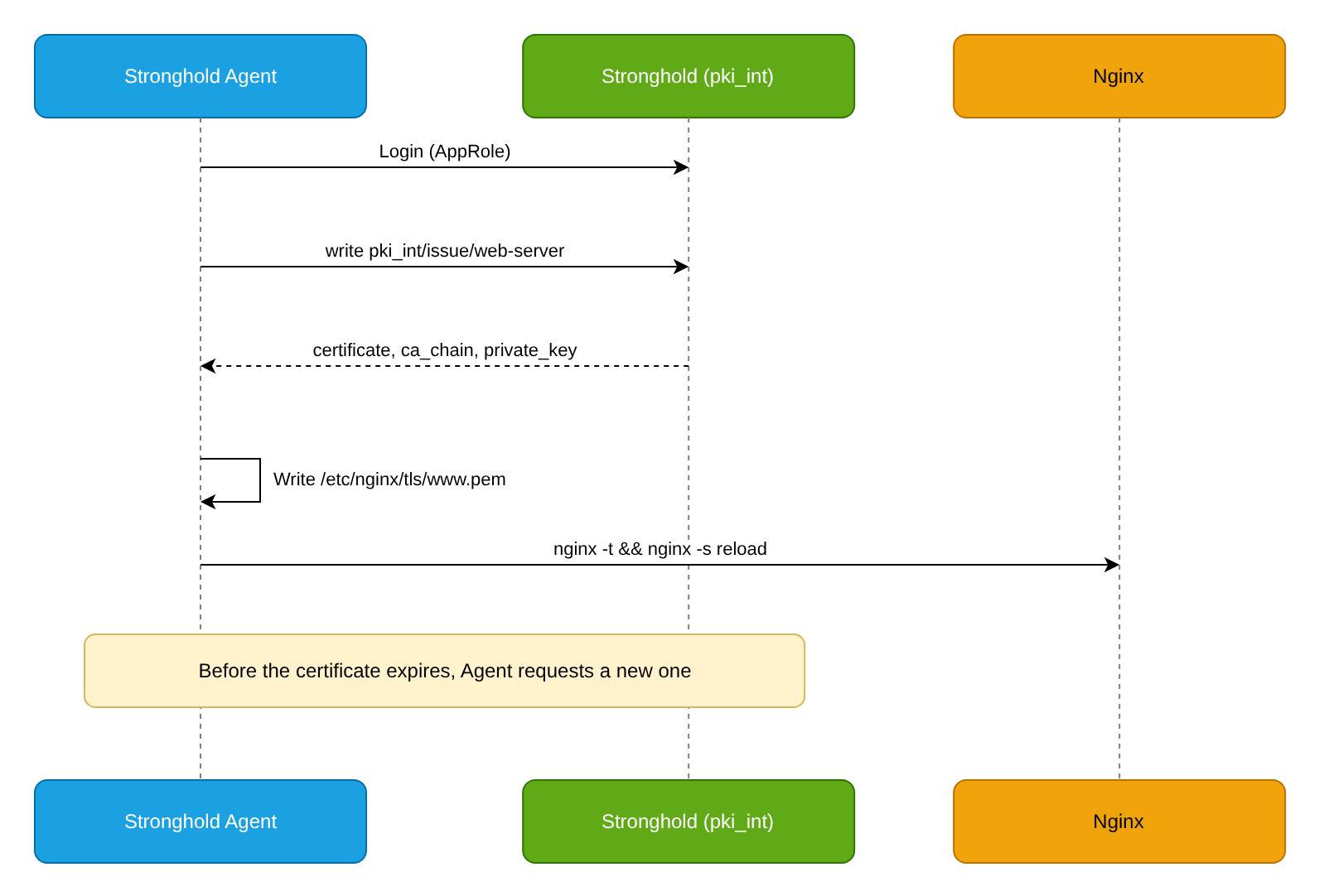
Goal
Configure Stronghold Agent on a VM so that it issues a 72-hour www.example.com certificate for Nginx from the pki_int intermediate CA, reissues it automatically, and reloads Nginx without dropping connections.
Prerequisites
Before you start, prepare the following:
- An intermediate CA in Stronghold mounted at
pki_int, as in the Internal PKI with Stronghold guide. - A Linux virtual machine with systemd and Nginx.
- Stronghold Agent installed on the VM and logging in to Stronghold with AppRole, as in the Application on a VM with Stronghold Agent guide.
- A Stronghold token with permissions to configure PKI, AppRole, and policies.
Step 1. Create a PKI role
The role restricts the names and lifetime of certificates that the web server can obtain:
d8 stronghold write pki_int/roles/web-server allowed_domains="example.com" allow_subdomains=true allow_bare_domains=true max_ttl=720hallow_subdomains=trueallows names in theexample.comdomain, such aswww.example.com.allow_bare_domains=trueallows theexample.comname itself. Without this parameter, Stronghold rejects a request that containsexample.cominalt_names.
A short certificate lifetime reduces the impact of a key compromise: Agent renews the certificate automatically, so manual reissuance is not needed.
Step 2. Create a policy and an AppRole role
Grant the VM access only to certificate issuance and deliver its AppRole credentials.
Create a policy that allows issuing certificates only through the
web-serverrole:d8 stronghold policy write web-server-tls - <<'POLICY' path "pki_int/issue/web-server" { capabilities = ["update"] } POLICYCreate an AppRole role for the VM:
d8 stronghold write auth/approle/role/web-server token_policies=web-server-tls token_ttl=1h token_max_ttl=24h secret_id_ttl=720h secret_id_bound_cidrs="10.0.10.20/32"Deliver
role_idand a wrappedsecret_idof theweb-serverrole to the/etc/stronghold-agent/directory on the VM, as described in step 3 of the Application on a VM with Stronghold Agent guide. In the commands of that step, replacemyapp-vmwithweb-server.
Step 3. Create a template
Create the /etc/stronghold-agent/templates/www.pem.ctmpl file. The template writes the private key, the certificate, and the chain of intermediate CAs into a single file, so the key and the certificate always match each other:
{{ with secret "pki_int/issue/web-server" "common_name=www.example.com" "alt_names=example.com" "ttl=72h" }}
{{ .Data.private_key }}
{{ .Data.certificate }}
{{ range .Data.ca_chain }}{{ . }}
{{ end }}{{ end }}
Each secret "pki_int/issue/..." call issues a certificate with a new key. If you need separate files for the certificate and the key, as in the example from the Key features section, use a call with identical arguments in both templates.
Identical calls (same path and same arguments) are executed by Agent once and the result is reused across all templates, so the key and the certificate in separate files form a pair.
The pkiCert template function is an alternative to secret. It reads the certificate from the template destination file and requests a new certificate only when the file is missing or the certificate in it is about to expire. As a result, an Agent restart does not issue a new certificate. The function returns the .Cert, .Key, .CA, and .CAChain fields, which the template writes to the destination file.
Step 4. Configure Agent
Configure Agent to issue the certificate and reload Nginx, and grant Agent the required permissions.
Create the
/etc/stronghold-agent/agent.hclfile:stronghold { address = "https://stronghold.example.com" } auto_auth { method "approle" { mount_path = "auth/approle" config = { role_id_file_path = "/etc/stronghold-agent/role-id" secret_id_file_path = "/etc/stronghold-agent/secret-id" secret_id_response_wrapping_path = "auth/approle/role/web-server/secret-id" remove_secret_id_file_after_reading = true } } } template { source = "/etc/stronghold-agent/templates/www.pem.ctmpl" destination = "/etc/nginx/tls/www.pem" perms = "0600" command = "/usr/bin/systemctl reload nginx" command_timeout = "30s" error_on_missing_key = true }secret_id_response_wrapping_path: the creation path of the wrappedsecret_idof theweb-serverrole. Agent checks this path before it unwrapssecret_id.perms = "0600": the file contains the private key. The Nginx master process reads it with root privileges.command: runs after each write of the file. On reload, the Nginx master process checks the new configuration, rereads the certificate, and does not drop current connections. If the configuration contains an error, Nginx continues to work with the previous configuration.
Allow the
stronghold-agentuser to reload onlynginx.service. The Agent unit runs as thestronghold-agentuser withNoNewPrivileges=true, sosudodoes not work incommand. Create the/etc/polkit-1/rules.d/50-stronghold-agent-nginx.rulesfile:polkit.addRule(function(action, subject) { if (action.id == "org.freedesktop.systemd1.manage-units" && subject.user == "stronghold-agent" && action.lookup("unit") == "nginx.service" && action.lookup("verb") == "reload") { return polkit.Result.YES; } });polkit reads the rules files automatically. The
unitandverbdetails are passed by systemd 226 and later.Create a directory for the certificate:
sudo install -d -o stronghold-agent -g root -m 0750 /etc/nginx/tlsAllow Agent to write to
/etc/nginx/tlsand/etc/stronghold-agent. The Agent unit usesProtectSystem=strict, so add these directories toReadWritePathsin a drop-in file. Runsudo systemctl edit stronghold-agentand add the following lines:[Service] ReadWritePaths=/etc/stronghold-agent /etc/nginx/tlsThe
/etc/stronghold-agentdirectory must belong to thestronghold-agentuser. Otherwise, Agent cannot delete thesecret_idfile after reading it.
Step 5. Configure Nginx
Specify the same file in ssl_certificate and ssl_certificate_key:
server {
    listen 443 ssl;
    server_name www.example.com example.com;

    ssl_certificate     /etc/nginx/tls/www.pem;
    ssl_certificate_key /etc/nginx/tls/www.pem;
    ssl_protocols       TLSv1.2 TLSv1.3;

    location / {
        root /var/www/html;
    }
}
Start Agent before the first start of Nginx with this configuration so that the certificate file already exists. Then start Nginx:
sudo systemctl restart stronghold-agent
sudo systemctl start nginx
If Nginx is already running, run sudo systemctl reload nginx instead of systemctl start nginx.
Step 6. How renewal works
A PKI certificate is issued without a renewable lease. Agent tracks the certificate validity period and, before it expires, runs pki_int/issue/web-server again, overwrites the file, and runs command. Choose the ttl in the template so that reissuance happens no more often than you are ready to reload Nginx and no later than you can notice a failure.
Agent reissues the certificate after about 90% of its remaining validity period has elapsed (with a random spread of ±5% so that clients do not arrive at the same time). For ttl = 24h this is roughly 21–22 hours.
Apache HTTP Server
For Apache, use the same template and the same template block with the following differences:
in the virtual host configuration, specify the file in the
SSLCertificateFileandSSLCertificateKeyFiledirectives. Apache 2.4.8 and later reads intermediate certificates fromSSLCertificateFile:<VirtualHost *:443> ServerName www.example.com SSLEngine on SSLCertificateFile /etc/apache2/tls/www.pem SSLCertificateKeyFile /etc/apache2/tls/www.pem </VirtualHost>in
destination, specify/etc/apache2/tls/www.pem, and incommand, specify/usr/bin/systemctl reload apache2or/usr/bin/systemctl reload httpd, depending on the distribution. On reload, Apache performs a graceful restart and does not drop current connections;in the polkit rule, specify the
apache2.serviceorhttpd.serviceunit instead ofnginx.service, and inReadWritePaths, the/etc/apache2/tlsdirectory instead of/etc/nginx/tls.
Verification
Check that Nginx serves the certificate issued by Stronghold and that the certificate is reissued.
Check the Agent log — it should contain messages about rendering the template and running the command:
sudo journalctl -u stronghold-agent -n 50Check the certificate that Nginx serves:
openssl s_client -connect www.example.com:443 -servername www.example.com </dev/null 2>/dev/null | openssl x509 -noout -subject -issuer -serial -datesThe issuer must match the
pki_intintermediate CA, and the validity period must match thettlfrom the template.Check the chain of trust against the root CA certificate:
curl --cacert root-ca.pem -sSI https://www.example.comCheck reissuance: temporarily set
ttl=10min the template, restart Agent, and make sure that the certificate serial number from verification step 2 changes without manual actions.
Cleanup
To remove the example configuration, follow these steps:
Stop Agent and remove the
templateblock and the template file.Delete the
/etc/nginx/tls/www.pemfile and remove thessl_certificatedirectives from the Nginx configuration.Delete the
/etc/polkit-1/rules.d/50-stronghold-agent-nginx.rulesfile. Remove/etc/nginx/tlsfromReadWritePathsin the Agent drop-in file: runsudo systemctl edit stronghold-agent.If necessary, revoke the issued certificate and delete the roles and the policy:
d8 stronghold write pki_int/revoke serial_number=<SERIAL_NUMBER> d8 stronghold delete pki_int/roles/web-server d8 stronghold delete auth/approle/role/web-server d8 stronghold policy delete web-server-tls<SERIAL_NUMBER>is the certificate serial number from verification step 2, for example39:dd:2e:....