ALD Pro is a Russian directory service built on FreeIPA: user and group data is stored in 389 Directory Server, and authentication is handled by MIT Kerberos. Stronghold connects to ALD Pro as a regular LDAP server and, optionally, as a Kerberos key distribution center.
Goal
After the setup:
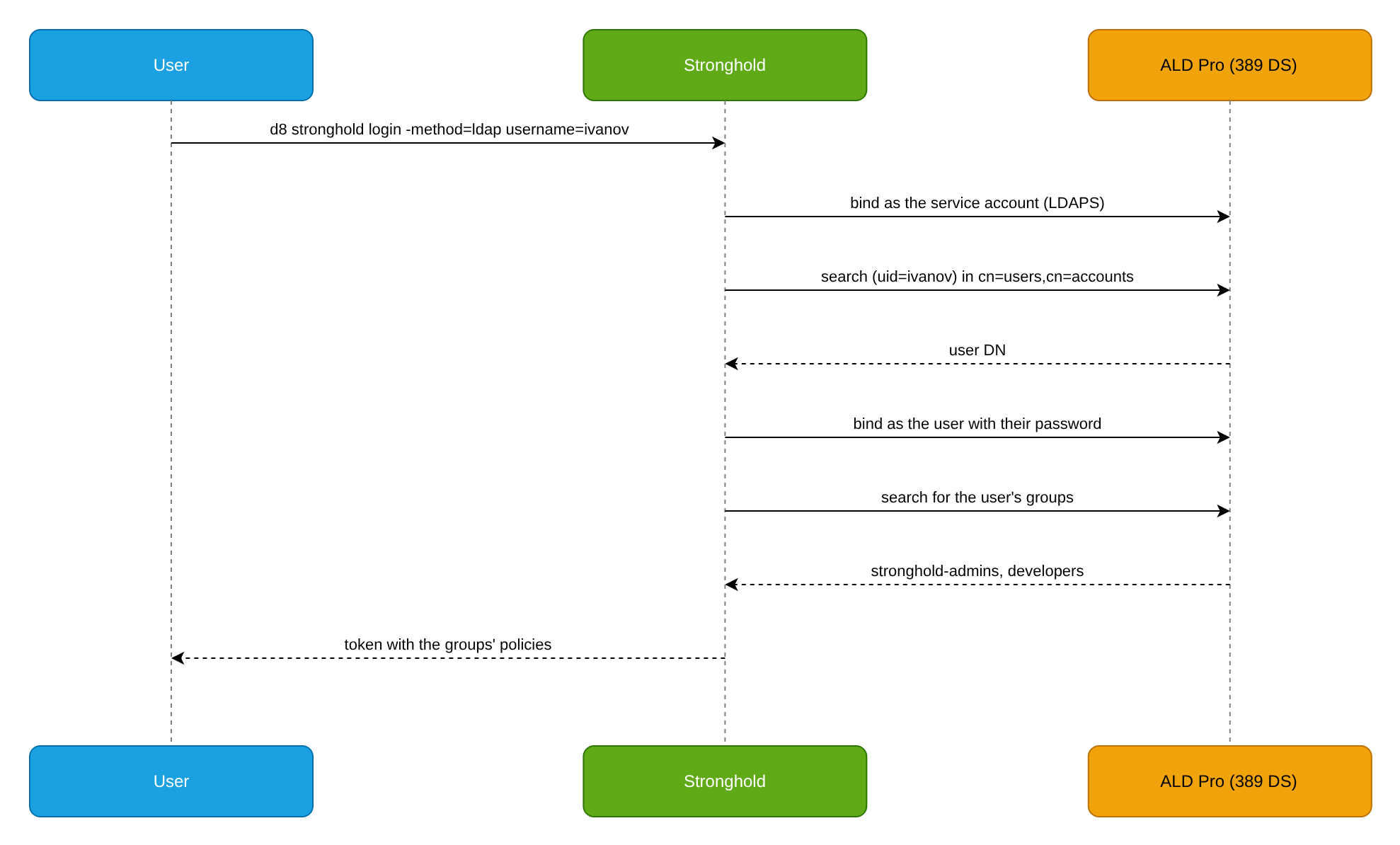
- ALD Pro domain users log in to Stronghold with their domain accounts through the
ldapmethod. - Stronghold permissions are assigned by membership in ALD Pro groups.
- Users with a valid Kerberos ticket log in without entering a password (the
kerberosmethod, optional; Stronghold EE only). - Stronghold rotates passwords of domain service accounts through the LDAP secrets engine.
Prerequisites
Before you start, prepare the following:
- A deployed ALD Pro domain, for example
ald.example.comwith domain controllersdc01.ald.example.comanddc02.ald.example.com. - Network access from Stronghold nodes to the domain controllers on port 636 (LDAPS), and on port 88 for Kerberos.
- The domain root CA certificate. On any domain-joined host it is located at
/etc/ipa/ca.crt. - A Stronghold token with permissions to configure auth methods, secrets engines, policies, and Identity.
- The
ldapsearchandjqutilities on the administrator’s workstation.
The examples use the base DN dc=ald,dc=example,dc=com. Replace it with your domain’s DN.
Step 1. Prepare a service account for searches
Stronghold searches for users and groups as a separate read-only account. Do not use domain administrator accounts for this.
Create a system account (sysaccount) in ALD Pro. In FreeIPA, this is done with an LDIF file as
cn=Directory Manager:dn: uid=stronghold-bind,cn=sysaccounts,cn=etc,dc=ald,dc=example,dc=com changetype: add objectclass: account objectclass: simplesecurityobject uid: stronghold-bind userPassword: <BIND_PASSWORD> passwordExpirationTime: 20380119031407Z nsIdleTimeout: 0ldapmodify -x -H ldaps://dc01.ald.example.com -D "cn=Directory Manager" -W -f stronghold-bind.ldif<BIND_PASSWORD>is the password of thestronghold-bindaccount.If your installation does not use system accounts, create a regular domain user with a non-expiring password and use its DN
uid=stronghold-bind,cn=users,cn=accounts,dc=ald,dc=example,dc=com.Copy the domain CA certificate to the workstation you use to configure Stronghold:
scp admin@dc01.ald.example.com:/etc/ipa/ca.crt ./ald-ca.crtCheck that the account can see users and groups over LDAPS:
LDAPTLS_CACERT=./ald-ca.crt ldapsearch -x -H ldaps://dc01.ald.example.com -D "uid=stronghold-bind,cn=sysaccounts,cn=etc,dc=ald,dc=example,dc=com" -W -b "cn=users,cn=accounts,dc=ald,dc=example,dc=com" "(uid=jsmith)" uid memberOfThe output must contain the user’s
uidattribute and the list of groups inmemberOf.
Step 2. Configure the LDAP method
Enable the ldap method, connect it to the domain controllers and check login.
Enable the auth method:
d8 stronghold auth enable ldapConfigure the connection to ALD Pro. Groups are searched by the
memberattribute of group objects:d8 stronghold write auth/ldap/config url="ldaps://dc01.ald.example.com:636,ldaps://dc02.ald.example.com:636" certificate=@ald-ca.crt insecure_tls=false starttls=false binddn="uid=stronghold-bind,cn=sysaccounts,cn=etc,dc=ald,dc=example,dc=com" bindpass='<BIND_PASSWORD>' d8 stronghold write auth/ldap/config userdn="cn=users,cn=accounts,dc=ald,dc=example,dc=com" userattr="uid" groupdn="cn=groups,cn=accounts,dc=ald,dc=example,dc=com" groupfilter="(&(objectClass=groupOfNames)(member={{.UserDN}}))" groupattr="cn" username_as_alias=true<BIND_PASSWORD>is the password of thestronghold-bindaccount from step 1. The first command configures the connection, the second one configures the user and group search.Key parameters:
Parameter Value for ALD Pro urlComma-separated list of domain controllers. Stronghold tries them in order if a connection fails. certificateDomain CA certificate from /etc/ipa/ca.crt.insecure_tlsfalse: server certificate verification is mandatory.starttlsfalseforldaps://. If you useldap://on port 389, set it totrue.userdn,userattrFreeIPA user container and the uidlogin attribute.groupdn,groupfilter,groupattrGroup container and a filter that finds groups where the user is listed in member. The group name is taken fromcn.username_as_aliasThe entity alias name matches the domain username. Alternatively, read groups from the
memberOfattribute of the user object:d8 stronghold write auth/ldap/config groupdn="cn=users,cn=accounts,dc=ald,dc=example,dc=com" groupfilter="(&(objectClass=person)(uid={{.Username}}))" groupattr="memberOf"In this case the group list also includes roles, privileges, HBAC rules, and other objects the user is a member of. The
membervariant returns only groups fromcn=groups,cn=accounts.A write to
auth/ldap/configchanges only the parameters passed in the command. The other parameters keep their current values.Check login with a domain account:
d8 stronghold login -method=ldap username=jsmithSpecify the username without the domain. If no policies are assigned to groups yet, the token gets only the
defaultpolicy.
Step 3. Map ALD Pro groups to policies
Use one of the two approaches. Do not assign policies to the same group in both ways: it complicates auditing permissions.
With LDAP method groups
The group name in Stronghold must match the cn of the group in ALD Pro:
d8 stronghold write auth/ldap/groups/stronghold-admins policies=admin
d8 stronghold write auth/ldap/groups/developers policies=dev-read
This approach suits setups where Stronghold uses only one login method.
With external Identity groups
External groups let you assign policies once and use them for several login methods (for example, ldap and kerberos), and also apply MFA rules to the group.
Create an external group and save its ID:
GROUP_ID=$(d8 stronghold write -field=id identity/group name="ald-stronghold-admins" type="external" policies="admin")Get the accessor of the
ldap/method:LDAP_ACCESSOR=$(d8 stronghold auth list -format=json | jq -r '."ldap/".accessor')Create a group alias. The
namevalue must match the group name in ALD Pro:d8 stronghold write identity/group-alias name="stronghold-admins" mount_accessor="$LDAP_ACCESSOR" canonical_id="$GROUP_ID"
Stronghold updates the entity’s membership in external groups on every login and token renewal. Group changes in ALD Pro apply to issued tokens when they are renewed.
Step 4. Configure Kerberos single sign-on (optional)
The kerberos method accepts an SPNEGO header from a client with a valid Kerberos ticket and gets the user’s groups from LDAP. The method parameters are described in the auth methods API reference.
The kerberos auth method is available only in Stronghold EE. Test the scenario on a staging environment before rolling it out.
Create a service principal in ALD Pro for the Stronghold HTTP address and get a keytab:
kinit admin
ipa service-add HTTP/stronghold.ald.example.com
ipa-getkeytab -s dc01.ald.example.com -p HTTP/stronghold.ald.example.com -k stronghold.keytab
Enable the method. The method reads the SPNEGO token from the
Authorizationrequest header and returns theWWW-Authenticateheader, so allow both headers for the mount:d8 stronghold auth enable -passthrough-request-headers=Authorization -allowed-response-headers=www-authenticate kerberosIf the method is already enabled, set the same headers for the existing mount:
d8 stronghold auth tune -passthrough-request-headers=Authorization -allowed-response-headers=www-authenticate kerberos/Pass the Base64-encoded keytab:
base64 -w0 stronghold.keytab > stronghold.keytab.b64
d8 stronghold write auth/kerberos/config keytab=@stronghold.keytab.b64 service_account="HTTP/stronghold.ald.example.com" add_group_aliases=true
With
add_group_aliases=true, the method passes the user’s LDAP groups to Identity as group aliases, so external Identity groups work for thekerberosmethod. Each write toauth/kerberos/configreplaces the whole configuration: passkeytab,service_accountandadd_group_aliasesin one command.The
service_accountvalue is the name of the principal in the keytab, in the same form asipa-getkeytab -p(HTTP/<FQDN>). Do not setremove_instance_name=truefor this principal: the option removes the instance (the part after/) from the principal names in the keytab and from the user name at login, and the entryHTTP/stronghold.ald.example.comwould stop matching.Configure group lookup in LDAP. The
auth/kerberos/config/ldapparameters are the same as those ofauth/ldap/config:d8 stronghold write auth/kerberos/config/ldap url="ldaps://dc01.ald.example.com:636,ldaps://dc02.ald.example.com:636" certificate=@ald-ca.crt insecure_tls=false binddn="uid=stronghold-bind,cn=sysaccounts,cn=etc,dc=ald,dc=example,dc=com" bindpass='<BIND_PASSWORD>' d8 stronghold write auth/kerberos/config/ldap userdn="cn=users,cn=accounts,dc=ald,dc=example,dc=com" userattr="uid" groupdn="cn=groups,cn=accounts,dc=ald,dc=example,dc=com" groupfilter="(&(objectClass=groupOfNames)(member={{.UserDN}}))" groupattr="cn"<BIND_PASSWORD>is the password of thestronghold-bindaccount from step 1. The first command configures the connection, the second one configures the user and group search.Assign policies to groups:
d8 stronghold write auth/kerberos/groups/stronghold-admins policies=adminIf you use external Identity groups, create a second alias for each group with the
kerberos/method accessor instead of this step. The method creates group aliases only ifadd_group_aliases=trueis set inauth/kerberos/config.Check login from a domain-joined machine:
kinit jsmith
curl --negotiate -u : -X POST https://stronghold.ald.example.com/v1/auth/kerberos/login
The request must be
POST: aGETto this path always returns401 Negotiate. The response contains a Stronghold token in theauth.client_tokenfield.Login with
d8 stronghold login -method=kerberosand in the web UI is not supported: no login handler is registered forkerberosin the CLI, and the web UI can only enable the method and has no login form for it. Use the API, for example withcurl.
Step 5. Rotate service account passwords
The LDAP secrets engine changes passwords of existing domain accounts and hands them out to applications. For ALD Pro, use the openldap schema: the password is stored in the userPassword attribute.
In FreeIPA, a password set by another account is marked as expired by default, and the user must change it at the next login. The account that Stronghold uses to change passwords must be listed in passSyncManagersDNs of the cn=ipa_pwd_extop,cn=plugins,cn=config entry; otherwise rotated passwords expire immediately.
Create a
stronghold-rotatoraccount in ALD Pro with permission to change passwords of the target service accounts.Enable the secrets engine and configure the connection:
d8 stronghold secrets enable ldap d8 stronghold write ldap/config url="ldaps://dc01.ald.example.com:636" certificate=@ald-ca.crt insecure_tls=false binddn="uid=stronghold-rotator,cn=users,cn=accounts,dc=ald,dc=example,dc=com" bindpass='<ROTATOR_PASSWORD>' userdn="cn=users,cn=accounts,dc=ald,dc=example,dc=com" userattr="uid" schema=openldap<ROTATOR_PASSWORD>is the current password of thestronghold-rotatoraccount.Rotate the
stronghold-rotatorpassword so that only Stronghold knows it:d8 stronghold write -f ldap/rotate-rootThe new password cannot be retrieved after rotation. If Stronghold loses access to ALD Pro, reset the password with domain tools.
Static role
A static role binds one domain account to a name in Stronghold and changes its password on a schedule:
d8 stronghold write ldap/static-role/svc-gitlab dn="uid=svc-gitlab,cn=users,cn=accounts,dc=ald,dc=example,dc=com" username="svc-gitlab" rotation_period="24h"The application reads the current password:
d8 stronghold read ldap/static-cred/svc-gitlabThe ttl field in the response shows the time until the next rotation. To rotate immediately:
d8 stronghold write -f ldap/rotate-role/svc-gitlabAccount library (check-out)
A library lends an account from a shared pool for a limited time and changes its password after it is returned. It suits shared accounts used by on-call engineers.
d8 stronghold write ldap/library/ops-shared service_account_names="svc-ops1,svc-ops2" ttl=1h max_ttl=4hThe service_account_names values are matched against the attribute set in userattr (here uid), so specify the uid value, not the full DN.
Check-out, status, and check-in:
d8 stronghold write -f ldap/library/ops-shared/check-out
d8 stronghold read ldap/library/ops-shared/status
d8 stronghold write ldap/library/ops-shared/check-in service_account_names="svc-ops1"
Example policy for the application and on-call engineers:
path "ldap/static-cred/svc-gitlab" {
  capabilities = ["read"]
}

path "ldap/library/ops-shared/check-out" {
  capabilities = ["update"]
}

path "ldap/library/ops-shared/check-in" {
  capabilities = ["update"]
}

path "ldap/library/ops-shared/status" {
  capabilities = ["read"]
}
Verification
Check the result:
Log in as a user from the
stronghold-adminsgroup and check the token policies:d8 stronghold login -method=ldap username=jsmith d8 stronghold token lookuppolicies(oridentity_policieswhen you use external groups) must contain theadminpolicy.Make sure a user outside the group gets only
default.Read the static role password and run
ldapsearch -D "uid=svc-gitlab,..."with it: the bind must succeed.
Troubleshooting
Common errors and how to fix them:
| Symptom | Likely cause | What to do |
|---|---|---|
ldap operation failed: failed to bind as user or Invalid Credentials at login | Wrong user password, wrong userdn/userattr, or wrong binddn password | Check search and bind with the ldapsearch command from step 1. Check that the user is in cn=users,cn=accounts. |
x509: certificate signed by unknown authority | The domain CA is missing from certificate, or a different certificate is specified | Pass /etc/ipa/ca.crt in certificate. Do not enable insecure_tls. |
x509: certificate is valid for ..., not ... | The address in url does not match the name in the controller certificate | Use the controllers’ FQDNs, not IP addresses. |
Login succeeds but the token gets only default | groupfilter finds no groups, or group names do not match auth/ldap/groups/<GROUP_NAME> and the aliases | Run ldapsearch with the groupfilter filter, substituting the user DN. Compare the groups’ cn with the names in Stronghold. |
| A user cannot log in after several failed attempts, although the password is correct | Stronghold lockout was triggered (lockout_threshold, 5 attempts for 15 minutes by default), or the account is locked in ALD Pro | Wait for lockout_duration to pass or check the account status in ALD Pro. Lockout settings are described in LDAP auth method. |
An application cannot log in with the password from static-cred | ALD Pro marked the password as expired | Add the Stronghold account to passSyncManagersDNs and run rotate-role. |
Cleanup
Disable the auth methods and the secrets engine:
d8 stronghold auth disable kerberos
d8 stronghold auth disable ldap
d8 stronghold secrets disable ldap
Disabling the secrets engine does not change account passwords. Change them with ALD Pro tools, then delete the stronghold-bind and stronghold-rotator accounts.