Auto-unseal through Yandex Cloud KMS is available only in Stronghold EE.
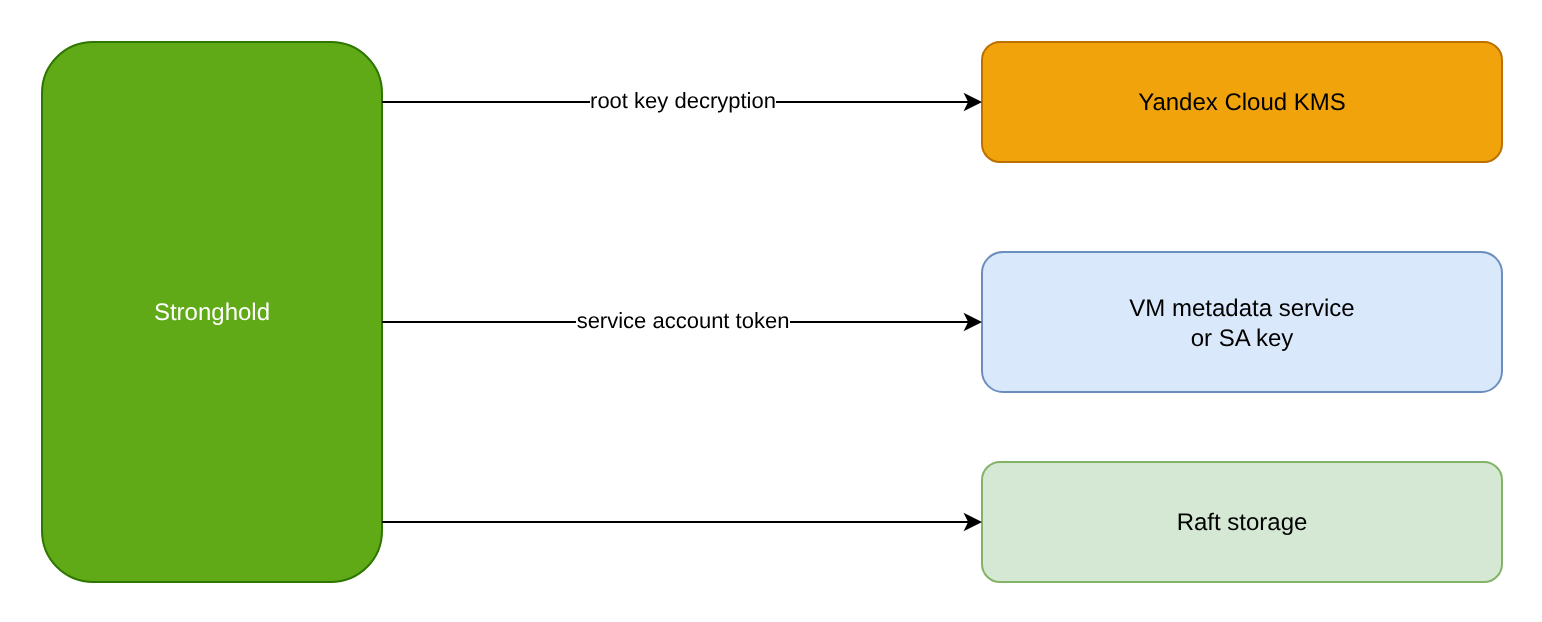
With auto-unseal, the Stronghold root key is encrypted with a Yandex Cloud KMS symmetric key. After a restart, Stronghold decrypts the root key through KMS on its own, and no unseal keys are needed. Instead of unseal keys, the operator receives recovery keys for administrative operations.
seal "yandexcloudkms" is supported only in a standalone Stronghold installation.
Goal
Create a KMS key and a service account with minimal permissions, configure seal "yandexcloudkms", initialize a new server with recovery keys or move an existing server from Shamir to KMS, and make sure Stronghold unseals automatically after a restart.
Prerequisites
To follow this example, you need:
- A standalone Stronghold server installed as described in Installation. In the examples, the configuration is in
/opt/stronghold/config.hcland the service is namedstronghold. - Network access from the Stronghold nodes to the Yandex Cloud KMS API on port
443/TCP. - The yc CLI configured for a Yandex Cloud folder, with permissions to create KMS keys and service accounts in it.
- The
jqutility. - To migrate an existing server: the threshold number of Shamir unseal keys and a data backup.
Step 1. Create a KMS key
Create a KMS key for the Stronghold seal:
Create a symmetric key with deletion protection:
yc kms symmetric-key create --name stronghold-unseal --default-algorithm aes-256 --rotation-period 8760h --deletion-protectionSave the key ID:
KMS_KEY_ID=$(yc kms symmetric-key get stronghold-unseal --format json | jq -r '.id')
echo "$KMS_KEY_ID"
Deleting the key or its versions makes the root key impossible to decrypt, and Stronghold data is lost. Keep key deletion protection (--deletion-protection) enabled and restrict permissions to manage the key.
Step 2. Create a service account
Create a service account that Stronghold uses to access the key:
Create a service account:
yc iam service-account create --name stronghold-unsealGrant the account the role to encrypt and decrypt with this key only:
yc kms symmetric-key add-access-binding stronghold-unseal --role kms.keys.encrypterDecrypter --service-account-name stronghold-unsealThe
kms.keys.encrypterDecrypterrole is enough: during initialization Stronghold only performs a test encryption with the key, and no separate role for viewing the key (kms.keys.viewer) is required.
Step 3. Choose an authentication method
Choose one of the options.
Option A. VM service account
If Stronghold runs on a VM in Yandex Cloud, attach the service account to the VM. Stronghold gets a token through the metadata service, and no secrets are needed in the configuration:
yc compute instance update <VM_NAME> --service-account-name stronghold-unseal<VM_NAME> is the name of the VM where Stronghold runs.
Option B. Authorized service account key
If Stronghold runs outside Yandex Cloud, create an authorized key and place it on the node:
yc iam key create --service-account-name stronghold-unseal --output yc-sa-key.json
sudo install -o stronghold -g stronghold -m 0400 yc-sa-key.json /etc/stronghold/yc-sa-key.json
rm yc-sa-key.json
The oauth_token parameter is also supported, but an OAuth token is tied to a user and is not suitable for production.
Step 4. Add the seal stanza to the configuration
Add a seal stanza to /opt/stronghold/config.hcl on each node.
For option A:
seal "yandexcloudkms" {
  kms_key_id = "<KMS_KEY_ID>"
}
For option B:
seal "yandexcloudkms" {
  kms_key_id               = "<KMS_KEY_ID>"
  service_account_key_file = "/etc/stronghold/yc-sa-key.json"
}
Instead of configuration parameters, you can use the YANDEXCLOUD_KMS_KEY_ID, YANDEXCLOUD_SERVICE_ACCOUNT_KEY_FILE, YANDEXCLOUD_OAUTH_TOKEN, and YANDEXCLOUD_ENDPOINT environment variables. Environment variables take precedence over the configuration. The full parameter list is in Yandex Cloud KMS.
For a new server, go to step 5. For a server already initialized with Shamir, go to step 6.
Step 5. Initialize a new server
Start and initialize a new server with the KMS seal:
Start Stronghold:
sudo systemctl start strongholdInitialize Stronghold. With auto-unseal, recovery keys are created instead of unseal keys:
d8 stronghold operator init -recovery-shares=5 -recovery-threshold=3Distribute the recovery keys among key holders and store the root token. Recovery keys do not unseal Stronghold, but they are required to generate a root token, rekey, and migrate the seal.
For an HA cluster, start the other nodes with the same
sealstanza. They join the cluster throughretry_joinand unseal automatically.
Step 6. Move an existing server from Shamir to KMS
Seal migration requires brief downtime. Both the Shamir keys and KMS must be available during the migration.
Take a Raft snapshot:
d8 stronghold operator raft snapshot save pre-seal-migration.snapAdd the
seal "yandexcloudkms"stanza to the configuration (step 4) and restart Stronghold:sudo systemctl restart strongholdThe log shows a migration mode message:
journalctl -u stronghold.service | grep "seal migration"core: entering seal migration mode; Stronghold will not automatically unseal even if using an autoseal: from_barrier_type=shamir to_barrier_type=yandexcloudkmsUnseal with the
-migrateflag, entering the threshold number of unseal keys:d8 stronghold operator unseal -migrateOnce the threshold is reached, the Shamir unseal keys become recovery keys.
For an HA cluster, migrate node by node starting with standby nodes, and step down the active node as described in Seal migration.
Verification
Check the result:
Check the status:
d8 stronghold statusExpected values:
Seal Type                yandexcloudkms
Recovery Seal Type       shamir
Initialized              true
Sealed                   false
Restart the service and make sure Stronghold unseals without entering keys:
sudo systemctl restart stronghold
sleep 10
d8 stronghold status -format=json | jq '{type, sealed, recovery_seal}'
The
sealedfield must befalse.If Stronghold remains sealed, check the log for Yandex Cloud authentication or key access errors:
journalctl -u stronghold.service --since "10 minutes ago"Check that the recovery keys work by starting and cancelling root token generation:
d8 stronghold operator generate-root -init
d8 stronghold operator generate-root -cancel
Operations
During operation, take the following into account:
- During scheduled KMS key rotation, old versions are kept and remain usable for decryption. Do not delete key versions. Re-encryption of data after rotation is described in Double encryption.
- KMS unavailability does not affect an unsealed server without double encryption, but a restarted node does not unseal while KMS is unavailable.
- Rekeying and storing recovery keys are described in Key management operations.
Cleanup
For a test environment:
- Stop Stronghold and delete its data.
- Delete the authorized key:
yc iam key list --service-account-name stronghold-unseal, thenyc iam key delete <KEY_ID>, where<KEY_ID>is the key ID from the list. - Delete the service account:
yc iam service-account delete stronghold-unseal. - Delete the KMS key:
yc kms symmetric-key delete stronghold-unseal. Do this only after deleting the Stronghold data encrypted with this key.