Stronghold EE encrypts the root key with a key that is stored in an HSM and never leaves it. The HSM is accessed through the standard PKCS #11 interface. After a restart, Stronghold unseals automatically, and the most sensitive data (the keyring, the recovery key, and PKI, SSH, and Transit keys) is additionally encrypted through the same seal: the seal wrap mechanism.
HSM is supported only in Stronghold EE and only in a standalone installation.
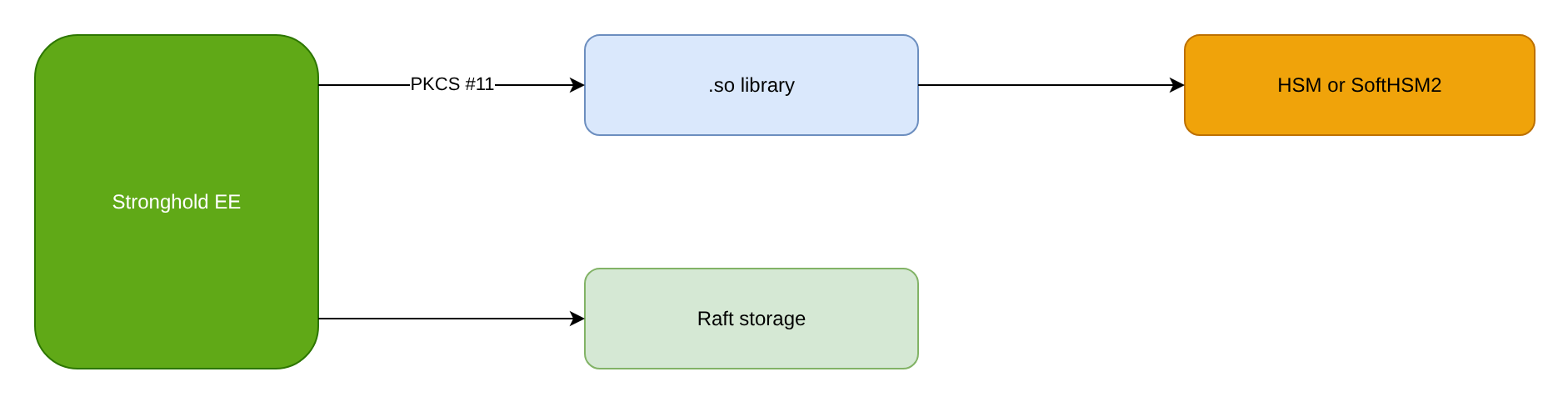
Goal
Build a SoftHSM2 lab, configure seal "pkcs11", initialize Stronghold with recovery keys, verify auto-unseal and seal wrap, and then prepare to move the configuration to a hardware HSM.
Prerequisites
To follow this example, you need:
- Stronghold EE installed on Linux as described in Installation. In the examples, the configuration is in
/opt/stronghold/config.hcl, and thestrongholdservice runs as thestrongholduser. - For the lab: Debian or Ubuntu with the
softhsm2andopenscpackages (thepkcs11-toolutility). - For production: an HSM with PKCS #11 support (for example, Rutoken ECP 3.0 or JaCarta) and the vendor PKCS #11 library.
- To move an existing server from Shamir: the threshold number of unseal keys and a data backup.
seal “pkcs11” parameters
The seal "pkcs11" stanza takes the following parameters:
| Parameter | Description |
|---|---|
lib | Path to the HSM PKCS #11 library, for example /usr/lib/x86_64-linux-gnu/softhsm/libsofthsm2.so or /usr/lib/librtpkcs11ecp.so |
token_label | Token label in the HSM |
pin | Token user PIN |
key_label | Label of the RSA key pair that encrypts the root key |
rsa_oaep_hash | Hash function for RSA-OAEP (sha1, sha224, sha256, sha384, sha512); sha256 by default, sha1 in the SoftHSM2 example |
slot | HSM slot number (instead of token_label) |
key_id | Key pair identifier (instead of key_label) |
mechanism | PKCS #11 mechanism used to encrypt the root key |
hmac_key_label | HMAC key label |
generate_key | Create the key in the HSM if it does not exist |
force_rw_session | Open the PKCS #11 session in read-write mode |
disabled | Used when migrating from the HSM to another seal |
Parameters can also be set with VAULT_HSM_* environment variables (for example, VAULT_HSM_PIN, VAULT_HSM_LIB) or PKCS11_WRAPPER_*; environment values take precedence over the configuration.
Step 1. Prepare a SoftHSM2 token
Perform this step on the Stronghold node.
Install the packages:
sudo apt install softhsm2 openscCreate a token directory and a SoftHSM2 configuration accessible to the
strongholduser:sudo mkdir -p /opt/stronghold/softhsm/tokens echo "directories.tokendir = /opt/stronghold/softhsm/tokens" | sudo tee /opt/stronghold/softhsm/softhsm2.conf sudo chown -R stronghold:stronghold /opt/stronghold/softhsm sudo chmod 0700 /opt/stronghold/softhsm/tokensSet the variables:
export SOFTHSM2_CONF=/opt/stronghold/softhsm/softhsm2.conf
HSMLIB=/usr/lib/x86_64-linux-gnu/softhsm/libsofthsm2.so
Initialize the token and set the PINs. Run the commands as the
strongholduser so that the token files belong to it:sudo -u stronghold SOFTHSM2_CONF=$SOFTHSM2_CONF pkcs11-tool --module $HSMLIB --init-token --so-pin 1234 --init-pin --pin 4321 --label stronghold_token --loginCreate an RSA key pair:
sudo -u stronghold SOFTHSM2_CONF=$SOFTHSM2_CONF pkcs11-tool --module $HSMLIB --login --pin 4321 --keypairgen --key-type rsa:4096 --label stronghold-rsa-keyIn the output, the private key must have the
sensitive, always sensitive, never extractable, localattributes: the key cannot be extracted from the token.Check the token and keys:
sudo -u stronghold SOFTHSM2_CONF=$SOFTHSM2_CONF pkcs11-tool --module $HSMLIB --login --pin 4321 --list-objects
Step 2. Configure Stronghold
Add the HSM seal to the Stronghold configuration:
Add a
sealstanza to/opt/stronghold/config.hcl:seal "pkcs11" { lib = "/usr/lib/x86_64-linux-gnu/softhsm/libsofthsm2.so" token_label = "stronghold_token" pin = "4321" key_label = "stronghold-rsa-key" rsa_oaep_hash = "sha1" }Restrict permissions on the configuration file because it contains the PIN:
sudo chown stronghold:stronghold /opt/stronghold/config.hcl
sudo chmod 0600 /opt/stronghold/config.hcl
The PIN can be passed through the
VAULT_HSM_PINorPKCS11_WRAPPER_PINenvironment variable instead of thepinparameter in the configuration.Pass the SoftHSM2 configuration path to the service through a systemd drop-in:
sudo mkdir -p /etc/systemd/system/stronghold.service.d
sudo tee /etc/systemd/system/stronghold.service.d/softhsm.conf <<'UNIT'
[Service]
Environment=SOFTHSM2_CONF=/opt/stronghold/softhsm/softhsm2.conf
UNIT
sudo systemctl daemon-reload
For a new server, go to step 3. For a server already initialized with Shamir, go to step 4.
Step 3. Initialize a new server
Start and initialize a new server with the HSM seal:
Start Stronghold:
sudo systemctl start strongholdInitialize Stronghold with recovery keys:
d8 stronghold operator init -recovery-shares=5 -recovery-threshold=3Distribute the recovery keys among key holders and store the root token.
Step 4. Move an existing server from Shamir to the HSM
Migrate an initialized server from Shamir to the HSM seal:
Take a Raft snapshot:
d8 stronghold operator raft snapshot save pre-seal-migration.snapAdd the
seal "pkcs11"stanza (step 2) and restart Stronghold:sudo systemctl restart strongholdThe log shows the message:
core: entering seal migration mode; Stronghold will not automatically unseal even if using an autoseal: from_barrier_type=shamir to_barrier_type=pkcs11Unseal with the
-migrateflag, entering the threshold number of unseal keys:d8 stronghold operator unseal -migrateWait until the seal-wrapped entries are re-wrapped: the log must show the
seal re-wrap completedmessage.
For an HA cluster, follow the general procedure in Seal migration.
Step 5. Check seal wrap
For supported seals, double encryption is enabled by default, and no separate configuration is needed. Check the rewrap status:
d8 stronghold read sys/sealwrap/rewrapThe response contains the process status and counters of processed entries. To force re-wrapping of all seal-wrapped entries, for example after changing the key in the HSM, start a rewrap:
d8 stronghold write -f sys/sealwrap/rewrapTo disable double encryption for all data except the root key, set disable_sealwrap = true in the server configuration. For details, see Double encryption.
Verification
Check the result:
Check the status:
d8 stronghold statusExpected values:
Seal Type                pkcs11
Recovery Seal Type       shamir
Initialized              true
Sealed                   false
Restart the service and make sure Stronghold unseals automatically:
sudo systemctl restart stronghold
sleep 10
d8 stronghold status -format=json | jq '{type, sealed, recovery_seal}'
Check that Stronghold does not unseal without access to the HSM. In the lab, temporarily rename the token directory:
sudo systemctl stop stronghold
sudo mv /opt/stronghold/softhsm/tokens /opt/stronghold/softhsm/tokens.off
sudo systemctl start stronghold
d8 stronghold status
journalctl -u stronghold.service --since "5 minutes ago" | grep -i pkcs11
sudo systemctl stop stronghold
sudo mv /opt/stronghold/softhsm/tokens.off /opt/stronghold/softhsm/tokens
sudo systemctl start stronghold
While the token is unavailable,
Sealedmust betrue, and the log must contain a PKCS #11 error.
Moving to a hardware HSM
When you move from SoftHSM2 to a hardware HSM, take the following into account:
- Library and key. Use the vendor PKCS #11 library and create a key pair in the HSM with the vendor tools or with
pkcs11-tool. An example for Rutoken ECP 3.0 is in HSM support. Choose thersa_oaep_hashvalue according to the mechanisms the device supports. - Seal change. Moving from SoftHSM2 to a hardware HSM is a migration between two auto seals: add
disabled = "true"to the oldseal "pkcs11"stanza, add the new stanza, and rund8 stronghold operator unseal -migratewith the recovery keys. The procedure is described in Seal migration. - HA cluster. Each node needs access to a key with the same label. The key material must be the same on all nodes: use a shared (network) HSM or clone the key between devices with the vendor tools. Stronghold does not clone keys itself, and a key generated separately on each device (
generate_key) does not suit an HA cluster. - Key backup. Losing the key in the HSM makes Stronghold data impossible to decrypt. Use the key backup procedures provided by the HSM vendor.
- Availability. With seal wrap, the HSM is needed not only for unsealing but also at runtime: operations on seal-wrapped values go through the HSM and are slower than usual. Check that the connection to the device is stable.
- PIN. Store the PIN in the configuration file with
0600permissions or pass it through an environment variable of the service.
Cleanup
For a lab environment:
- Stop Stronghold:
sudo systemctl stop stronghold. - Delete the Stronghold data, the SoftHSM2 token (
/opt/stronghold/softhsm), and the/etc/systemd/system/stronghold.service.d/softhsm.confdrop-in, then runsudo systemctl daemon-reload. - Remove the
seal "pkcs11"stanza from the configuration.