Preliminary version. The functionality may change, and an upgrade may require manual migration actions.
AppSec.Hub is an application security platform that runs an application’s quality gates. The AppSec.Hub integration links a project to an AppSec.Hub application and shows which AppSec.Hub tools AppSec.Hub uses to clone the project’s code and to download its images. A scan execution policy adds an AppSec.Hub scan job to pipelines that match its rules. The job runs the selected source code, image, or stand scans and waits for the application’s quality gate verdicts. The findings behind the verdicts appear in the pipeline’s security reports. The integration also sends the reports of the project’s own scanners to AppSec.Hub.
The integration ships turned off: an administrator turns it on with the appsec_hub_integration feature flag, and
the scan from a policy also needs the fe_security_scan_policies feature flag, as described on the
Early access page.
The integration also needs an instance license that covers security scanning.
While the flag is off or the license is missing, the integration is not offered in “Settings” → “Integrations”,
the policy editor does not offer the AppSec.Hub scan, and no reports are sent to AppSec.Hub.
The job of a policy that already mandates an AppSec.Hub scan fails with “ERROR: the security policy sets
AppSec.Hub options this scan cannot use: AppSec.Hub is turned off on this instance”.
Prerequisites
Before the scan can run, make sure that:
- An administrator has turned on the
fe_security_scan_policiesandappsec_hub_integrationfeature flags as described on the Early access page. - An AppSec.Hub server is reachable from the Deckhouse Code server and from the runners, and you have an API token of an AppSec.Hub user who can read and create applications and read the tools of an application. To send external registry credentials, the token also needs permission to read, create and update tools. Issue the token for a technical local user of AppSec.Hub (“Administration” → “Users” → “Add local user”), not for the AppSec.Hub administrator: the administrator has no access to applications. Give the user the Manager role and access to the applications through a team in “Access groups”; to read the findings of its scans, it also needs the Security Engineer role. The roles combine. The user takes a seat in your AppSec.Hub license.
- If the AppSec.Hub address is on localhost or in the local network, an instance administrator has turned on “Allow requests to the local network from webhooks and integrations” or added the AppSec.Hub host to “Local IP addresses and domain names that hooks and integrations can access” in “Admin” → “Settings” → “Network” → “Outbound requests”. Otherwise an active integration with that address cannot be saved, and “Test settings” fails.
- You have the Maintainer role in the project.
- The AppSec.Hub integration is configured, active and linked to an application.
- You have the
hub-cliimage of the same release as your AppSec.Hub server. The AppSec.Hub vendor gives it to its licensees only, and Deckhouse Code ships none. - For the source code module, AppSec.Hub has a tool that serves the project’s clone address.
- For the image module, AppSec.Hub has a tool that serves the registry the integration names in its “Registry” section.
- For the stand module, the stand is reachable from the AppSec.Hub network. If the stand needs a login, the project has the CI/CD variables that hold the login and the password.
- A security policy project is linked to the project or to a group above it, and its policy turns on at least one module of the AppSec.Hub scan.
- A GitLab Runner with a Docker executor is available and can pull the
hub-cliimage.
Deploying the AppSec.Hub server itself is outside this integration.
The AppSec.Hub integration
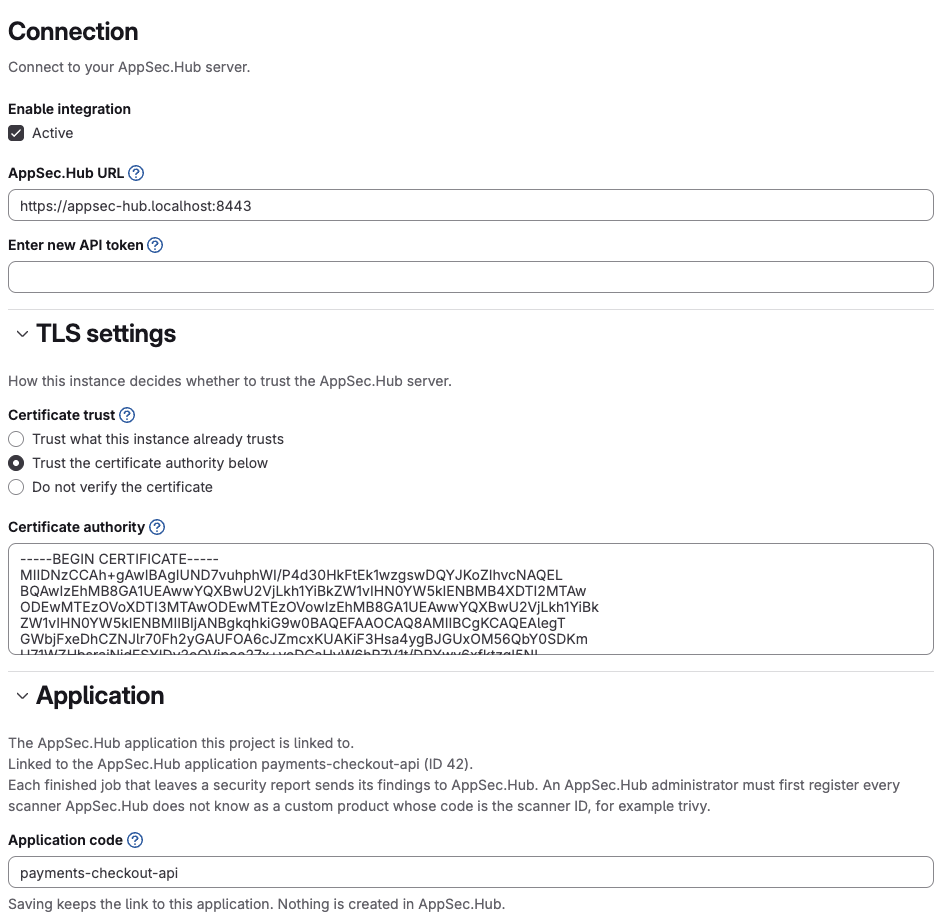
Configure the integration at project level, under “Settings” → “Integrations” → “AppSec.Hub”. The integration is available only in a project, not in a group or the instance, because it holds one project’s AppSec.Hub application.
Connection
The “Connection” section has the following fields:
| Field | Sets |
|---|---|
| “AppSec.Hub URL” | Base URL of your AppSec.Hub server. If you change it, enter the API token again. Required |
| “API token” | Token of the AppSec.Hub user this integration acts as. It needs permission to read and create applications and to read the tools of an application. To send external registry credentials, it also needs permission to read, create and update tools. Required |
TLS settings
The “TLS settings” section has the following fields:
| Field | Sets |
|---|---|
| “Certificate trust” | How this instance decides whether to trust the AppSec.Hub server: “Trust what this instance already trusts”, “Trust the certificate authority below” or “Do not verify the certificate” |
| “Certificate authority” | PEM certificate of the authority that signed the server’s certificate. Used only when “Certificate trust” is set to “Trust the certificate authority below” |
“Certificate trust” applies to the connection this instance makes when you save or test these settings and to the
scan job’s connection to AppSec.Hub.
In the scan job, “Trust what this instance already trusts” means the certificates the hub-cli image trusts.
Turning verification off leaves the API token and the registry credentials you enter in this form open to
interception.
The scan job uses the proxy of its environment (HTTPS_PROXY, HTTP_PROXY, ALL_PROXY) only for an https://
address with verification on. For an http:// address, or with verification off, the job unsets these variables:
such a proxy would read the API token.
Changing “Certificate trust” or the certificate authority asks for the API token again.
Application
The “Application” section links the project to one AppSec.Hub application through the “Application code” field:
- Leave the field blank to use the project path slug, the same value as
CI_PROJECT_PATH_SLUG. Saving creates the application with that code, or links to it if AppSec.Hub already has it for this project. - Enter the code of an existing application to link to it. Nothing is created in AppSec.Hub.
Changing the code asks for the API token again.
The link is saved only after the request to AppSec.Hub succeeds.
Until then the section reads “Not linked yet.”; after it, Linked to the AppSec.Hub application <code> (ID <ID>)..
Clone
The “Clone” section sets how AppSec.Hub clones the project’s source code. AppSec.Hub picks a tool by the address and signs in with that tool’s credentials, so the credentials are set up in AppSec.Hub by its administrator, not in this form.
| Field | Sets |
|---|---|
| “Clone protocol” | The project address AppSec.Hub clones from: HTTPS, HTTP or SSH. If empty, the protocol of the project’s HTTP clone URL |
For each protocol, the section shows the project’s address and, once the integration is saved and linked, the “AppSec.Hub tool” that serves it, for example “Signs in with login and password as ci-reader”. A protocol that the instance or the group turns off has no address. If the chosen protocol is turned off after the integration is saved, the source code module does not run: the job writes an error that asks for a protocol this instance allows. The image and stand modules still run. When no tool serves the address, the section shows “No AppSec.Hub tool”: AppSec.Hub will refuse the address and the scan will fail. Ask an AppSec.Hub administrator to add a tool for this address, with credentials if the project is private, or to add the address as an alias of an existing tool.
To give a tool access to a private project:
- “Create a deploy token” opens the project’s deploy tokens with the name and the scope filled in.
- For a tool that signs in with an SSH key, the section shows “Public SSH key of the tool”, with “Copy the key” and “Add it as a deploy key”.
Registry
The “Registry” section sets where AppSec.Hub downloads the project’s images from for the image module. AppSec.Hub picks the repository tool by the image address and signs in with that tool’s credentials.
| Field | Sets |
|---|---|
| “Images are in” | The registry the project’s pipeline pushes its images to: “The project’s container registry” or “External registry”, such as Nexus |
| “Image repository” | For an external registry. The image repository the way docker pull names it, without a tag: a host, with a port if the registry has one, then the path, for example nexus.example.com:8443/team/app. No https:// or another scheme, and no login or password. The image module reads $CI_REGISTRY_IMAGE as this address |
For the project’s container registry, the credentials of the tool are set up by an AppSec.Hub administrator. “Create a deploy token” opens the project’s deploy tokens with the name and the scope filled in. If the project has no container registry, the section says so: turn the registry on in the project settings, or choose the external registry the pipeline pushes its images to.
For an external registry, the form can send the credentials to AppSec.Hub itself. Under “Registry credentials”, choose one of the following:
- “Keep what AppSec.Hub has”.
- “No credentials, the registry is public”.
- “Login and password or token”, then fill in “Registry login” and “Registry password or token”.
Saving sends the credentials to AppSec.Hub, which keeps them on a Docker registry tool this integration creates for the registry; Deckhouse Code does not store them. The integration changes only a tool it created. When another tool already serves the external registry, set the credentials of that tool in AppSec.Hub, or keep the credentials AppSec.Hub has. The credentials are sent only for an external registry of an active integration.
The tool is named Deckhouse Code <instance host> <project path> registry, with spaces in place of the slashes of
the path.
If it was deleted in AppSec.Hub, the next save with credentials creates it again with the UTC creation time added to
the name, for example … registry 20261015143005, because AppSec.Hub keeps the name of a deleted tool taken.
For a tool that already signs in with a password, a blank “Registry password or token” keeps the stored one; a new
tool needs one.
The integration never deletes the tool.
The integration holds no stand: the address, the stage and the login and password variables of the stand are options of the policy (see Stand module).
Click “Save changes” to store the form. Saving an active integration contacts AppSec.Hub: it creates or links the application, sends the external registry credentials and reads the build tool of the codebase. If AppSec.Hub refuses the link or the credentials, nothing is saved, and the form shows the reason; when the build tool cannot be read, the stored one is kept. Each time the form of an active, linked integration opens, it asks AppSec.Hub which tools serve the clone and registry addresses. An inactive integration is saved without contacting AppSec.Hub, and the “Clone” and “Registry” sections read “What AppSec.Hub uses is shown when the integration is active.”. Click “Test settings” to check the URL, the API token, the TLS settings and whether the token can read applications, without saving the form.
Turning the scan on
The scan execution policy offers one AppSec.Hub scan, appsec_hub, with the modules source code, image and stand.
Each module is turned on by its own switch, a variable of the scan action:
| Module | Switch | Checks |
|---|---|---|
| Source code | FE_SCANS_APPSECHUB_SCAN_CODEBASE | The code of the pipeline’s commit |
| Image | FE_SCANS_APPSECHUB_SCAN_ARTIFACT | Container images |
| Stand | FE_SCANS_APPSECHUB_SCAN_INSTANCE | The running application |
A switch turns its module on only when its value is the string "true".
Any other value, or no switch at all, leaves the module off.
A project’s CI/CD variable of the same name does not turn a module on.
One action can turn on any of the modules, alone or together.
At least one module must be on: policy validation rejects an appsec_hub action in which no switch is "true".
If a policy that turns on no module still gets into a pipeline, the pipeline has a single job, appsec_hub_no_module,
which fails and names the switches (see No scan module enabled).
Every module needs the same active project integration linked to an application.
Add an appsec_hub action to .deckhouse_code/security-policies/policy.yml in the security policy project.
The following policy turns on the source code module:
scan_execution_policy:
  - name: AppSec.Hub everywhere
    enabled: true
    rules:
      - type: pipeline
        branches: ["*"]
    actions:
      - scan: appsec_hub
        variables:
          FE_SCANS_APPSECHUB_SCAN_CODEBASE: "true"
          FE_SCANS_APPSECHUB_SCAN_IMAGE: "registry.appsec.global/appsechub/hub-cli:2026.3.2"
          FE_SCANS_APPSECHUB_REGISTRY_LOGIN_VARIABLE: "$HUB_CLI_REGISTRY_USER"
          FE_SCANS_APPSECHUB_REGISTRY_PASSWORD_VARIABLE: "$HUB_CLI_REGISTRY_PASSWORD"
          FE_SCANS_APPSECHUB_WAIT_TIMEOUT: "60"
          FE_SCANS_APPSECHUB_BUILD_TOOL: "maven"
          FE_SCANS_APPSECHUB_REPORT_TYPE: "PDF"
The image and stand modules are turned on the same way, with their own options. The following policy runs the image module and the stand module in every pipeline:
scan_execution_policy:
  - name: AppSec.Hub image and stand
    enabled: true
    rules:
      - type: pipeline
        branches: ["*"]
    actions:
      - scan: appsec_hub
        variables:
          FE_SCANS_APPSECHUB_SCAN_ARTIFACT: "true"
          FE_SCANS_APPSECHUB_SCAN_INSTANCE: "true"
          FE_SCANS_APPSECHUB_SCAN_IMAGE: "registry.appsec.global/appsechub/hub-cli:2026.3.2"
          FE_SCANS_APPSECHUB_WAIT_TIMEOUT: "60"
          FE_SCANS_APPSECHUB_ARTIFACT_MODE: "list"
          FE_SCANS_APPSECHUB_ARTIFACT: |
            $CI_REGISTRY_IMAGE:$CI_COMMIT_SHA
            $CI_REGISTRY_IMAGE/worker:$CI_COMMIT_SHA
          FE_SCANS_APPSECHUB_INSTANCE_URL: "$STAND_URL"
          FE_SCANS_APPSECHUB_INSTANCE_STAGE: "ST"
          FE_SCANS_APPSECHUB_INSTANCE_LOGIN_VARIABLE: "$STAND_LOGIN"
          FE_SCANS_APPSECHUB_INSTANCE_PASSWORD_VARIABLE: "$STAND_PASSWORD"
Then link the policy project: for a project, under “Secure” → “Policies”; for a group, under “Settings” → “Security policy”.
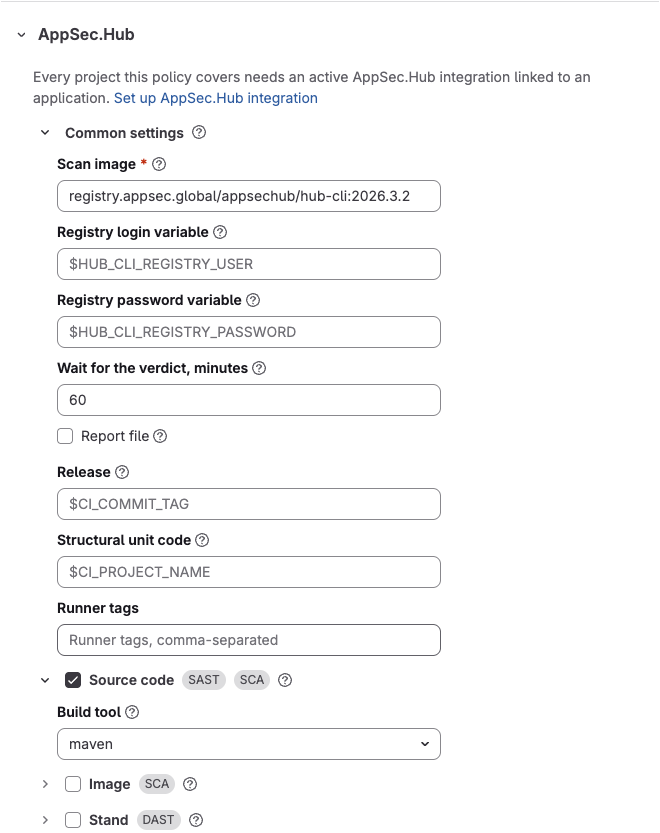
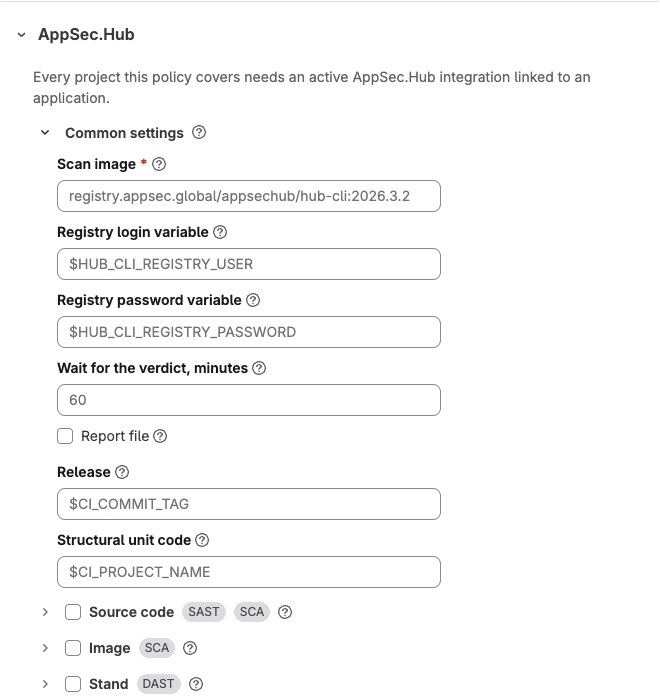
In the policy editor, the AppSec.Hub scan is one card, “AppSec.Hub”. It holds the “Common settings” block and the modules “Source code”, “Image” and “Stand”. The card’s “Enable this scanner” checkbox adds the scan to the policy; until it is ticked, the card shows neither “Common settings” nor the modules. Each module has its own checkbox and offers its options once the checkbox is on. “Common settings” has no checkbox of its own: it is shown while the scanner is enabled, and its options apply to every module that is on. While the scanner is enabled and no module is on, the card shows “No scan module is selected. Select at least one module, or turn the scanner off.” and the policy cannot be saved.
The policy editor lists the card whether or not the AppSec.Hub integration is set up. In a project’s policy, “Enable this scanner” can be ticked only once the project’s AppSec.Hub integration is active; otherwise the checkbox is disabled, and so are the options of a scan the policy already has. The card always shows “Every project this policy covers needs an active AppSec.Hub integration linked to an application.”, and in a project’s policy that note carries a “Set up AppSec.Hub integration” link to the project’s integration settings.
A policy option outside its allowed values fails the job before the scan starts, naming the option and the allowed values.
Common settings
The “Common settings” block holds the options that every module that is on reads. They are set once per action: the modules of one action cannot get different values. The block offers the following options:
| Option | Sets |
|---|---|
| “Scan image” | Required. The hub-cli image the scan job runs in, from the vendor’s registry, of the same release as your AppSec.Hub server. A complete image reference with a tag, a digest (@sha256: followed by 64 lowercase hex characters) or both, such as registry.appsec.global/appsechub/hub-cli:2026.3.2 or registry.appsec.global/appsechub/hub-cli:2026.3.2@sha256:<digest>. The path after the registry host is lowercase: a reference with an uppercase letter in the path is refused. It cannot contain a $ character. The policy writes it as the FE_SCANS_APPSECHUB_SCAN_IMAGE variable of the scan action |
| “Registry login variable” | Optional. The project’s CI/CD variable with the login for the registry of the scan image, such as $HUB_CLI_REGISTRY_USER. The name cannot start with FE_, CI_ or GITLAB_ in any letter case. The policy writes it as the FE_SCANS_APPSECHUB_REGISTRY_LOGIN_VARIABLE variable of the scan action |
| “Registry password variable” | Optional. The project’s CI/CD variable with the password or token for that registry, such as $HUB_CLI_REGISTRY_PASSWORD. The name cannot start with FE_, CI_ or GITLAB_ in any letter case. Mask that variable. The password cannot contain a " or \ character. The policy writes it as the FE_SCANS_APPSECHUB_REGISTRY_PASSWORD_VARIABLE variable of the scan action |
| “Wait for the verdict, minutes” | How long the job waits for AppSec.Hub to finish the scan of each module, from 1 to 180 minutes, default 60. The module fails when no verdict arrives in time. The limit needs the timeout command in the scan image; without it only the job timeout, 9 h 15 min, bounds the wait. The policy writes it as the FE_SCANS_APPSECHUB_WAIT_TIMEOUT variable of the scan action |
| “Report file” | Optional. A checkbox: when it is ticked, choose PDF, XLSX or ZIP for an extra report file AppSec.Hub writes for the scan; unticked, there is no extra report file. The file is kept in the job’s artifacts under appsec-hub/<module>/report/. The verdict is kept either way: in appsec-hub/<module>/result.json in the job’s artifacts and as a JUnit report on the pipeline’s “Tests” tab. The policy writes it as the FE_SCANS_APPSECHUB_REPORT_TYPE variable of the scan action |
| “Release” | Optional. The release of the application in AppSec.Hub the scan results belong to. CI/CD variables in it are expanded, so $CI_COMMIT_TAG names the release by the tag the pipeline runs for. When the value expands to nothing, no release is passed. The policy writes it as the FE_SCANS_APPSECHUB_RELEASE variable of the scan action |
| “Structural unit code” | Optional. Code of the structural unit in AppSec.Hub the scan results belong to, such as $CI_PROJECT_NAME. CI/CD variables in it are expanded. The policy writes it as the FE_SCANS_APPSECHUB_UNIT_CODE variable of the scan action |
| “Runner tags” | Optional. Comma-separated runner tags for the scan job. The field is shown once the scanner is enabled. The policy writes them as the tags list of the scan action |
Name both registry variables or neither.
With neither, the runner pulls the scan image with the access it or the project already has.
With both, the job pulls with them instead of the project’s own DOCKER_AUTH_CONFIG.
“Release”, “Structural unit code” and “Stand URL” cannot refer to a variable that starts with FE_ or GITLAB_,
or to the job’s own credentials, such as $CI_JOB_TOKEN.
Source code module
The “Source code” module hands the pipeline’s commit and branch to AppSec.Hub, and AppSec.Hub clones the code from the address the integration’s “Clone” section shows. For a merge request pipeline, the target branch of the merge request is passed too. Besides “Common settings”, the module offers the following option:
| Option | Sets |
|---|---|
| “Build tool” | How AppSec.Hub builds the source code: maven, gradle, nuget, npm, pip, composer or go mod. If empty, AppSec.Hub assumes maven. The policy writes it as the FE_SCANS_APPSECHUB_BUILD_TOOL variable of the scan action |
In a project’s policy, the “?” hint of the “Build tool” option ends with a sentence about the build tool of the project.
The hint shows the help of the “Build tool” option, then this sentence.
Nothing is filled in automatically: set the option by hand.
The sentence is shown even when the option already holds that tool.
The sentence names the build tool AppSec.Hub holds for the project’s codebase, for example “AppSec.Hub builds this codebase with gradle.”; only a tool from the list above counts, ignoring case and _ for a space, so GO_MOD gives go mod.
Without that tool, the sentence names one by a file at the repository root, for example “The repository has package.json at its root, so the code is likely built with npm.”: pom.xml gives maven; build.gradle or build.gradle.kts, gradle; *.csproj, nuget; package.json, npm; requirements.txt or pyproject.toml, pip; composer.json, composer; go.mod, go mod.
There is no sentence when the integration is inactive, the feature flag is off, or nothing matches.
The AppSec.Hub value is read and stored when the integration is saved, so opening the editor makes no call to AppSec.Hub: after changing the build tool in AppSec.Hub, save the integration again.
A group policy has no sentence, because it covers projects that may be built by different tools.
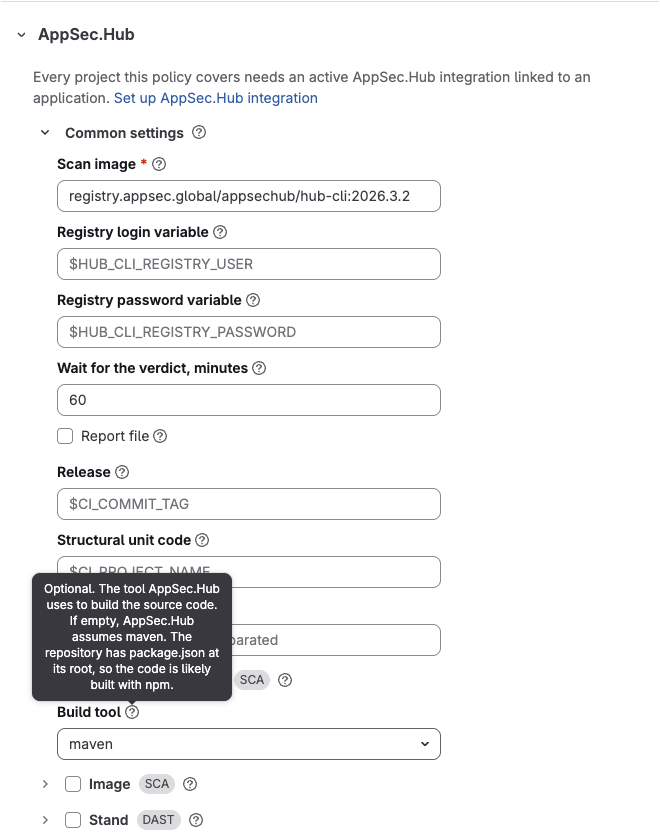
Image module
The “Image” module checks container images.
AppSec.Hub pulls the images itself from the registry the integration’s “Registry” section names, with the
credentials of its tool that serves that registry, and scans them as artifacts of the linked application.
All images of one run go into one AppSec.Hub scan, and the job waits for one verdict.
In AppSec.Hub, the project’s own image is named after the full path of the project, for example
payments/checkout-api; an image below it gets that path and its repository name, for example
payments/checkout-api/worker.
Besides “Common settings”, the module offers the following options:
| Option | Sets |
|---|---|
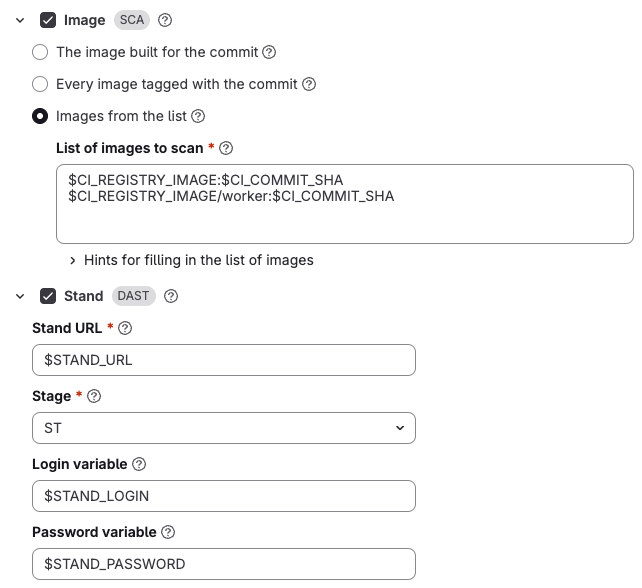
| “Images to scan” | Which images AppSec.Hub scans. “The image built for the commit”: $CI_REGISTRY_IMAGE:$CI_COMMIT_SHA, the image the project’s jobs push for the commit. “Every image tagged with the commit”: every image of the project’s container registry tagged with the commit SHA, at most 20; the job log names the images without that tag, which are skipped; not for an external registry. If the project has more than 20 image repositories, only the first 20 by name are checked. An image that could not be checked in time, or that the registry did not answer for, is scanned without the tag check. “Images from the list”: the images of “List of images to scan”. If not set, “The image built for the commit”. The policy writes it as the FE_SCANS_APPSECHUB_ARTIFACT_MODE variable of the scan action, with the values built, all and list |
| “Registry search timeout, seconds” | Shown for “Every image tagged with the commit”. Optional. How long to look for images tagged with the commit SHA, from 1 to 30 seconds, default 10. The job starts when this time runs out, and the images not yet checked are scanned without checking for the tag. The policy writes it as the FE_SCANS_APPSECHUB_ARTIFACT_TIMEOUT variable of the scan action |
| “List of images to scan” | Shown for “Images from the list”. Required. One image per line, up to 20 lines. The policy writes it as the FE_SCANS_APPSECHUB_ARTIFACT variable of the scan action |
A line of the list starts with $CI_REGISTRY_IMAGE or $CI_APPLICATION_REPOSITORY and ends with a tag or a digest,
for example $CI_REGISTRY_IMAGE/worker:1.0.
$CI_REGISTRY_IMAGE is the image repository the integration’s “Registry” section names.
A line can use only the following variables:
$CI_REGISTRY_IMAGE;$CI_COMMIT_REF_SLUG: the branch or tag as an image tag,feature/foobecomesfeature-foo;$CI_COMMIT_SHA;$CI_COMMIT_TAG: a line using it is skipped in a branch pipeline, and the job says so in its log;$CI_APPLICATION_REPOSITORY:$CI_REGISTRY_IMAGE/$CI_COMMIT_REF_SLUGfor a branch,$CI_REGISTRY_IMAGEfor a tag;$CI_APPLICATION_TAG:$CI_COMMIT_SHAfor a branch,$CI_COMMIT_TAGfor a tag.
The scan fills in their values from the project, branch and commit of the pipeline and ignores project CI/CD variables of the same name. An image from another registry and an image file a job saved cannot be scanned.
Stand module
The “Stand” module tests the running application.
The policy names the stand, and AppSec.Hub reaches it from its own network, so the stand must be reachable from there.
The stand is named after the full path of the project, for example payments/checkout-api, and is scanned as a stand
of the application linked in the project’s integration.
Besides “Common settings”, the module offers the following options:
| Option | Sets |
|---|---|
| “Stand URL” | Required. Address of the running application AppSec.Hub tests, without a login or password in it. CI/CD variables in it are expanded, so a group policy can name each project’s stand by a variable such as $STAND_URL. The policy writes it as the FE_SCANS_APPSECHUB_INSTANCE_URL variable of the scan action |
| “Stage” | Required. Stage of the stand in AppSec.Hub: ST, IAT, UAT, STG or PROD. The policy writes it as the FE_SCANS_APPSECHUB_INSTANCE_STAGE variable of the scan action |
| “Login variable” | Optional. The project’s CI/CD variable with the stand login, such as $STAND_LOGIN. The policy writes it as the FE_SCANS_APPSECHUB_INSTANCE_LOGIN_VARIABLE variable of the scan action |
| “Password variable” | Optional. The project’s CI/CD variable with the stand password, such as $STAND_PASSWORD. Mask that variable. The policy writes it as the FE_SCANS_APPSECHUB_INSTANCE_PASSWORD_VARIABLE variable of the scan action |
The policy holds only the references to the variables, as $NAME or ${NAME}.
The scan job reads the login and the password from the CI/CD variables of the scanned project when it runs, and the
job log shows only the names.
Name both variables or neither.
With neither, the job passes no credentials, so a stand that needs no login can be scanned.
The image and stand policy above reads the stand from CI/CD variables. Add these variables to each project under “Settings” → “CI/CD” → “Variables”:
STAND_URL: the stand address, for examplehttps://stand.example.com.STAND_LOGIN: the stand login.STAND_PASSWORD: the stand password; mark the variable as masked.
A protected variable is available only in pipelines on protected branches and tags.
A variable name consists of letters, digits and _, starts with a letter or _, and does not start with FE_,
CI_ or GITLAB_ in any letter case.
The stand module fails when a login or a password contains ;, because hub-cli separates the login and the
password with it.
Group policies
A scan execution policy on a group can also turn on the AppSec.Hub scan.
The policy editor offers it directly, with the same note that every project the policy covers needs its own
active AppSec.Hub integration linked to an application; at group level the note carries no link, because no
single project’s settings apply to the whole group.
A project without an active, linked integration has its job fail with a message pointing to its own integration
settings.
A group policy names the stand of each project by CI/CD variables, for example $STAND_URL, and every project the
policy covers defines these variables; a project without one has its stand module fail (see
Stand URL or stage is empty).
What the pipeline shows
The AppSec.Hub scan is one job, appsec_hub_scan, in the policy’s stage: fe-security-scanner unless the
policy’s “CI stage” field names another.
The job a policy adds gets a policy suffix in its name.
By default it runs after all the jobs of the project, so an image built and pushed earlier in the same pipeline,
and a stand deployed earlier, are available by then.
The order changes when the policy’s “CI stage” names a stage the project declares, or when the project declares
fe-security-scanner in its own stages:: the scan then runs where the project puts that stage, and can start
before the image is built or the stand is deployed.
The job runs every module the policy turned on, one after another: source code, image, stand. For each module, it hands the object to AppSec.Hub and waits for the verdict of the application’s quality gates. A module that cannot start, for example because a stand variable is missing, fails with the reason, and the modules after it still run.
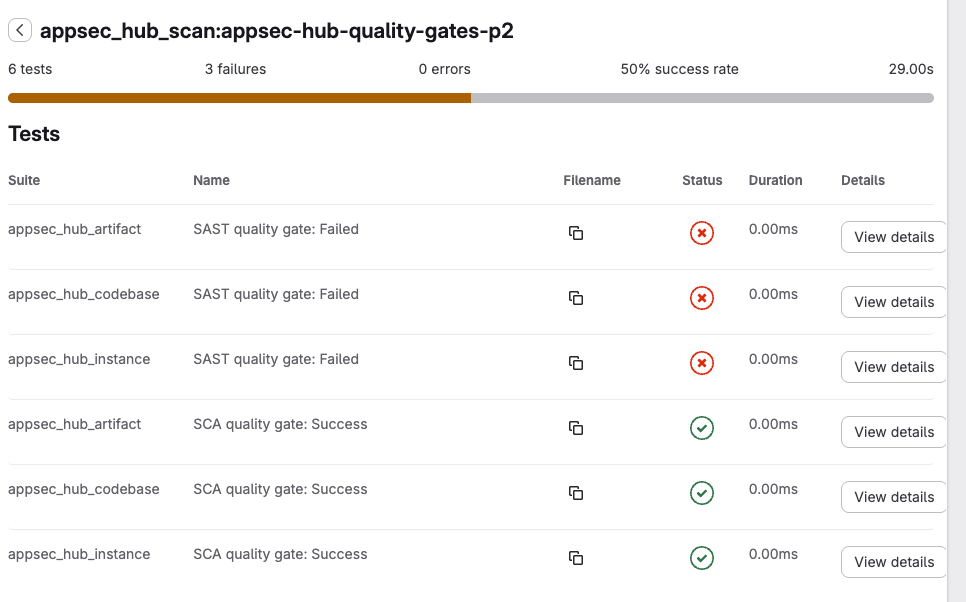
The “Tests” tab shows a test suite per module that ran:
| Module | Test suite | Name in the job log |
|---|---|---|
| Source code | appsec_hub_codebase | codebase |
| Image | appsec_hub_artifact | artifact |
| Stand | appsec_hub_instance | instance |
The suite has one test case per quality gate the application ran. A test case is named after the practice and the
status AppSec.Hub reports for it, such as “SAST quality gate: Failed”; a gate that did not pass is a failed test case that carries the reason.
When the scan stops before AppSec.Hub evaluates any gate, for example on a timeout, the suite has one test case with
the reason, marked as an error.
When hub-cli exits with code 0 without writing a result, the module counts as passed: its test case
“AppSec.Hub verdict: Passed” carries the note “hub-cli exited with 0 and wrote no result; its exit code says the
quality gates passed”.
After the verdicts, the job reads the findings of the scans out of AppSec.Hub and writes one security report per kind for the whole job, whichever module found them:
| Report | Findings |
|---|---|
sast | SAST and MAST findings |
dependency_scanning | SCA findings of the source code |
container_scanning | SCA findings of an image |
dast | DAST findings of the stand |
Each report is one file, appsec-hub-<kind>.json, that covers every module of the job.
A module whose findings were read writes a report of every kind it covers, even an empty one: this is how DefectDojo
closes the findings the new scan no longer has. A module that did not get to scan writes no report.
License compliance findings of AppSec.Hub are not reported.
The findings appear in the vulnerability report and, when the project has an active DefectDojo integration, in
DefectDojo.
The “Tests” tab lists them too, as passed test cases in the suites appsec_hub_sast,
appsec_hub_dependency_scanning, appsec_hub_container_scanning and appsec_hub_dast, with their severity.
These findings are for information: they do not change the outcome of the job.
If the findings of any module cannot be read in full, the job writes no findings report at all, the job log prints a
warning, and the pipeline shows the verdicts alone; the findings stay in AppSec.Hub.
Blocking
The verdict of the application’s quality gates, set in AppSec.Hub, decides the job: it passes when every gate
the application runs passes in every module, and fails when one does not.
The quality gates are the only gate: the findings in the “Tests” tab, the vulnerability report and DefectDojo never
fail the job.
The scan takes no severity threshold of its own and does not read FE_SECURITY_FAIL_ON.
The job also fails when:
- No verdict arrives within the wait time.
- The AppSec.Hub integration of the project is not active or not linked to an application, even if the project
defines
FE_SCANS_APPSECHUB_*CI/CD variables. - The
appsec_hub_integrationfeature flag is off or the instance license does not cover security scanning. - A policy option is outside its allowed values, including a missing “Scan image”.
- The scan image has no
hub-cli, or has nopython3: withoutpython3the job fails even when the quality gates pass. hub-cliexits with a code other than 0 and 2, that is, the scan did not run in AppSec.Hub.- In the source code module, the branch name contains
;, or the clone protocol the integration chose is turned off for Git. - A policy option carries the AppSec.Hub token or the job’s own credentials.
- The policy turns no module on; the pipeline then has the
appsec_hub_no_modulejob instead. - In the image module, there is no image to scan.
- In the stand module, the address or the stage is empty after the CI/CD variables in them are expanded.
- In the stand module, the address carries a login or a password before the host after the CI/CD variables in it are expanded.
- In the stand module, a CI/CD variable that the policy names for the login or the password is missing or empty, or
its value contains
;.
When the policy names no scan image, the job still runs, in a small fallback image, and fails; the “Tests” tab shows the reason. The job’s error messages and their fixes are listed in Troubleshooting.
Your scanners’ findings in AppSec.Hub
Besides the AppSec.Hub scan from the policy, the integration sends the reports of the project’s own scanners to
AppSec.Hub.
These are the reports of any job of the project: jobs from .gitlab-ci.yml and jobs added by a security policy.
Sending starts once the integration is active and linked to an application, and needs no setting of its own.
Registering the scanners in AppSec.Hub
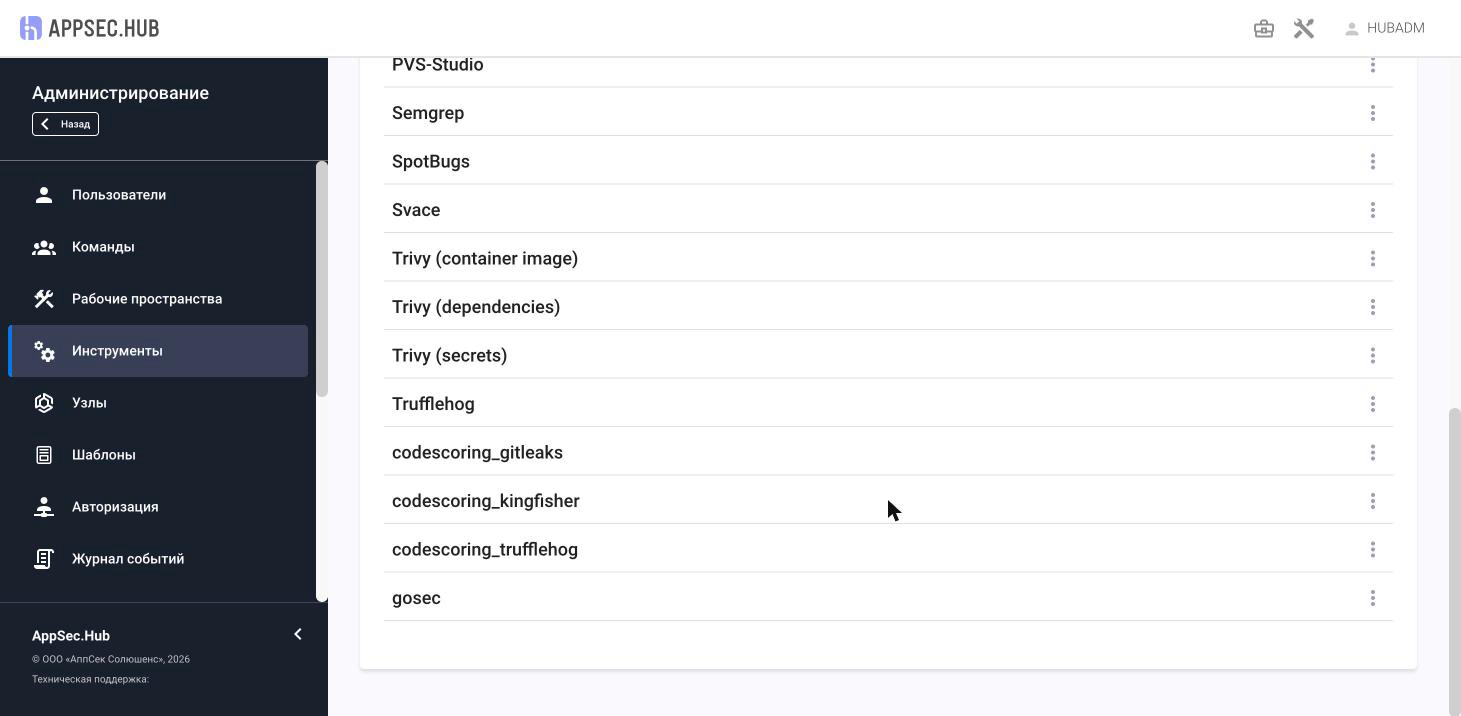
Before you link the integration, ask an AppSec.Hub administrator to register the project’s scanners. AppSec.Hub tells new, repeated and fixed findings apart for each “object + tool” pair, so every scanner must be a separate product in it. The administrator registers every scanner AppSec.Hub does not know yet as a custom product (custom tool) whose code equals the scanner ID.
The scanner ID is in the scanner’s security report, in the scanner.id field, for example semgrep or
find_sec_bugs.
The scans that security policies add use these scanner IDs:
| Policy job | Scanner ID |
|---|---|
opengrep_sast_junit | opengrep |
gitleaks_secret_junit | gitleaks |
trivy_sca | trivy_sca |
trivy_secrets | trivy_secrets |
trivy_container | trivy_container, for both its image report and the report of secrets found in the image |
ptai_scan | ptai |
codescoring_sca | CodeScoring |
trivy_license leaves no security report, and the cluster_image_scanning report of trivy_k8s is not sent
(see What is sent and when), so neither needs a product.
Give the administrator the IDs of all scanners the project runs and ask them to check each one
in the list of custom tools of AppSec.Hub.
The product code must equal the scanner ID exactly, letter case included: CodeScoring reports carry the scanner ID
CodeScoring, so the product code is CodeScoring.
The CodeScoring secret detection jobs codescoring_secrets_gitleaks, codescoring_secrets_trufflehog and
codescoring_secrets_kingfisher report the same scanner, so the product for them comes from the job name:
codescoring_gitleaks, codescoring_trufflehog and codescoring_kingfisher.
Register these products too. AppSec.Hub marks as fixed the findings of a product that are absent from the next
report of that product on the same object; with one product, two jobs would close each other’s findings.
The ptai_scan job also takes its product from the job name: PT AI reports the scanner as AIE Server, so the
product is ptai.
Besides the products, AppSec.Hub must have:
- a VCS tool whose host matches the host of the codebase address;
- a registry tool with the address
index.docker.io, if the project scans images from Docker Hub.
If AppSec.Hub accepts a report but fails to import it, the pipeline shows no warning, and the findings do not appear in AppSec.Hub: see A scanner’s findings do not appear in AppSec.Hub and there is no warning.
What is sent and when
Every finished job that left a security report of type sast, secret_detection, dependency_scanning,
container_scanning or dast sends it to the AppSec.Hub application the project is linked to.
Reports of other types, for example cluster_image_scanning, coverage_fuzzing and api_fuzzing, are not sent.
The reports of the AppSec.Hub scan job are not sent back to AppSec.Hub: their findings come from it.
One report is one request.
The request carries the linked application and, for a merge request pipeline, the target branch of the merge
request.
Deckhouse Code sends the reports in the background: the pipeline does not wait for it, and the AppSec.Hub API token stays in the integration and is never passed to the project’s own jobs. AppSec.Hub checks each imported report against the application’s quality gates. The outcome of sending and of those gates does not change the result of a job or a pipeline: a refusal shows as a pipeline warning.
Reports are sent only if all of the following hold:
- The
appsec_hub_integrationfeature flag is enabled, and the instance license covers security scanning. - The integration is active and linked to an application: the “Application” section shows the line
Linked to the AppSec.Hub application <code> (ID <ID>)..
How a report becomes an AppSec.Hub scan
AppSec.Hub accepts reports in its own Hub.Report format, so Deckhouse Code converts every report before sending it.
A report gives one AppSec.Hub scan for each scanner found in it.
The scan’s product is the scanner ID from the report, and its version is the scanner version.
For the CodeScoring jobs that detect secrets and for the ptai_scan job, the product comes from the job name: a
PT AI report is sent as ptai, not as its scanner ID AIE Server (see
Registering the scanners in AppSec.Hub).
A report with several scanners gives several scans.
The scan type and the checked object depend on the report type:
| Report type | Type in AppSec.Hub | Checked object |
|---|---|---|
sast | sast | The project’s codebase |
secret_detection | sast | The project’s codebase |
dependency_scanning | sca_s | The project’s codebase |
container_scanning | sca_s | The image |
dast | dast | The checked host |
For a codebase, the report carries its address, the project path as the name, and the commit and branch of the pipeline. The address is the one the integration’s “Clone” section shows; when there is none, the project’s HTTP clone URL is used. The branch is left out when its name is longer than 128 characters.
The other conversion rules:
- Severity
critical,highandmediumis sent as is.infoandunknownare sent asLow: AppSec.Hub has no lower level. - Secrets go as hard-coded credentials (CWE-798), without the description, because it may quote the secret. The secret value is never sent.
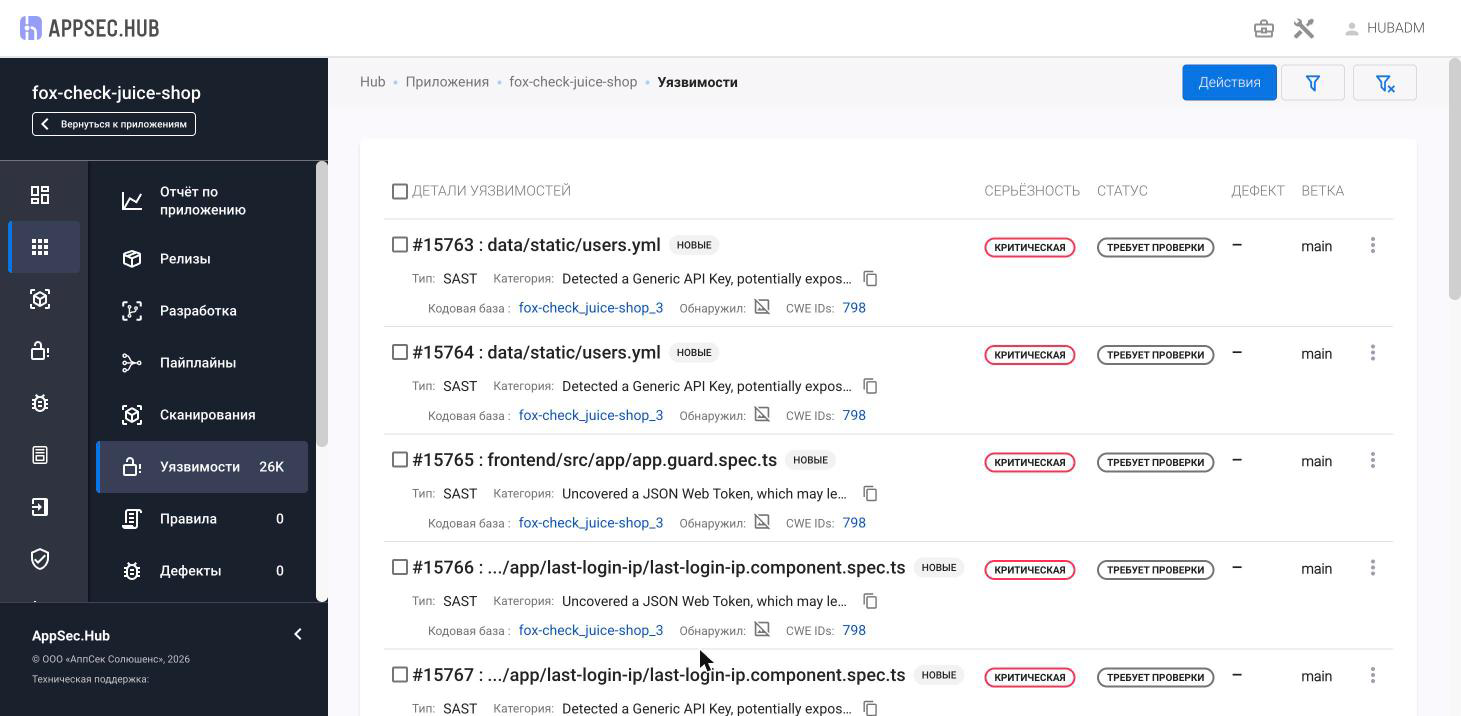
- The ID of a finding is the one it has in the Deckhouse Code vulnerability report. So the same finding keeps its ID from run to run, and AppSec.Hub tells new findings from repeated and fixed ones. A finding that a scanner repeats inside one report, for example a container scanner that lists one entry per package, is sent once.
- A
sast,secret_detectionordependency_scanningreport with no findings is sent as an empty scan: this is how AppSec.Hub learns that the earlier findings are fixed. - A
container_scanningordastreport with no findings is not sent: only a finding names the image or the host it belongs to. - The placeholder report of a scan that did not run (
scan.statusisfailure) is not sent: an empty scan would mark every earlier finding as fixed. Theptai_scanreport is always sent: PT AI writesfailureinto every report, a finished scan’s too. - A
secret_detectionreport of the Trivy container image scan job is not sent: AppSec.Hub would file the secrets found inside the image under the project’s codebase. - A
dependency_scanningorcontainer_scanningfinding without a package is left out.
These findings also appear in the vulnerability report and in DefectDojo. View them in AppSec.Hub.
When AppSec.Hub answers with code 429 or 5xx, is unreachable, does not answer within 60 seconds or gives an answer that cannot be read, or when a report cannot be read from storage, sending is retried three times: after 60, 120 and 240 seconds. A retry sends all the reports of the job again, including the ones already delivered: AppSec.Hub takes them as another scan and counts their findings as repeated. When a report is refused for good or the retries are spent, the pipeline page lists it in the “Security report upload warnings” alert, next to the DefectDojo upload warnings (see Job report not delivered to AppSec.Hub). A report that AppSec.Hub accepted but failed to import raises no warning: see A scanner’s findings do not appear in AppSec.Hub and there is no warning.
Troubleshooting
In the job log, the modules are named codebase (source code), artifact (image) and instance (stand).
The AppSec.Hub scan does not appear in the pipeline
Check that:
- The
fe_security_scan_policiesandappsec_hub_integrationfeature flags are enabled. - The instance license covers security scanning.
- A security policy project is linked and its
policy.ymlcontains anappsec_hubaction. - The action sets the switch of the module you expect,
FE_SCANS_APPSECHUB_SCAN_CODEBASE,FE_SCANS_APPSECHUB_SCAN_ARTIFACTorFE_SCANS_APPSECHUB_SCAN_INSTANCE, to the string"true". - A GitLab Runner with a Docker executor is available and can pull the scan image.
No scan module enabled
The job log of appsec_hub_no_module includes the message:
ERROR: this policy mandates the AppSec.Hub scan but turns no module on.
The policy has an appsec_hub action in which no module switch is "true", so nothing was scanned.
Turn on at least one module in the policy editor, or set FE_SCANS_APPSECHUB_SCAN_CODEBASE,
FE_SCANS_APPSECHUB_SCAN_ARTIFACT or FE_SCANS_APPSECHUB_SCAN_INSTANCE to "true" in the action.
AppSec.Hub integration inactive or unlinked
The job log includes the message:
ERROR: a security policy mandates an AppSec.Hub scan, and the AppSec.Hub integration of this project is not active or not linked to an application.
The line above it reads Open Settings > Integrations > AppSec.Hub in this project, turn it on and save it.
Open the project’s AppSec.Hub integration, turn it on, link it to an application and save it.
CI/CD variables of the project named FE_SCANS_APPSECHUB_* do not replace the integration.
Cannot apply AppSec.Hub scan options
The job log includes a message of this form:
ERROR: the security policy sets AppSec.Hub options this scan cannot use: <REASON>
The job stops before the scan starts.
<REASON> names each option that is wrong and its allowed values, for example:
scan image: name the hub-cli image the scan runs in: the policy names no scan image, so the job ran in a fallback image. Set “Scan image” in the policy.AppSec.Hub is turned off on this instance: theappsec_hub_integrationfeature flag is off or the instance license does not cover security scanning. Ask an instance administrator to check both.- A wait time outside 1 to 180 minutes, a registry search timeout outside 1 to 30 seconds, a build tool or a stage outside its list, only one of two login and password variables, or a stand address that contains a login or a password.
Fix the policy and rerun the pipeline.
Neither hub-cli nor CLI modules found in scan image
The job log includes a message of this form:
ERROR: the job image has neither hub-cli on <PATH> nor the CLI modules in /opt/scan/src, so nothing was scanned. Image: <IMAGE>
The scan image the policy names has no hub-cli.
Set “Scan image” in the policy to the hub-cli image from the AppSec.Hub vendor’s registry.
python3 is unavailable in the scan image
The job log includes a message of this form:
ERROR: the job image has no python3 on <PATH>, so the verdict of this scan reaches no report. Image: <IMAGE>
The scan image has no python3, so the job cannot write the verdict and the findings into the reports.
Name the vendor’s hub-cli image, which has python3, in “Scan image”.
Policy option contains credentials
The job log includes a message of this form:
ERROR: the <OPTION> the security policy sets carries the AppSec.Hub token or the job's own credentials.
After the CI/CD variables in it are expanded, the stand address, the release or the unit code holds the AppSec.Hub token or a credential of the job, so the job stops. Remove the variable that brings it in from the option or from the project’s CI/CD variables.
Semicolon in branch name
The job log includes a message of this form:
ERROR: the branch name <BRANCH> contains ';', which hub-cli cannot take.
hub-cli separates the fields of a codebase with ;, so a branch name that contains one cannot be scanned.
Rename the branch.
No image to scan
The job log includes the message:
ERROR: there is no image to scan.
The image module has no image to hand to AppSec.Hub, and the lines above this one in the job log say why:
This project has no container registry, so there is no image to scan.: turn on the project’s container registry, or choose an external registry in the “Registry” section of the integration.The AppSec.Hub integration names no usable image repository of the external registry, so there is no image to scan.: set “Image repository” in the “Registry” section.No image of the project's container registry is tagged <SHA>.orNo line of the list applies to this pipeline.: push the image for the commit before the scan job, or change “Images to scan”.Every image tagged with the commit can be found in the project's own container registry only, and the AppSec.Hub integration names an external one. Have the policy scan the built image or a list of images instead.: choose “The image built for the commit” or “Images from the list” in the policy.
Stand URL or stage is empty
The job log includes the message:
ERROR: the stand address or stage the security policy sets for the AppSec.Hub stand scan is empty.
The “Stand URL” or the “Stage” option of the policy is empty after the CI/CD variables in it are expanded.
If the policy names the address by a CI/CD variable such as $STAND_URL, add that variable under “Settings” →
“CI/CD” → “Variables” of the project.
Otherwise set the option in the policy.
Stand URL contains credentials
The job log includes the message:
ERROR: the stand address the security policy sets contains a login or password. Name the variables that hold them instead.
The stand address, after the CI/CD variables in it are expanded, carries a login or a password before the host, for
example $STAND_URL expands to https://user:pass@stand.example.com.
The stand module stops before hub-cli starts.
Remove the login and the password from the address, or from the value of the variable that the address names.
Put them in CI/CD variables of the project and name those variables in the “Login variable” and “Password
variable” options of the policy.
An @ later in the path or in the query string does not trigger this error.
Stand credential variable is missing or empty
The job log includes a message of this form:
ERROR: the CI/CD variable <NAME>, which the security policy names for the stand <login or password>, is missing or empty.
The policy names the variable <NAME> in the “Login variable” or “Password variable” option, and the project has
no such variable or its value is empty.
Add the variable under “Settings” → “CI/CD” → “Variables” of the project.
A protected variable is available only in pipelines on protected branches and tags, so a pipeline on another
branch does not see it.
For a stand that needs no login, clear both options in the policy.
Semicolon in stand credentials
The job log includes a message of this form:
ERROR: the stand <login or password> in the CI/CD variable <NAME> contains ';', which hub-cli cannot take.
hub-cli separates the stand login and password with ;, so a login or a password that contains one cannot be
passed.
The message does not show the value.
Change the login or the password of the stand and the CI/CD variable.
Selected clone protocol is disabled for Git
The job log includes the message:
ERROR: the clone protocol the AppSec.Hub integration chose is turned off for Git, so there is no address to scan the source code at.
The clone protocol chosen in the project’s AppSec.Hub integration is turned off for Git on the instance or in the group, so the project’s code has no address to scan. Open the “Clone” section of the integration, choose a protocol that is available and save the integration.
Codebase missing from the AppSec.Hub application
After the hub-cli exited with <CODE> error of the codebase module, the job log includes a message of this form:
The application has no codebase <CODEBASE_URL> in AppSec.Hub. The Clone section of this project's AppSec.Hub integration shows whether an AppSec.Hub tool serves this address.
AppSec.Hub does not know the codebase at the address the integration hands it. Open the “Clone” section of the project’s AppSec.Hub integration and check which AppSec.Hub tool serves the address. If it shows “No AppSec.Hub tool”, ask an AppSec.Hub administrator to add one.
AppSec.Hub verdict timeout
The job log includes a message of this form:
ERROR: AppSec.Hub gave no verdict on the <MODULE> module within <MINUTES> min.
The job waited as long as the “Wait for the verdict, minutes” policy option allows and got no verdict. Raise the option, or check in AppSec.Hub why the application’s quality gates did not finish.
hub-cli exited with a nonzero code
The job log includes a message of this form:
ERROR: the <MODULE> module: hub-cli exited with <CODE>: the quality gates failed or the scan did not run, as its output above says.
Read the hub-cli output above this line in the job log to see why.
For the image and stand modules, a hint follows this line:
AppSec.Hub pulls the image itself, with the credentials of its tool that serves the project's container registry. The Registry section of this project's AppSec.Hub integration names that tool.: check the tool and its credentials in the “Registry” section.AppSec.Hub reaches the stand from its own network, with the login and password the security policy names, if any.: check that the stand is reachable from the AppSec.Hub network and that the login and the password are correct.
Could not retrieve findings from AppSec.Hub
The job log includes a message of this form:
WARNING: the findings of the <MODULES> module(s) could not be read from AppSec.Hub, so this pipeline reports the verdicts alone. The findings are in AppSec.Hub.
The job got the verdicts but could not read the findings behind them from AppSec.Hub, for example because AppSec.Hub did not answer in time. The job then writes no findings report for any module, including the modules whose findings it read. The verdicts still decide the job. View the findings in AppSec.Hub, or rerun the job.
A scanner’s findings do not appear in AppSec.Hub and there is no warning
AppSec.Hub accepts a report asynchronously: it answers with code 200 and imports the report later. If the import fails, Deckhouse Code does not learn about it: the pipeline shows no warning, and the findings do not appear in AppSec.Hub. Ask the AppSec.Hub administrator to check whether the report was imported. The cause can be one of these:
- The import error
Unknown tool <code>, unable to import issues: the scanner’s product is not registered. Ask the administrator to register a custom product whose code equals the product Deckhouse Code sends, letter case included (see Registering the scanners in AppSec.Hub). - The import error “No VCS Repository found”: AppSec.Hub has no VCS tool whose host matches the host of the codebase address. Ask the administrator to create such a tool.
- The import error
Application id = <ID> is not linked with suitable repositories: for an image from Docker Hub, AppSec.Hub has no registry tool with the addressindex.docker.io. Ask the administrator to create such a tool.
After the fix, run the job again: its reports are sent again.
Job report not delivered to AppSec.Hub
The “Security report upload warnings” alert on the pipeline page shows a message of this form:
AppSec.Hub did not receive the report of job "<JOB>" (<REPORT_TYPE>): <REASON>
Deckhouse Code did not deliver the report of job <JOB>: AppSec.Hub refused it, or Deckhouse Code did not send it
itself.
The report is sent again when the upload is retried because of another report of the same job, or when the job is
run again.
<REASON> names the cause:
- AppSec.Hub’s own message for an answer with a 4xx code, for example
Unable to parse report request: AppSec.Hub could not read the report. For an unregistered product, see A scanner’s findings do not appear in AppSec.Hub and there is no warning. AppSec.Hub rejected the API token.: AppSec.Hub rejected the API token. Enter a valid token in the integration and save it.- A message about a redirect: AppSec.Hub answered with a redirect that Deckhouse Code does not follow. Enter the final server address it leads to in the “AppSec.Hub URL” field.
the scan did not run, so its placeholder report was not sent: the scanner did not run, and its placeholder report is deliberately not sent. Fix the reason the scanner did not run.the report could not be read: Deckhouse Code could not read the report. Check that the scanner writes a security report in a supported format.Could not reach AppSec.Hub: <REASON>for an address this instance refuses to connect to, for example one its outbound request settings block: this is not retried. Ask an instance administrator to allow the AppSec.Hub address, or enter the address the instance can reach in the “AppSec.Hub URL” field.- Any other cause, for example a certificate error: the text of the warning describes it. For a certificate error, check the “TLS settings” section of the integration.
The warning goes away when sending this report succeeds: on a retry, or when a job with the same name is run again.
AppSec.Hub report upload retries exhausted
The “Security report upload warnings” alert on the pipeline page shows a message of this form:
AppSec.Hub upload of the reports of job "<JOB>" failed and the retries are spent: <REASON>
AppSec.Hub answered with code 429 or 5xx, was unreachable, did not answer in time or gave an answer that could not
be read on every attempt to send the reports of job <JOB>, or the upload failed inside this instance.
<REASON> shows the response code or the kind of failure and the report type, for example HTTP 503 for sast,
Unreachable for sast, RequestTimedOut for sast or UnreadableResponse for sast.
For a failure inside the instance, for example of object storage or the database, <REASON> is the name of the
exception class and the report type; ask an instance administrator to check the instance logs.
Otherwise, check that AppSec.Hub is reachable from the Deckhouse Code server and is running.
Then run the job again: the reports of the new run are sent again.
The warning goes away when a rerun of the job gets an answer from AppSec.Hub for every report.