An epic is a work item of a group or of a project. It collects issues and other epics under one goal, takes its start and due dates from them, and shows which items block others.
Prerequisites
Members of a group see its epics, members of a project see the epics of the project. To create and edit epics, you need the Planner, Reporter or a higher role in the group or the project.
Create an epic
- Open the group and go to “Plan” → “Work items”.
- Select “New item”. The form opens with the group in “Group/project”; choose “Epic” in “Type”.
- Enter the title. Optionally, fill in the description, assignees, labels, milestone, dates and color.
- Select “Create epic”.
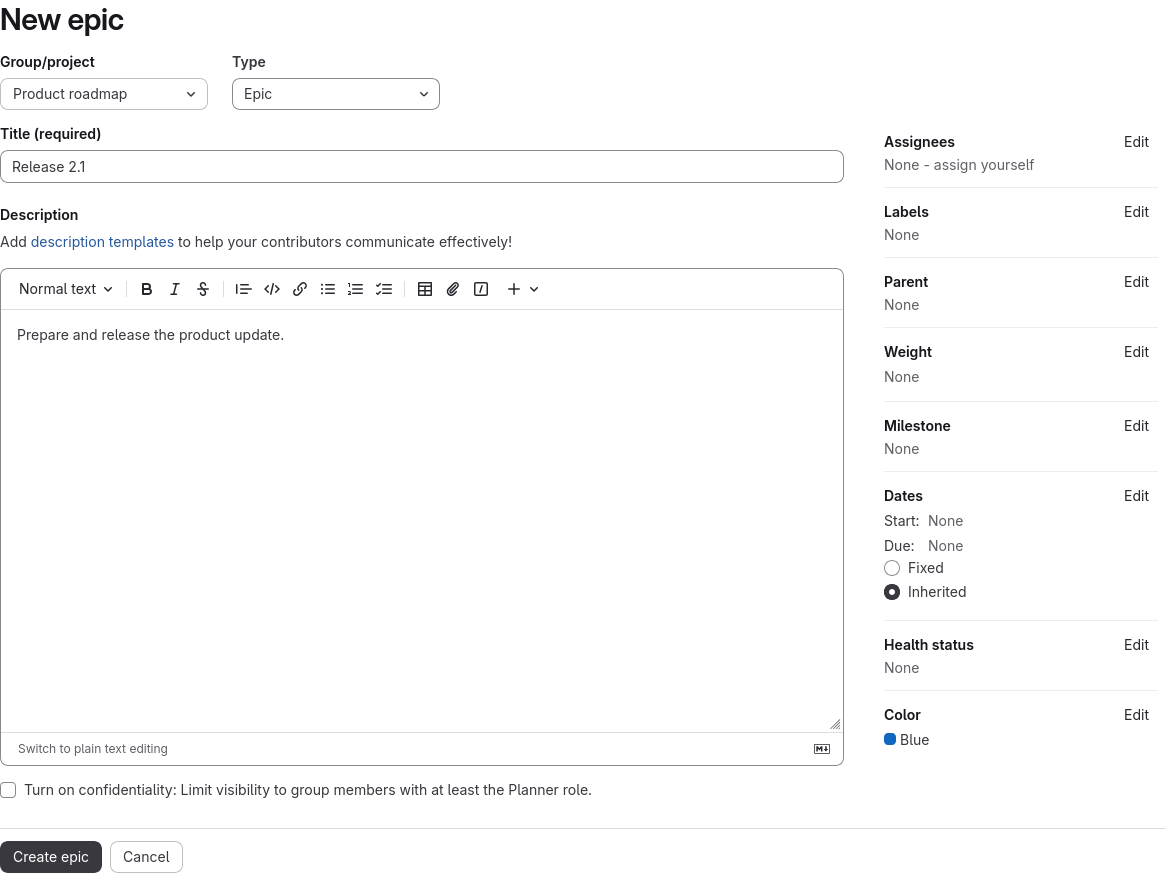
There is no separate epics page: the epics of a group are the “Work items” list filtered by the Epic type. The epics of subgroups and of the group’s projects appear in it too.
To change several items of the list at once, select “Bulk edit”, select the items and set the fields to change: state, assignee, labels, subscription, confidentiality, milestone, parent or health status. Then select “Update selected”. Epics and issues can be changed together, for example to put them under one parent epic.
Epics in a project
To create an epic in a project, open the project, go to “Plan” → “Work items”, select “New item” and choose “Epic” in “Type”. The epics of the project are listed under “Plan” → “Work items” with the Epic type filter. A project epic can have a group epic as its parent, and a group epic can contain project epics.
On the issue boards of the project (“Plan” → “Issue boards”), the epics of the project appear as cards next to issues. A card sits in the list of its label, in “Open” without a list label and in “Closed” once closed; it moves between lists, opens in the side panel and carries the epic color as a stripe along its left edge. The “Type” filter of the board selects epics or issues. The issue boards of a group show the epics of the group, its subgroups and its projects the same way.
To change an issue into an epic of the same project, open the issue, select “More actions” → “Change type”, choose “Epic” and confirm. An epic changes back into an issue the same way. An issue with tasks does not become an epic, and an epic with child items does not become an issue: remove the children first. An epic that becomes an issue keeps the dates it showed as fixed dates.
To change an issue into an epic, you need a role that can create epics in the project and edit the issue.
Epics can be imported from a CSV file on the “Work items” page of the project: put epic in the type column.
Project export and import keep the Epic type of the project’s epics.
Child items
An epic can contain:
- other epics, up to seven levels deep;
- issues;
- tickets.
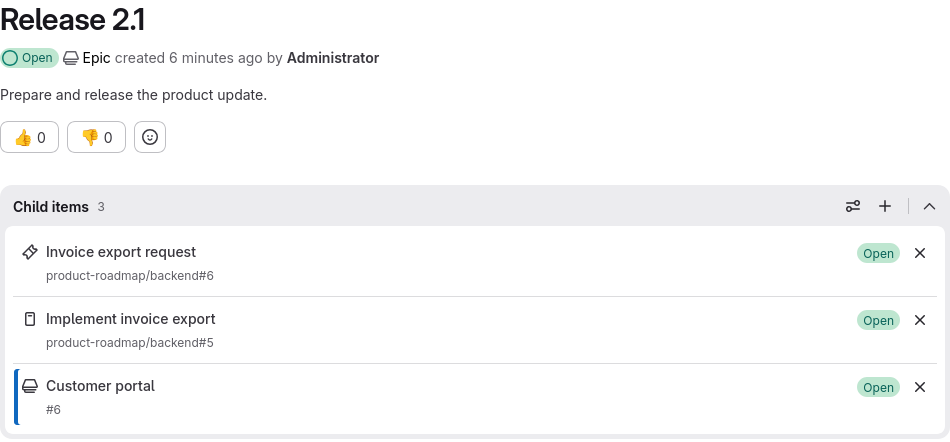
To add a child, open the epic and use the add button in “Child items”. A new child epic goes to the group or project you pick in “Group”: the list offers the group of the parent epic, its subgroups and projects. Under a project epic, the list starts from the group of that project. You can also set the parent from the child: open the issue and set the epic in “Parent”, or run the /set_parent <epic> quick action. In an issue, /epic <epic> does the same.
Dates
The start and due dates of an epic are either fixed or inherited. Choose between them under “Dates” in the epic sidebar:
- “Fixed”: you enter the dates yourself with “Edit”;
- “Inherited”: the start date is the earliest and the due date the latest among the dates of the direct children and of their milestones. Closed children count too.
Inherited dates propagate up the hierarchy: a change in an issue moves the dates of its epic, and of each parent epic whose dates are inherited. The recalculation runs in the background and takes a few seconds.
Time tracking does not roll up: the estimate and spent time of an epic are its own, not the sum of its children.
Blocking links
Blocking links are available for every work item type, including epics, issues, tasks and tickets.
To add a blocking link, open the item, add an item in “Linked items” and choose “blocks” or “is blocked by”. The quick actions /blocks <item> and /blocked_by <item> add the same links. Both items get a system note, and each shows the link under “Blocking” or “Blocked by”.
Blocking links show up in the interface as follows:
- the list of work items, the child items of an epic and the cards of issue boards show a blocked or blocking icon with the number of open linked items you have access to;
- closing a blocked item asks for confirmation;
- in the list of work items, “Display” → “Sort by” → “Blocking” sorts the items by the number of open items each one blocks.
Color
Each epic has a color, blue #1068bf until you change it. The color is shown as a stripe along the left edge of the epic row in the list of work items and in the child items of its parent epic.
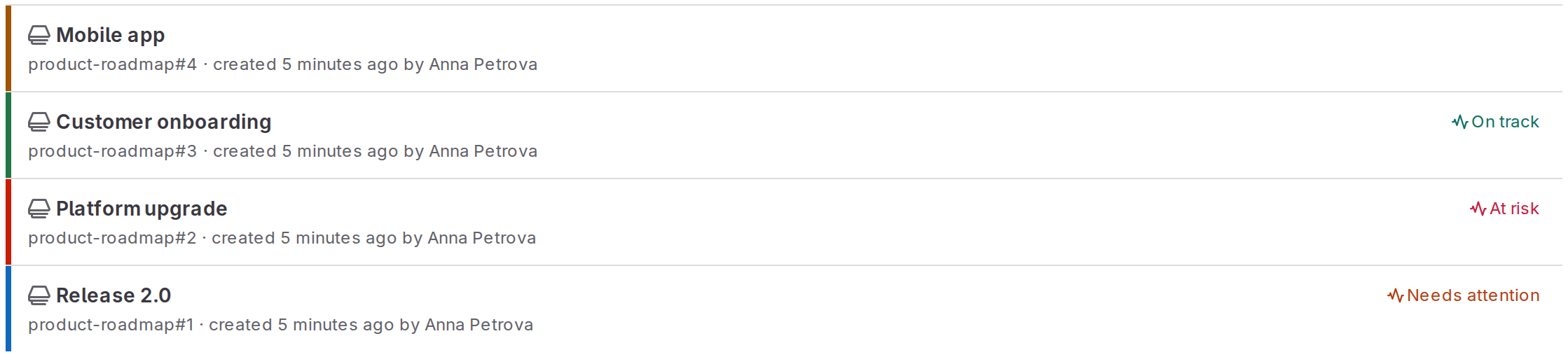
To change it, select “Edit” under “Color” in the epic sidebar and pick a suggested color or enter a hex code such as #c91c00. The change adds a system note to the epic.
Weight
Issues, tasks, tickets and epics have a weight, a whole number from 0 to 2147483647 inclusive. To set it, select “Edit” under “Weight” in the sidebar of the item and enter the number; “Remove weight” removes it. The weight can also be set in the creation form or with the /weight <number> and /clear_weight quick actions. A change adds a system note. To set the weight, you need the Planner or a higher role.
A parent sums the weights of its direct children: a child counts its own weight, or the sum of its own children when it has no weight. Next to “Child items”, the parent shows the sum and the percentage that comes from closed children; hover over the percentage to see both numbers, for example 3/8 weight completed. An open child with its own weight counts as not completed, even when some of its children are closed. The sum is recalculated in the background: reload the page to see it after a child changes.
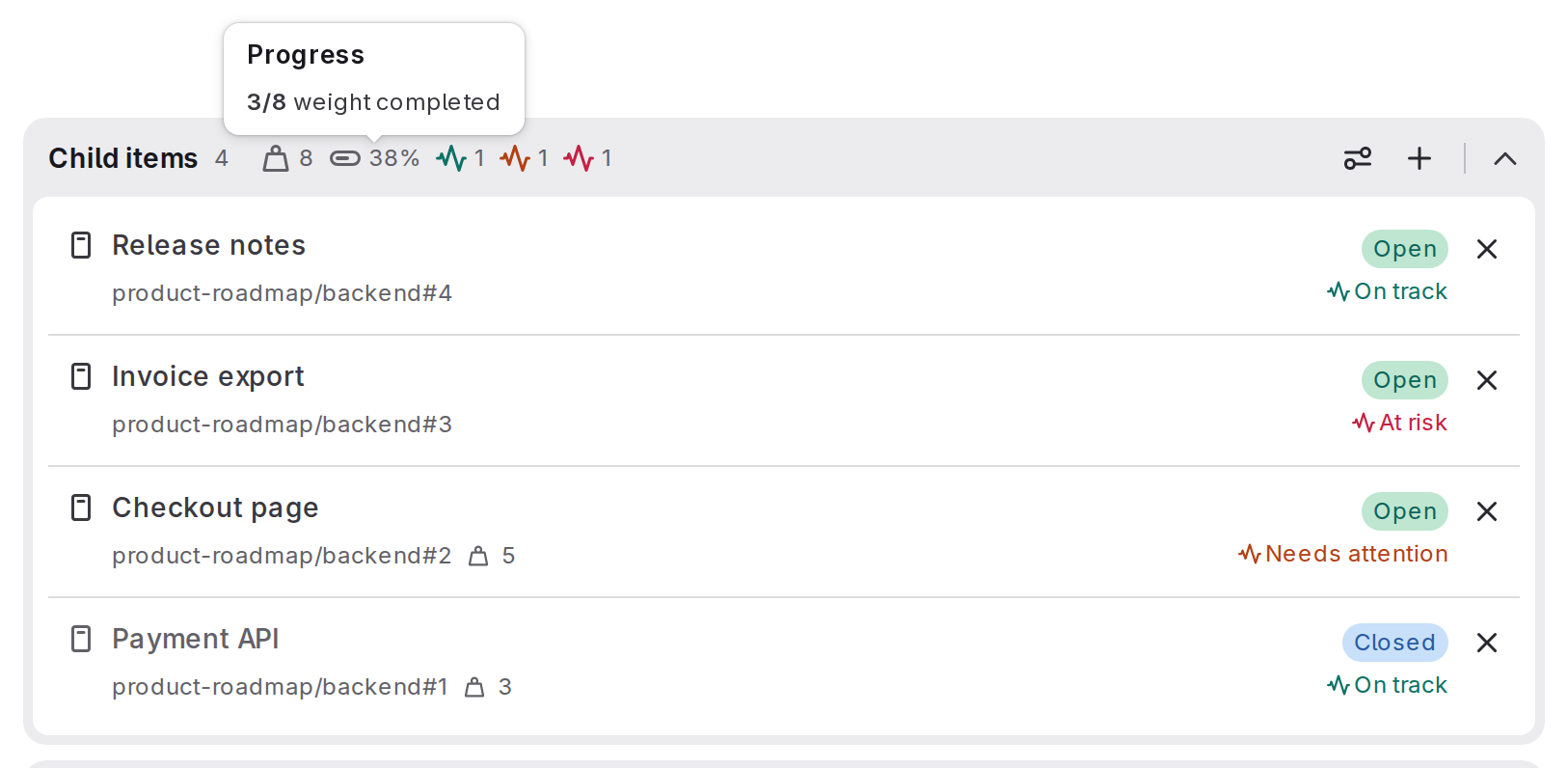
The weight is also shown:
- in the list of work items, on each row; “Display” → “Sort by” → “Weight” sorts the items by weight, items without a weight last;
- on the cards of issue boards; the header of each list shows the total weight of its items;
- on the page of a milestone (“Plan” → “Milestones”), where “Total weight” sums the weights of the items you have access to.
Health status
Issues, tickets and epics have a health status: “On track”, “Needs attention” or “At risk”. To set it, select “Edit” under “Health status” in the sidebar of the item and pick a status; “Clear” removes it. The status can also be set in the creation form, for several items at once with “Bulk edit” in the list of work items, or with the /health_status <on_track|needs_attention|at_risk> and /clear_health_status quick actions. A change adds a system note. To set the status, you need the Planner or a higher role.
The status of a closed item cannot be changed: “Edit” and the quick actions are not available until the item is reopened.
Next to “Child items”, an epic shows how many of its open direct children have each status. Closed children and children of children are not counted.
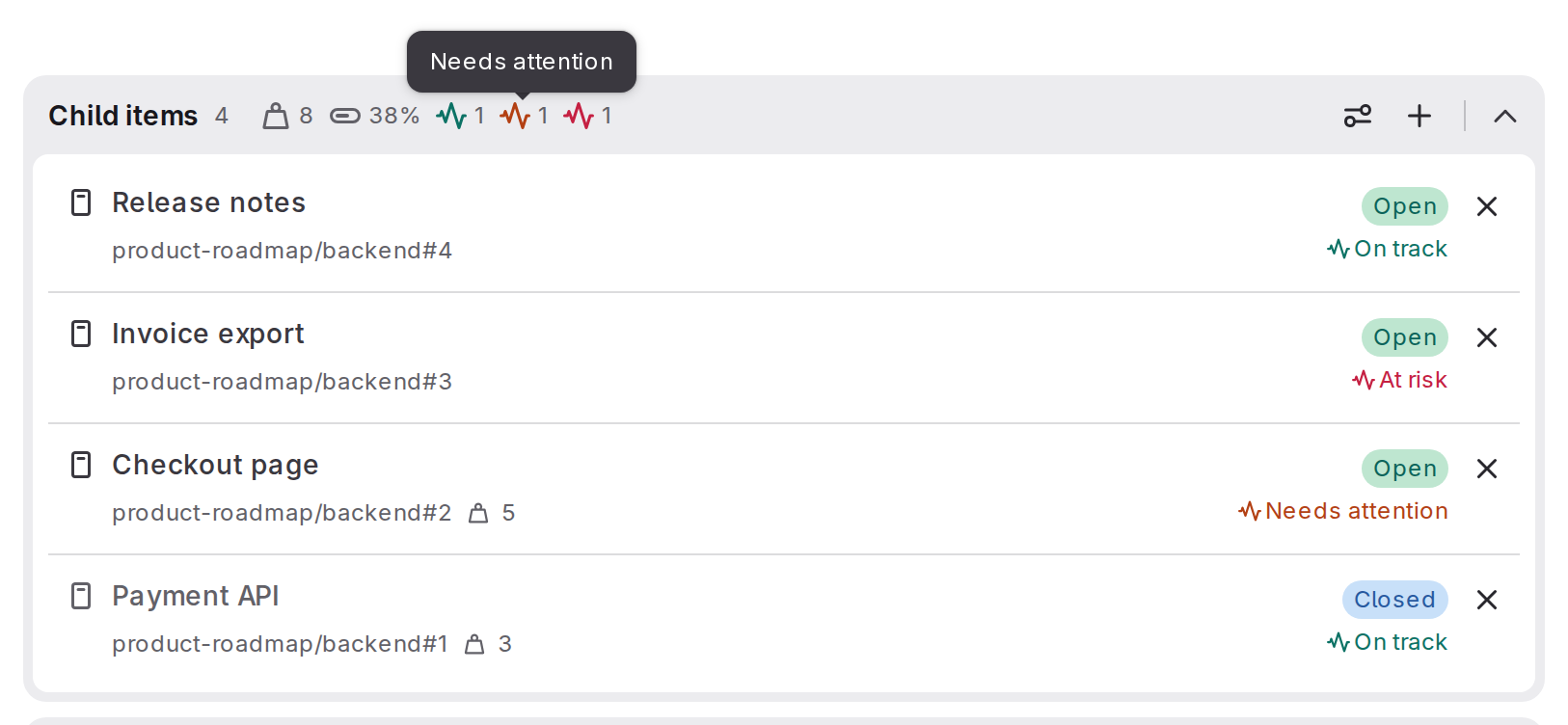
The health status is also shown:
- in the list of work items, on each row; “Display” → “Sort by” → “Health” sorts the items by status, items without a status last;
- in the filter of the list: “Health status” “is” a status, “None” or “Any”, or “is not one of” the statuses;
- on the cards of issue boards and in the child items of a parent.
Notifications
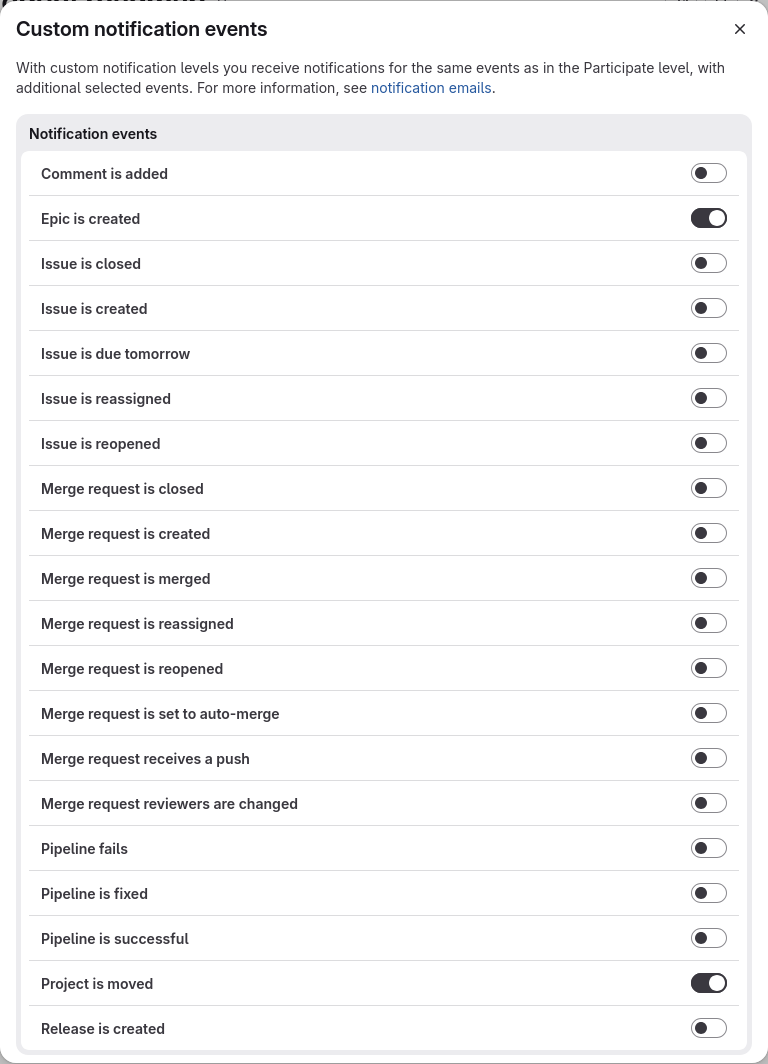
With the “Custom” notification level of a group, a project or your global settings, select “Epic is created” to get an email about new epics. “Issue is created” also sends these emails. If you watch a group (the “Watch” level), you get emails about the epics of the group.
Search
When the instance uses advanced search, epics are found in the “Work items” scope; the “Type” filter narrows the results to epics. Searching in a group finds the epics of the group, its subgroups and projects. Searching in a project finds the epics of that project only.
API
GraphQL
The GraphQL API at https://<HOST>/api/graphql works with epics, weights, health status and blocking links:
| Task | GraphQL |
|---|---|
| Set the color, weight and health status | colorWidget { color }, weightWidget { weight } and healthStatusWidget { healthStatus } in the workItemCreate and workItemUpdate mutations; healthStatusWidget in workItemBulkUpdate |
| Read them | the WorkItemWidgetColor, WorkItemWidgetWeight (weight, rolledUpWeight, rolledUpCompletedWeight) and WorkItemWidgetHealthStatus (healthStatus, rolledUpHealthStatus) widgets |
| Add and remove blocking links | the workItemAddLinkedItems mutation with linkType: BLOCKS or BLOCKED_BY, and workItemRemoveLinkedItems |
| Read blocking links | linkedItems(filter: BLOCKS) and linkedItems(filter: BLOCKED_BY); blockedByCount and blockingCount in the linked items widget |
| Filter and sort lists | healthStatusFilter (onTrack, needsAttention, atRisk, NONE or ANY) and not: { healthStatusFilter: [...] }; sort values WEIGHT_ASC, WEIGHT_DESC, HEALTH_STATUS_ASC, HEALTH_STATUS_DESC, BLOCKING_ISSUES_ASC and BLOCKING_ISSUES_DESC |
The values of rolledUpWeight and rolledUpCompletedWeight are capped at 2147483647. To read the full sums, use the REST API.
For example, to set the weight of a work item:
mutation {
  workItemUpdate(input: { id: "gid://gitlab/WorkItem/<ID>", weightWidget: { weight: 3 } }) {
    workItem { widgets { ... on WorkItemWidgetWeight { weight } } }
    errors
  }
}
REST
The REST API of work items is turned off by default. To use it, an administrator turns on the work_item_rest_api flag as described on the Early access page; without it, the endpoints below answer 404. The endpoints are available under projects, groups and namespaces; the examples use a project.
To read the weight, its sums and the health status, add them to features:
curl --header "PRIVATE-TOKEN: <TOKEN>" \
  "https://<HOST>/api/v4/projects/<PROJECT_ID>/-/work_items/<WORK_ITEM_IID>?features=weight,health_status,color"
The response holds features.weight with weight, rolled_up_weight and rolled_up_completed_weight, features.health_status with on_track, needs_attention, at_risk or null, and features.color.
To set the weight and health status, pass features when you create or update a work item:
curl --request PATCH --header "PRIVATE-TOKEN: <TOKEN>" --header "Content-Type: application/json" \
  --data '{"features": {"weight": {"weight": 3}, "health_status": {"health_status": "at_risk"}}}' \
  "https://<HOST>/api/v4/projects/<PROJECT_ID>/-/work_items/<WORK_ITEM_IID>"
To clear the weight and health status, set features.weight.weight and features.health_status.health_status to null:
curl --request PATCH --header "PRIVATE-TOKEN: <TOKEN>" --header "Content-Type: application/json" \
  --data '{"features": {"weight": {"weight": null}, "health_status": {"health_status": null}}}' \
  "https://<HOST>/api/v4/projects/<PROJECT_ID>/-/work_items/<WORK_ITEM_IID>"
To set the epic color, pass its hex code in features.color.color; use #1068bf to restore the default color.
To add links, send the IDs (not IIDs) of up to 10 work items and the link type: relates_to (the default), blocks or is_blocked_by. The response is 201 with the linked items of the work item. If one of the IDs is not found, the response is 404 and no link is added:
curl --request POST --header "PRIVATE-TOKEN: <TOKEN>" --header "Content-Type: application/json" \
  --data '{"work_items_ids": [<ID>], "link_type": "blocks"}' \
  "https://<HOST>/api/v4/projects/<PROJECT_ID>/-/work_items/<WORK_ITEM_IID>/linked_items"
To remove a link, pass the ID of the linked work item. The response is 204:
curl --request DELETE --header "PRIVATE-TOKEN: <TOKEN>" \
  "https://<HOST>/api/v4/projects/<PROJECT_ID>/-/work_items/<WORK_ITEM_IID>/linked_items/<LINKED_ITEM_ID>"
GET …/linked_items lists the links, and its link_type parameter keeps the links of one type.
Where:
<TOKEN>: Token used to authenticate with Deckhouse Code.<HOST>: Deckhouse Code instance address.<PROJECT_ID>: Project ID or URL-encoded path.<WORK_ITEM_IID>: Internal ID of the work item within the project.<ID>,<LINKED_ITEM_ID>: ID of a work item, as returned in theidfield.
The list of work items, GET …/-/work_items, accepts these parameters:
| Parameter | Values |
|---|---|
health_status_filter | on_track, needs_attention, at_risk, none or any |
not[health_status_filter][] | on_track, needs_attention, at_risk; excludes the items with these statuses |
order_by | weight, health_status, blocking_issues, among others; items without a weight or status come last |
The issues API also sorts by blocking links: GET /api/v4/projects/<PROJECT_ID>/issues?order_by=blocking_issues.