Available since 1.8.6 (SE, EE)
The CODEOWNERS feature allows you to determine individuals responsible for specific parts of the repository. Users and groups can be determined as responsible parties. Changes affecting files specified in CODEOWNERS must be approved by the code owners.
Using CODEOWNERS helps:
- Require approval from domain experts for important directories.
- Simplify the process of finding those responsible for a specific section of code.
CODEOWNERS complements the approval rules mechanism, but does not replace it. Unlike approval rules, which are set manually in the UI, CODEOWNERS works through the CODEOWNERS file in the repository.
How CODEOWNERS works
CODEOWNERS is a text file in the repository.
Deckhouse Code uses it to determine the owners of files involved in a merge request.
The files it matches are those of the merge request’s “Changes” tab: the net difference between the base and the head of the merge request, rather than the files of its individual commits. A renamed file counts under both its old and its new path, so an entry that owns either of them applies.
It is searched in three places (in order of priority):
./CODEOWNERS./docs/CODEOWNERS./.gitlab/CODEOWNERS
Only the first file found is used.
If there are several files in the project and you are currently viewing a non-priority file, you will see a corresponding message.
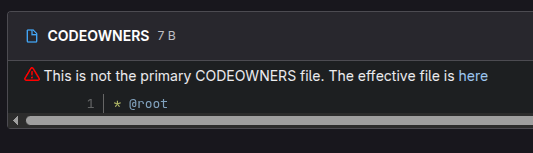
Validating the CODEOWNERS file
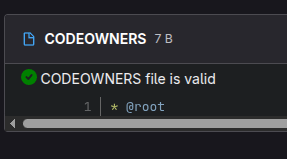
Validation helps you find errors in the file during editing.
If the file is valid, the following message is displayed:
If the file is invalid, the problematic lines and the type of error will be displayed:
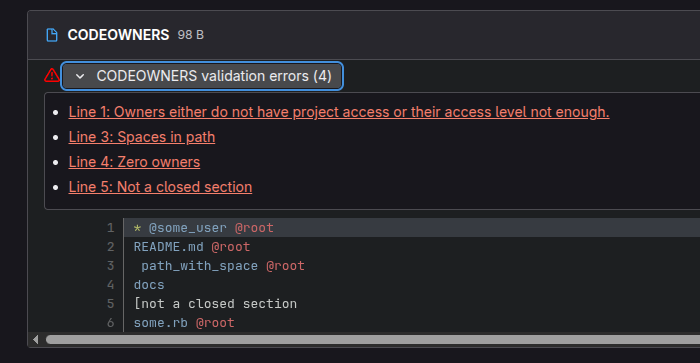
Validation reports the following types of errors:
- Owners either do not have project access or their access level not enough: At least one of the owners does not have sufficient rights in the project.
- Spaces in path: If the path contains spaces, they must be escaped with the
\character. - Zero owners: No owners are specified.
- Not a closed section: The closing section character
]is missing.
Where CODEOWNERS is used
If the MR modifying the file falls under the CODEOWNERS rules, approval must be obtained from the owners.
CODEOWNERS format
Rule string:
<path or pattern> <list of owners>
Owners:
@user@group@group/subgroup- Roles:
@@developer,@@maintainer,@@owner
Examples
# Owner of all files.
* @default-team

# README.md only in the root directory.
/README.md @docs-team

# All Ruby files.
*.rb @backend-team

# The entire config directory.
/config/ @devops

# README.md anywhere.
README.md @docs
Path patterns
Deckhouse Code uses wildcards:
*: Any characters except/.**: Matches multiple directory levels./dir/: Only the specified directory.*.md: All Markdown files./config/**/*.rb: All Ruby files insideconfig/*at all levels.
Pattern examples
/docs/*       @docs-one      # one level
/docs/**      @docs-two      # recursively
/app/**/*.rb  @ruby-team
CODEOWNERS sections
In the CODEOWNERS file, sections are named areas that are analyzed separately and always applied. Until you define a section, Deckhouse Code treats the entire CODEOWNERS file as a single section.
Features of using CODEOWNERS:
- Deckhouse Code treats entries without sections, including rules defined before the first section, as a separate, unnamed section.
- Each section processes its rules separately.
- If the file path matches multiple entries within a single section, only the last matching entry in that section is used.
- If the file path matches entries in multiple sections, the last matching entry in each section is used.
For example, in a CODEOWNERS file with the following sections defining owners for README:
* @root

[README Owners]
README.md @user1 @user2
internal/README.md @user4

[README other owners]
README.md @user3
Owners for README.md in the root directory:
@root: From the unnamed section.@user1and@user2: From the[README Owners]section.@user3: From the[README other owners]section.
Owners for internal/README.md:
@root: From the unnamed section.@user4: From the[README Owners]section. (BothREADME.mdandinternal/README.mdmatch the section rules, but only the last matching entry in this section is used).@user3: From the[README other owners]section.
In the merge request widget, each code owner is displayed under their own label.
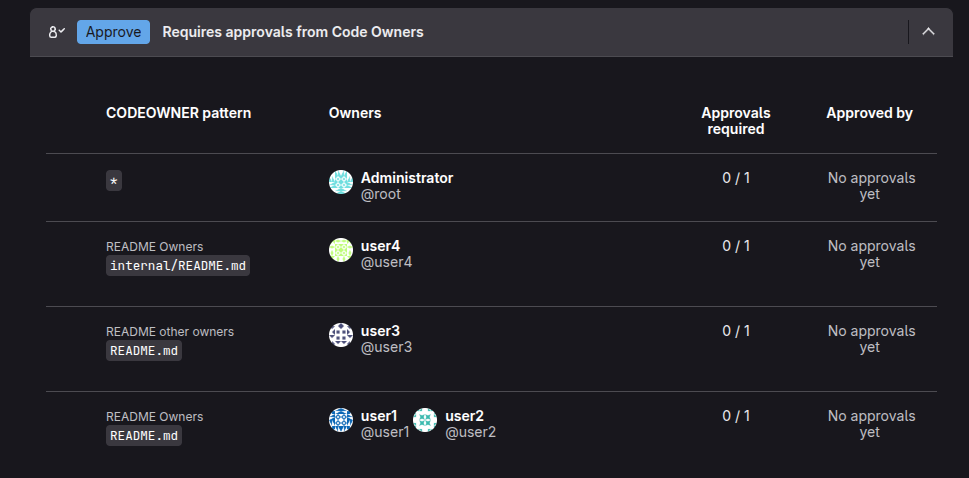
Detailed example: complex combination of sections
Below is an example of a real industrial file showing:
- Sections with different numbers of approvals
- Redefining owners
- Optional sections
- Exceptions
- Inheritance of sections with identical names
# Global settings.
* @fallback-team
!*.lock                    # lock files do not require approval
!**/generated/**           # automatic generation

[Backend][2] @backend-core
# Requires 2 approvals from backend-core for any Ruby code.
app/**/*.rb

# But for critical models, we define a different order.
app/models/**/*.rb @backend-core @security-team

# But this model is an exception; the owner is different.
app/models/legacy/**/*.rb @migration-team

[Backend]
# Section update: Backend now also includes SQL.
db/**/*.sql @db-team

[Ruby Optional]
# Additional highlighting for owners, approvals are NOT required.
^[Ruby Optional]
*.rb @ruby-advisors

[Frontend][3]
# The UI requires 3 approvals.
*.vue @frontend-team
*.js  @frontend-team

# Redefining: specific file → specific person.
frontend/critical_entry.vue @frontend-lead

[Docs]
*.md @technical-writers

[Docs]
# Redefining: README always belongs to docs-lead.
README.md @docs-lead
Things to note about the example:
- The
[Backend]section is declared twice → Deckhouse Code will combine it. [Backend][2] @backend-corespecifies 2 mandatory approvals.[Frontend][3]requires 3 approvals from the frontend.[Ruby Optional]is marked as optional — owners are visible, but their approval is not required.- The exceptions
!*.lockand!**/generated/**mean that these files do not require approvals at all.
Exclusions (!)
Used to exclude files within a section:
* @default
!package-lock.json
!**/generated/**
After exclusion, the file cannot be re-included in the same section.
Rule processing order
Rules are processed in the following order:
- Deckhouse Code reads the file from top to bottom.
- Within a single section, rules with the same path override previous ones.
- If a file fits into several sections, the owners from all these sections are added.
- Sections do not override each other: They are independent.
Who can be an owner (eligible owners)
A code owner in the CODEOWNERS file is a user, a group, or a role. Only project members with the Developer role or higher are counted as code owners.
Users (via @username)
A user is considered a valid owner if:
- They have direct membership in the project (Developer, Maintainer, or Owner).
- They have membership in a project group (including inherited: project group, parent groups, ancestors of parent groups).
- They are a direct or inherited member of a group that is directly invited to the project.
- They are a direct but not inherited member of a group that is invited to the project group.
- They are a direct but not inherited member of a group that is invited to an ancestor of the project group.
To sum up, all users who are displayed on the project participants page with the role of Developer or higher are eligible.
A user is not considered an owner if:
- They are blocked.
- Their access has been revoked.
- Their role is lower than Developer.
Groups (via @group or @group/subgroup)
A group can be an owner only if:
- It is directly invited to the project with the Developer+ role (via “Invite a group”).
- Only direct members of this group are considered owners.
Inherited members of parent groups are not considered owners.
Roles (via @@role)
Format:
@@developer
@@maintainer
@@owner
Features:
- Only direct project participants are taken into account.
- Group members are not included in the calculation.
- Roles are not inherited from each other (
@@developerdoes NOT include maintainers).
You can specify multiple roles in one line:
file.md @@developer @@maintainer
Interaction with approval rules
CODEOWNERS and approval rules work independently, but their requirements are cumulative.
Example:
- The
Securityrule requires 1 approval. - The
[Backend][2]section requires 2 approvals. - MR changes the backend file.
Result: 3 approvals are required.
Disabling CODEOWNERS checks
CODEOWNERS checks are enabled by default in Deckhouse Code. If a project has a CODEOWNERS file, but some branches do not need approvals from code owners, disable the checks in the rule that protects those branches.
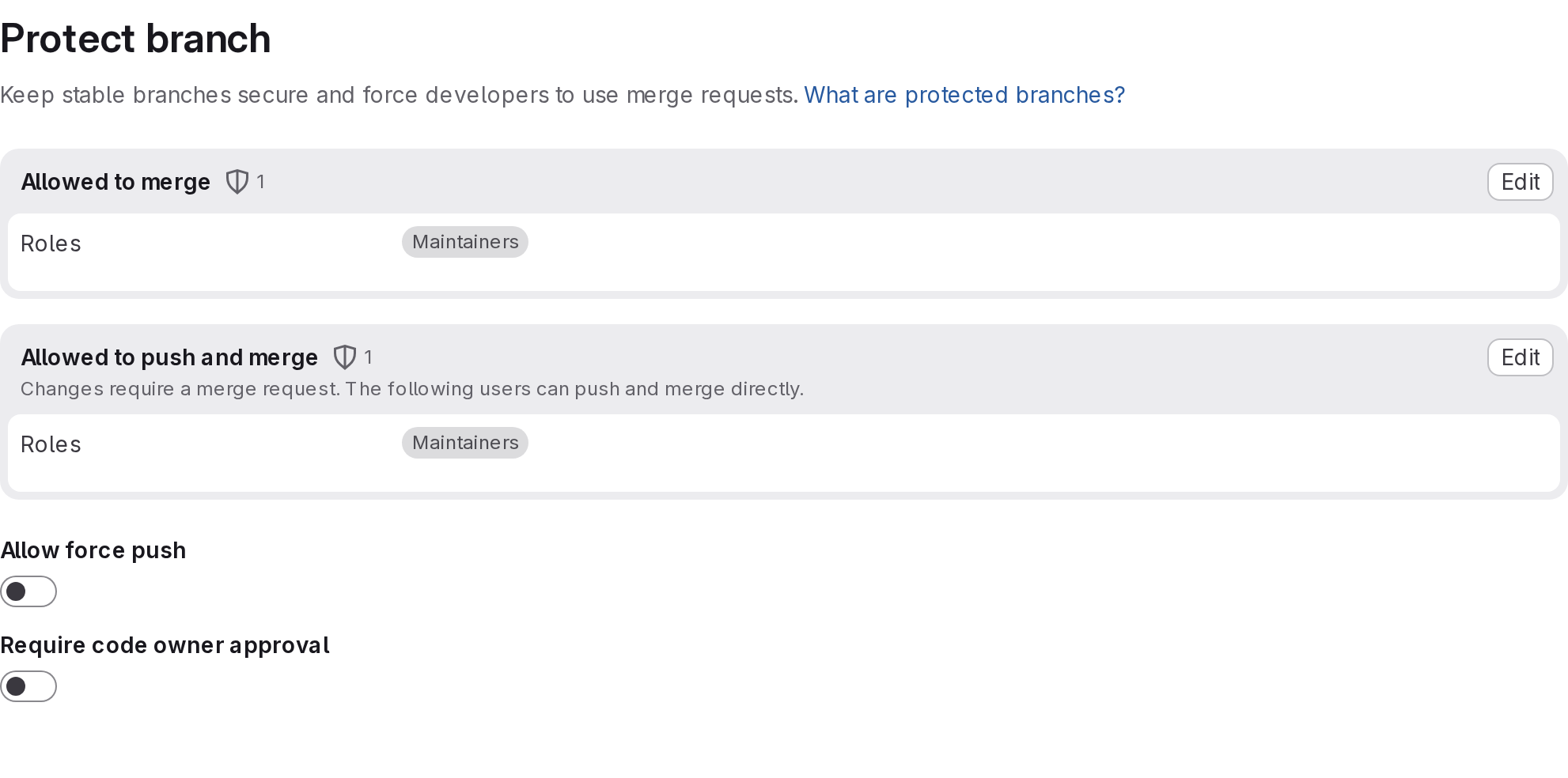
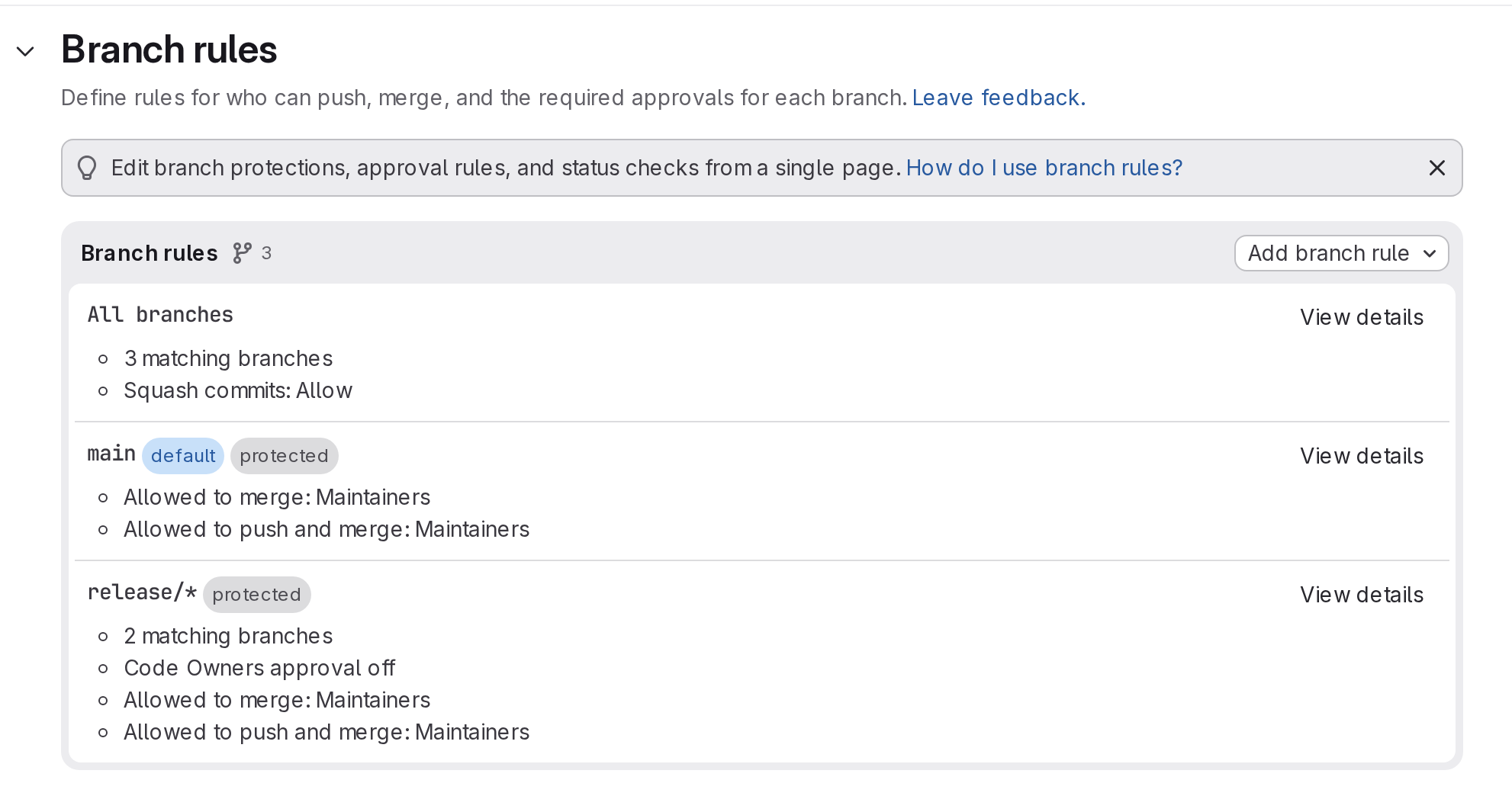
To disable the checks for the branches of a rule, navigate to “Project” → “Settings” → “Repository” → “Branch rules”, select “View details” next to the rule, and turn off “Require code owner approval”. The rule list then marks the rule with “Code Owners approval off”.
The checks are disabled for the target branch of a merge request when all of the following is true:
- at least one project rule matches the branch;
- every project rule that matches the branch has the toggle turned off;
- no rule inherited from a group matches the branch.
To disable checks for the entire project, select “Add branch rule” → “Branch name or pattern” from the list of rules, enter *, and turn off the toggle on the new rule page. If a branch has its own rule, such as the default branch, turn off the toggle for that rule as well.
The * rule makes all branches in the project protected. By default, both “Allowed to push and merge” and “Allowed to merge” are set to “Maintainers” in the new rule. As a result, users with the Developer role cannot create branches, push changes, or merge merge requests in the project.
If you select “Developers and Maintainers” in the * rule, users with the Developer role can push changes and merge merge requests into all branches in the project, including branches with their own rules, such as the default branch. Permissions from all rules that match a branch are combined.
If the group has “Prevent editing approval rules in inherited entities” turned on in its additional approval settings, the toggle cannot be changed.
When the checks are disabled for the target branch:
- Merge requests into the branch are not blocked by missing approvals from code owners.
- Code owners are not assigned as reviewers.
- The “Code Owners” block is not shown on the file pages of the branch.
- When “When commit is added” is set to “Remove approvals by Code Owners if their files changed”, new commits do not remove approvals.
- Changing the setting applies immediately to merge requests that are already open.
The toggle neither blocks nor allows pushes to the branch. Validation of the CODEOWNERS file syntax keeps working.
Automatically assigning code owners as reviewers
Code owners matching the changed files can be automatically assigned as reviewers of a merge request.
To enable that, navigate to “Project” → “Settings” → “Merge requests” → “Automatic reviewer assignment”, and select “Automatically assign code owners as reviewers”.

This setting is disabled by default. When it is enabled, code owners are assigned as reviewers:
- When a merge request is created as ready (not a draft).
- When a draft merge request is marked ready.
Restrictions applied when the automatic assignment is enabled:
- Assignment is not performed for drafts.
- If a merge request already has reviewers, automatic assignment is skipped — manually assigned reviewers are kept.
- The merge request author can never be assigned as a reviewer.
- Only users with read access to the merge request are assigned.
- If the project forbids to assign multiple reviewers, only the first code owner is assigned.
Formatting recommendations
When formatting the CODEOWNERS file, follow these recommendations:
- First, set broad rules (
* @team). Then specify more detailed rules (app/**/*.rb @backend-team). - Use sections for better structure and clarity.
- Avoid duplicates — the last rule in a section takes precedence.
- Optional sections are useful for highlighting experts without mandatory approvals.
Example of the final file
# Global owners.
* @default-team

# Exclusions.
!yarn.lock
!**/generated/**

[Backend][2]
app/**/*.rb @backend-core

[Frontend][3]
*.vue @frontend-team
*.js @frontend-team

^[Docs]
*.md @docs-team

[Critical Overrides]
/config/production.yml @ops-lead