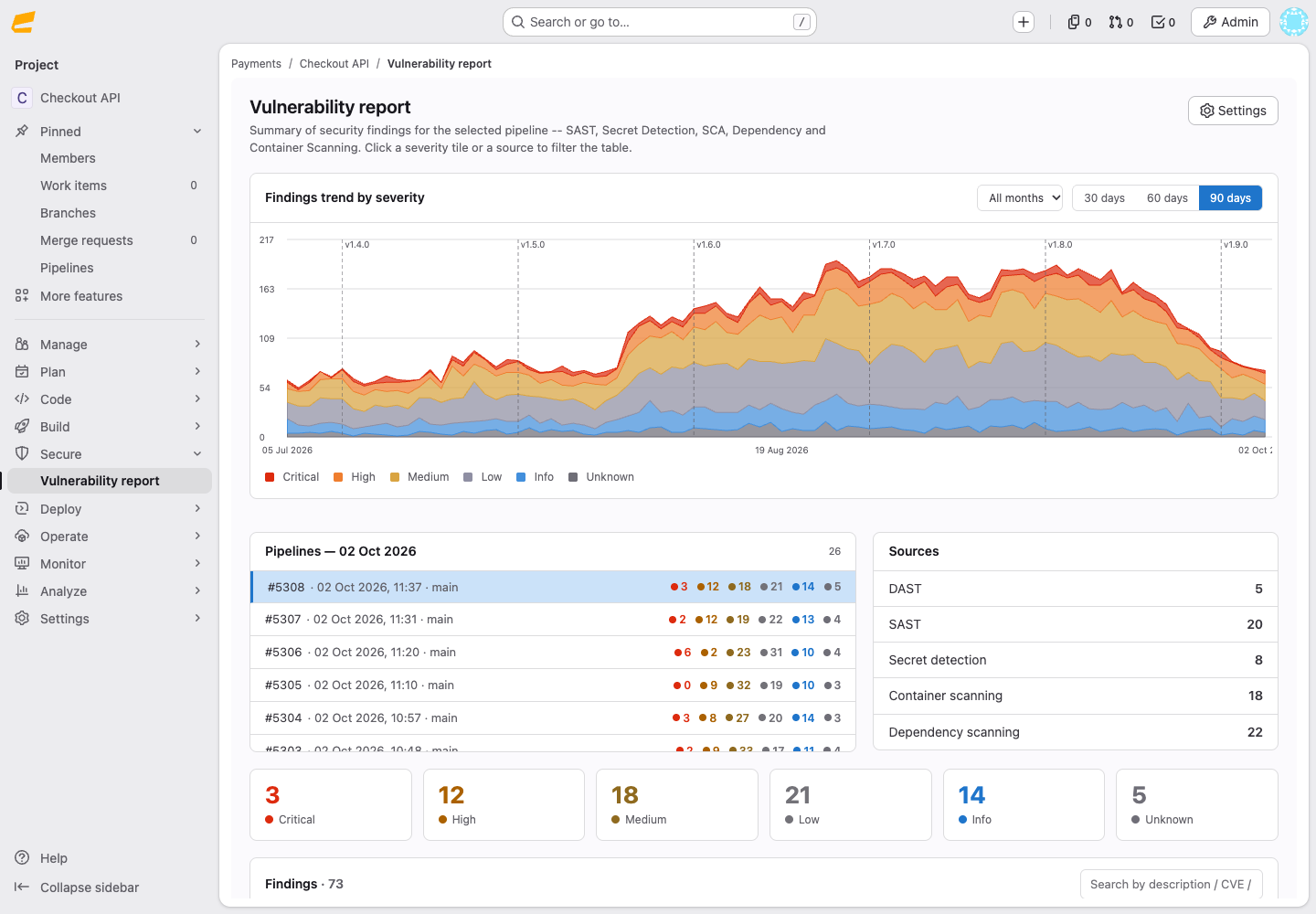
The vulnerability report is a project page that shows the findings of security scanners from the project’s pipelines: SAST, secret detection, dependency scanning, container scanning and DAST. On this page, you can filter the findings of a pipeline, open the details of a finding and follow how the number of findings changes over time.
Availability
The “Vulnerability report” item appears in the project sidebar when all of the following conditions are met:
- The “Security and compliance” and “CI/CD” features are enabled in the project settings.
- You have the Developer, Security Manager, Maintainer or Owner role in the project.
Only users with the Maintainer or Owner role can change the report settings.
Opening the vulnerability report
To open the vulnerability report:
- Open the project.
- In the left sidebar, select “Secure” → “Vulnerability report”.
The page shows the latest pipeline that produced a security report. The findings of a pipeline appear as soon as its scanning jobs finish, so a running pipeline can show incomplete results.
Findings table
The findings table lists the findings of the selected pipeline. The “Description” column shows the title of a finding and its location, such as the file path, the affected packages or the CVE identifier. A finding can have the following badges:
- ×N: The finding was reported N times in this pipeline, for example, by several scanners.
- N: The same finding was also found in N other pipelines of the project.
The “Sources” panel lists the report types of the pipeline and the number of findings of each type. If scanners reported the same finding more than once, a severity tile or a report type shows two numbers, such as 12 / 15: the number of findings and the number of scanner records before duplicates were merged.
To filter the findings table:
- Select a severity tile above the table, or a report type in the “Sources” panel or in a table row. To remove the filter, select it again.
- Enter text in the “Search by description / CVE / path…” field. The search covers the title, location, affected packages, CVE or identifier, report type and tool of a finding.
To remove all filters and clear the search field, select “× Clear filters”.
Selecting a pipeline
The “Findings trend by severity” chart shows the number of findings per day by severity. Each day on the chart shows the last pipeline of that day on the default branch, or the last pipeline of the day if none ran on the default branch. To change the period of the chart, select “30 days”, “60 days” or “90 days” (the default), or select a month in the “All months” list. Dashed vertical lines on the chart mark releases or milestones of the project, depending on the report settings.
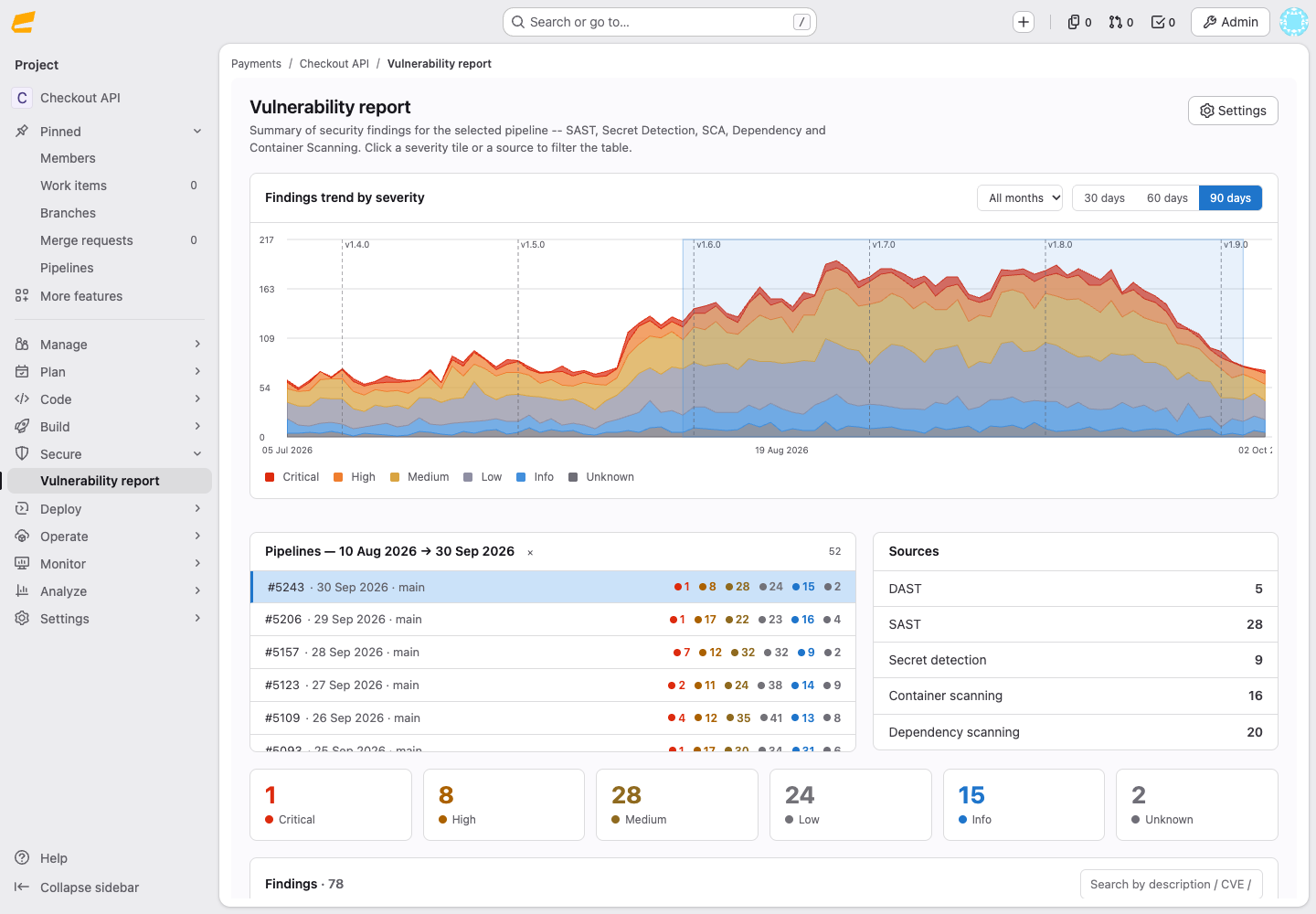
The “Pipelines” panel lists the pipelines of the selected day that produced a security report, newest first. Each row shows the pipeline number, time, branch or tag, and the number of findings of each severity. To view the findings of another pipeline, select its row.
To select a day or a period:
- Select a day: click a day on the chart. The report shows the last pipeline of that day on the default branch.
- Select a period: drag the pointer across the chart. The “Pipelines” panel shows one row for each day of the period.
- Clear the selection: select × next to the “Pipelines” heading or press Escape.
The page address keeps the selected day or period, so you can share it as a link.
Finding details
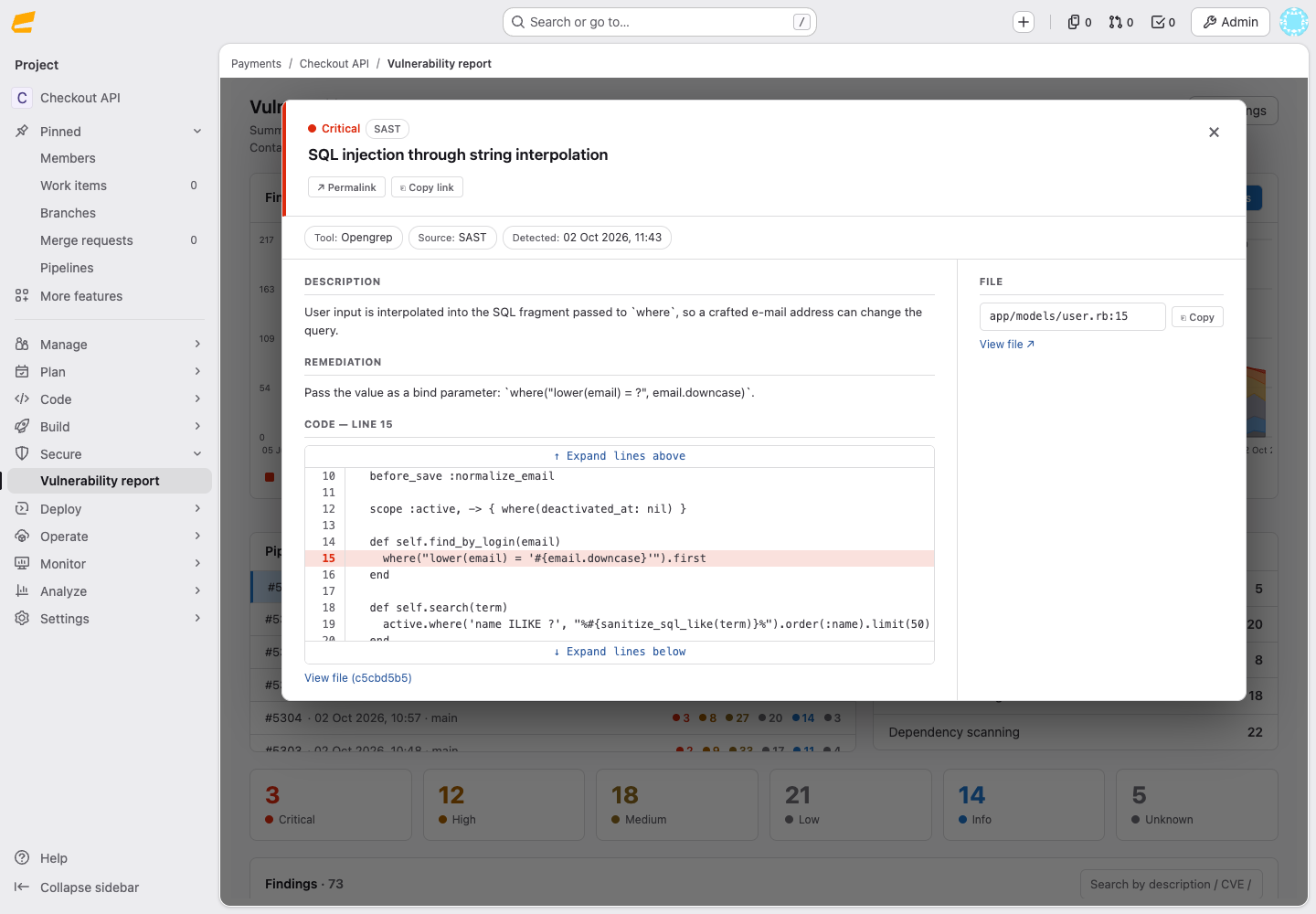
To open the details of a finding, select its row in the findings table. The details window shows the data that the security report contains for the finding, for example, the file or location, affected packages, identifiers, links, description and remediation. A CVE identifier without a link in the report leads to its entry in NVD (National Vulnerability Database).
In the details window, you can do the following:
- To copy the file path, select “Copy” next to it. To open the file, select “View file”.
- To show more code around the finding, select “Expand lines above” or “Expand lines below”. The code is shown if it is enabled in the report settings.
- To share the finding, select “Permalink” or “Copy link”. If no day is selected on the chart, the link opens the latest pipeline, which changes after new pipelines finish.
Vulnerability report settings
To change the report settings:
- Open the vulnerability report.
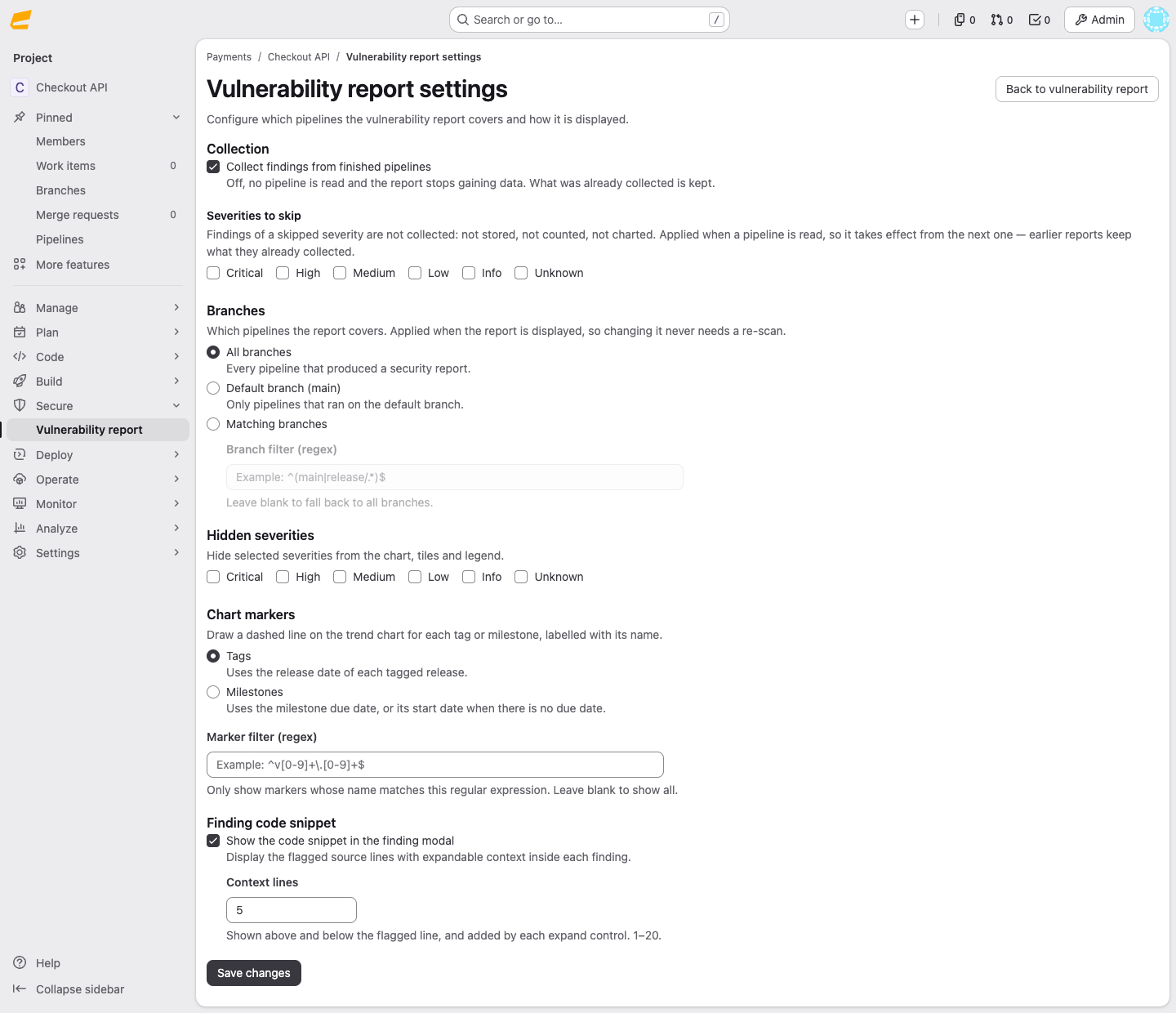
- In the upper-right corner of the report, select “Settings”. The “Vulnerability report settings” page opens.
- Change the settings and select “Save changes”.
To return to the report, select “Back to vulnerability report”.
The following settings are available:
| Setting | Description | Default |
|---|---|---|
| “Collect findings from finished pipelines” | Collects findings from new pipelines. When turned off, the report keeps the findings it has already collected | On |
| “Severities to skip” | Severity levels that are not collected from new pipelines. Findings that are already collected stay in the report | None |
| “Branches” | Branches whose pipelines the report shows: “All branches”, “Default branch” or “Matching branches”. The setting also applies to pipelines that are already collected | “All branches” |
| “Branch filter (regex)” | RE2 regular expression for branch names, used with “Matching branches”. An empty expression matches all branches. An invalid expression cannot be saved | Empty |
| “Hidden severities” | Severity levels hidden from the chart, tiles and legend. Hidden levels are also excluded from the counts in the “Pipelines” panel. Findings of a hidden level stay in the findings table with the “Unknown” severity. If “Unknown” is hidden too, they get the highest level that is not hidden | None |
| “Chart markers” | What the dashed lines on the chart mark: “Tags” marks project releases by their release date, “Milestones” marks milestones by their due date or, without one, by their start date | “Tags” |
| “Marker filter (regex)” | RE2 regular expression for release or milestone names. An empty expression shows all markers. An invalid expression cannot be saved | Empty |
| “Show the code snippet in the finding modal” | Shows the code of the finding in the details window | On |
| “Context lines” | Number of code lines shown above and below the finding, from 1 to 20 | 5 |