This integration sends a project’s security scan reports to DefectDojo, a vulnerability management system, and keeps the findings there up to date as pipelines run.
Prerequisites
Before configuring the integration, check the following:
- DefectDojo is reachable from Deckhouse Code. If its address is on a local network, an administrator has selected “Allow requests to the local network from webhooks and integrations” or added the address to “Local IP addresses and domain names that hooks and integrations can access” in “Admin” → “Settings” → “Network” → “Outbound requests”.
- You have an API token of a DefectDojo account that can import scan results, view products and engagements, and edit engagements. If “Auto-create context” is selected, the account must also be allowed to create products and engagements.
- You have the “Maintainer” or “Owner” role in the project.
- The pipeline has jobs that produce one of the supported security reports.
Configuring the DefectDojo integration
To configure the integration:
- Open your project in Deckhouse Code.
- Go to “Settings” → “Integrations” → “DefectDojo”.
- Under “Enable integration”, select the “Active” checkbox.
- In the “Connection” section, fill in “DefectDojo URL”, the base URL of your DefectDojo instance, and “API token”, the token used to authenticate with the DefectDojo API.
- Choose how the connection trusts the DefectDojo server, under “Certificate trust”:
- “Trust what this instance already trusts” (default).
- “Trust the certificate authority below”: Also trust the authority whose PEM certificate you paste into the “Certificate authority” field.
- “Do not verify the certificate”: The upload is sent without checking the server certificate and can be intercepted, together with every finding in the reports.
- Fill in the “Import defaults” fields, applied when scan reports are imported into DefectDojo:
- “Product name”: DefectDojo product. Leave blank to use the project full path.
- “Product type name”: DefectDojo product type, used when a product is auto-created.
- “Engagement name”: DefectDojo engagement. Leave blank to use the branch name.
- “Minimum severity”: Ignore findings below this severity on import (
Info,Low,Medium,High,Critical, from lowest to highest). The default isInfo. - “Auto-create context”: Create the product and engagement if they do not exist. Selected by default.
- “Imported findings”: Mark imported findings as active. Selected by default.
- “Verified findings”: Mark imported findings as verified.
- “Close old findings”: Close findings that are no longer reported. Selected by default.
- Click “Save changes”.
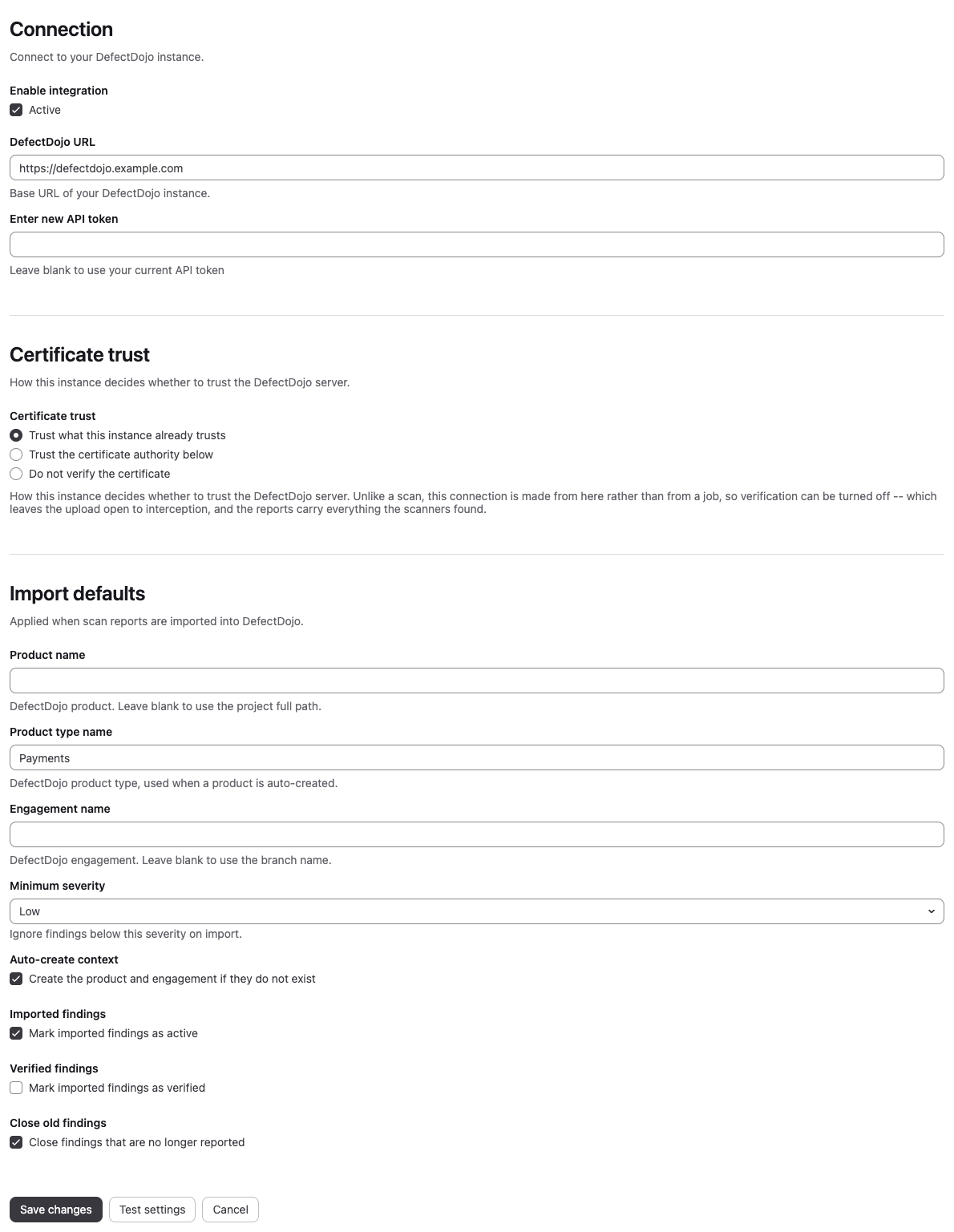
The integration can also be set up on a group or on the instance; projects under it inherit those settings unless they set their own.
Validating the connection
To check the settings in the form before saving them, click “Test settings”. The button is available only in project integration settings. Deckhouse Code sends the settings to DefectDojo and checks the following:
- DefectDojo accepts the API token.
- The product exists. The product is “Product name” or, if it is empty, the project full path. A missing product passes the check only if “Auto-create context” is selected and “Product type name” is filled in.
- The engagement from “Engagement name” exists in the product. This is checked only if “Engagement name” is filled in and “Auto-create context” is cleared.
If every check passes, the “Connection successful.” message is shown. Otherwise, “Connection failed. Check your integration settings.” is shown, followed by the reason.
When you click “Save changes” in project integration settings that do not inherit group or instance settings, Deckhouse Code runs the same checks if the integration is active and the URL, token, product, product type, engagement or “Auto-create context” has changed. If a check fails, the settings are not saved. If DefectDojo cannot be reached or does not answer as expected, the settings are saved without the check.
Using the integration
While the integration is active, Deckhouse Code sends the security reports of the project’s pipelines to DefectDojo.
Automatic importing of scanning results
When a security scan job of a project pipeline finishes, Deckhouse Code imports the pipeline’s security reports into DefectDojo.
The following scanning type results are supported:
- Static application security testing (SAST)
- Secret detection
- Dependency scanning
- Container scanning
- Dynamic application security testing (DAST)
Reports are imported by Deckhouse Code itself, so the pipeline requires no extra job and no DefectDojo credentials in CI variables.
Mapping DefectDojo entities
By default, Deckhouse Code maps uploaded data as follows:
- Product: “Product name” or, if it is empty, the project full path.
- Engagement: “Engagement name” or, if it is empty, the branch or tag the pipeline ran on. For a
merge request pipeline, it is
refs/merge-requests/<IID>/head, where<IID>is the merge request number. - Test: Name of the CI job that produced the report.
Each scan job has its own test, so scanners do not close each other’s findings. When a scan job is retried, only the report of its latest run is imported. If you rename a scan job, its reports are no longer imported into the test of the old name.
Import parameters
When importing scanning results, Deckhouse Code sends the “Import defaults” values to DefectDojo, along with the date the scan job finished, the pipeline ID, the commit SHA and its short form as the version, the branch or tag name, and the project URL. After the import, it writes the same commit SHA, version, branch or tag, pipeline ID and project URL onto the DefectDojo engagement.
Troubleshooting
Problems with the integration are reported in the settings form, in the result of “Test settings” and on the pipeline page.
Settings are not saved
If a check against DefectDojo fails, the form shows the reason and the settings are not saved:
| Message | Cause | Fix |
|---|---|---|
DefectDojo rejected the API token. | DefectDojo answered the token with HTTP 401 or 403 | Enter a valid API token |
DefectDojo has no product named <NAME>. Create it in DefectDojo, or turn on automatic context creation. | The product does not exist and “Auto-create context” is cleared | Create the product in DefectDojo or select “Auto-create context” |
DefectDojo needs a product type to create the product <NAME>. | The product does not exist and “Product type name” is empty | Fill in “Product type name” |
DefectDojo has no activity named <NAME> in this product. Create it in DefectDojo, or turn on automatic context creation. | The engagement does not exist and “Auto-create context” is cleared | Create the engagement in DefectDojo or select “Auto-create context” |
An import fails
A report that did not reach DefectDojo is listed on the pipeline page, in the “Security report upload
warnings” alert, as DefectDojo did not receive the report of job "<JOB_NAME>" (<SCAN_TYPE>): <REASON>.
<SCAN_TYPE> is the DefectDojo scan type, such as GitLab SAST Report, and <REASON> is one of the
following:
| Reason | Cause | Fix |
|---|---|---|
DefectDojo returned HTTP <CODE> or DefectDojo returned HTTP <CODE>: <DETAIL> | DefectDojo refused the report | Fix what the detail names, such as the token permissions or the product, and rerun the scan job |
blocked URL: <MESSAGE> | Deckhouse Code does not send requests to this address | Check “DefectDojo URL”; for a local network address, see Prerequisites |
certificate authority: The certificate authority could not be read. | “Certificate authority” does not hold a readable PEM certificate | Paste the PEM certificate again |
the scan did not run, so its placeholder report was not imported | The scanner of the job did not run | Fix the scan job and rerun it |
If DefectDojo cannot be reached, does not answer within the timeout, or answers with HTTP 429 or 5xx,
the upload is retried up to three times with increasing delay.
If every retry fails, the alert gets one line for the whole pipeline:
DefectDojo upload of this pipeline's security reports failed and the retries are spent: <REASON>.
Keeping the API token safe
Use a dedicated DefectDojo account with only the permissions listed in Prerequisites. A saved token is not shown in the form. To replace it, enter a new token in “Enter new API token”; if you leave the field blank, the current API token is kept.