Deckhouse supports working with S3-based object storage, enabling its use in Kubernetes for storing data as volumes. The GeeseFS file system is used, running via FUSE on top of S3, allowing S3 storage to be mounted as standard file systems.
This page provides instructions for setting up S3 storage in Deckhouse, including connection, creating a StorageClass, and verifying system functionality.
System requirements
- Kubernetes version 1.17+ with support for privileged containers.
- A configured S3 storage with available access keys.
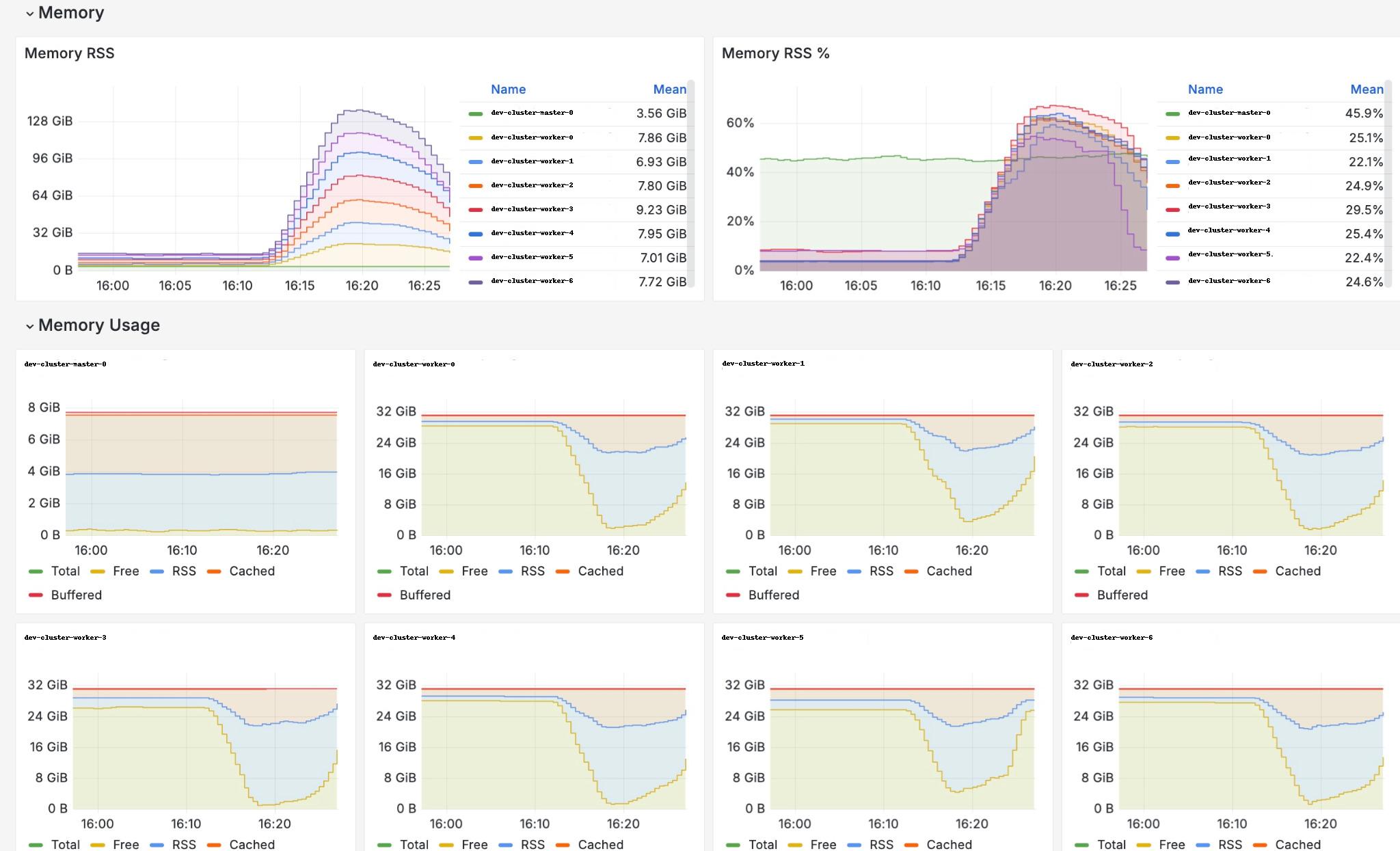
- Sufficient memory on nodes.
GeeseFSuses caching for working with files retrieved from S3. The cache size is set using themaxCacheSizeparameter in S3StorageClass.
Stress test results: 7 nodes, 600 Pods and PVCs,maxCacheSize= 500 MB, each Pod writes 300 MB, reads it, and then terminates.
Configuration
Note that all commands must be executed on a machine with administrative privileges in the Kubernetes API.
Required steps:
- Enable the module.
- Create S3StorageClass.
Enabling the module
To support working with S3 storage, enable the csi-s3 module, which allows the creation of StorageClass and Secret in Kubernetes using custom resources like S3StorageClass.
After enabling the module, the following will occur on cluster nodes:
- CSI driver registration.
- Launch of
csi-s3service Pods and creation of necessary components.
d8 k apply -f - <<EOF
apiVersion: deckhouse.io/v1alpha1
kind: ModuleConfig
metadata:
  name: csi-s3
spec:
  enabled: true
  version: 1
EOF
Wait for the module to transition to the Ready state.
d8 k get module csi-s3 -w
Creating a StorageClass
The module is configured via the S3StorageClass manifest. Below is an example configuration:
apiVersion: storage.deckhouse.io/v1alpha1
kind: S3StorageClass
metadata:
  name: example-s3
spec:
  bucketName: example-bucket
  endpoint: https://s3.example.com
  region: us-east-1
  accessKey: <your-access-key>
  secretKey: <your-secret-key>
  maxCacheSize: 500
  insecure: false
If bucketName is empty then bucket in S3 will be created for each PV. If bucketName is not empty then folder inside the bucket will be created for each PV. If the specifies bucket does not exist it will be created.
Module health check
To verify the health of the module, ensure that all Pods in the d8-csi-s3 namespace are in the Running or Completed state and are running on every node in the cluster:
d8 k -n d8-csi-s3 get pod -owide -w
Limitations
S3 is not a traditional file system, so it comes with several limitations. POSIX compatibility depends on the mounting module used and the specific S3 provider. Some storage backends may not guarantee data consistency (more details here).
Pay attention to the POSIX compatibility matrix.
Key limitations:
- File permissions, symbolic links, user-defined
mtimes, and special files (block/character devices, named pipes, UNIX sockets) are not supported. - Special file support is enabled by default for
Yandex S3but disabled for other providers. - File permissions are disabled by default.
- User-defined modification times are also disabled:
ctime,atime, andmtimeare always the same. - The file modification time cannot be set manually (e.g., using
cp --preserve,rsync -a, orutimes(2)). - Hard links are not supported.
- File locking is not supported.
- “Invisible” deleted files are not retained. If an application keeps an open file descriptor after deleting a file, it will receive
ENOENTerrors when trying to access it. - The default file size limit is 1.03 TB, achieved through chunking: 1000 parts of 5 MB, 1000 parts of 25 MB, and 8000 parts of 125 MB. The chunk size can be adjusted, but AWS enforces a maximum file size of 5 TB.
Known bugs
- The requested PVC volume size does not affect the created S3 bucket.
df -halways reports the mounted storage size as 1 PB, anduseddoes not change during usage.- The CSI driver does not validate storage access credentials. Even with incorrect keys, the Pod will remain in
Runningstatus, and PersistentVolume and PersistentVolumeClaim will beBound. Any attempt to access the mounted directory within the Pod will result in the Pod restarting.
Changing connection parameters for existing PVs
Connection parameters for storage cannot be changed. Changing the StorageClass does not update connection settings in existing PVs.
Displaying the mounted directory size
The df -h command shows the mounted volume size as 1 PB, and the Used value remains unchanged during operation. This is a peculiarity of the GeeseFS mounting module.
Handling exceeded bucket or user quotas
Exceeding the quota is an abnormal situation that should be avoided. The behavior in this case depends on the backend:
- Files can be copied and edited in Pods, but changes will not be reflected in the storage.
- The Pod may fail and restart.
Obtaining information about used space
To get information about the used space, use the storage web interface or a command-line utility.
Using multiple S3 storages in a single module
To do this, create an additional S3StorageClass and a corresponding PVC, then mount them in a Pod as follows:
d8 k apply -f - <<EOF
apiVersion: v1
kind: Pod
metadata:
  name: csi-s3-test-nginx
  namespace: default
spec:
  containers:
    - name: csi-s3-test-nginx
      image: nginx
      volumeMounts:
        - mountPath: /usr/share/nginx/html/s3
          name: webroot
        - mountPath: /opt/homedir
          name: homedir
  volumes:
    - name: webroot
      persistentVolumeClaim:
        claimName: csi-s3-pvc # PVC name
        readOnly: false
    - name: homedir
      persistentVolumeClaim:
        claimName: csi-s3-pvc2 # PVC-2 name
        readOnly: false
  EOF
Using a single bucket for multiple Pods
When the bucketName parameter is specified in S3StorageClass, separate directories are created for each PV in the same bucket, allowing one bucket to be used for multiple Pods.
Troubleshooting
Issues creating a PVC
If you encounter problems when creating a PVC, check the provisioner logs:
d8 k -n d8-csi-s3 logs -l app=csi-provisioner-s3 -c csi-s3
Issues starting containers
Make sure that MountPropagation is not set to false, and check the S3 driver logs:
d8 k -n d8-csi-s3 logs -l app=csi-s3 -c csi-s3