To create a virtual machine (VM), use the VirtualMachine resource. Its parameters let you configure:
- the virtual machine class;
- the resources required for the virtual machine to run (CPU, memory, disks, and images);
- the placement rules for the virtual machine on cluster nodes;
- the bootloader settings and optimal parameters for the guest OS;
- the virtual machine startup policy and the policy for applying changes;
- the initial configuration scripts (cloud-init);
- the list of block devices.
For a full description of virtual machine configuration parameters, see the configuration reference.
Creating a virtual machine
The following steps show how to start an Ubuntu 24.04 virtual machine on the disk you created earlier. The cloud-init script installs the qemu-guest-agent agent and the nginx service, and creates the cloud user with the cloud password.
- Using the CLI
- Using the web interface
-
Create a VirtualMachine resource:
d8 k apply -f - <<"EOF"
apiVersion: virtualization.deckhouse.io/v1alpha2
kind: VirtualMachine
metadata:
  name: linux-vm
spec:
  # VM class name.
  virtualMachineClassName: generic
  # OS type: Generic for Linux and Windows for Windows. Generic by default.
  # osType: Generic
  # Bootloader type: BIOS, EFI, or EFIWithSecureBoot. BIOS by default.
  # bootloader: BIOS
  # VM initialization script.
  provisioning:
    type: UserData
    userData: |
      #cloud-config
      package_update: true
      packages:
        - nginx
        - qemu-guest-agent
      runcmd:
        - systemctl daemon-reload
        - systemctl enable --now nginx.service
        - systemctl enable --now qemu-guest-agent.service
      ssh_pwauth: True
      users:
        - name: cloud
          passwd: <PASSWORD_HASH>
          shell: /bin/bash
          sudo: ALL=(ALL) NOPASSWD:ALL
          lock_passwd: False
      final_message: "The system is finally up, after $UPTIME seconds"
  # VM resource settings.
  cpu:
    # Number of CPU cores.
    cores: 1
    # Guaranteed share of the CPU time of one core.
    coreFraction: 10%
  memory:
    # Amount of RAM.
    size: 1Gi
  # List of disks and images attached to the VM.
  blockDeviceRefs:
    # The order in this block sets the boot priority.
    - kind: VirtualDisk
      name: linux-vm-root
EOF
Where
<PASSWORD_HASH>is the hash of theclouduser password, in quotes, generated withmkpasswd --method=SHA-512 --rounds=4096. -
Verify that the machine has started:
d8 k get vm linux-vmExample output:
NAME       PHASE     UPTIME   NODE           IPADDRESS     AGE
linux-vm   Running   11m      virtlab-pt-2   10.66.10.12   11m
The machine gets an IP address automatically from the range that the administrator sets in the module settings.
- Go to the Projects tab and select the project you need.
- Go to Virtualization → Virtual machines.
- Click Create.
- In the form that opens, enter
linux-vmin the Name field. - In the Resources section, set
1in the CPU cores field,10%in the Core fraction field, and1Giin the Memory size field. - In the Disks section, click Add.
- In the Disks / Images window that opens, select Existing and pick the
linux-vm-rootdisk from the list. - Scroll down to the Cloud-init toggle and enable it.
-
Paste the script into the field that appears, replacing
<PASSWORD_HASH>with the password hash in quotes:#cloud-config package_update: true packages: - nginx - qemu-guest-agent runcmd: - systemctl daemon-reload - systemctl enable --now nginx.service - systemctl enable --now qemu-guest-agent.service ssh_pwauth: True users: - name: cloud passwd: <PASSWORD_HASH> shell: /bin/bash sudo: ALL=(ALL) NOPASSWD:ALL lock_passwd: False final_message: "The system is finally up, after $UPTIME seconds" - Click Create.
- Check the VM status on its page.
Virtual machine life cycle
From creation to deletion, a virtual machine goes through several phases. The current one is shown by the .status.phase field, and the details of what’s happening to the machine are in the .status.conditions block.
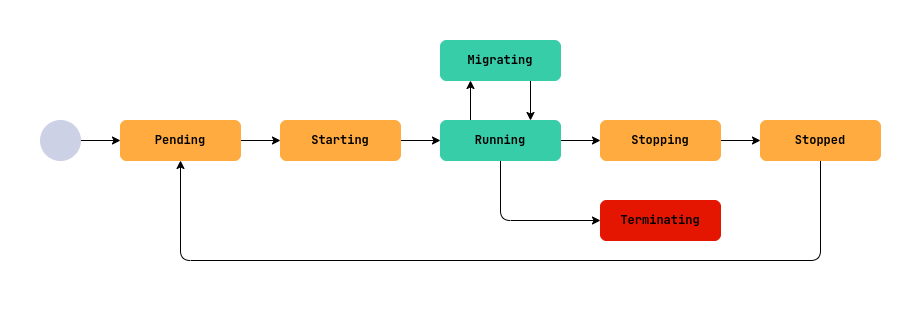
The conditions in the .status.conditions block answer the question of why the machine is in its current phase. To view the ones that have a message, run the following command:
d8 k get vm <VM_NAME> -o json | jq '.status.conditions[] | select(.message != "")'
Where <VM_NAME> is the virtual machine name.
Diagnostics by phase
While a VM is in the Pending phase, it waits for its dependent resources to become ready, that is, disks, images, the VM class, and the secret with the initial configuration script. A delay in this phase means that one of the resources isn’t ready or that the namespace or project quotas are exhausted. The conditions ending in Ready show what exactly blocks the startup:
d8 k get vm <VM_NAME> -o json | jq '.status.conditions[] | select(.type | test(".*Ready"))'
In the Starting phase, the dependent resources are ready and Deckhouse Platform (DP) starts the VM on one of the nodes. If the startup drags on, there’s no suitable node, or the suitable nodes lack CPU or memory. The Running condition reports the reason:
d8 k get vm <VM_NAME> -o json | jq '.status.conditions[] | select(.type=="Running")'
In the Migrating phase, the machine moves to another node by live migration. The migration doesn’t start or gets interrupted if the CPU instruction sets on the nodes are incompatible, the kernel versions differ, no node matches the placement rules, or the suitable nodes lack resources. The Migrating condition together with the .status.migrationState block shows the migration progress:
d8 k get vm <VM_NAME> -o json | jq '.status | {condition: .conditions[] | select(.type=="Migrating"), migrationState}'
The Terminating phase is irreversible, all resources associated with the VM are released, but the resources themselves aren’t deleted.
Conditions of a running VM
For a running machine, a few conditions are worth watching:
AgentReadywith theTruestatus means thatqemu-guest-agentis running in the guest system, and then the.status.guestOSInfoblock contains information about the guest OS.FirmwareUpToDatewith theFalsestatus means that it’s time to update the VM firmware.ConfigurationAppliedwith theFalsestatus means that the specified configuration hasn’t been applied to the running machine yet.AwaitingRestartToApplyConfigurationwith theTruestatus means that some of the changes apply only after a restart, and you have to perform it manually.SizingPolicyMatchedwith theFalsestatus means that the machine resources don’t match the sizing policy of its class. Until you bring the parameters in line with the policy, you can’t save configuration changes.Migratableshows whether the machine can be moved by live migration. The condition is computed only for a running VM, and a powered-off one doesn’t have it. TheFalsestatus with theVirtualMachineNoMigrationTargetreason means that the machine itself is suitable for migration, but there’s no suitable node in the cluster. TheTruestatus with theVirtualMachineWaitingForMigrationTargetreason means that suitable nodes exist, but none of them can accept the machine right now, and this state resolves on its own.
Eviction from a node
The EvictionRequired condition appears when the node with your VM is put into maintenance mode. If the node was only made unschedulable with the d8 k cordon command but maintenance hasn’t started, the condition doesn’t appear.
The condition message tells you what will happen to the machine, namely a live migration without stopping the guest OS, a restart by DP with the cluster administrator’s permission, or waiting until the machine is restarted. A machine that can be moved by live migration isn’t restarted just to free the node. Until the eviction starts, the condition is only a warning, because maintenance can be canceled.
After a restart, the machine starts on another suitable node. If there’s no such node, it stays in the Pending phase, and the Running condition shows the reason from the scheduler. A node in maintenance mode doesn’t accept new machines, so a VM pinned to it by placement rules or using a device passed through from it starts only after the node returns to service.
Viewing the state in the web interface
The web interface shows the phase of a machine, its resources, and current problems on the machine page.
- Go to the Projects tab and select the project you need.
- Go to Virtualization → Virtual machines.
- Select the VM you need from the list and click its name.
The page header shows the current VM phase, its IP address, class, resource configuration, the number of attached disks and images, the node it’s placed on, whether the guest OS agent is running, and the time since startup. The page itself is split into the Configuration, Monitoring, Operations, Events, VNC, TTY, Network policies, Snapshots, Diagnostics, Meta, and YAML tabs.
On the Configuration tab of a running VM, usage charts appear next to the CPU cores and Memory size fields. In the Disks block, each device shows its boot order number, name, size, status, attachment method, storage class, and current disk load. In the Networks block, the network name, its status, and the IP and MAC addresses are shown, and the main cluster network is labeled Main.